
You can edit the main category selections in the Master Tour Mobile App found in the bottom of your screen to the specific areas of a tour that are most relevant for you.
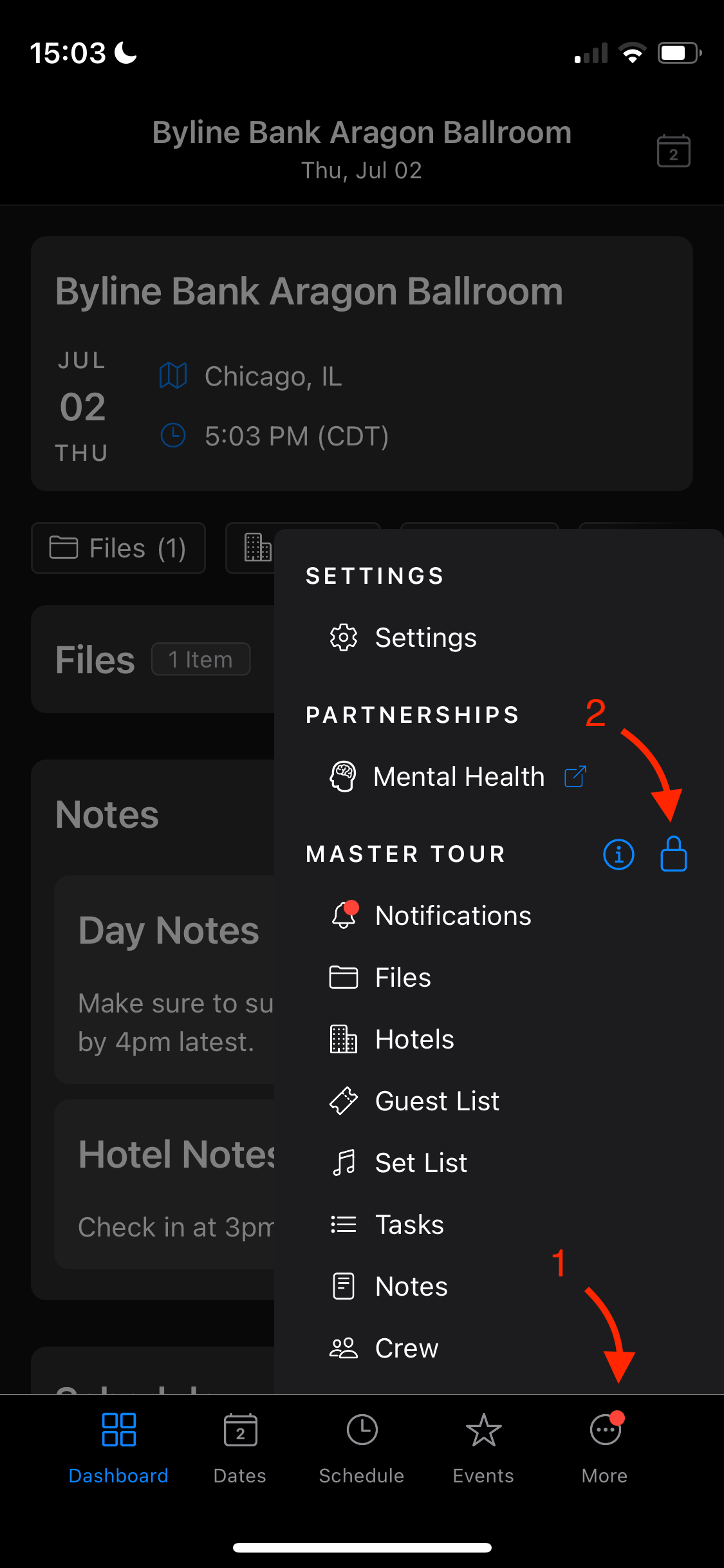
To open the list of interchangeable categories, click on More in the bottom right corner of the screen, and tap on the Lock icon on the right hand side of the menu that appears.
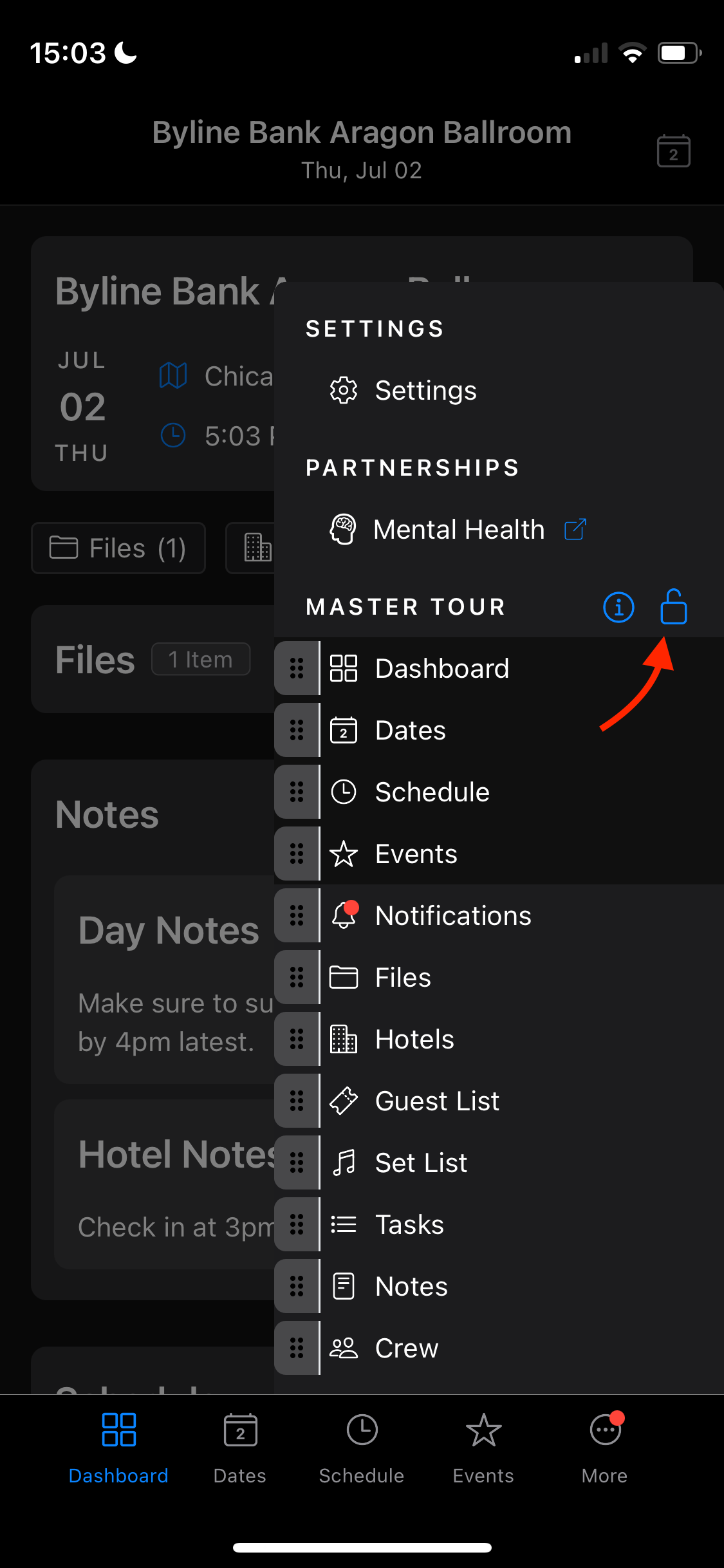
Next, you will see the list of all categories appear, with the 4 selections at the top being the ones currently on your main display. To reorder or swap out these categories, press on the Braille icon to the left of each category and drag it to the position you'd like to place it in.
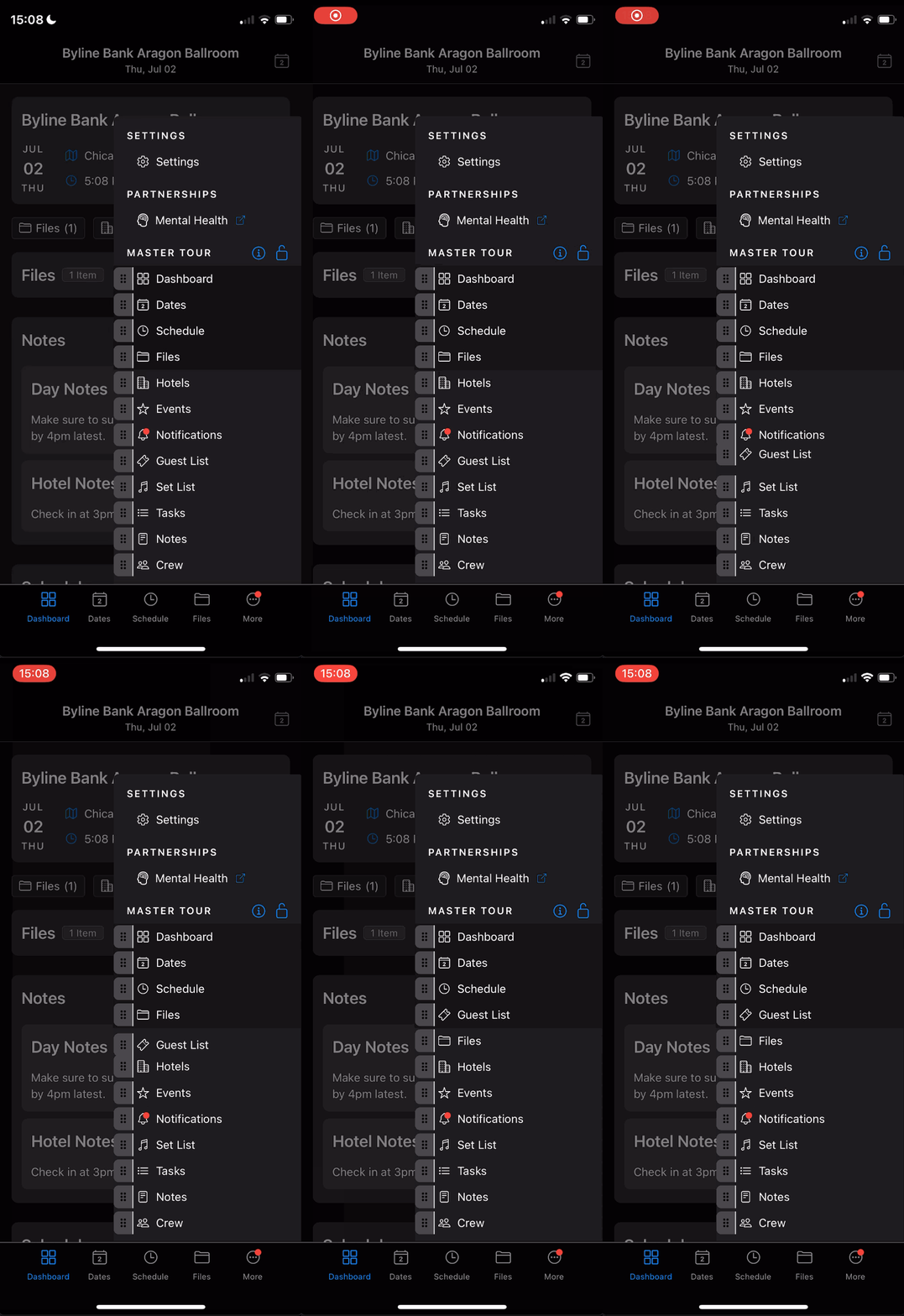
When you have found a selection and order you would like to keep, tap on the Lock icon again to save your changes.
Check out the video below for a real-time guidance on this article:
If you have any questions after following these instructions, please click here to open a Support Request or call +1-773-862-4246 to speak with a member of our Support Team between the hours of 10:00 am - 6:00 pm US Central Time (CT), Monday through Friday.