
While Master Tour Mobile defaults to a dark mode screen appearance to help prevent eye strain, it also has the option to toggle between a light/dark screen app appearance.
How to Enable Light Mode:
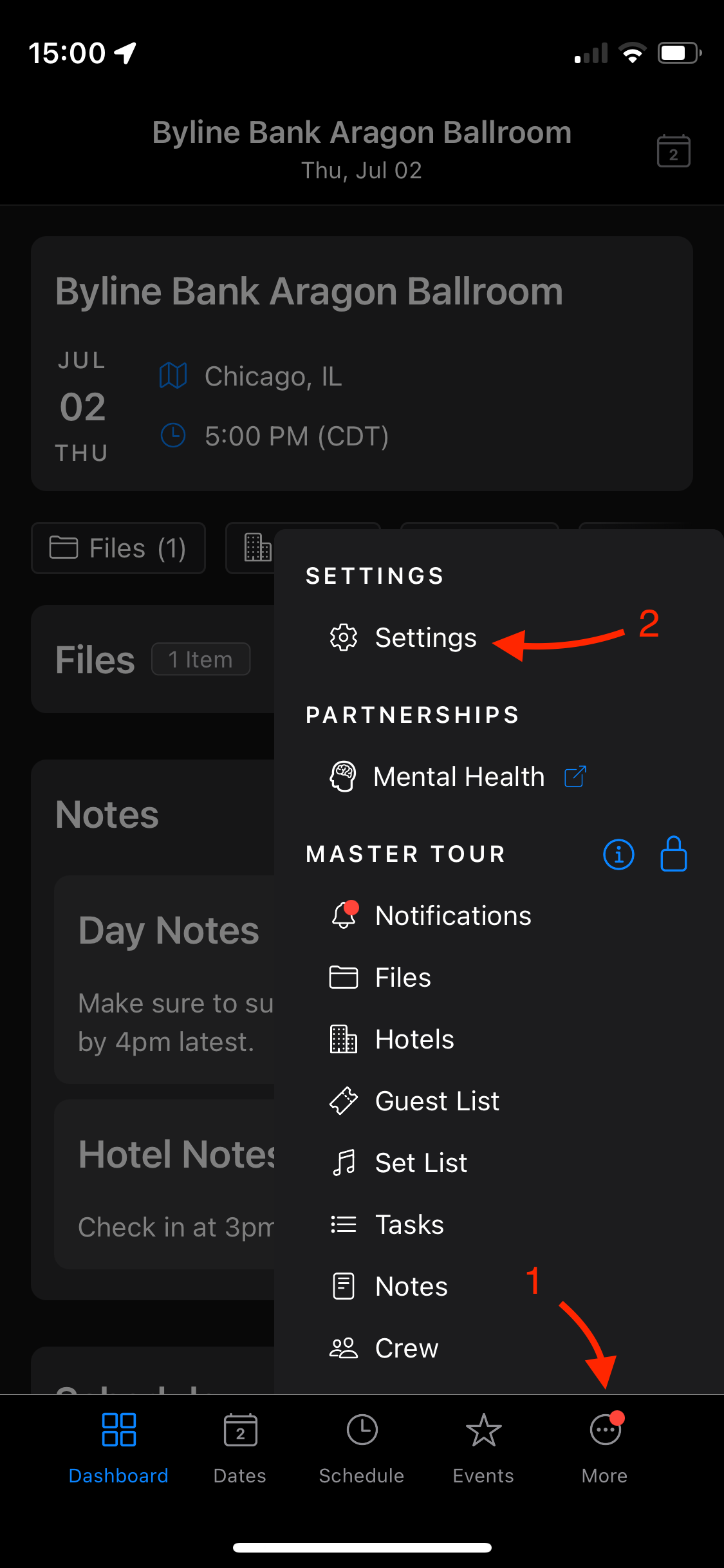
First tap on More at the bottom right corner followed by Settings.
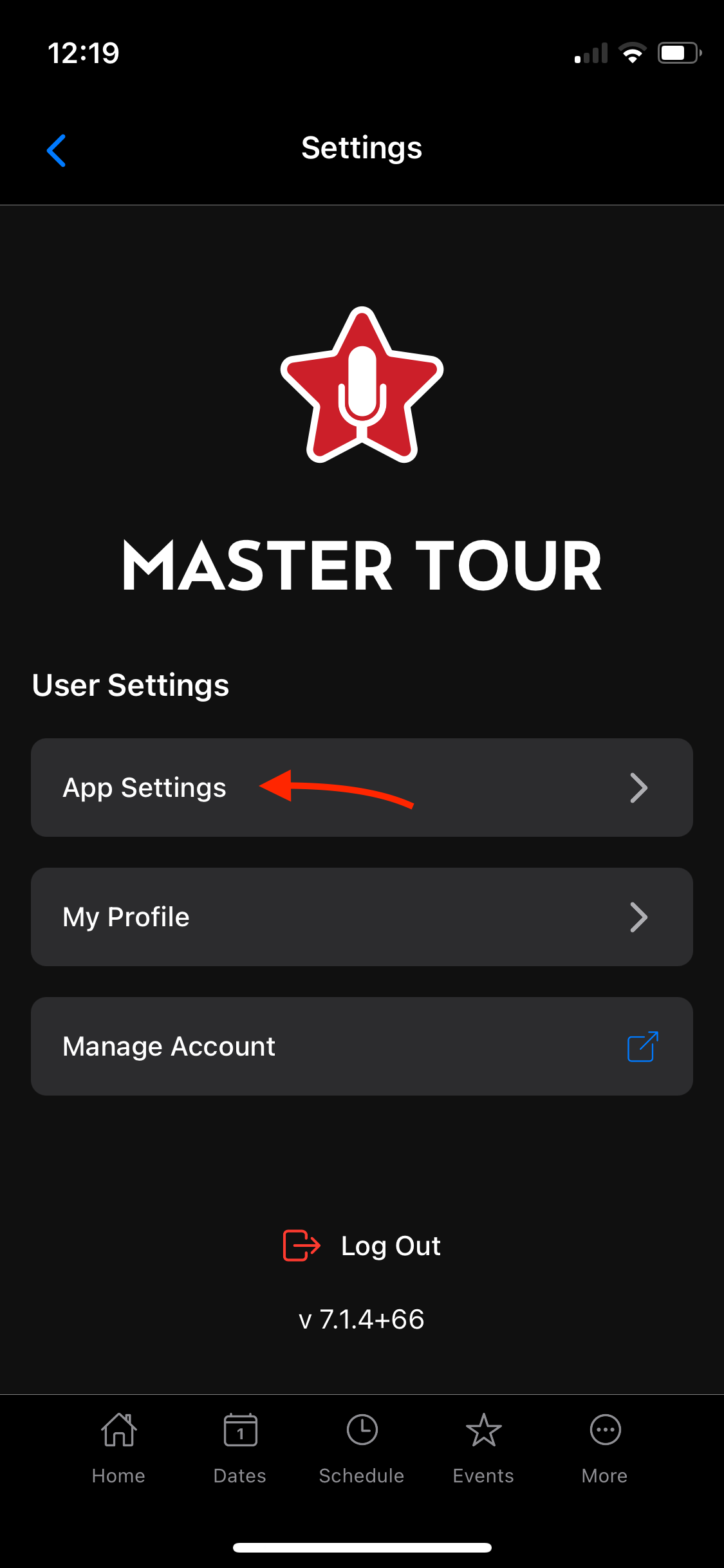
Next, select the App Settings Button to access the Appearance Preferences.
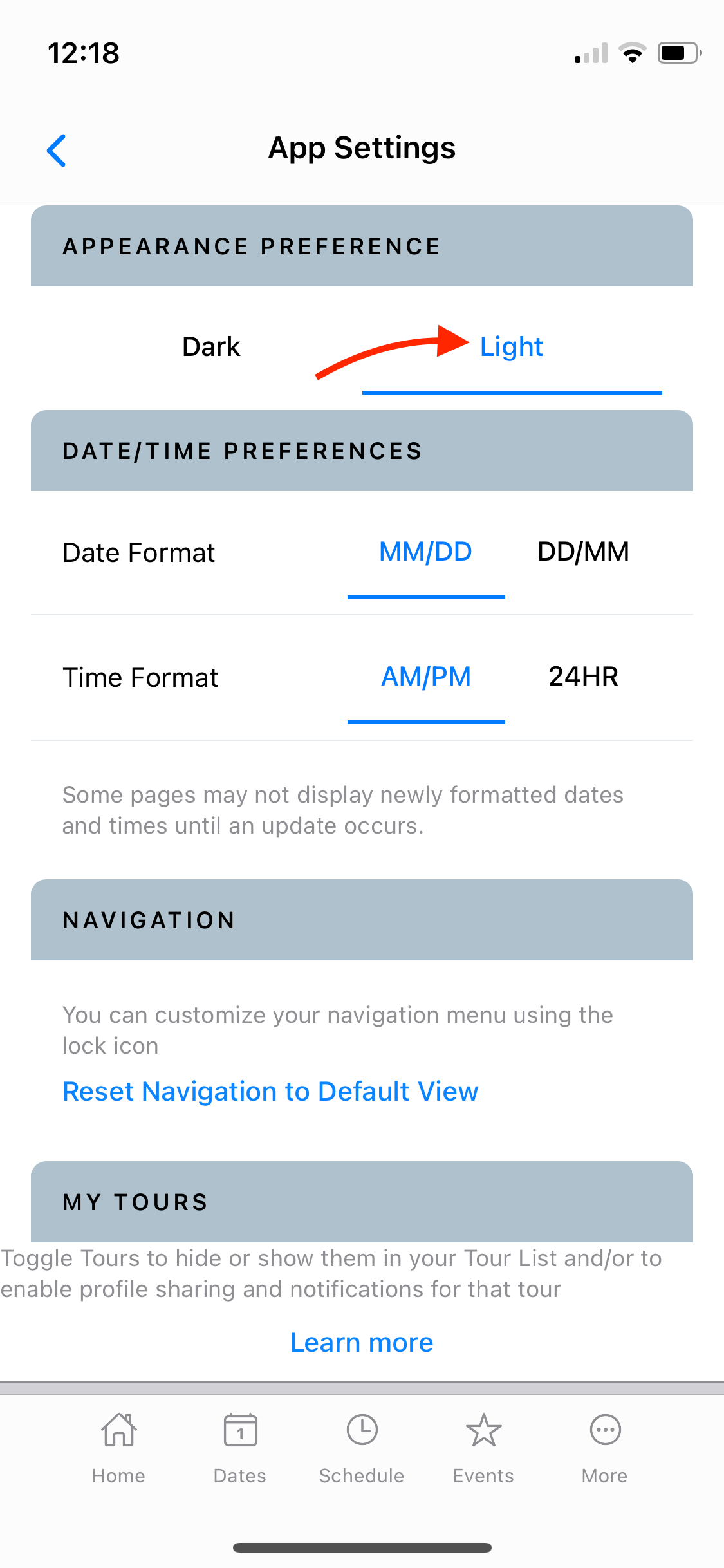
Under Appearance Preference select Light. Once applied, Master Tour Mobile's interface will now go light.
Check out the video below for a real-time guidance on this article:
If you have any questions after following these instructions, please click here to open a Support Request or call +1-773-862-4246 to speak with a member of our Support Team between the hours of 10:00 am - 6:00 pm US Central Time (CT), Monday through Friday.