
If you would like to create a new User Group for an Organization, you can do so within Master Tour 3.
This article covers:
How to Navigate to the User Groups Section
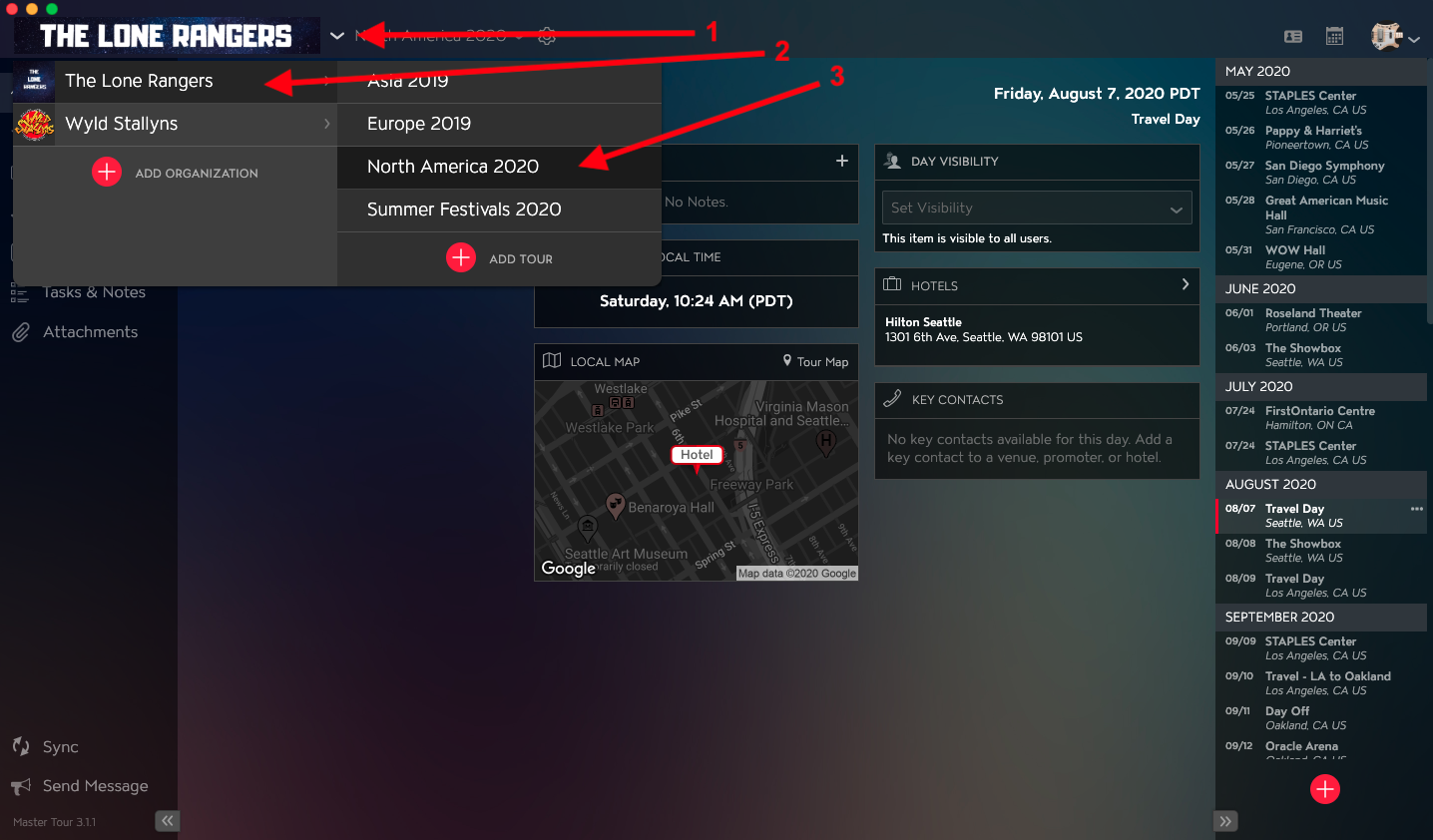
Within Master Tour, select the Organization that you would like to add a User Group to.
- Click on the Organization Selector dropdown menu.
- Select an Organization.
- Select a Tour if there are any Tours added to the Organization.
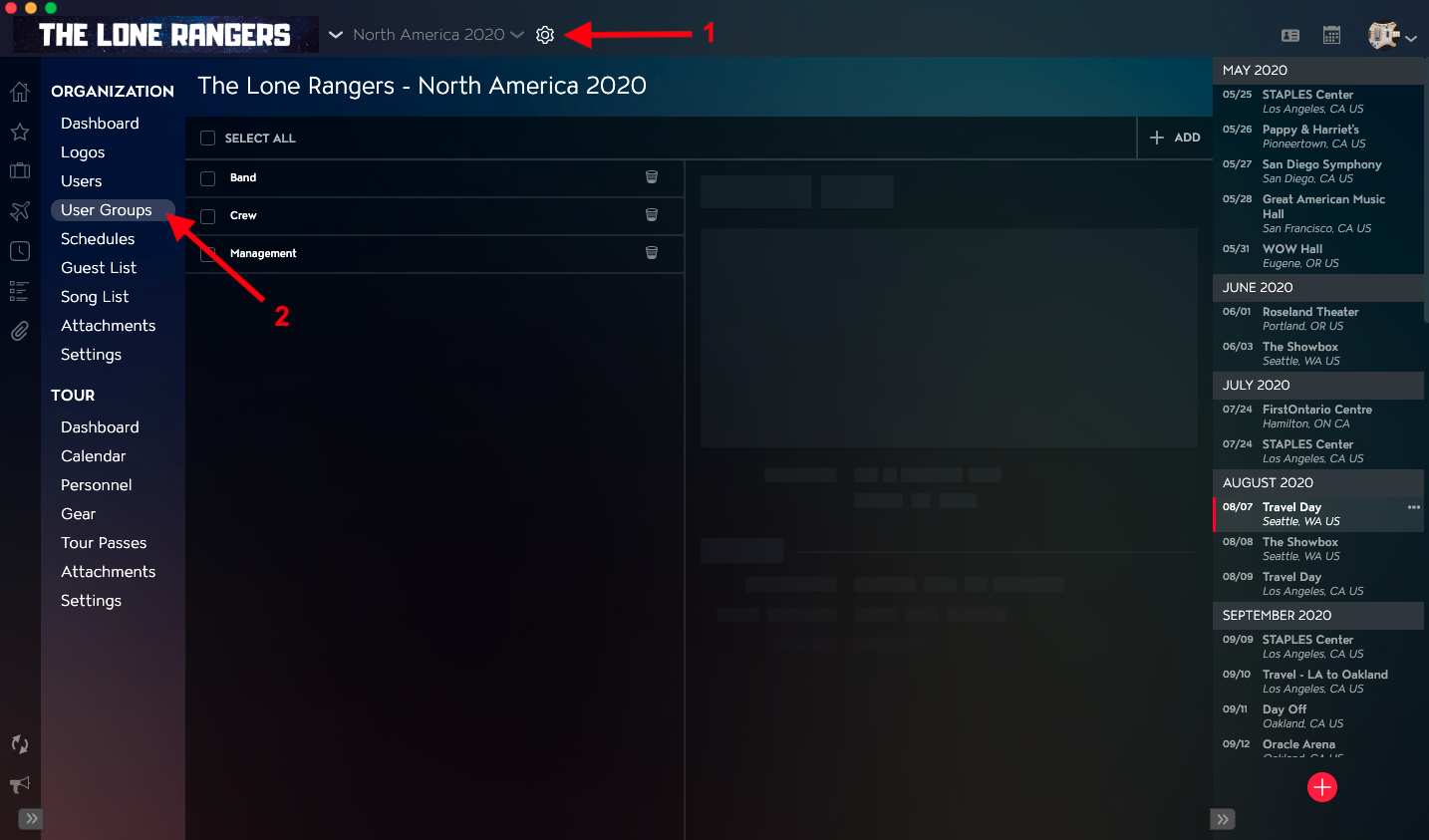
- Click on the Gear Icon to the right of your Tour Name at the top of the application.
- Click into the User Groups Section within Organization Settings in the left menu.
How to Add a User Group
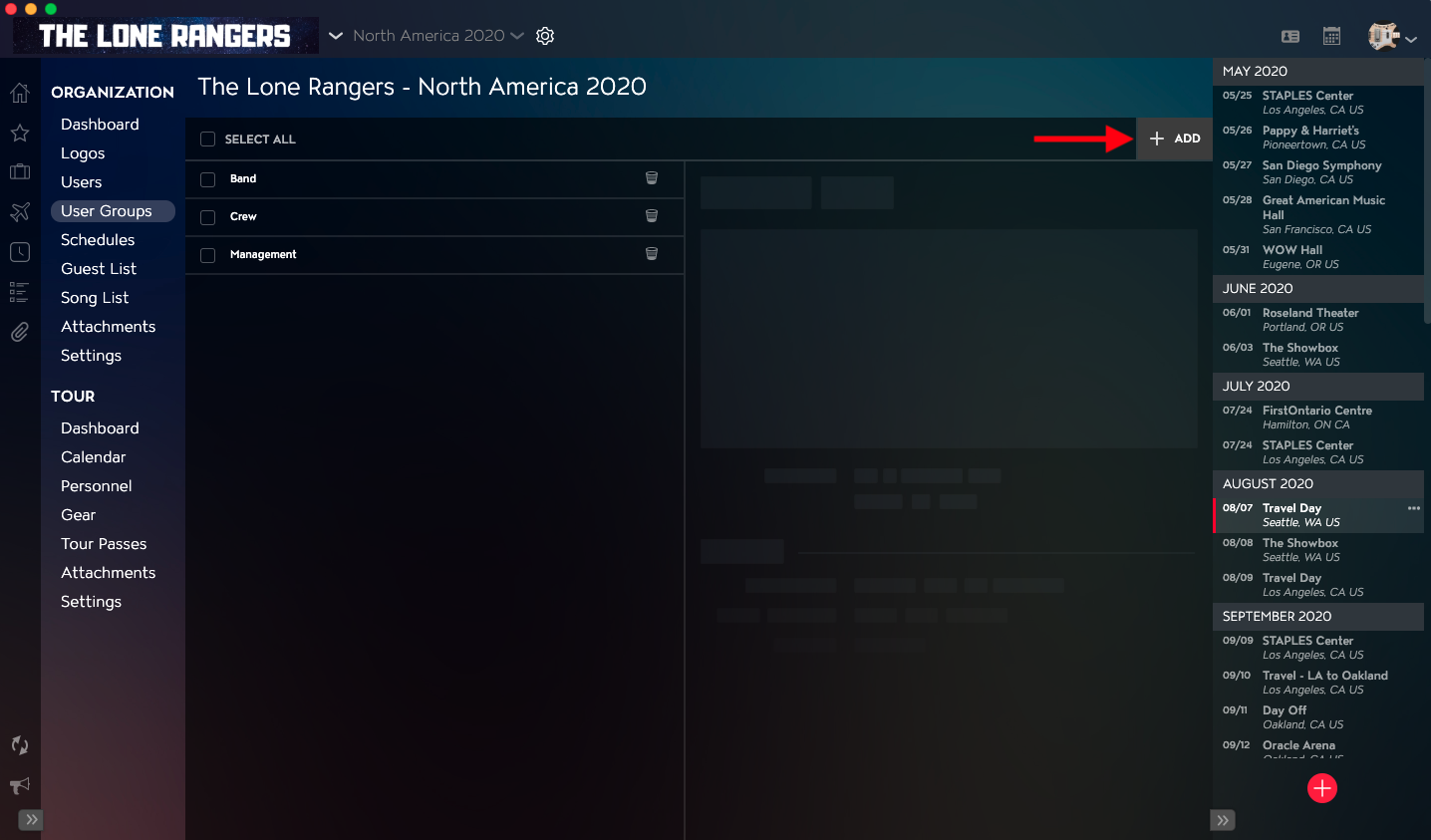
Click on the Add button in the upper right of the application.
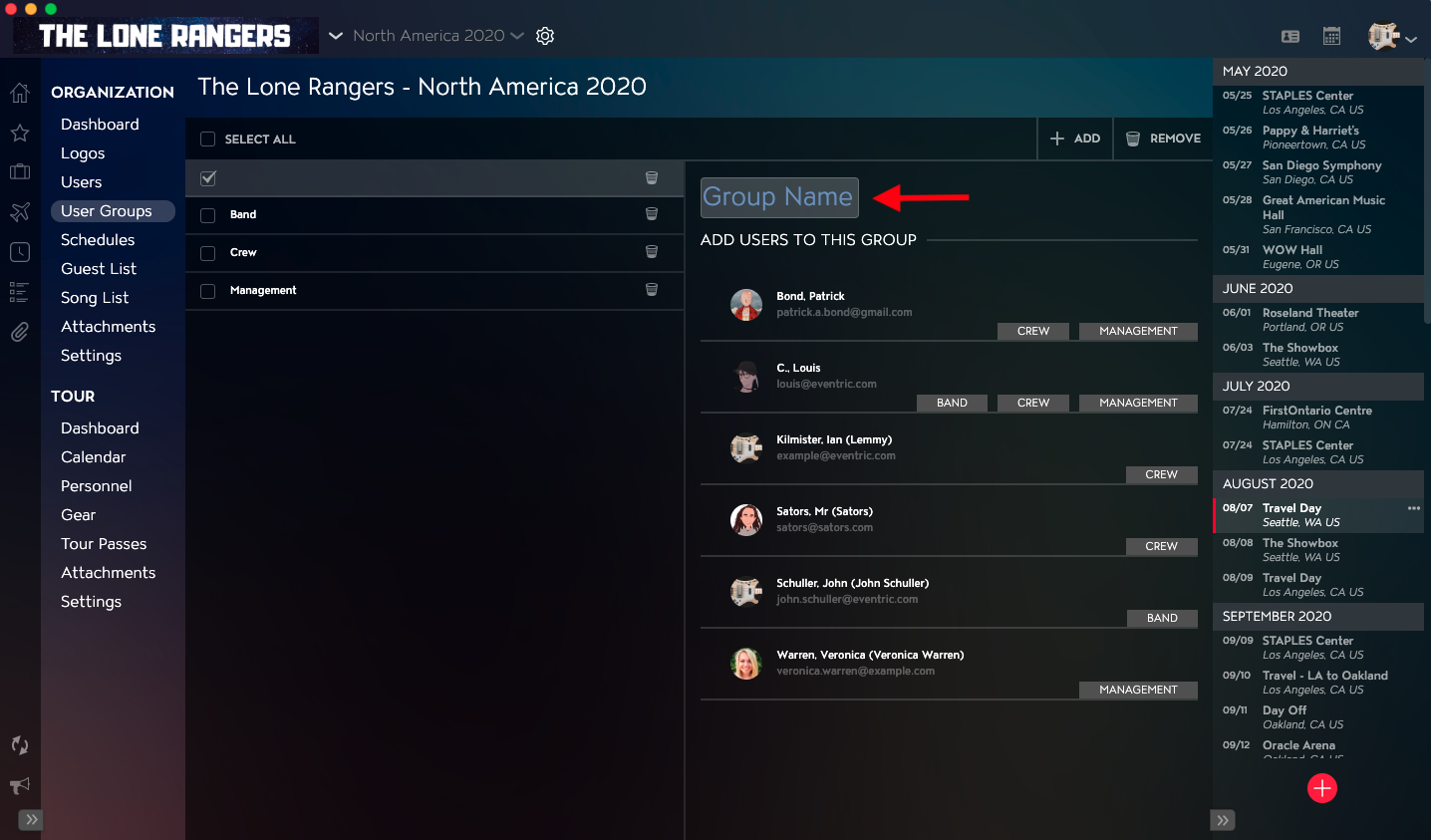
Enter a name for the User Group in the Group Name field in the right column. Clicking out of the field will save the User Group name.
How to Add Users to a User Group
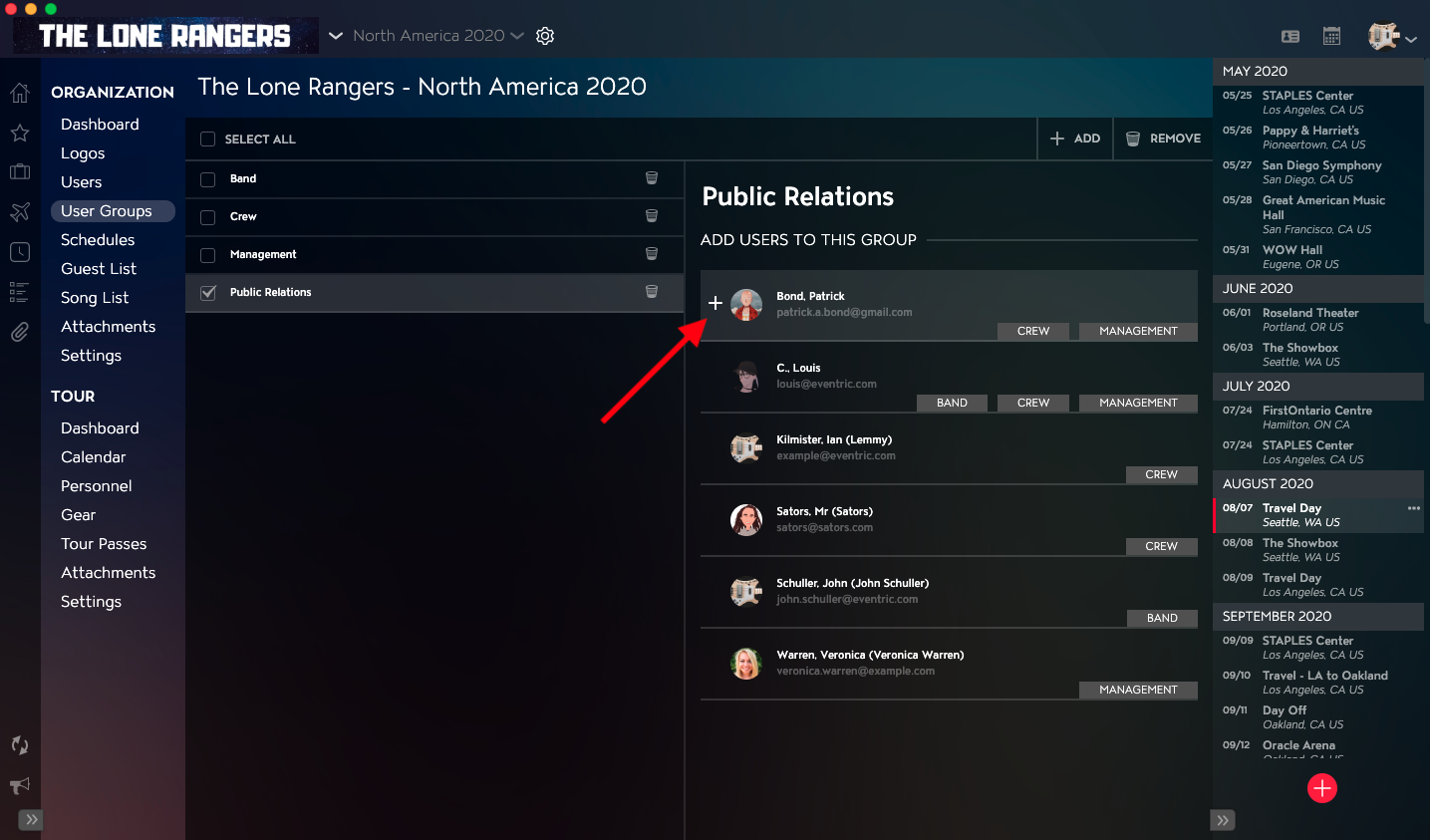
In the Add Users To This Group section in the right column, hover your mouse over a User and click on the + icon to the left of their profile picture.
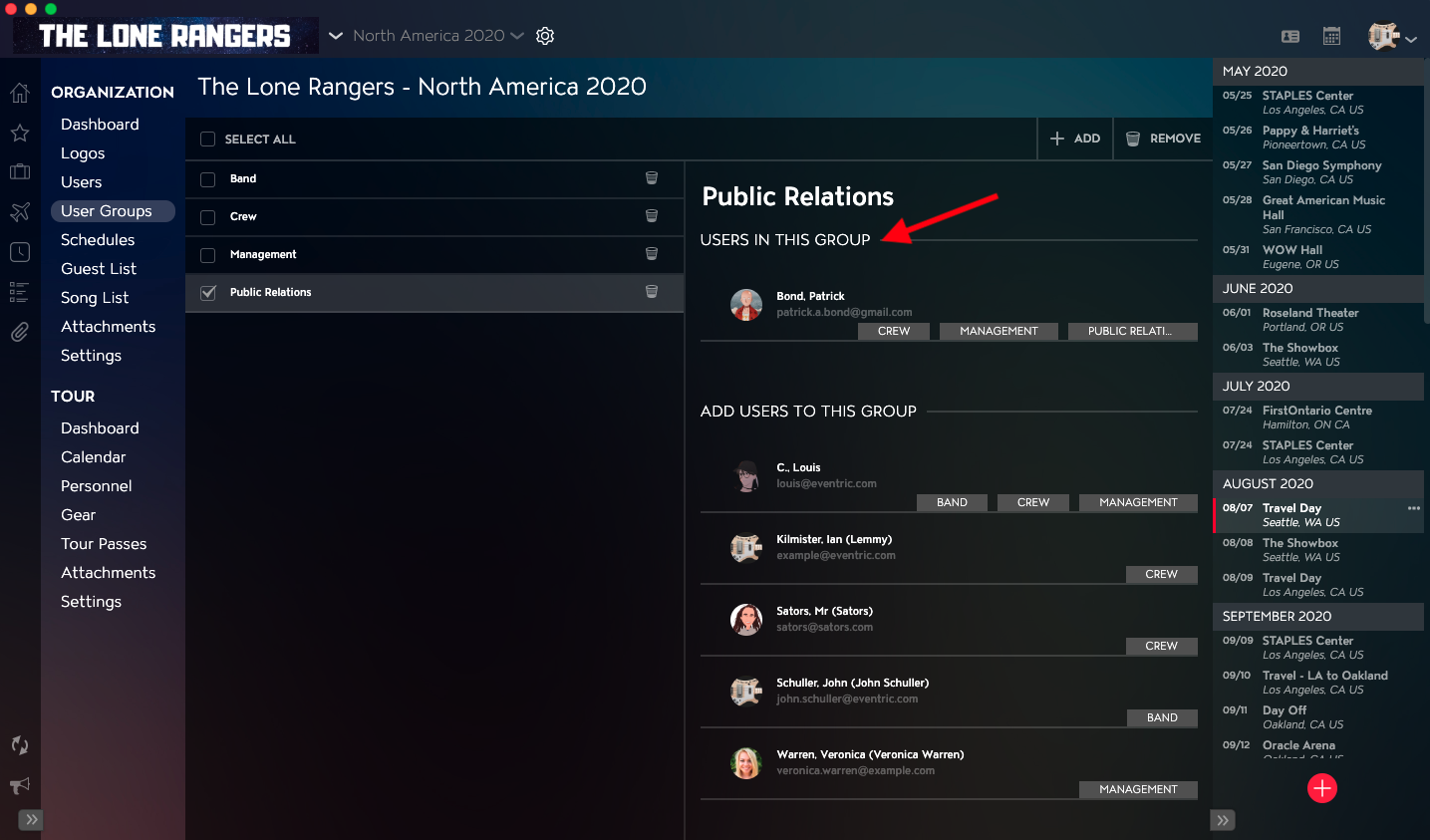
You will then see the User listed in the Users In This Group section in the right column.
If you have any questions after following these instructions, please click here to open a Support Request or call +1-773-862-4246 to speak with a member of our Support Team between the hours of 10:00 am - 6:00 pm US Central Time (CT), Monday through Friday.