
Master Tour currently supports both English and Spanish at this time.
If you'd like to see more languages, please reach out to us at support@eventric.com
How To Change Master Tour's Language
Master Tour reflects the native language set on your computer's system settings. Here are the steps on how to change those:
Mac:
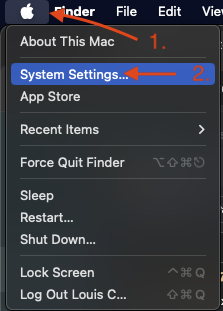
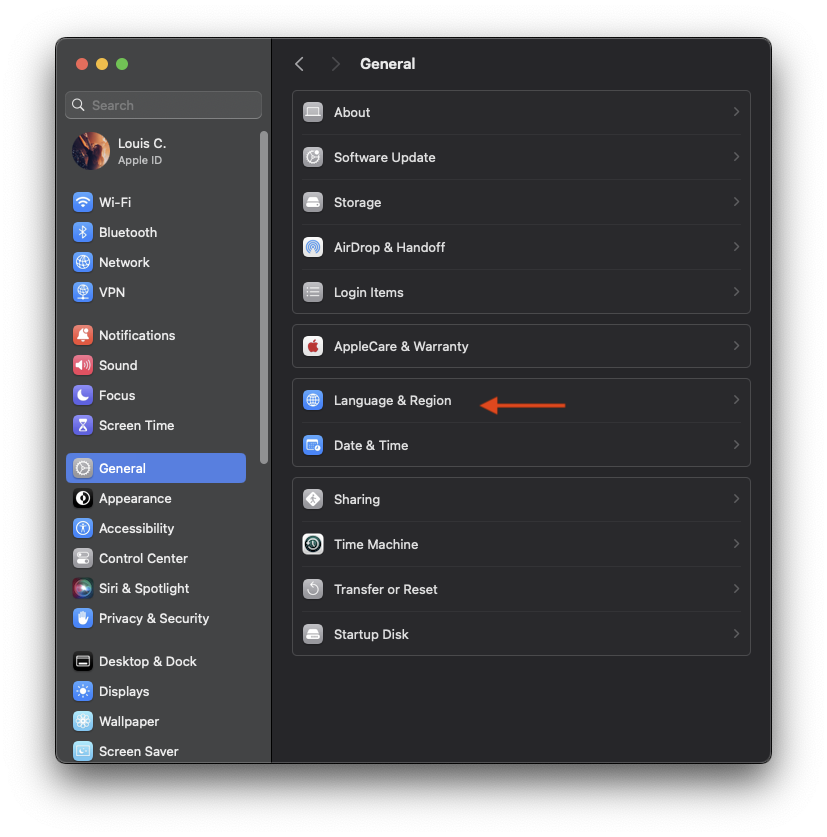
1. On your Mac, choose Apple menu  > System Settings, click General in the sidebar, then click Language & Region on the right. (You may need to scroll down.)
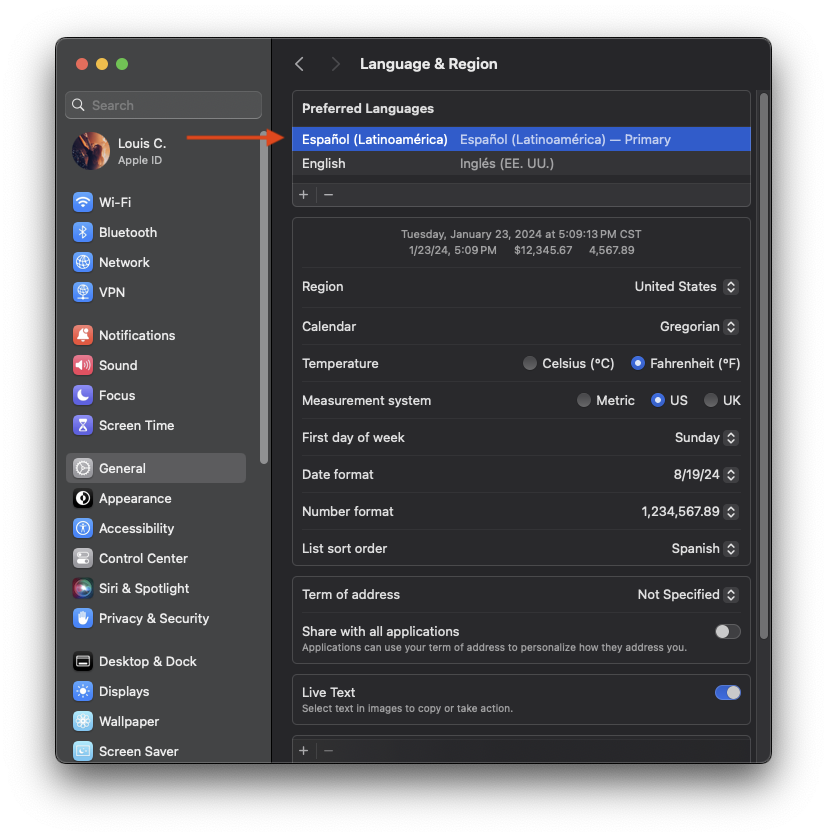
2. Under the Preferred Languages list at the top, do any of the following:
- Add a language: Click the Add button, select a language in the list, then click Add (the button in the bottom-right corner).
3. Change the primary language: Click + drag a language to the top of the languages list.
Note: You wiil need to restart your Mac to see the change in all applications. Click Restart Now (the button on the right with red text) to restart your computer.
4. Launch Master Tour.
Windows:
1. Select Start > Settings > Time & language > Language & region.
2. Choose a language from the Windows display language menu, or, next to Preferred Languages, select Add a language to install the one you want if it isn't listed.
3. Restart your computer.
4. Launch Master Tour.
If you have any questions after following these instructions, please click here to open a Support Request or call +1-773-862-4246 to speak with a member of our Support Team between the hours of 10:00 am - 6:00 pm US Central Time (CT), Monday through Friday.