
Master Tour allows you to create Print Reports of Tour info from scratch or from a number of existing and custom Print Templates.
This article covers how to:
Copying An Existing Template Onto Another Organization
Customize and Create a Template
Locate The Template Gallery
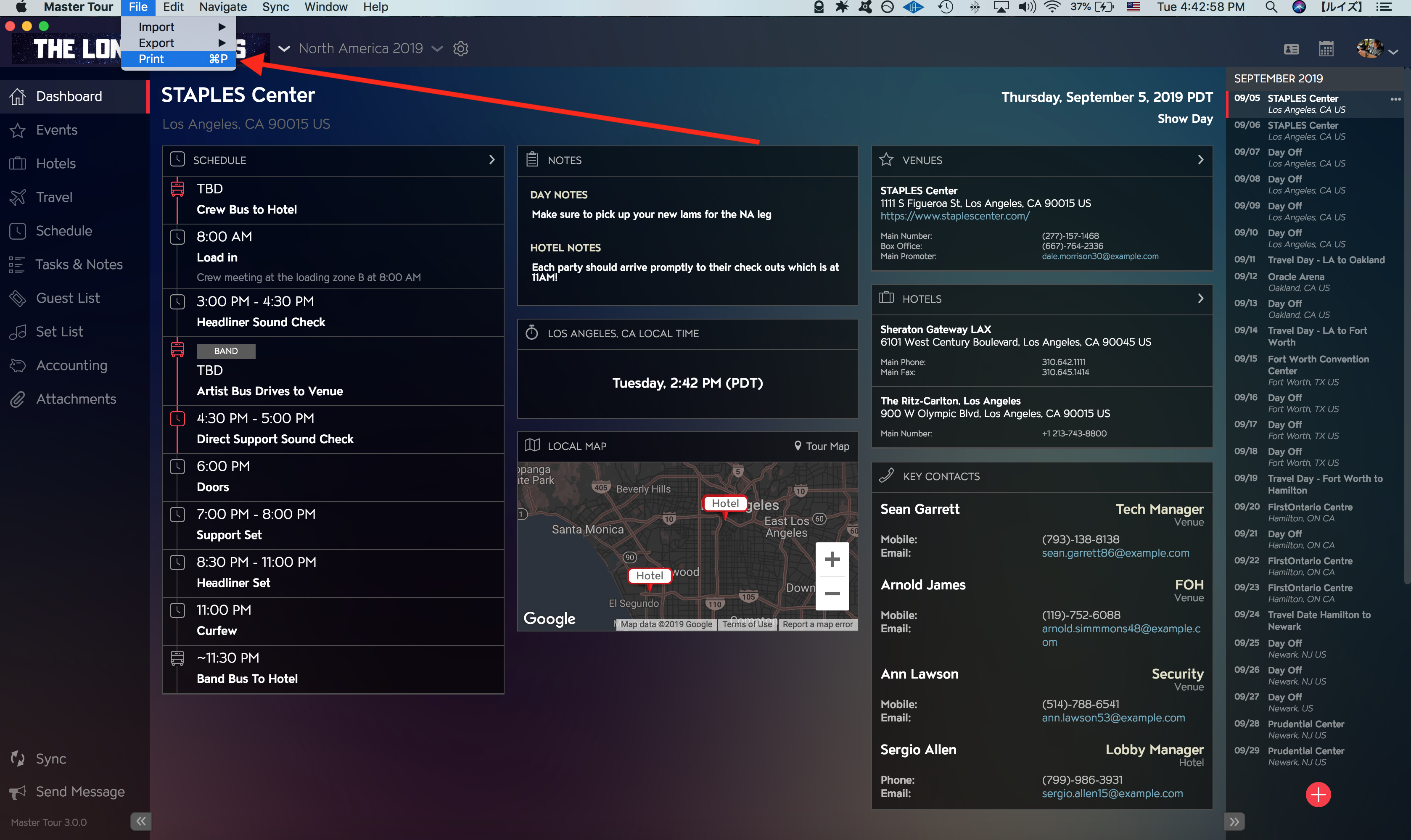
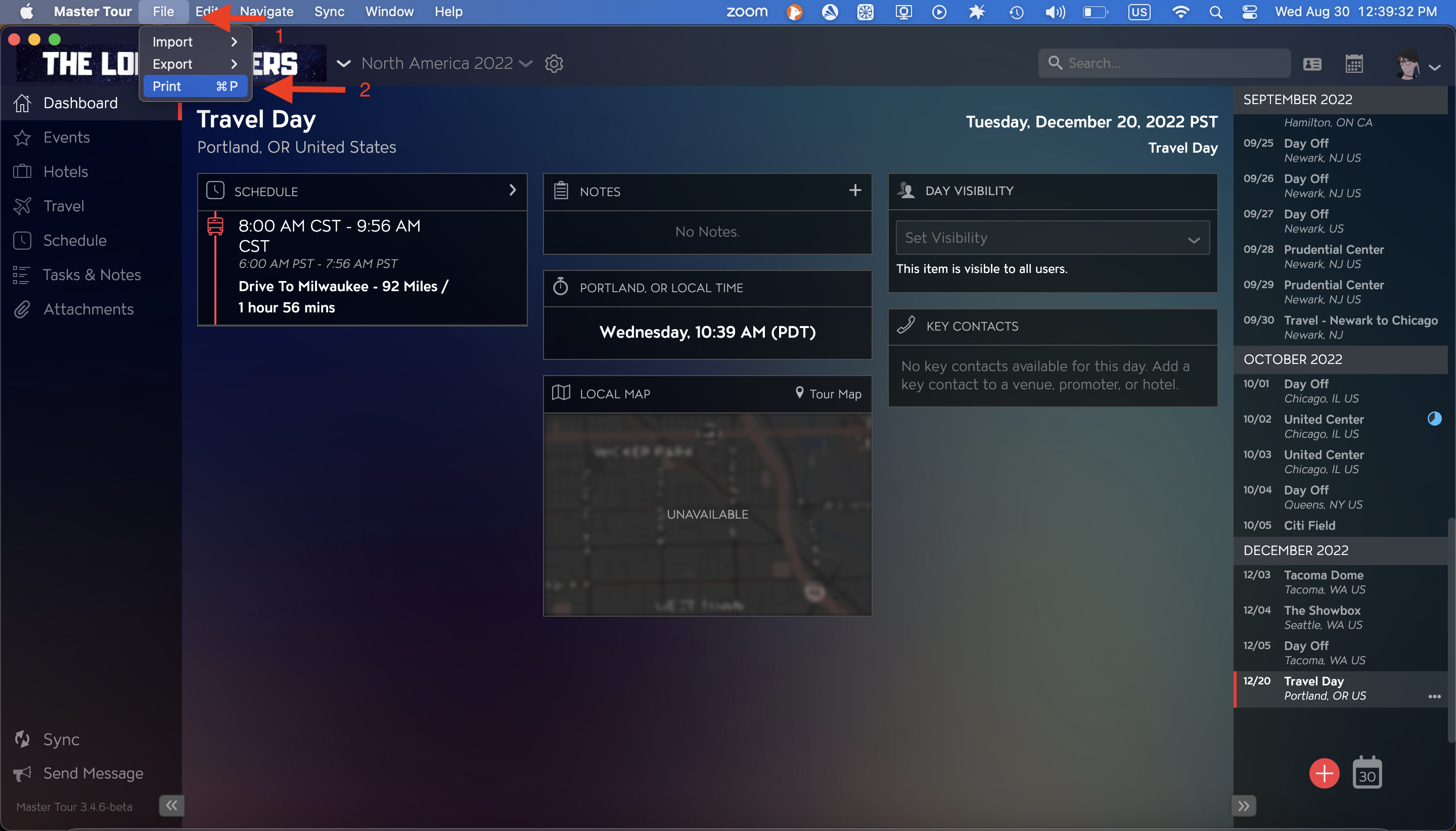
To access the Template Gallery, click on File at the top left of your screen then click on Print. You can also use the shortcut [⌘ + P] (Mac) or [CTRL + P] (Windows).
Add a New Template
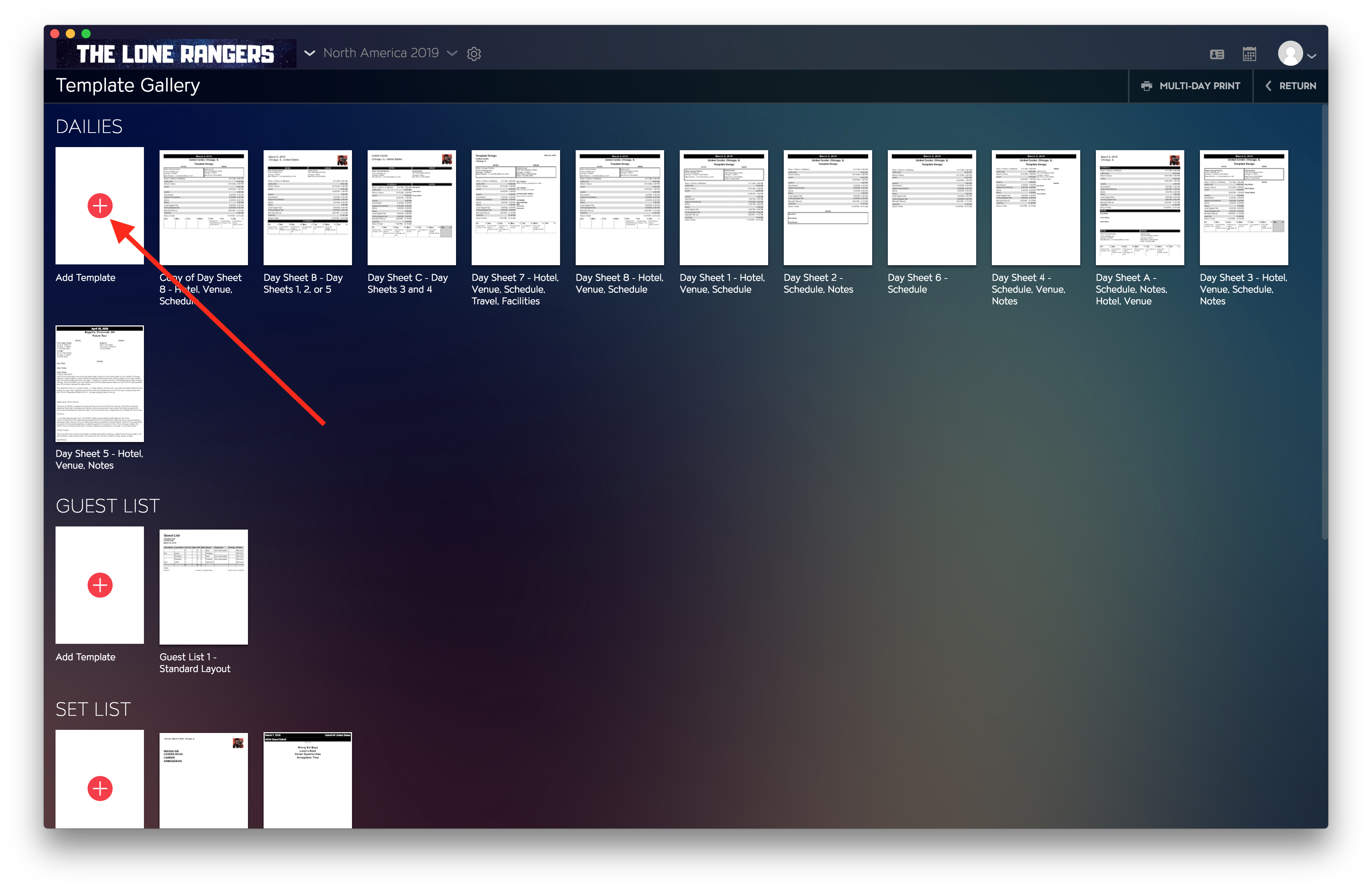
To create a new Template from scratch click on the "Add Template" + icon within your desired category of Prints:
Copy an Existing Template
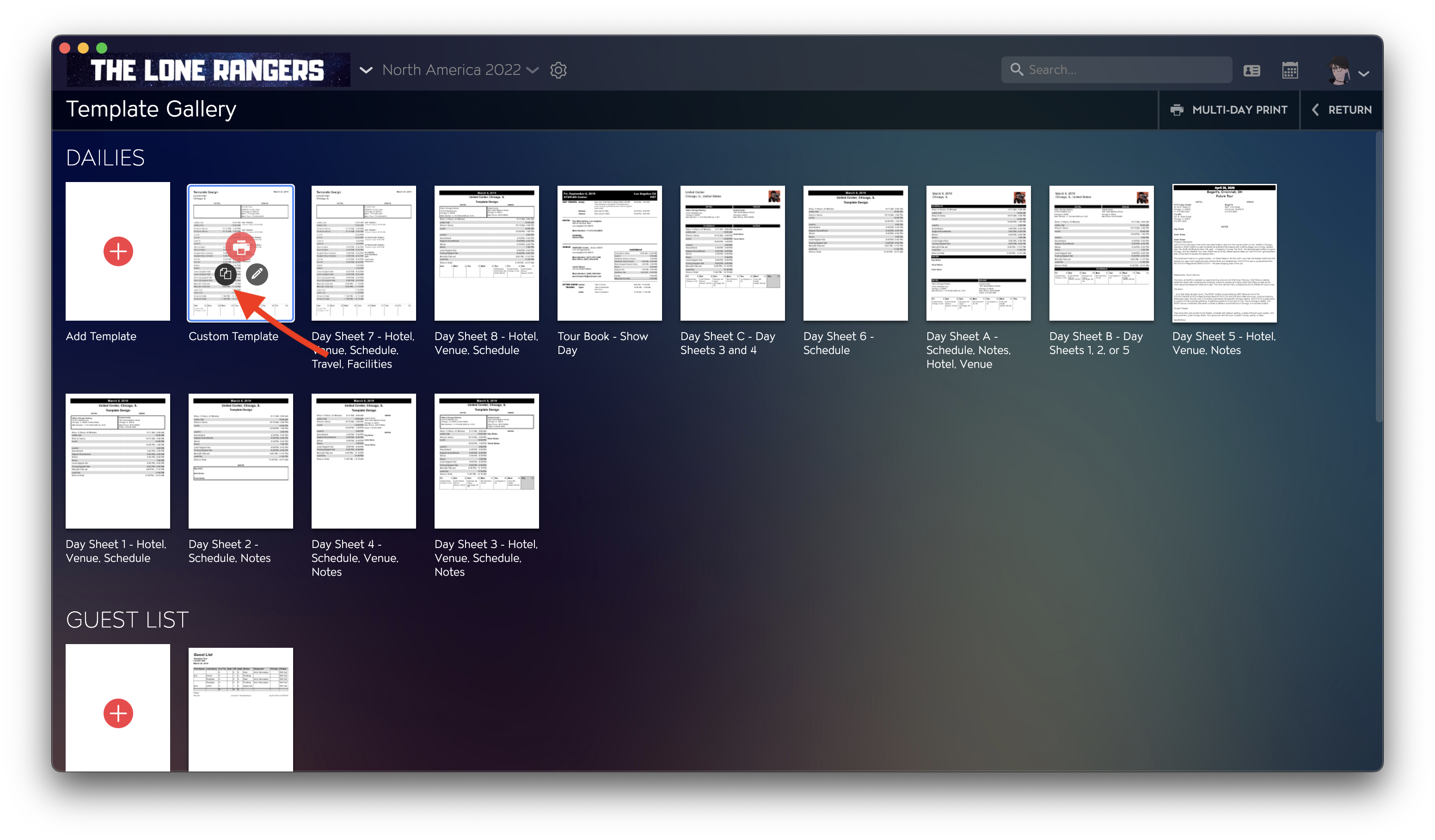
To make a copy of an existing Template that you can modify, hover your cursor above your desired Print and click on the duplicate icon.
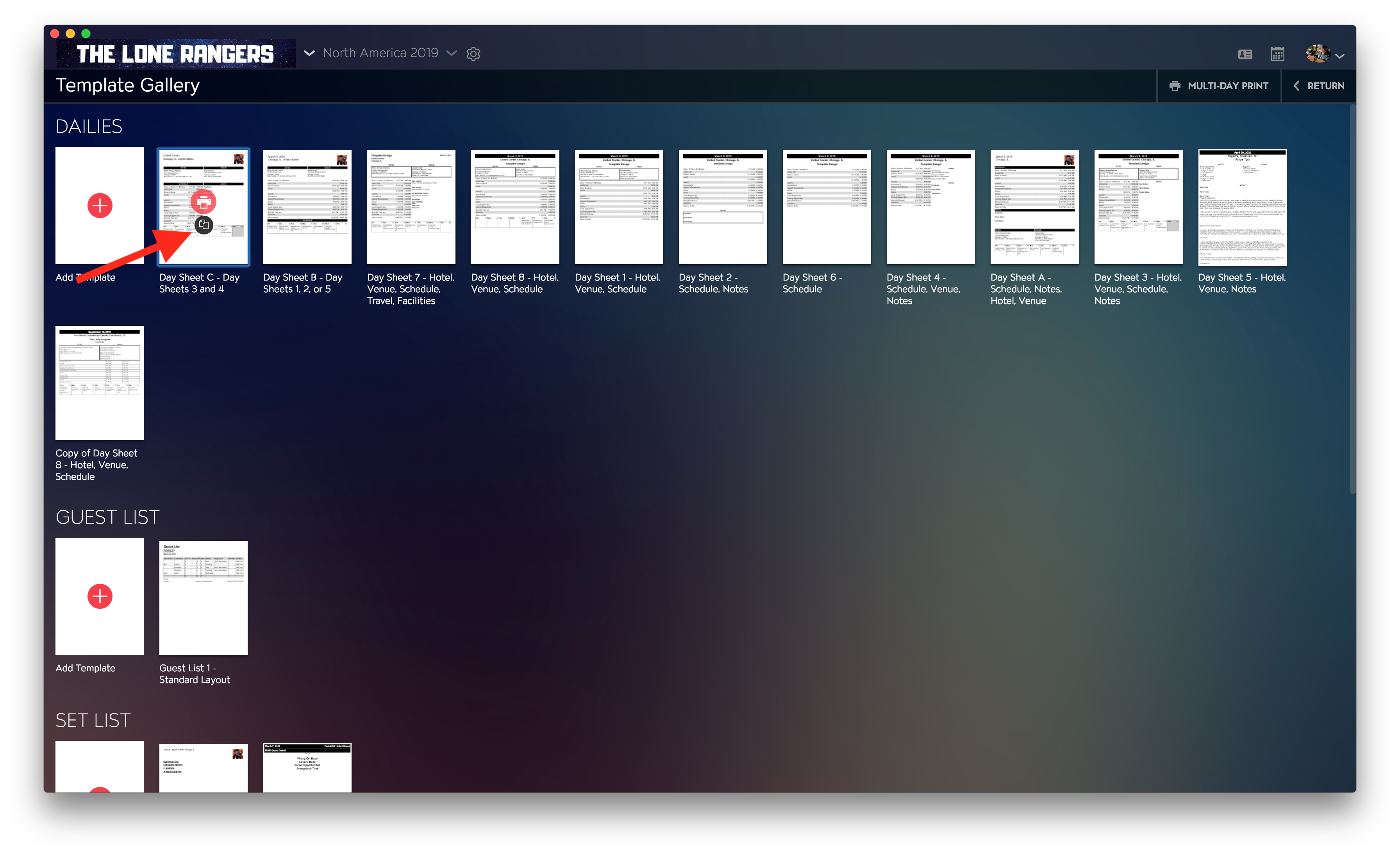
This will make a copy that you can edit, rename, and rearrange.
Copying An Existing Template Onto Another Organization
If you are synced into more than one organization at a time, you have the option of copying any existing templates within your current organization over to another. This can assist with applying a custom-made template to another organization without the need to recreate it.
To copy an existing template onto another organization:
- Click on File then Print at the top left menu bar.
- With your cursor, hover over the print template you'd like to copy and click on the two-page copy icon.
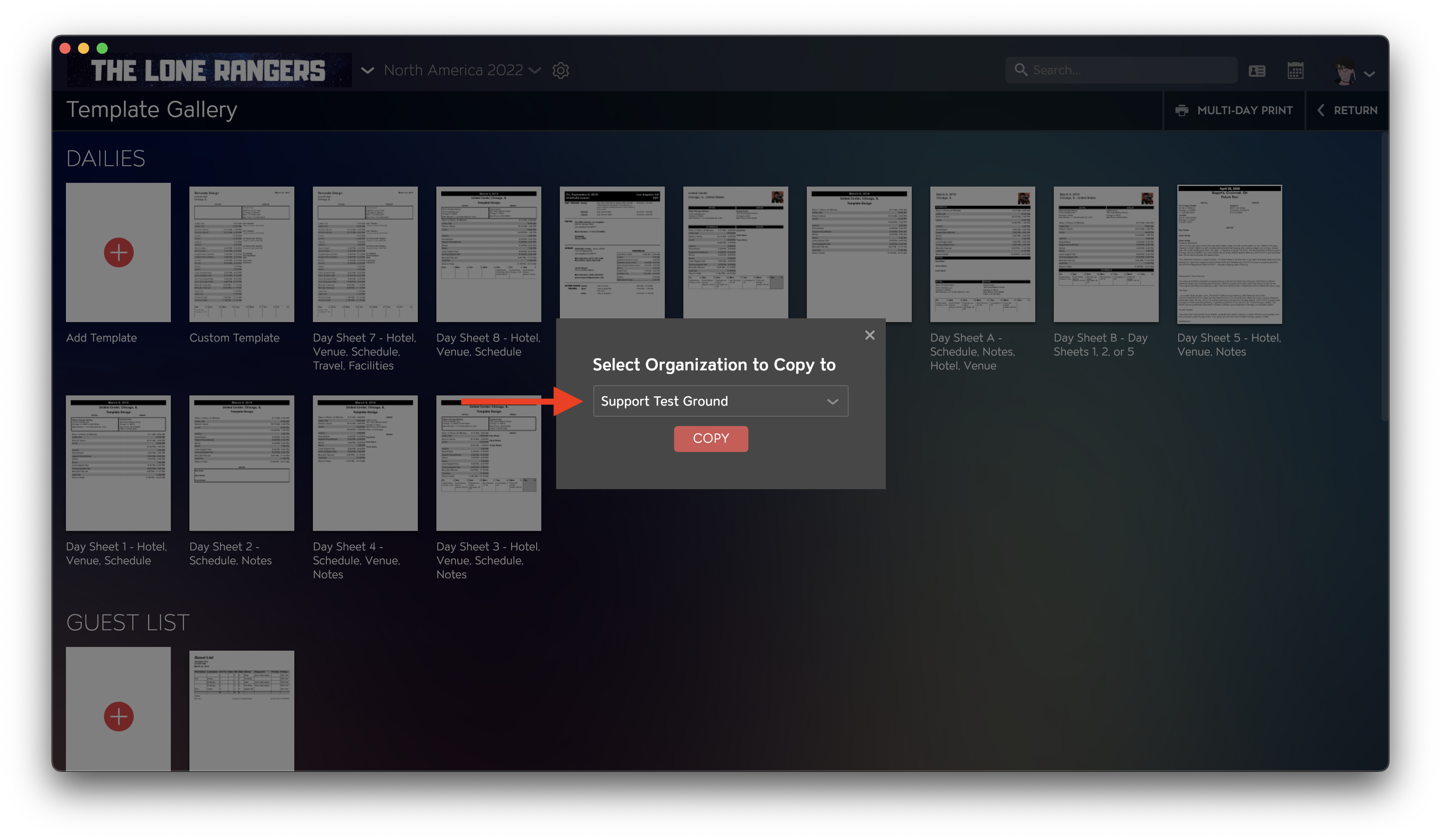
- Next, select the organization you'd like to place a copy in through the drop-down picker.
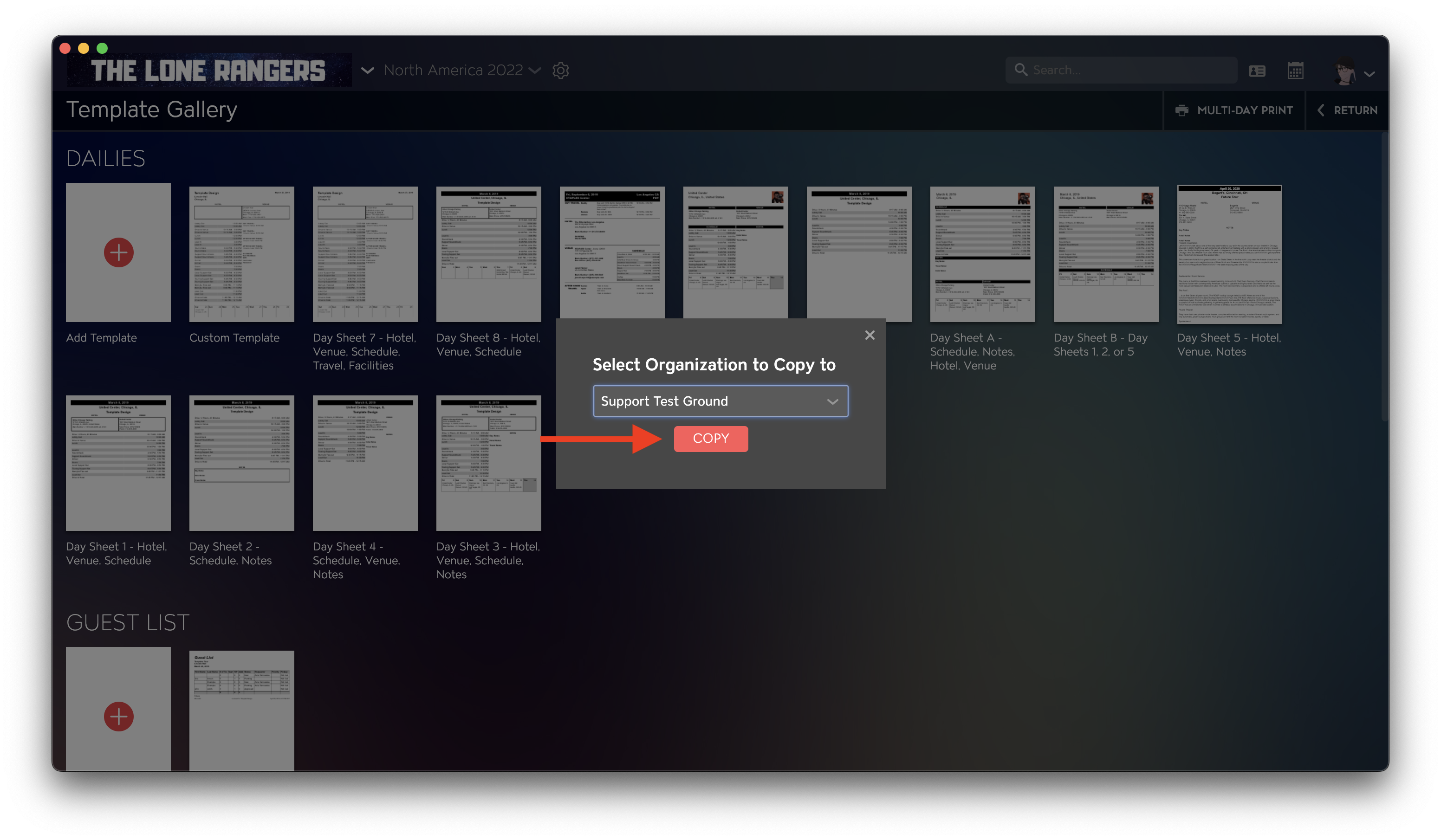
- Once you're ready to place a copy, click on the red COPY button.
Customize and Create a Template
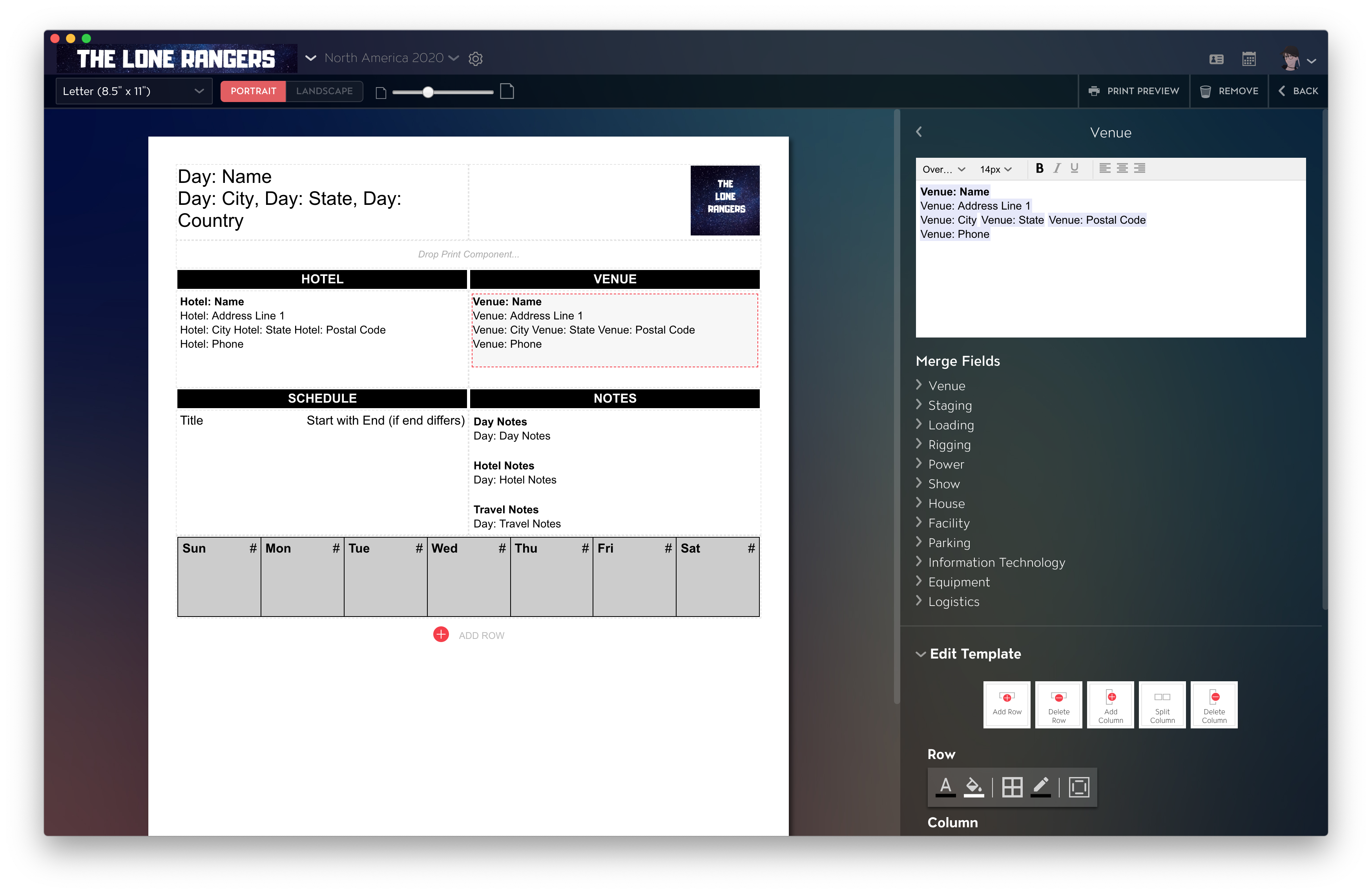
After you've copied an existing Template or created a new one, you will be directed to your Template editor where you can begin to edit columns and merge fields. Here you can drag in blocks on the specific sections of info you're needing.
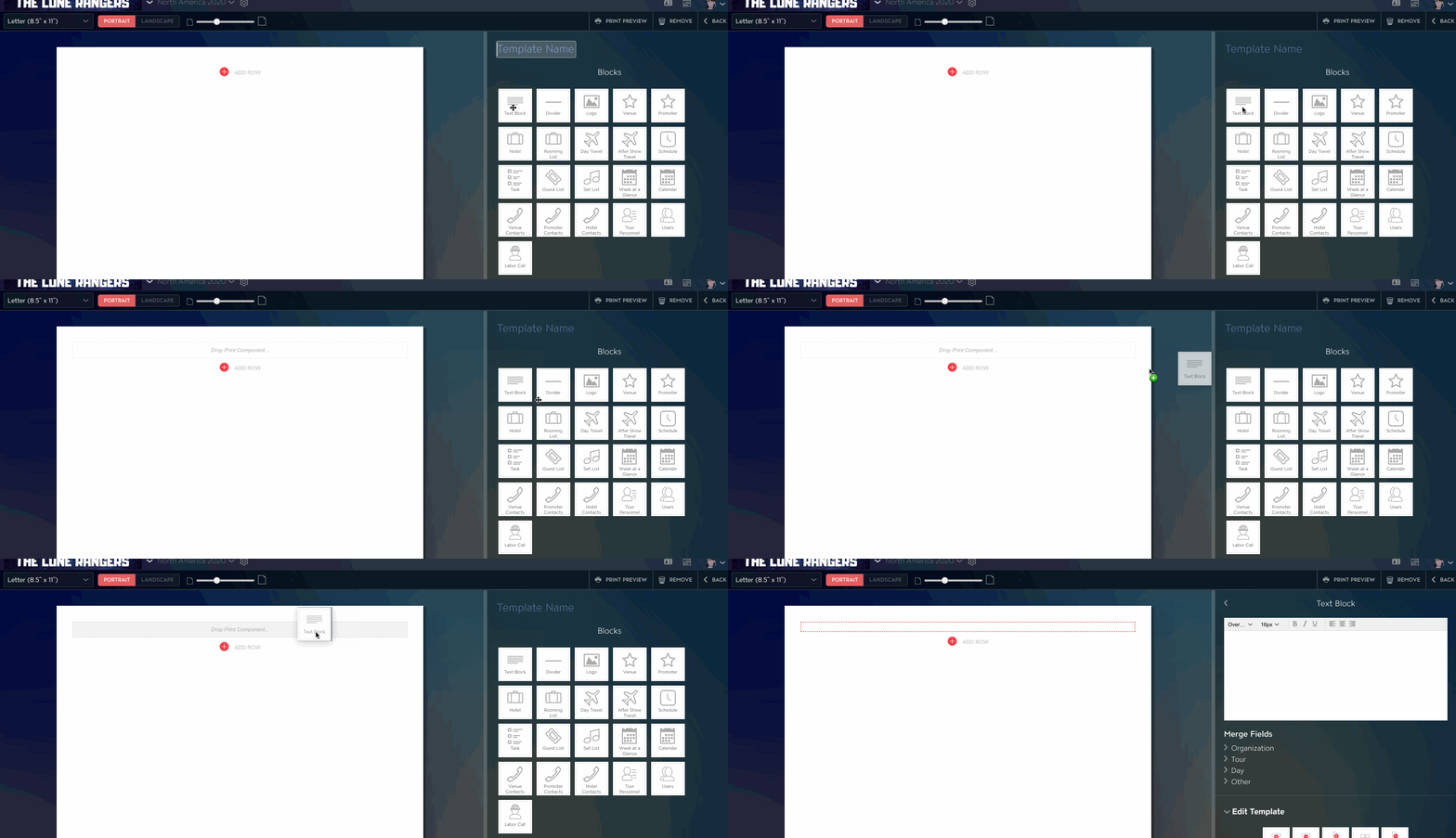
Click here or more info on editing and customizing a Template.
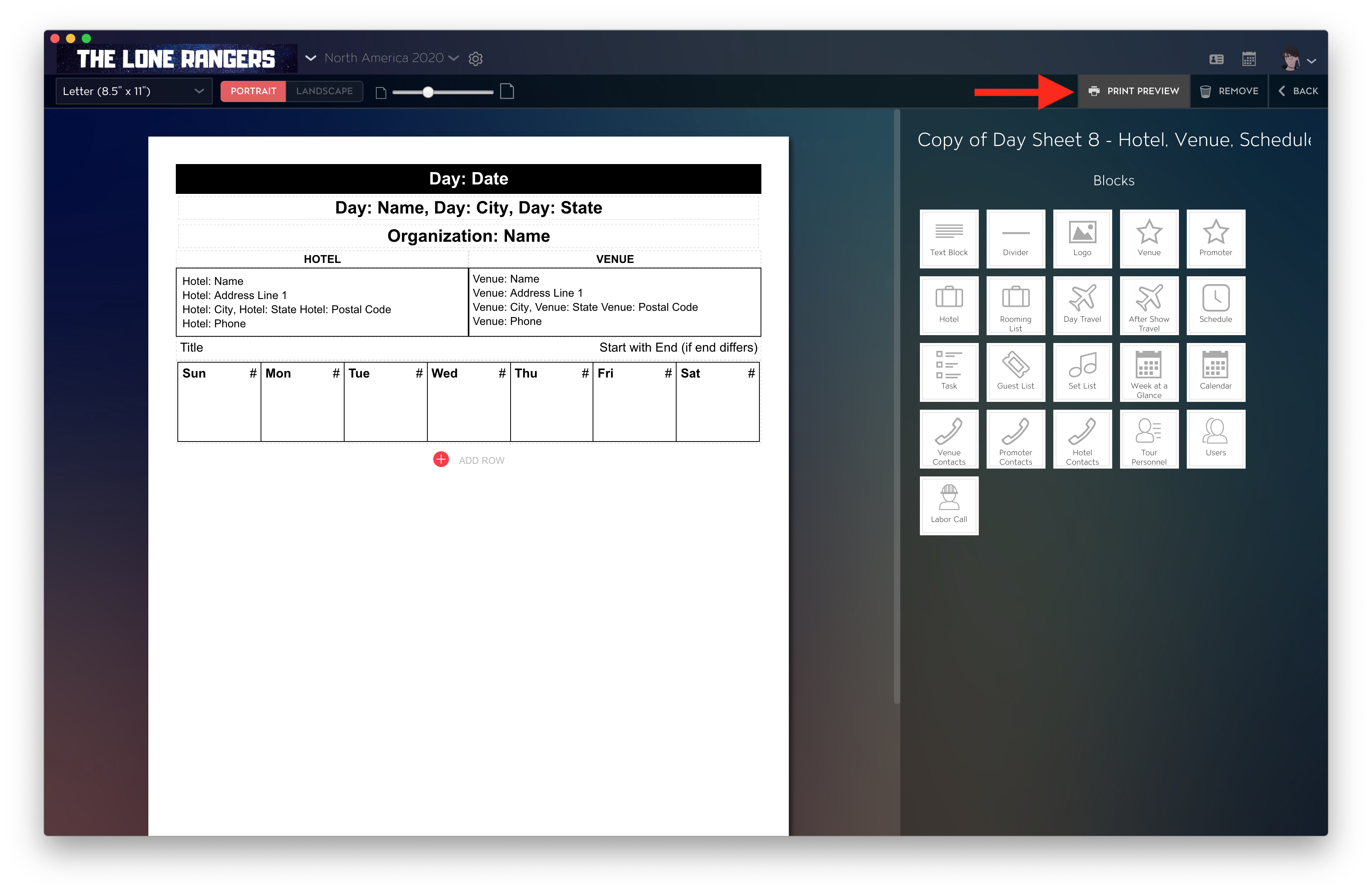
If you're needing to view your Template's changes with your info placed, you can click on "Print Preview" at the top right at any time.
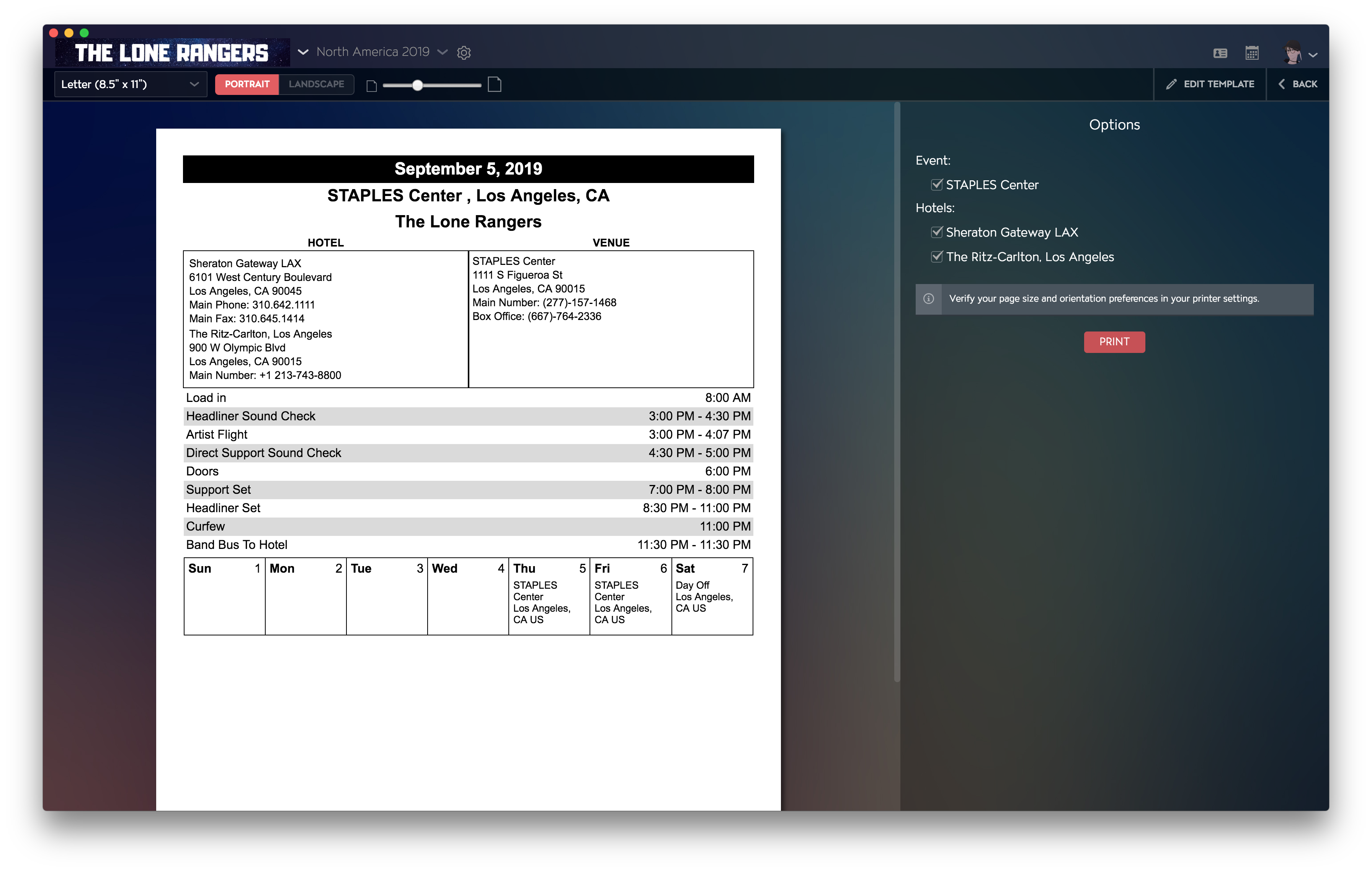
To head back to editing your Template, click on "Edit Template" at the top-right.
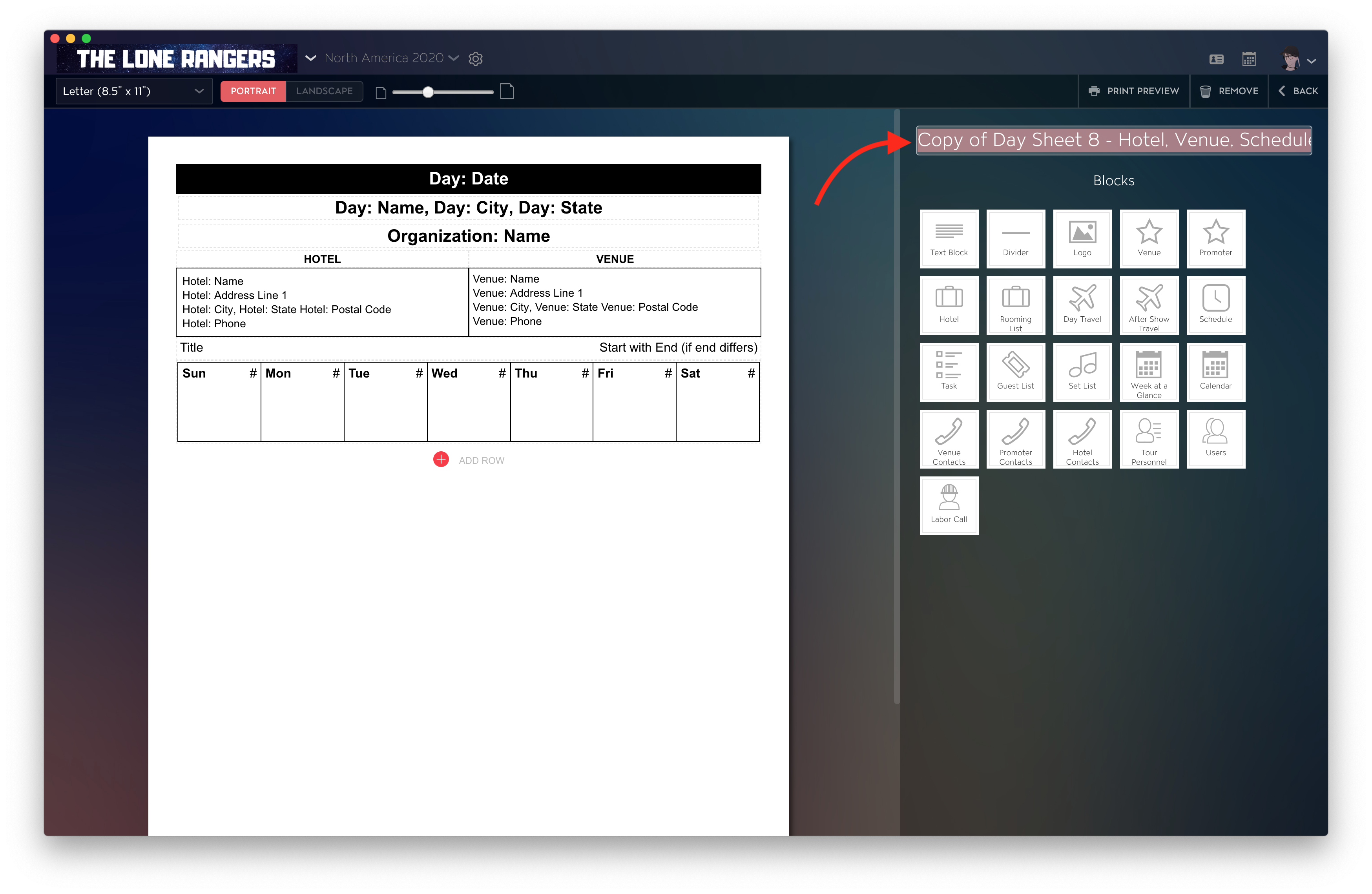
To rename a Template, click on the copy's title at the top right and type your new one in.
Delete a Template
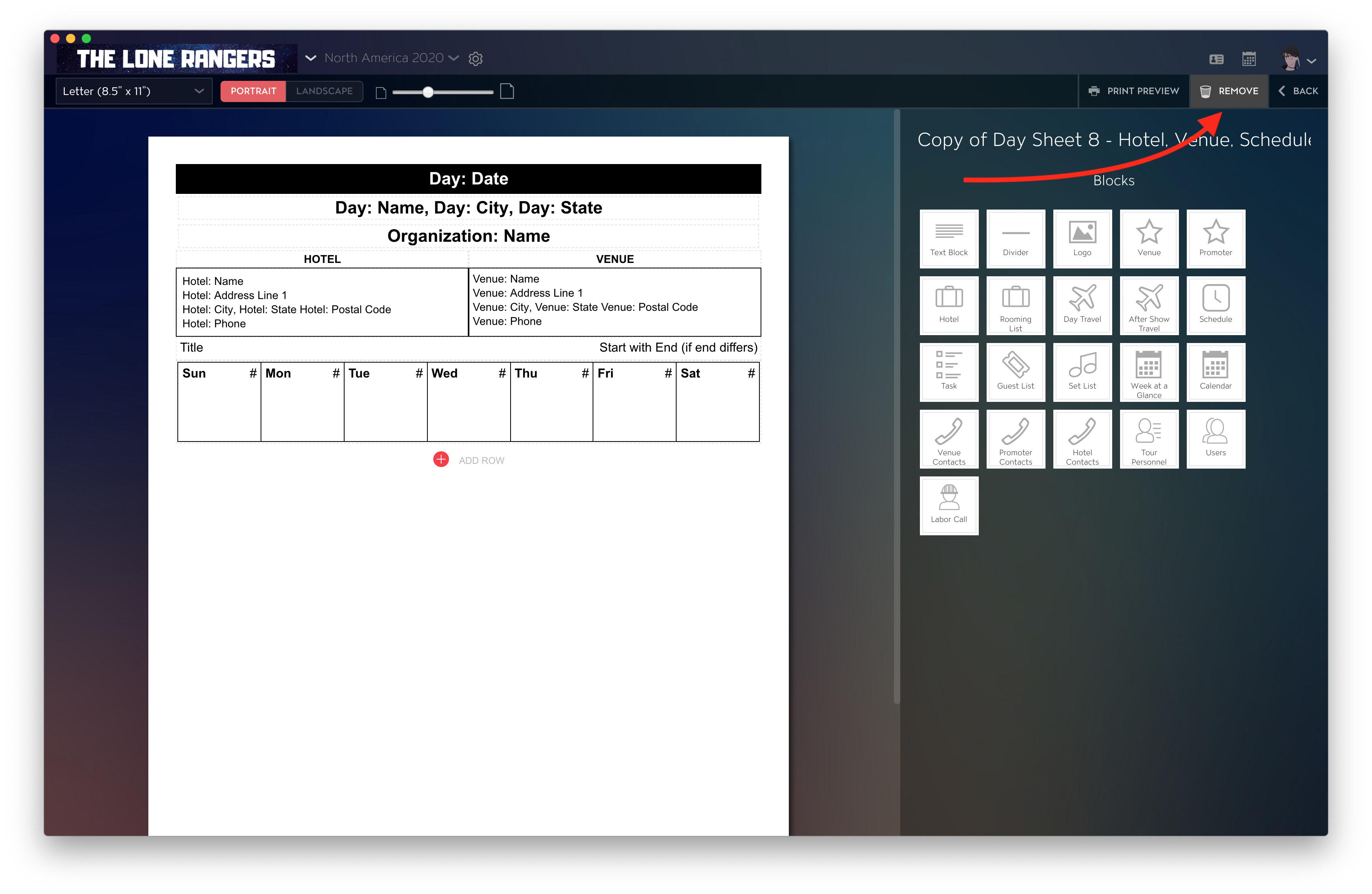
To delete a Template you've created or copied, hover over it with your cursor on the Template Gallery and click on the pencil icon to edit. Once in the edit view click on "REMOVE" at the top right.
If you have any questions after following these instructions, please click here to open a Support Request or call +1-773-862-4246 to speak with a member of our Support Team between the hours of 10:00 am - 6:00 pm US Central Time (CT), Monday through Friday.