
This is Step Two of the Getting Started Guide for Professional Users.
This article covers:
- Downloading Master Tour 3
- How to Install Master Tour 3 on MacOS
- How to Install Master Tour 3 on Windows
- How to Log into Master Tour 3
- How to Login into Master Tour 3 for the First Time or After a Factory Reset
- How to Select Organizations to Sync
Downloading Master Tour 3
To download and use the Master Tour 3 desktop application, you will need to have an active Professional account.
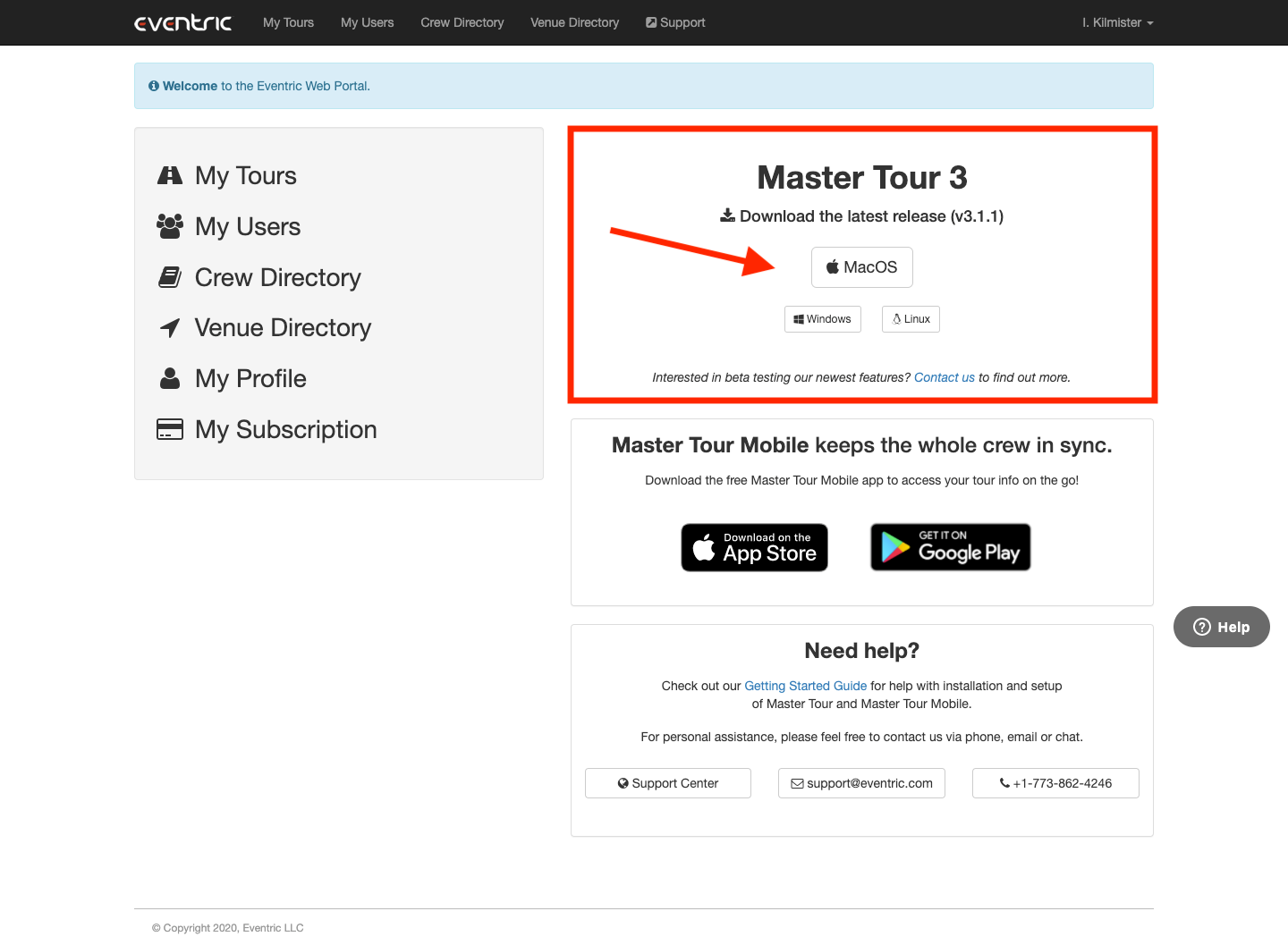
To download Master Tour 3, click here to login and access the Web Portal home page.
There you will find links to download Master Tour 3. Clicking on the button for your operating system will download an install file to your computer.
How to Install Master Tour 3 on MacOS
To install Master Tour 3, double click on the .dmg file that you downloaded from the Web Portal.
Then, drag and drop the Master Tour icon into the Applications folder.
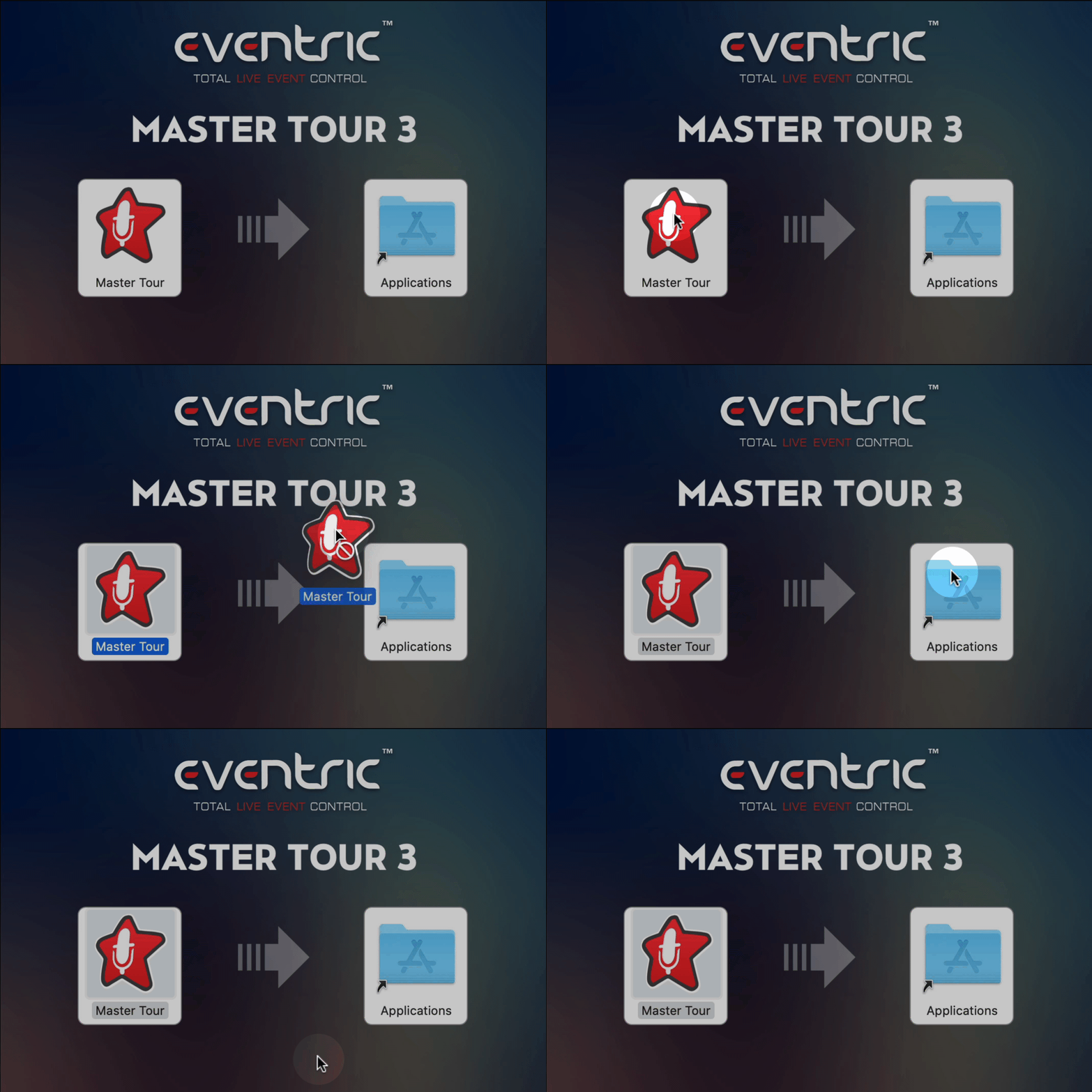
Master Tour can now be found in your Applications folder, and you can double click on the Master Tour application to open it.
Click here for Step Six of the Getting Started Guide for Professional Users which will walk you through How to Log Into Master Tour 3
How to Install Master Tour 3 on Windows
To install Master Tour 3, double click on the .exe file that you downloaded from the Web Portal.
You will then see a Master Tour Setup window.
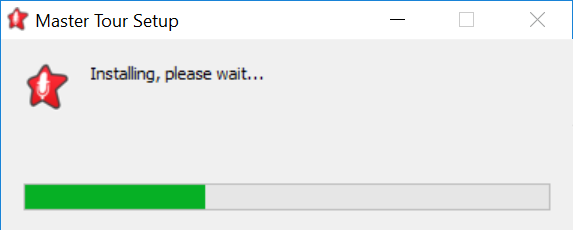
Once the setup is complete, Master Tour will automatically launch.
How to Log into Master Tour 3
To log into the Master Tour 3 desktop application, you will need to have an active Professional account and have installed the Master Tour 3 desktop application.
To log into Master Tour 3, open the Master Tour 3 desktop application and:
- Enter your Email address in the Email field.
- Enter your Password in the Password field.
- Click the Log In button.
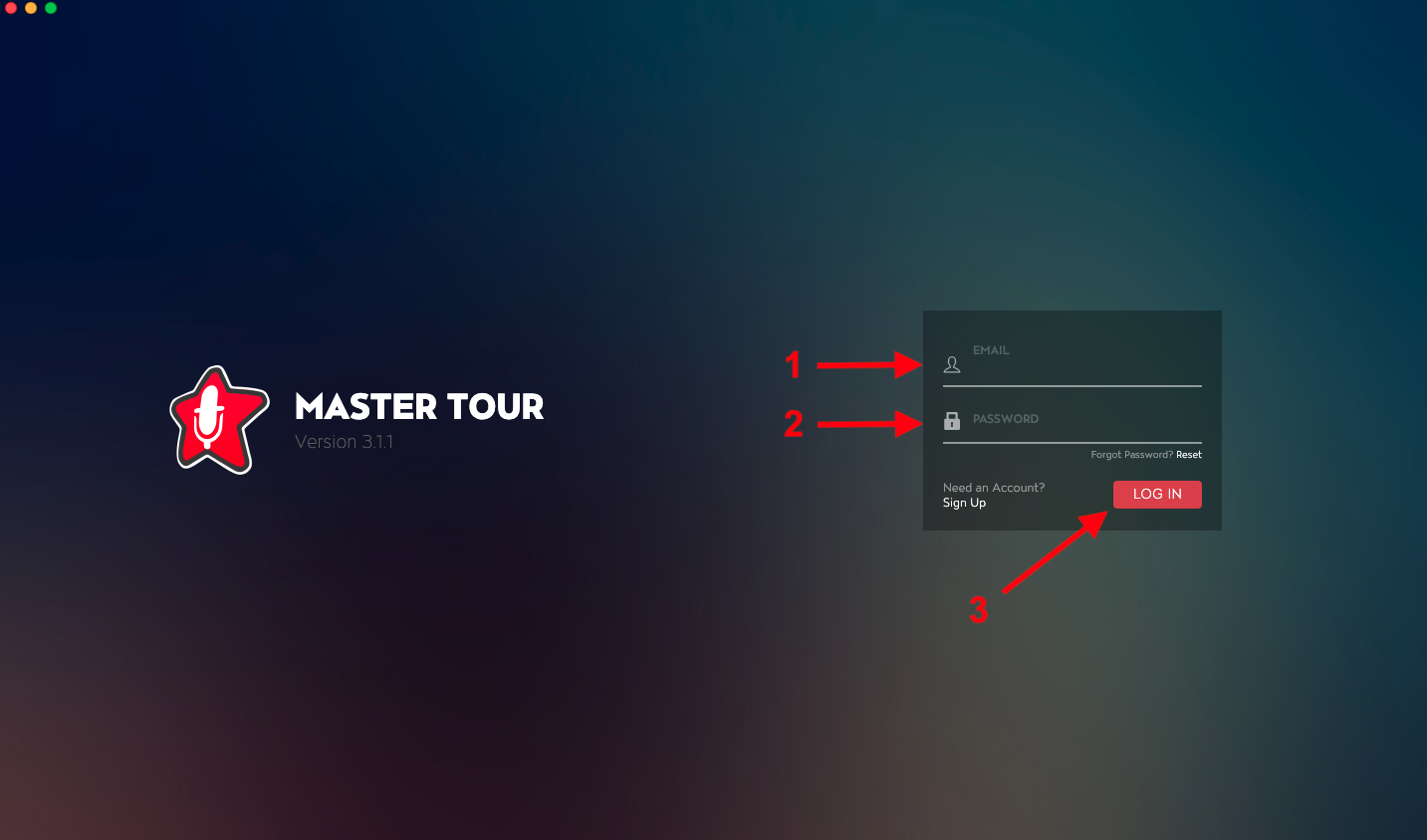
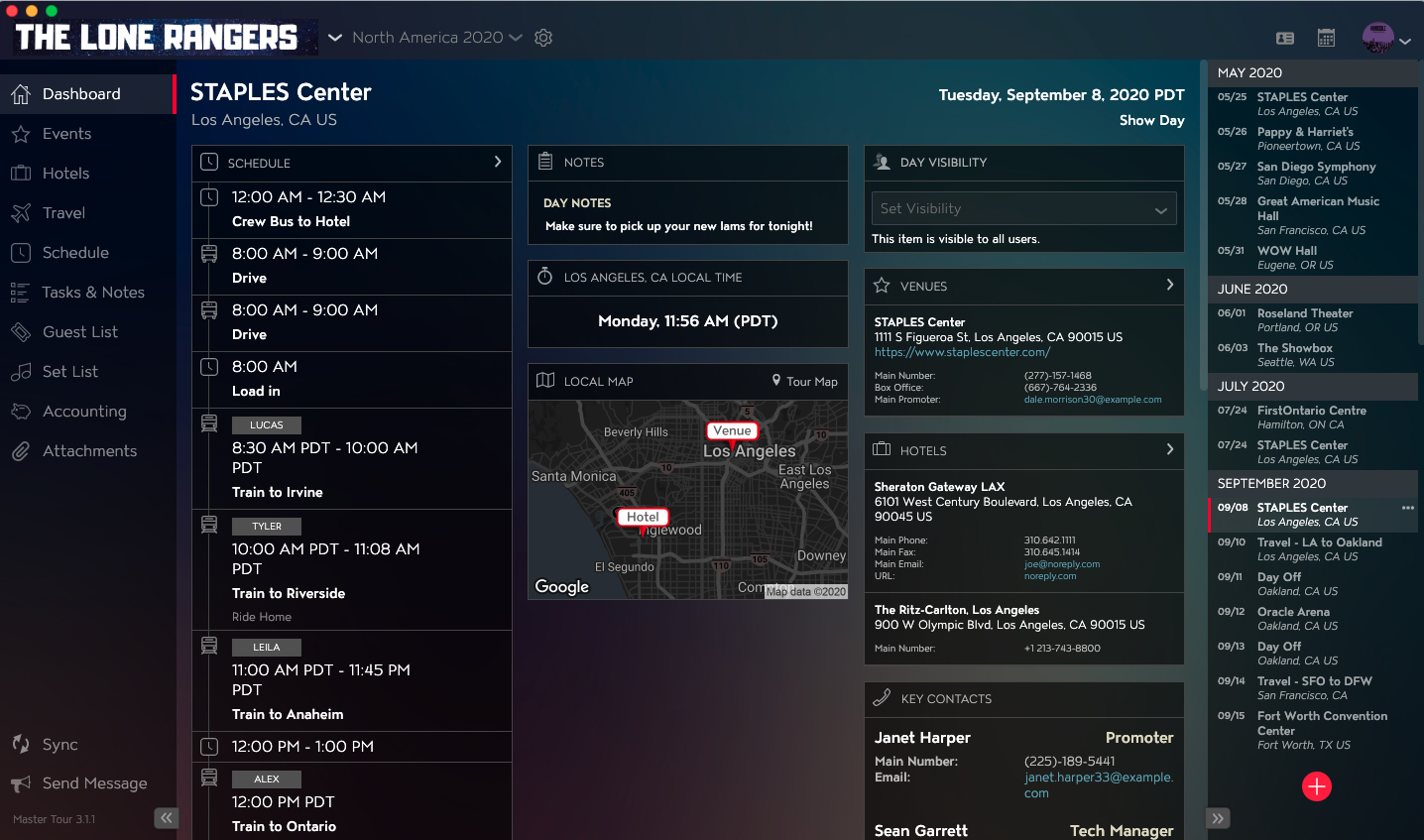
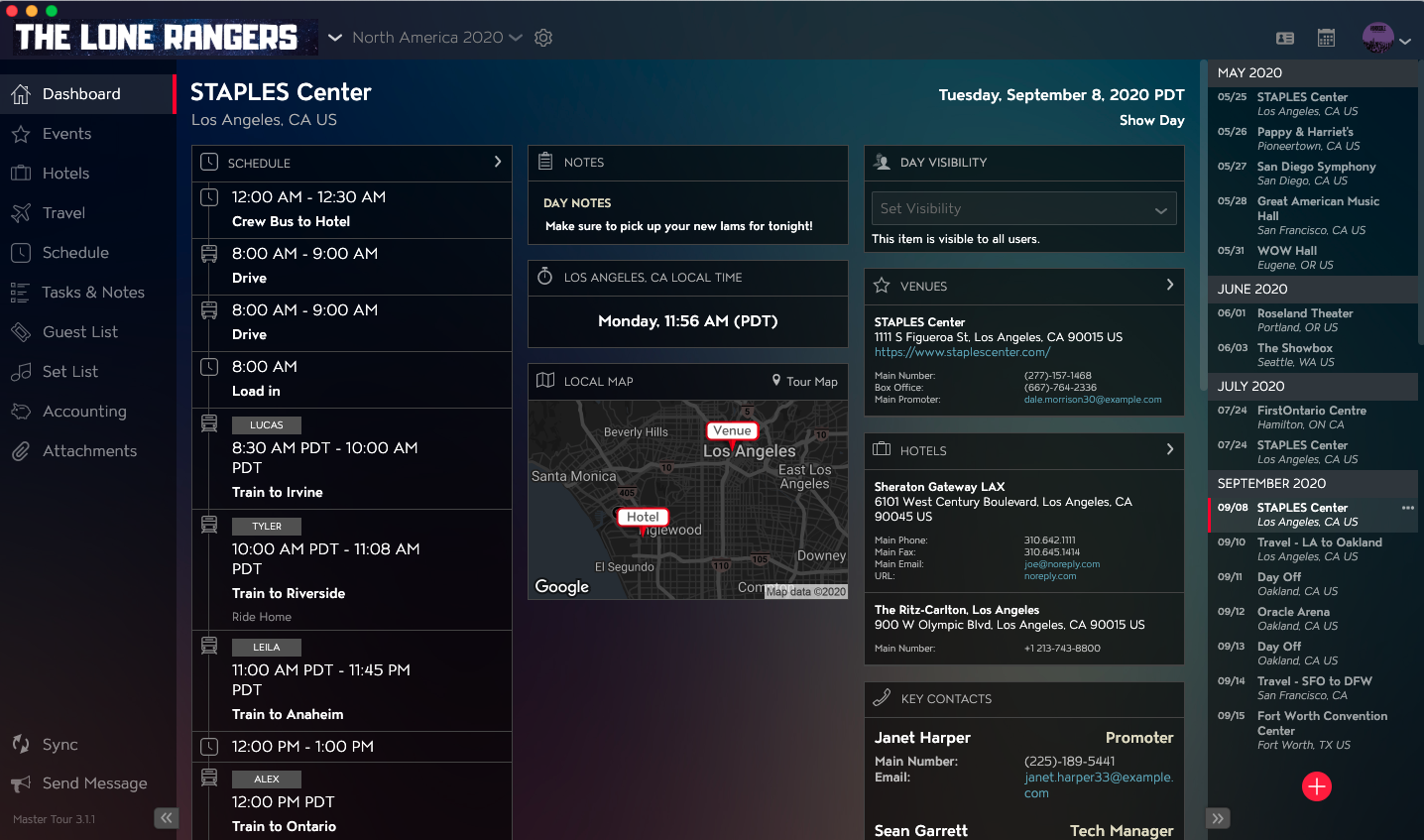
You will then be directed to the Master Tour Dashboard.
How to Login into Master Tour 3 for the First Time or After a Factory Reset
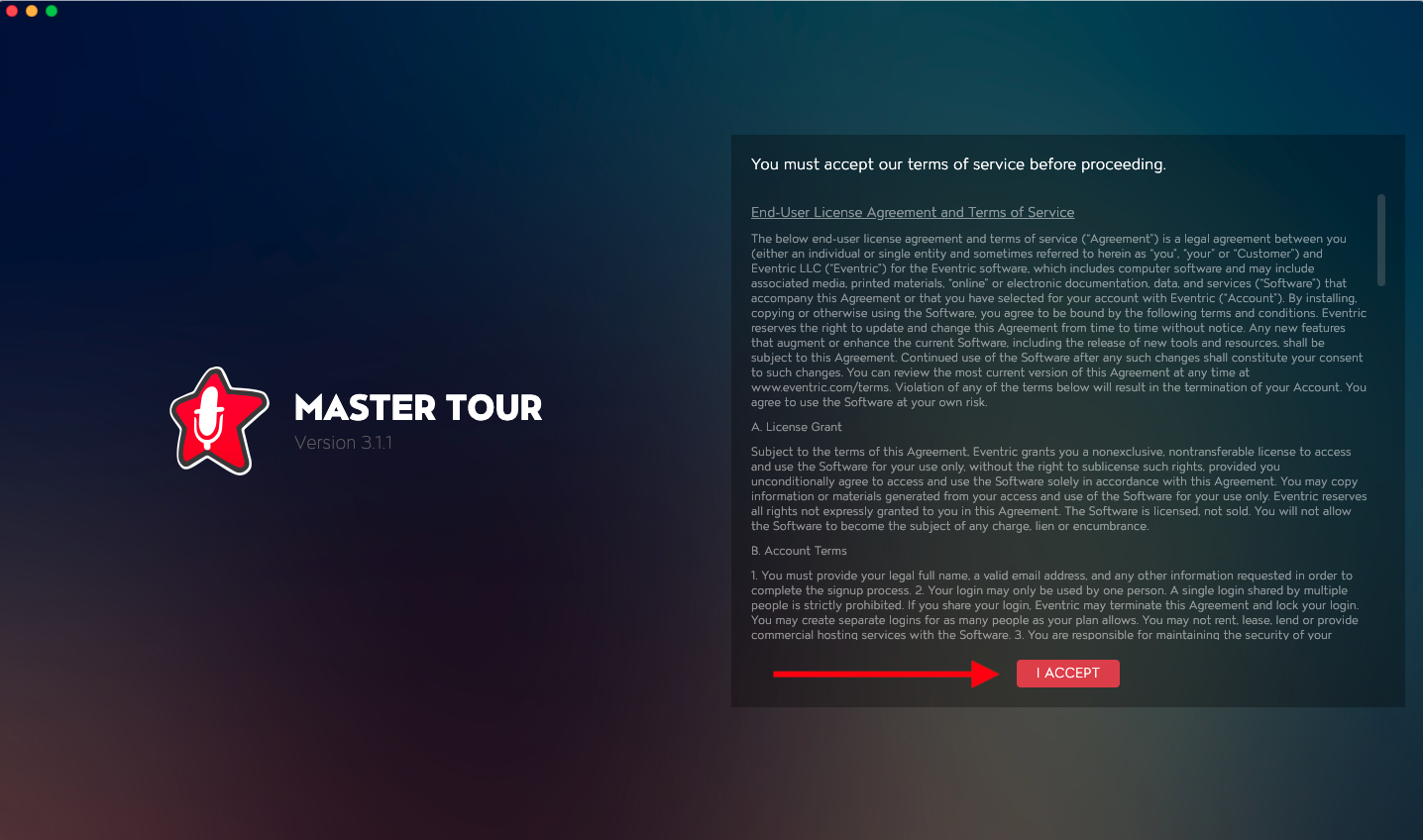
To log into Master Tour 3, open the Master Tour 3 desktop application. After the application loads, you will see Eventric's terms of service on the right side of the application. After reviewing the terms of service, click on the I Accept button to indicate that you agree to Eventric's terms.
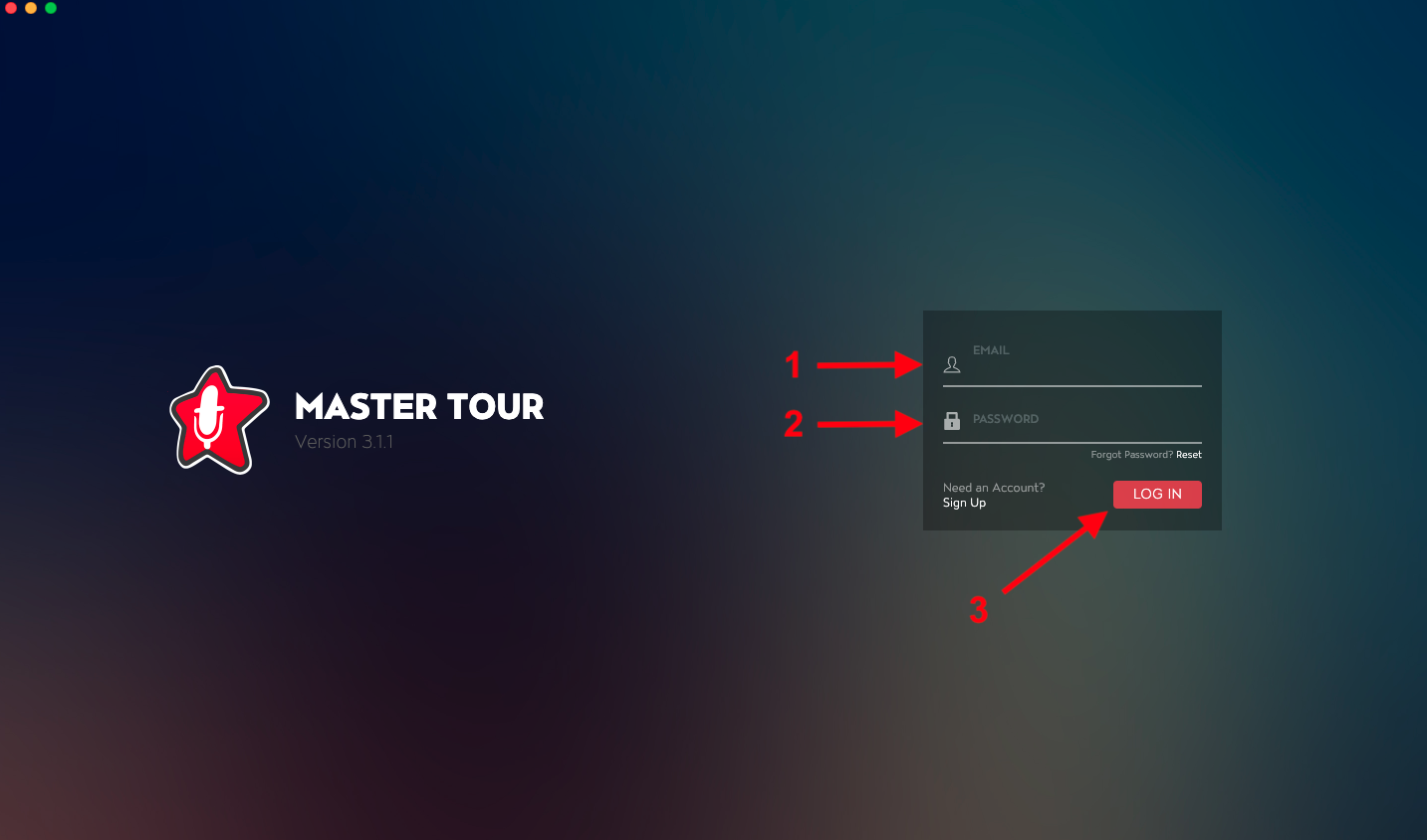
You will then be directed to the Log In screen.
- Enter your Email address in the Email field.
- Enter your Password in the Password field.
- Click the Log In button.
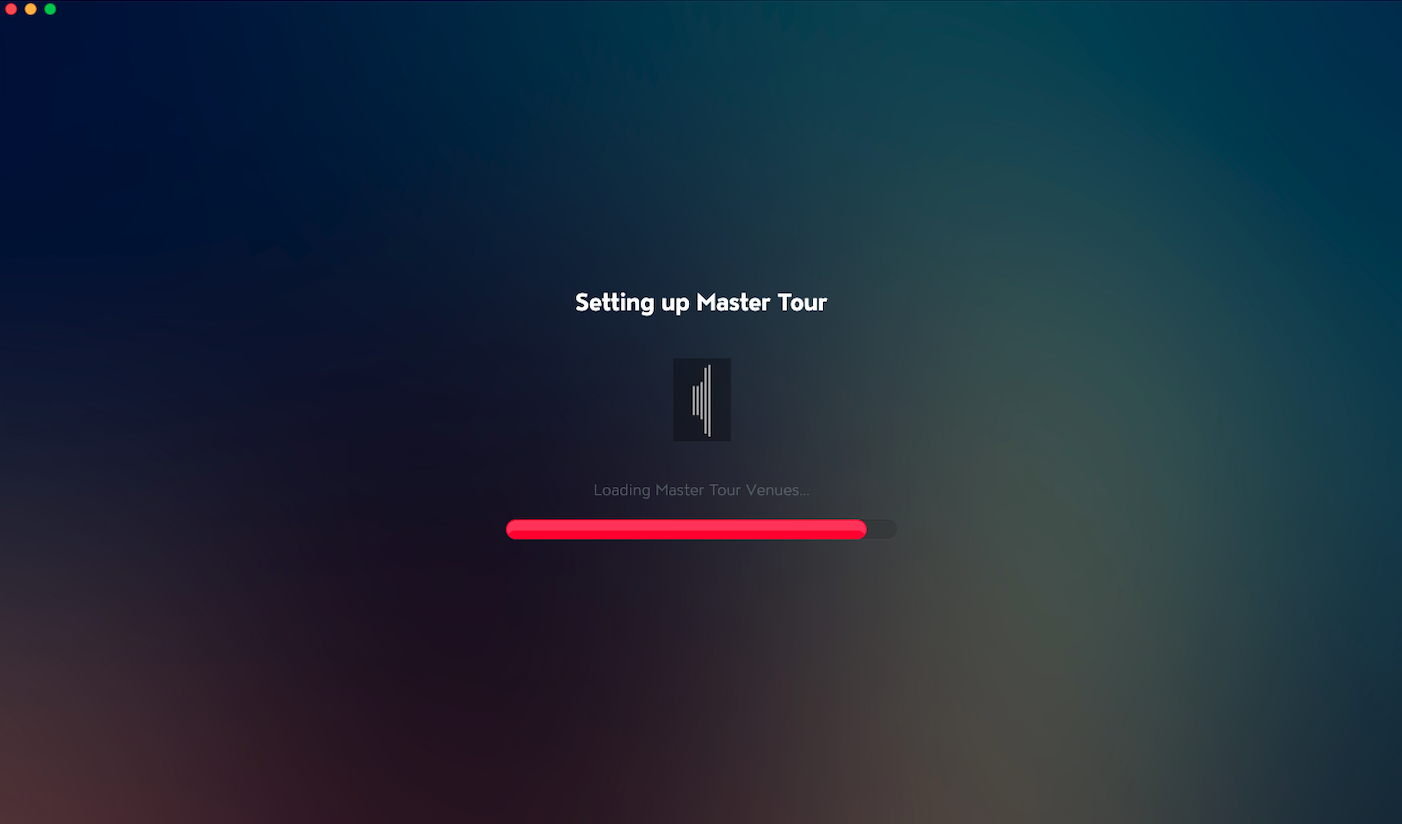
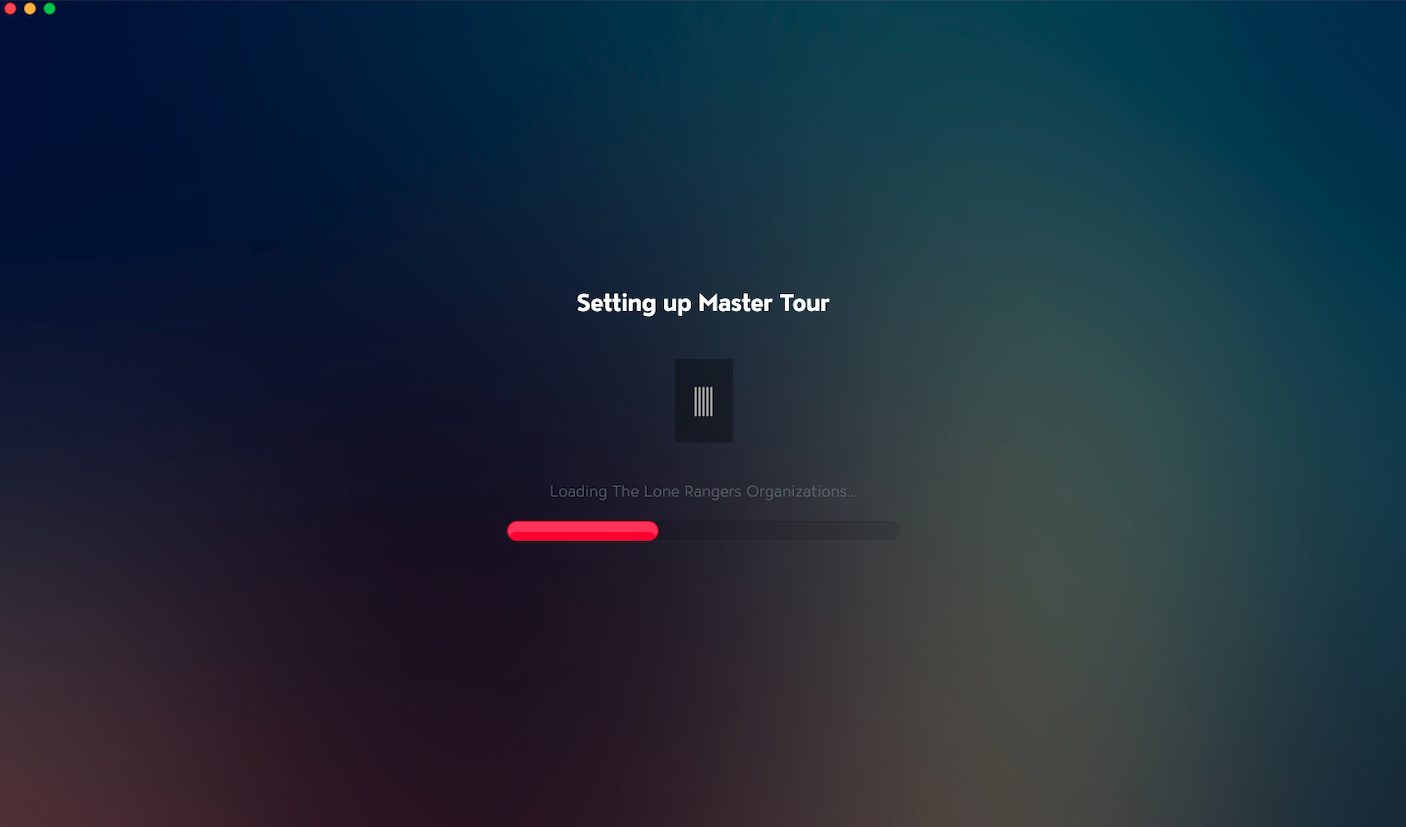
Once you log in, you'll see the Master Tour setup screen with a progress bar indicating the status of the setup.
If you do not belong to any Organizations with Manager, Accounting, or Administrator Permissions, you will be directed to our Setup Wizard. Click here for instructions on using the Master Tour Setup Wizard to set up your first Organization and Tour.
If you already belong to at least one Organization with Manager, Accounting, or Administrator Permissions, click here for further instructions.
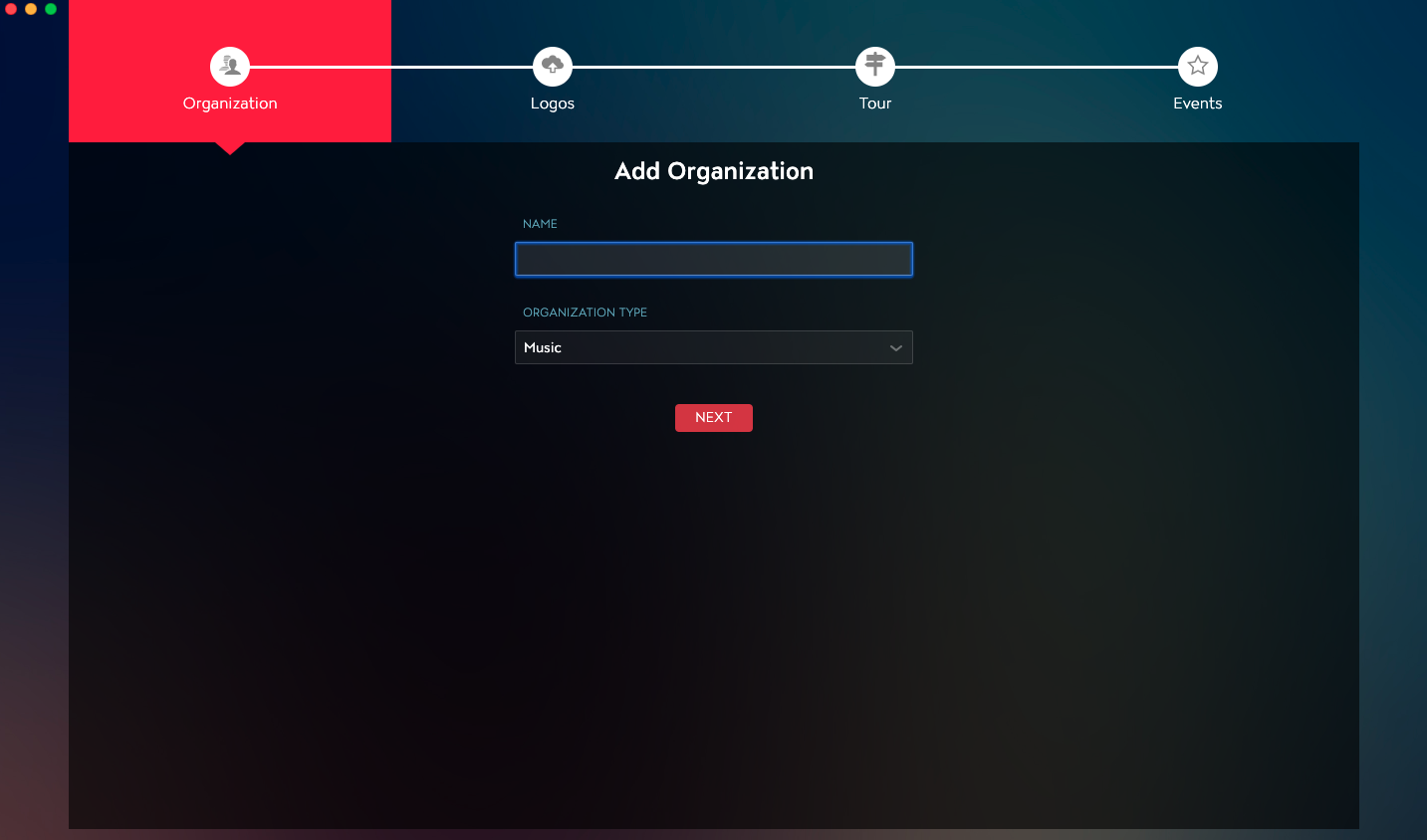
How to Select Organizations to Sync
If you already belong to at least one Organization with Manager, Accounting, or Administrator Permissions, you will be directed to the Select Organizations to Sync screen.
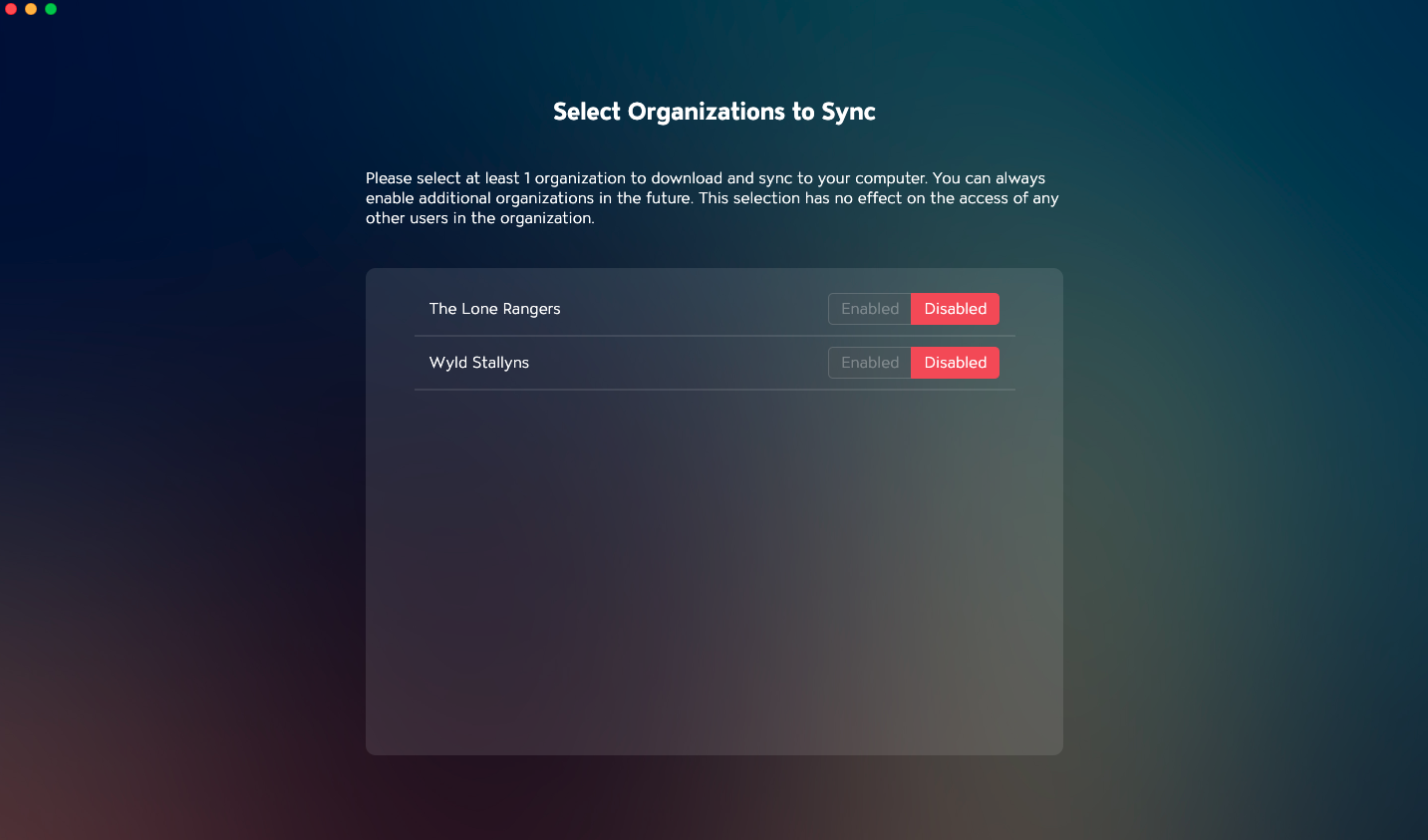
From this screen, you can choose the Organizations that you would like to sync. Syncing will download all of the Organization's existing tour data and will update the changes & additions made by that Organization’s users.
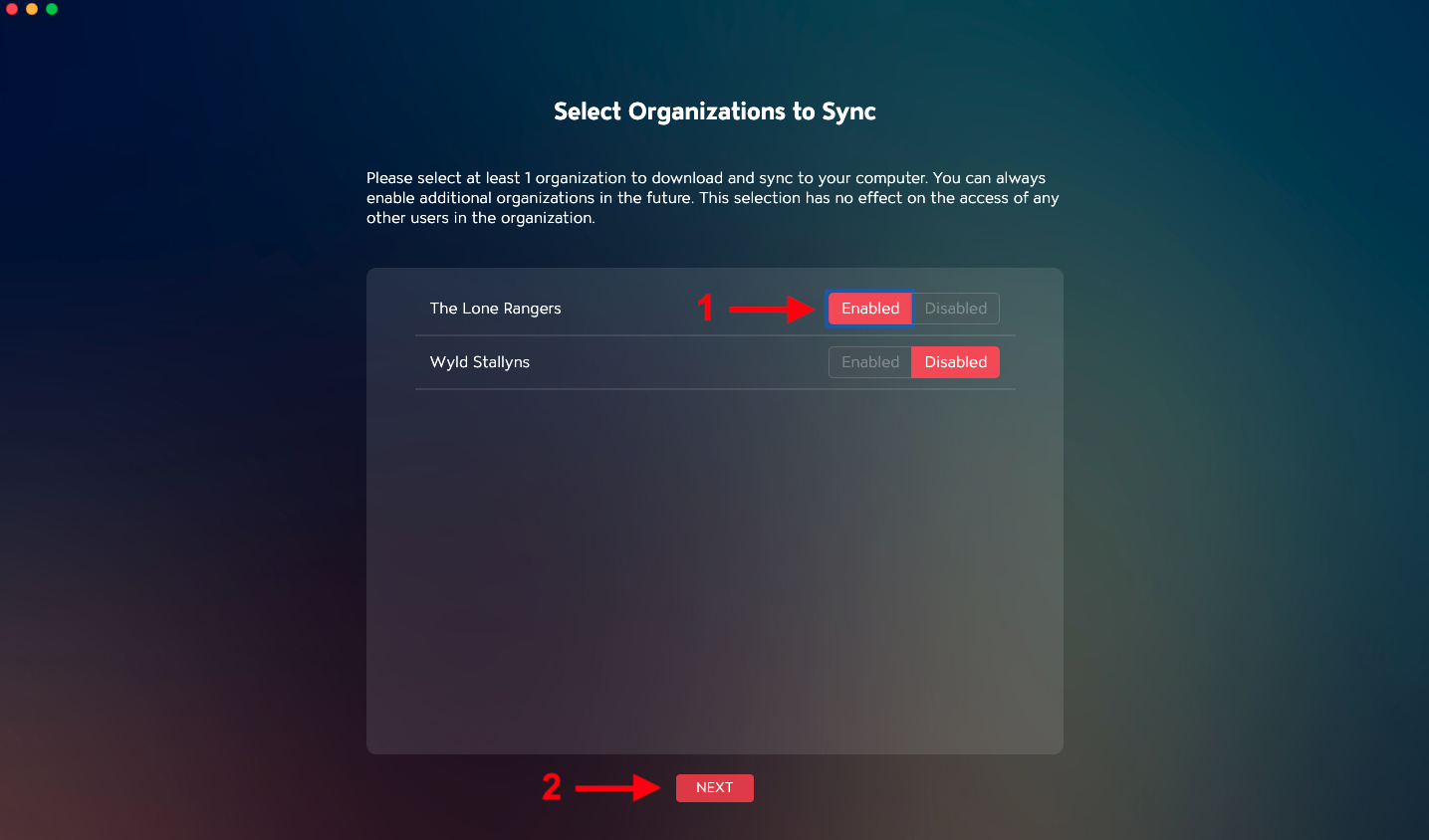
Note: You can always sync in Organizations at a later time but you will need to enable at least one Organization to sync before you can click the Next button.
- Select the Enabled button for any Organizations that you would like to sync.
- Click the Next button.
Next, you'll see the Master Tour setup screen with a progress bar indicating the status of the setup.
If you are instead directed to a "Multiple Artists Detected" screen, click here for instructions on how to proceed.
You will then be directed to the Master Tour Dashboard.
Click here for Step Three on how to Set Up Your First Tour in Master Tour 3