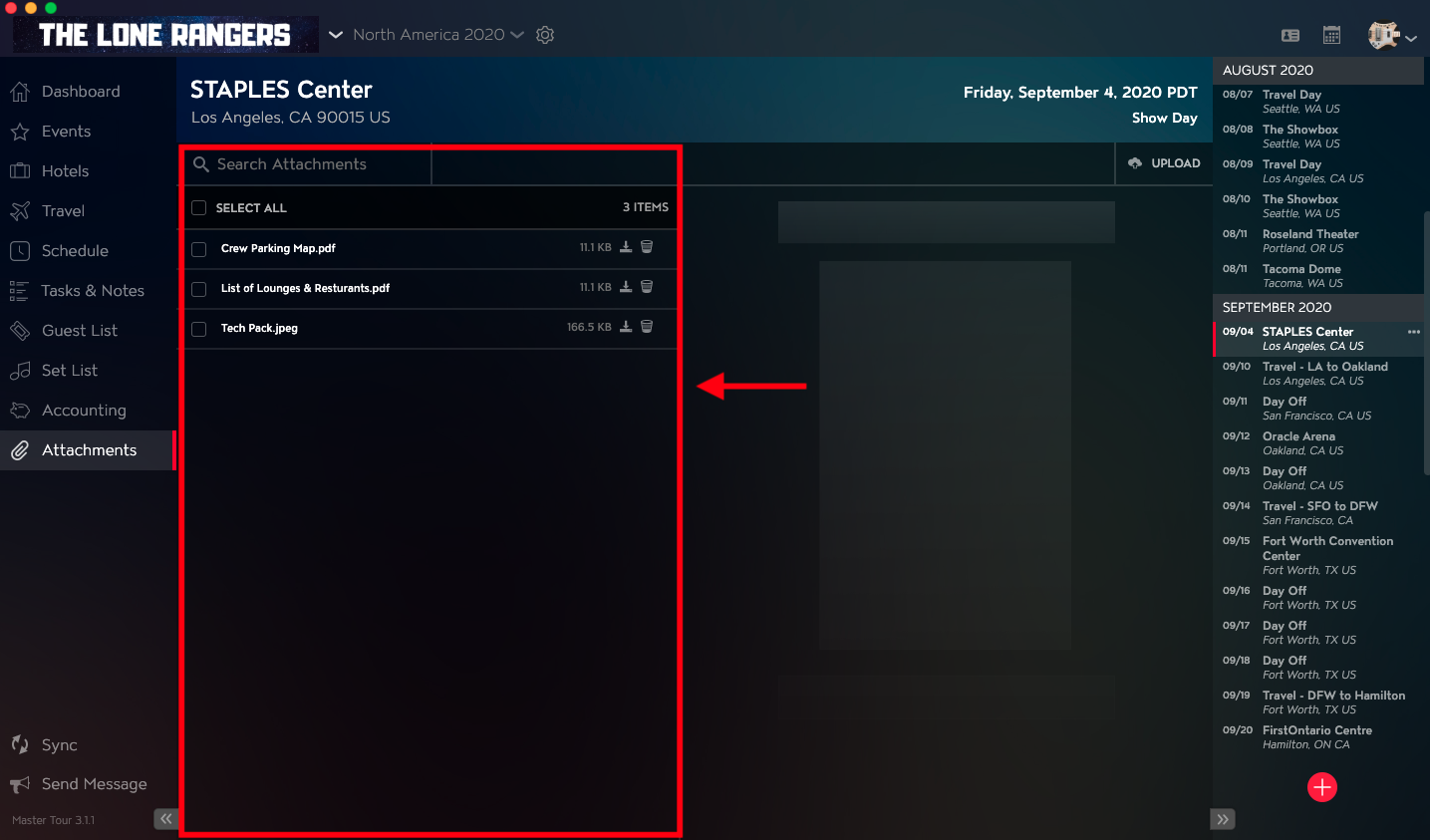
You can upload, store, and share documents & files that relate to your Tour Dates in Master Tour’s Tour Date Attachments section.
This article covers:
How to Navigate to Tour Date Attachments
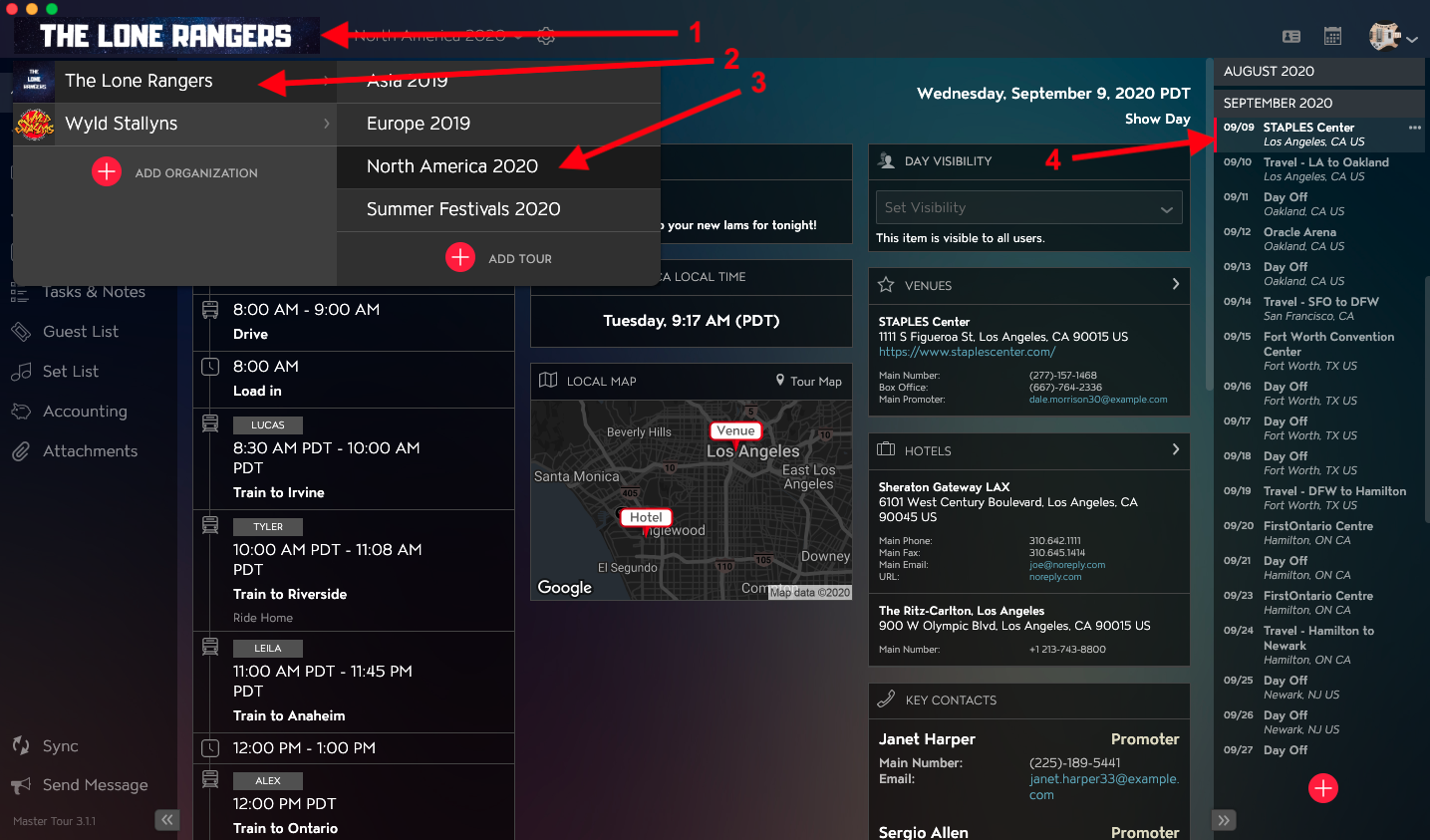
Within Master Tour, select the Tour Date that you would like to upload Tour Date Attachments to.
- Click on the Organization Selector dropdown menu in the upper left of the application.
- Select an Organization.
- Select a Tour from the Tour Selector dropdown menu.
- Select a Tour Date in the Tour Date List on the right of the application.
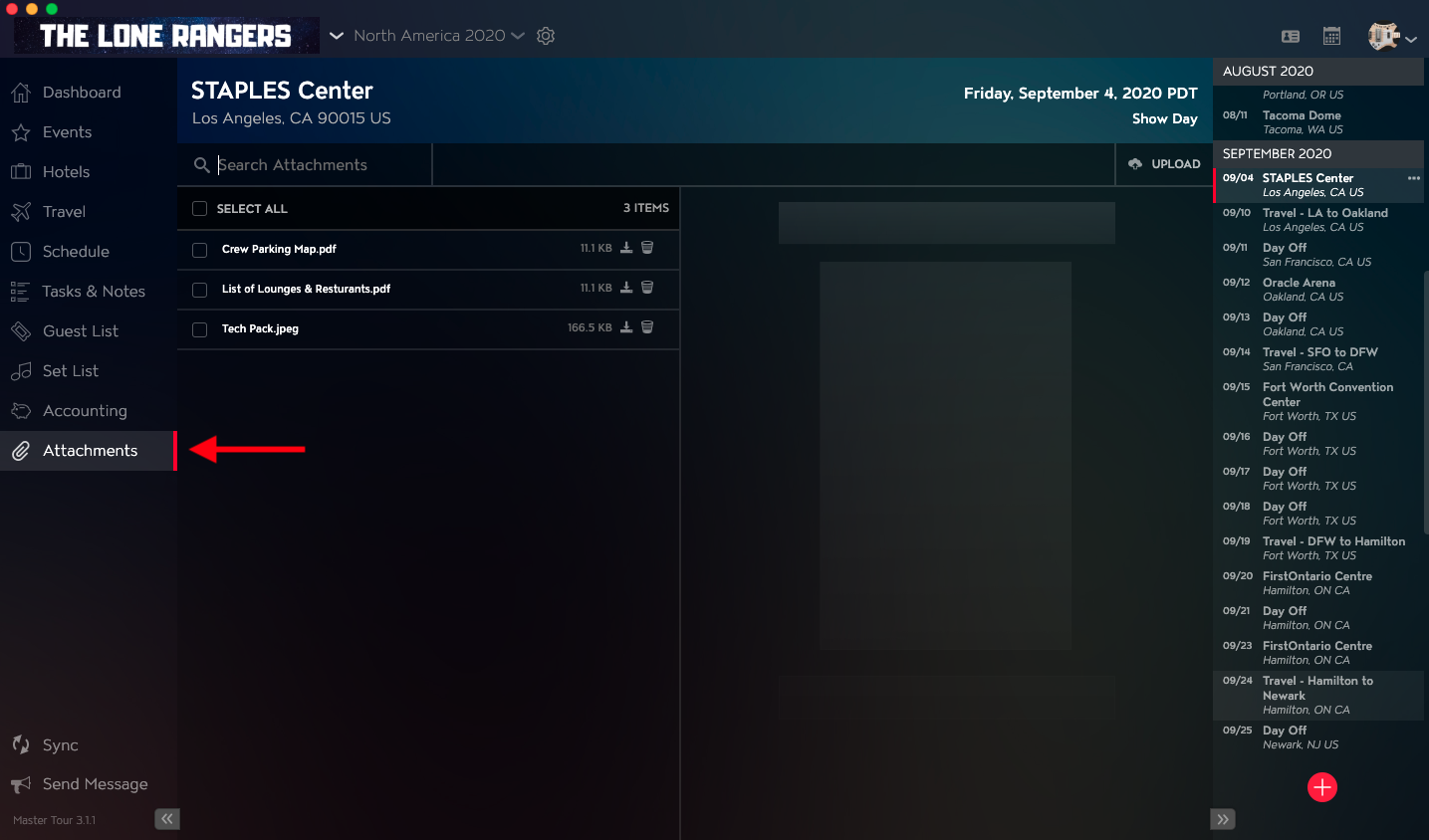
Click on Attachments in the left menu.
How to Upload Tour Date Attachments
There are two ways to upload Tour Date Attachments:
- Click the Upload button in the upper right of the application and then select a file from your computer.
- Use the Drag and Drop Zone in the body on the right side of the application to drag and drop any files from your computer.
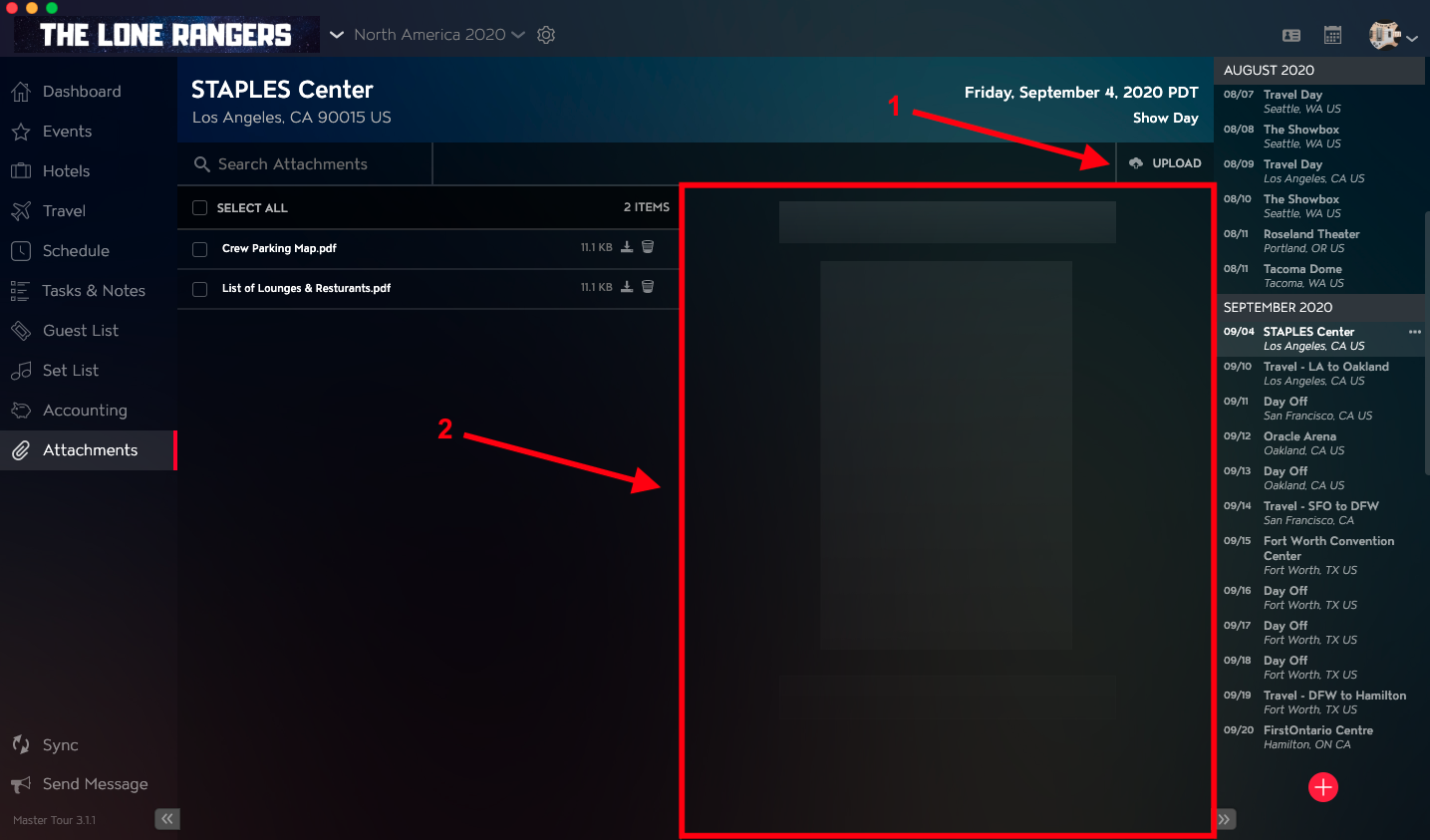
Once your documents and files are uploaded, you will see each listed, along with their file size in the Attachment List on the left hand column of the application.