You can add Logistics Details for Events using the Logistics Module in Master Tour 3.
This article covers:
How to Navigate to the Logistics Module
Within Master Tour, select the Tour Date that you would like to add Logistics Details to.
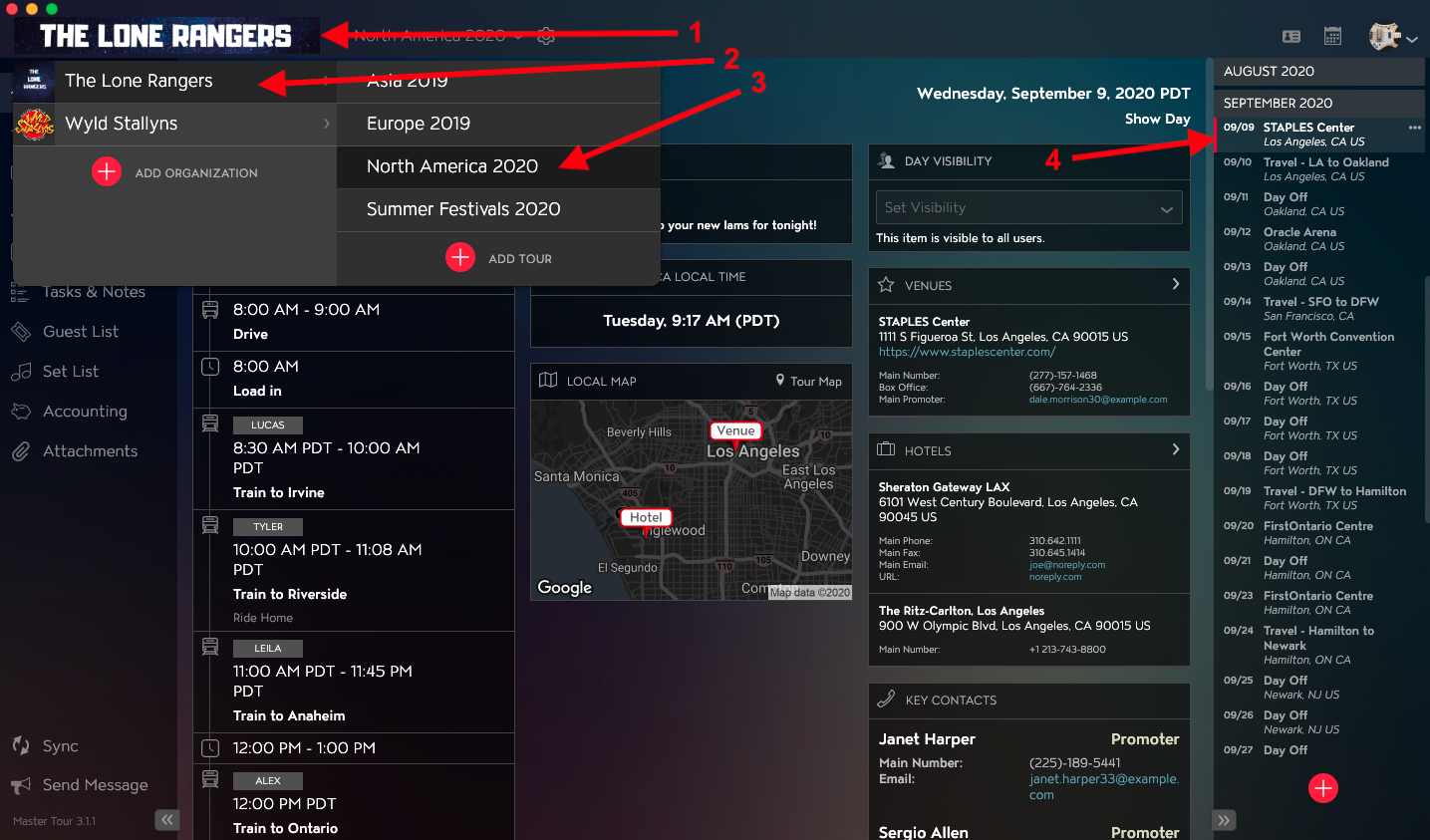
- Click on the Organization Selector dropdown menu in the upper left of the application.
- Select an Organization.
- Select a Tour from the Tour Selector dropdown menu.
- Select a Tour Date in the Tour Date List on the right of the application.
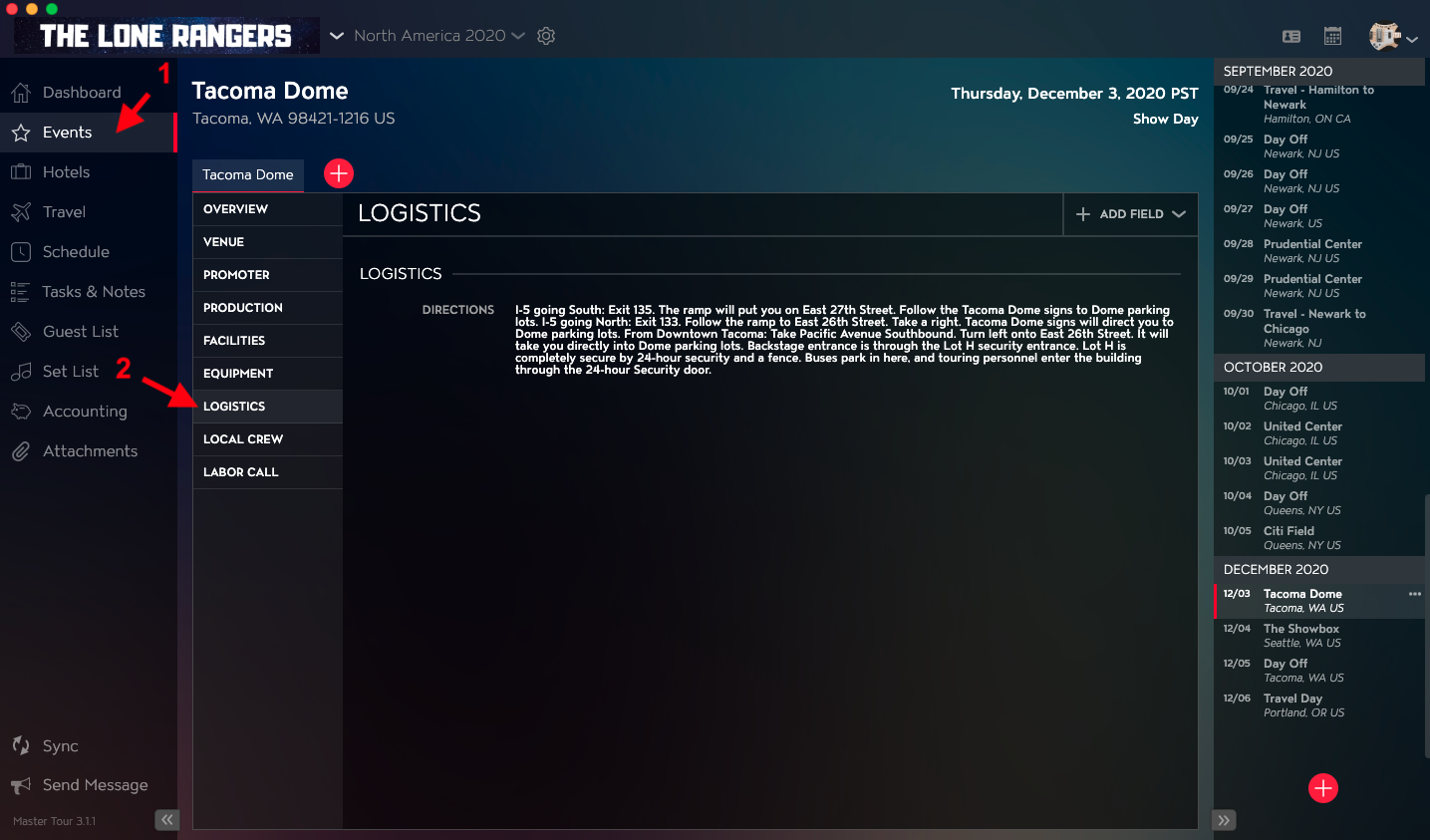
- Click on Events in the left menu.
- Click on Logistics in the Events menu.
How to Add Logistics Details
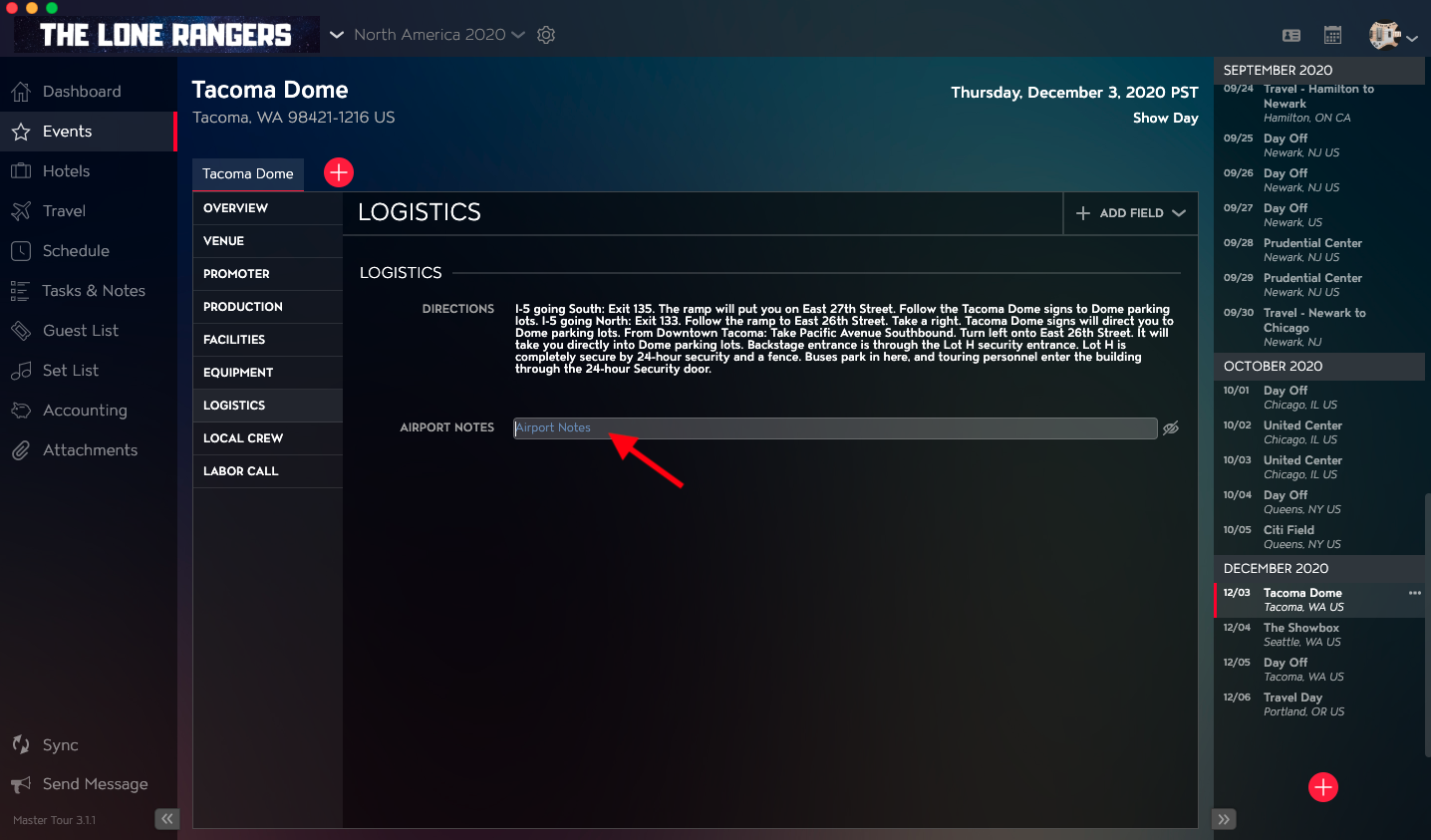
If the Logistics data field already exists, click into the text area and add your data. Clicking out of the field will save your changes.
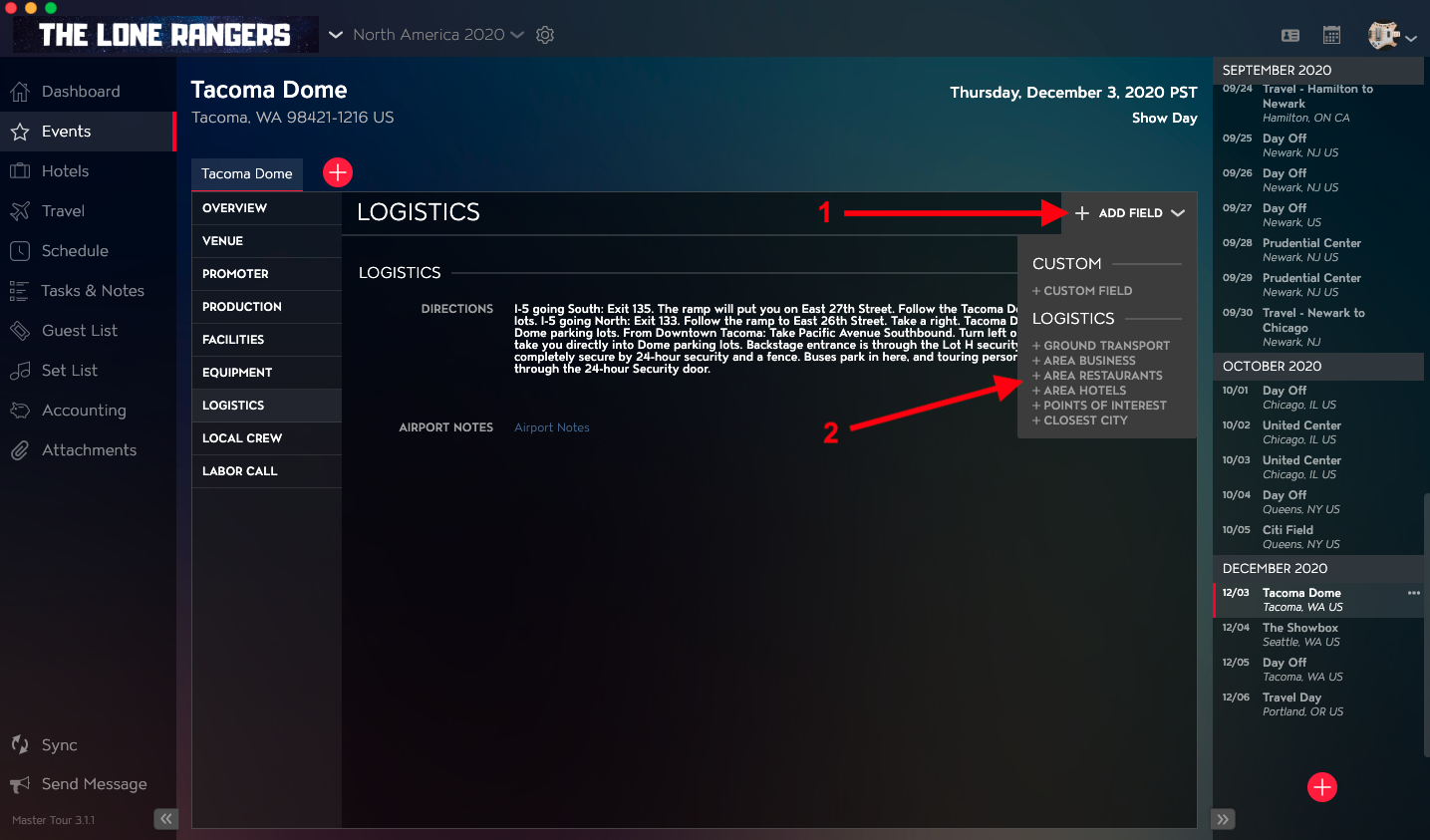
If you would like to add one of the standard Logistics fields such as Directions, Airport Notes, Ground Transportation, Area Business, Area Restaurants, Area Hotels, Points of Interest or Closest City:
- Click on the Add Field button in the upper right of the Logistics module.
- Select one of the Fields from the dropdown list.
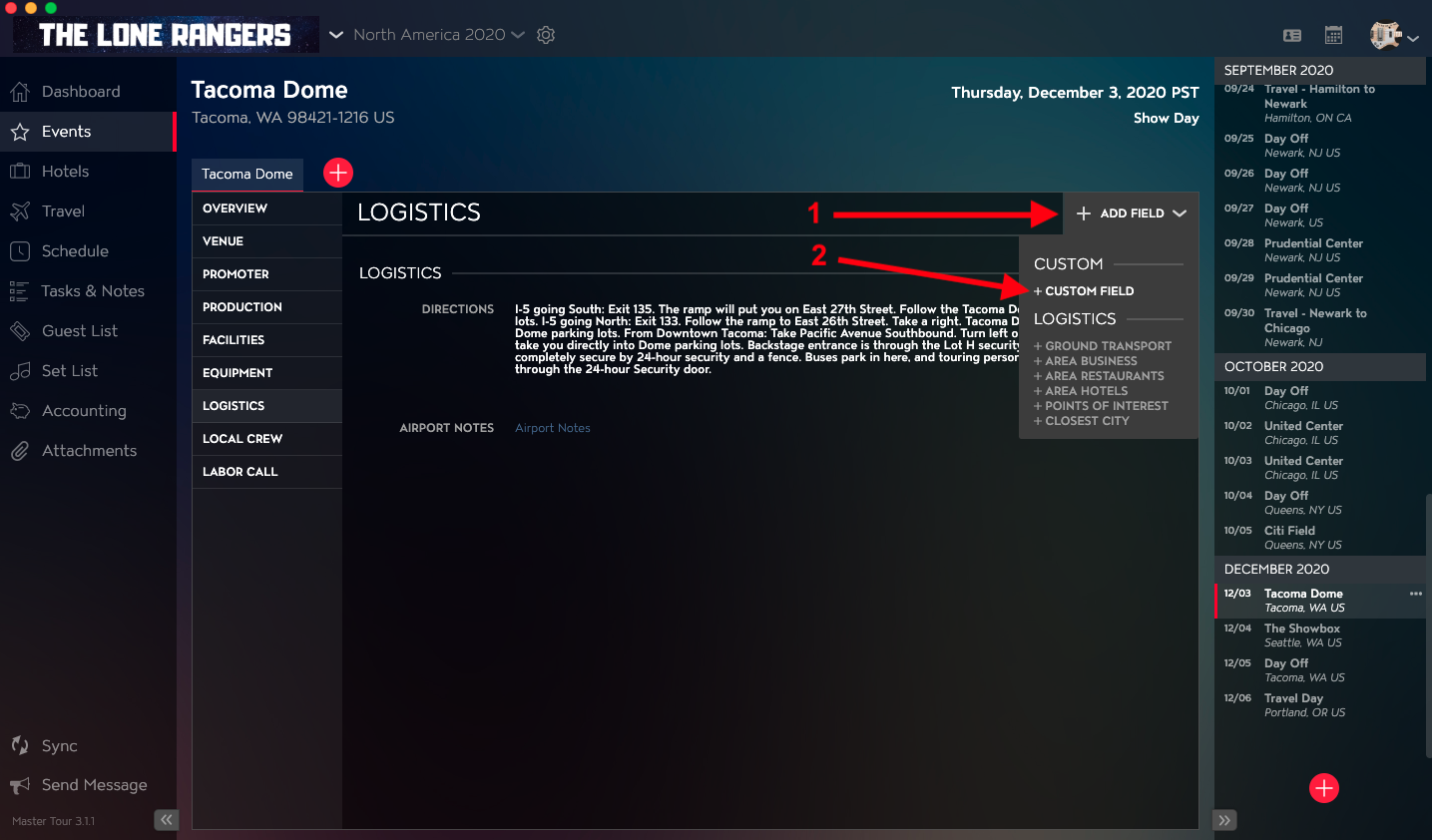
If you would like to add a custom field of data:
- Click on the Add Field button in the upper right of the Logistics module.
- Select Custom Field from the dropdown list.
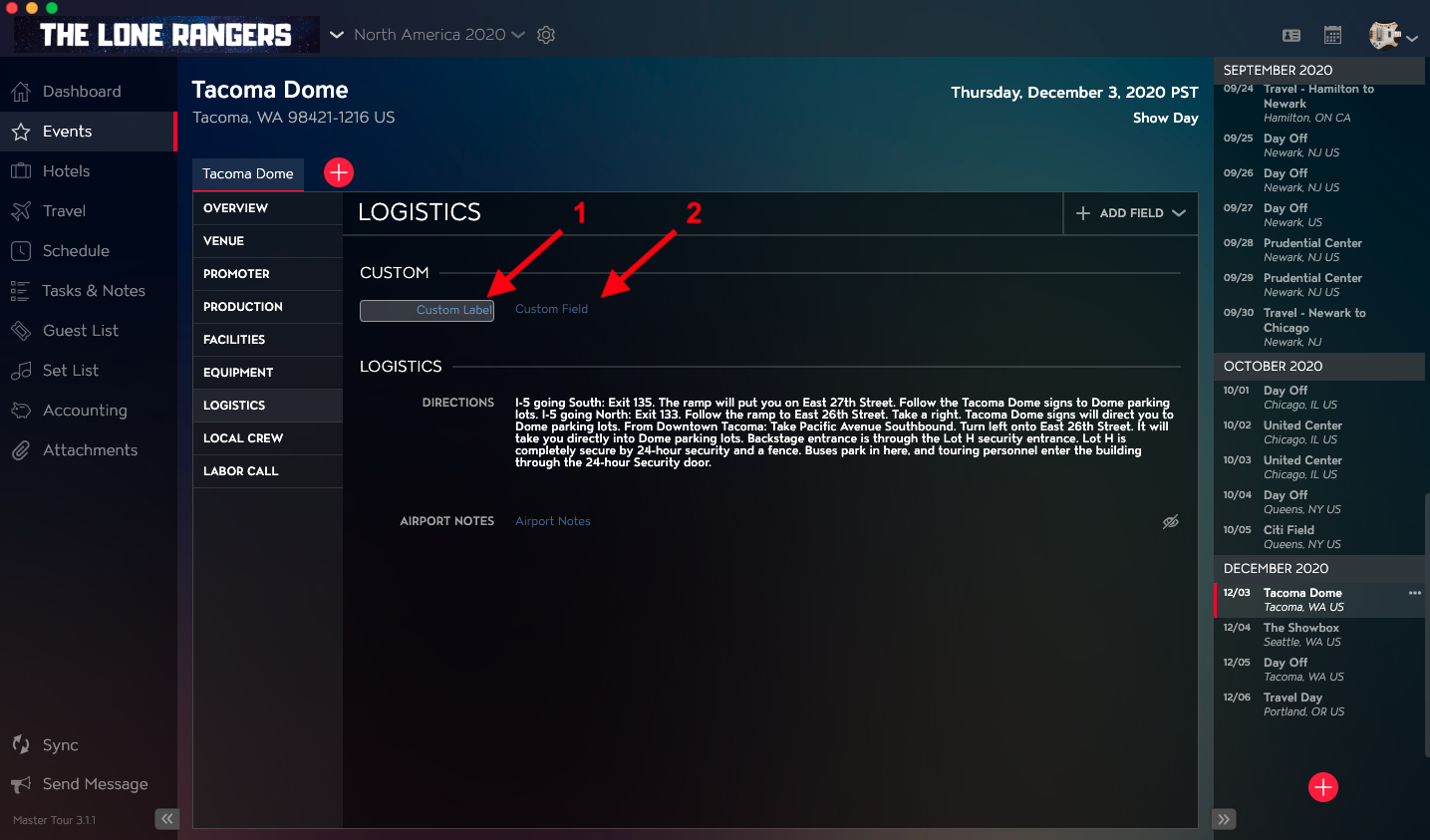
In the Custom section:
- In the Custom Label field, type in the name of the field. Clicking out of the field will save the name.
- In the Custom Field field, type in any data for the field. Clicking out of the field will save your data.