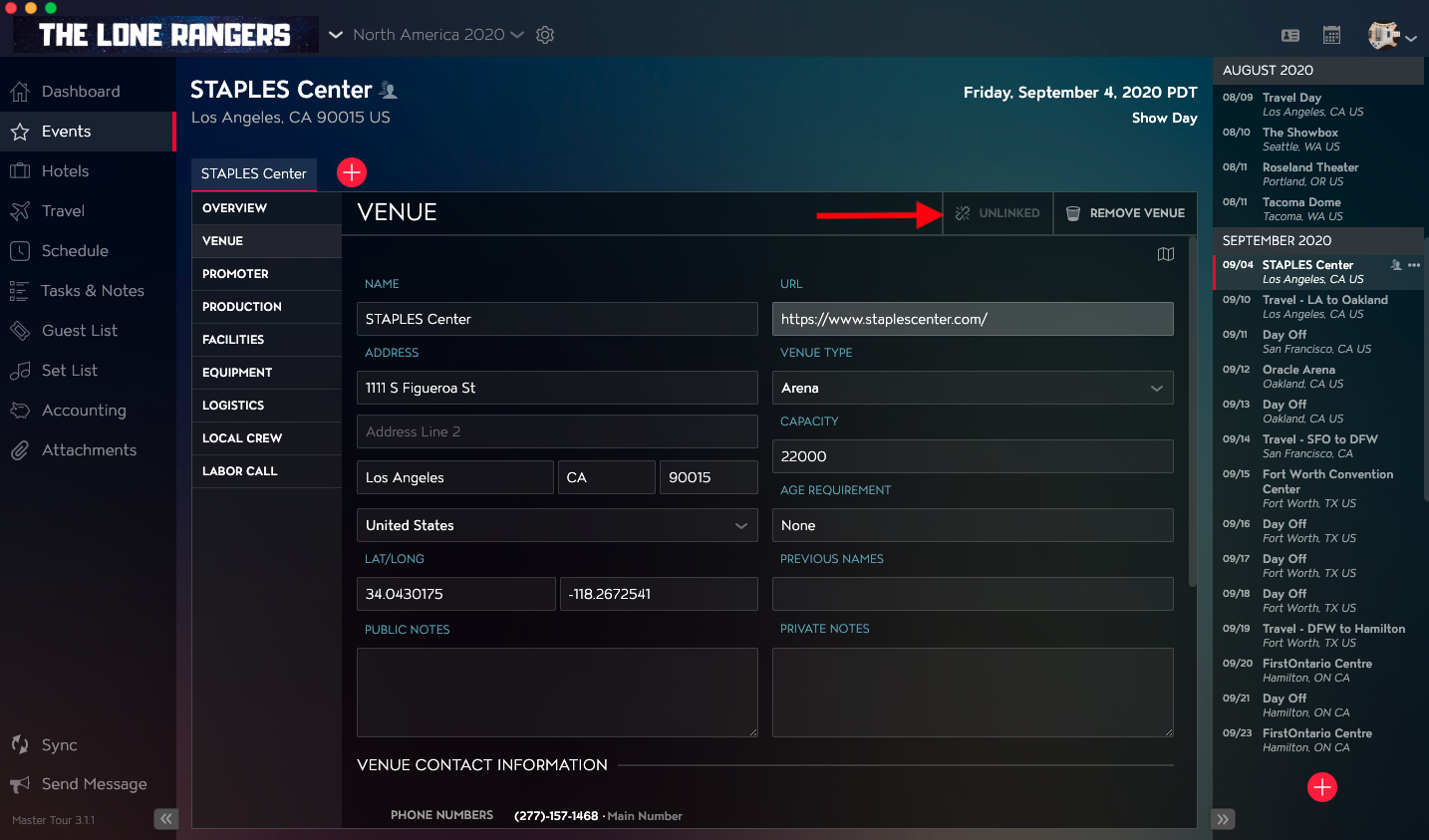
By default, if you update the information for a Venue, it will update for all of the Tour Dates using that Venue Record. If you would like to have information unique to a single Event, you can Unlink the Venue record using the Venue Module in Master Tour 3.
This article covers:
How to Navigate to the Venue Module
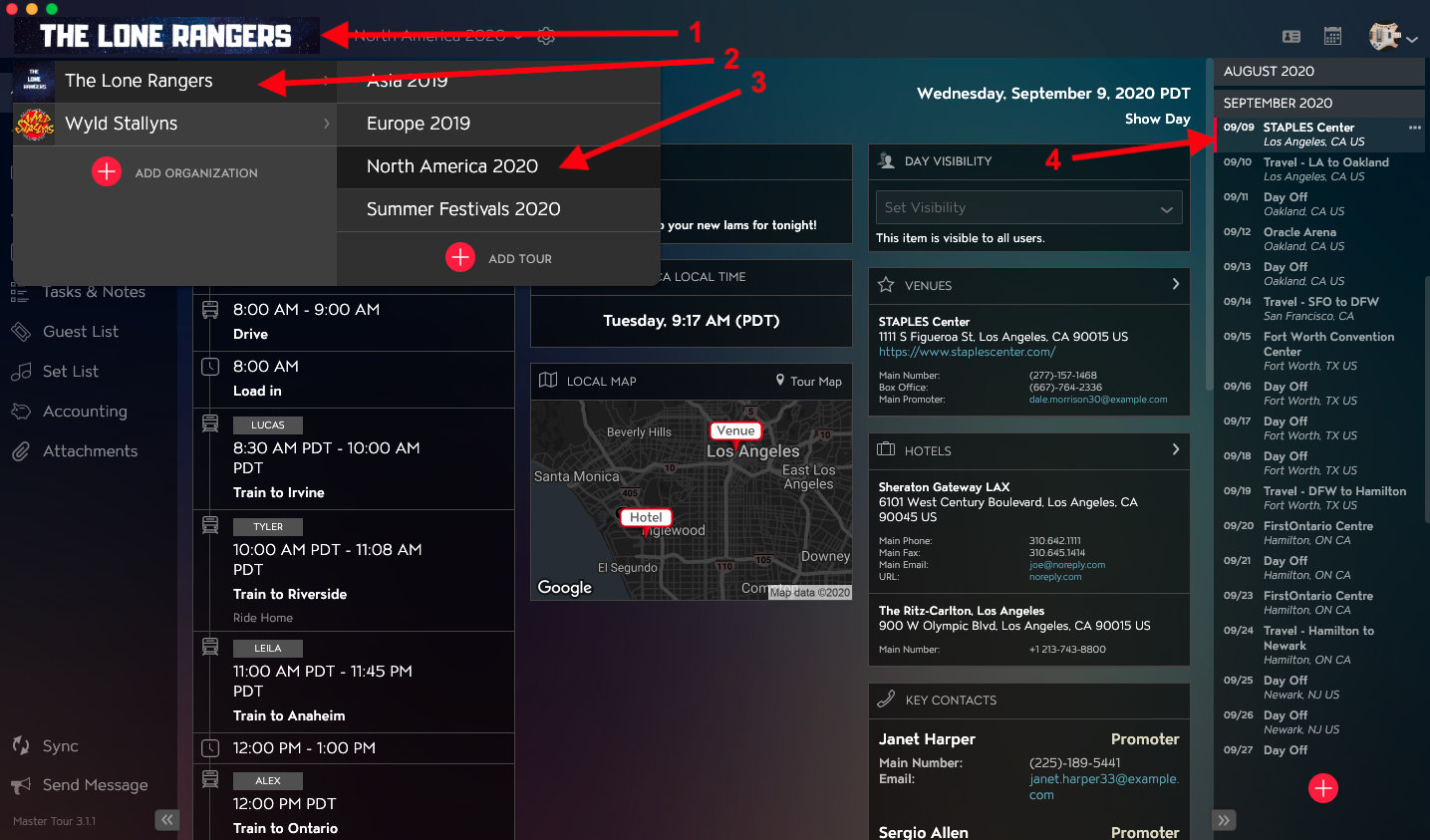
Within Master Tour, select the Tour Date that you would like to unlink a Venue from an Event in.
- Click on the Organization Selector dropdown menu in the upper left of the application.
- Select an Organization.
- Select a Tour from the Tour Selector dropdown menu.
- Select a Tour Date in the Tour Date List on the right of the application.
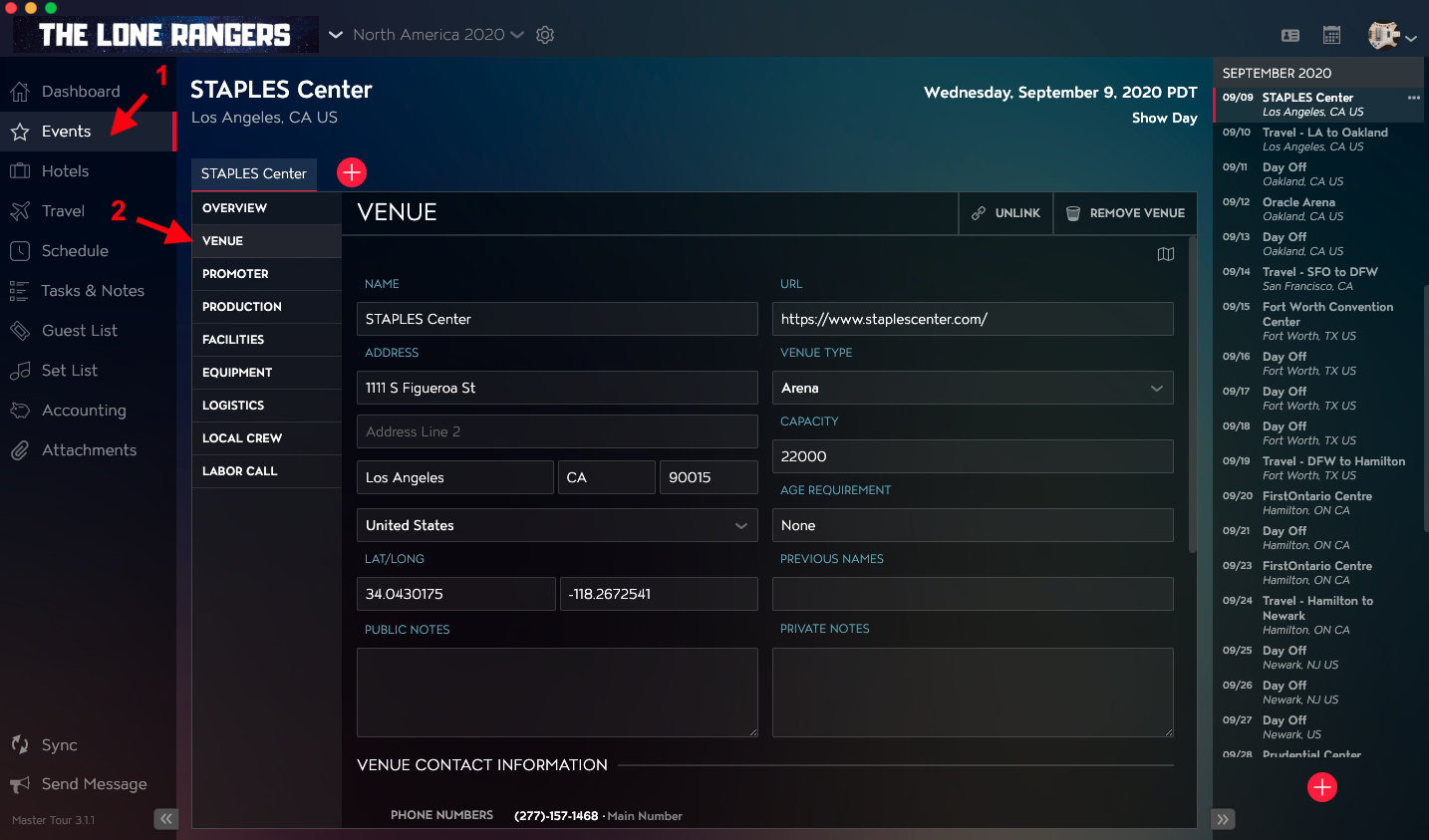
- Click on Events in the left menu.
- Click on Venue in the Events menu.
How to Unlink Venues
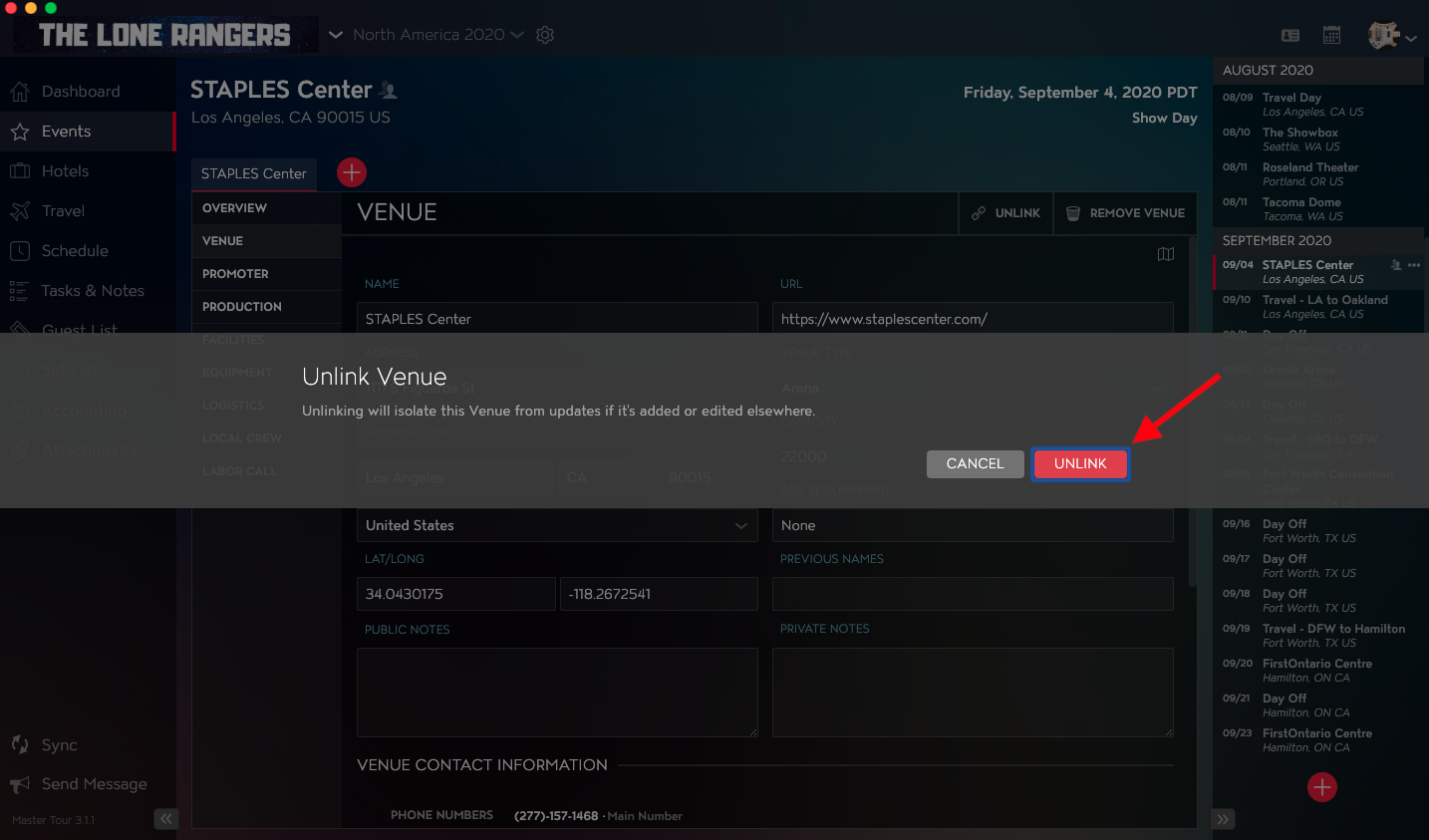
Click on the Unlink button in the upper right of the Venue Module.
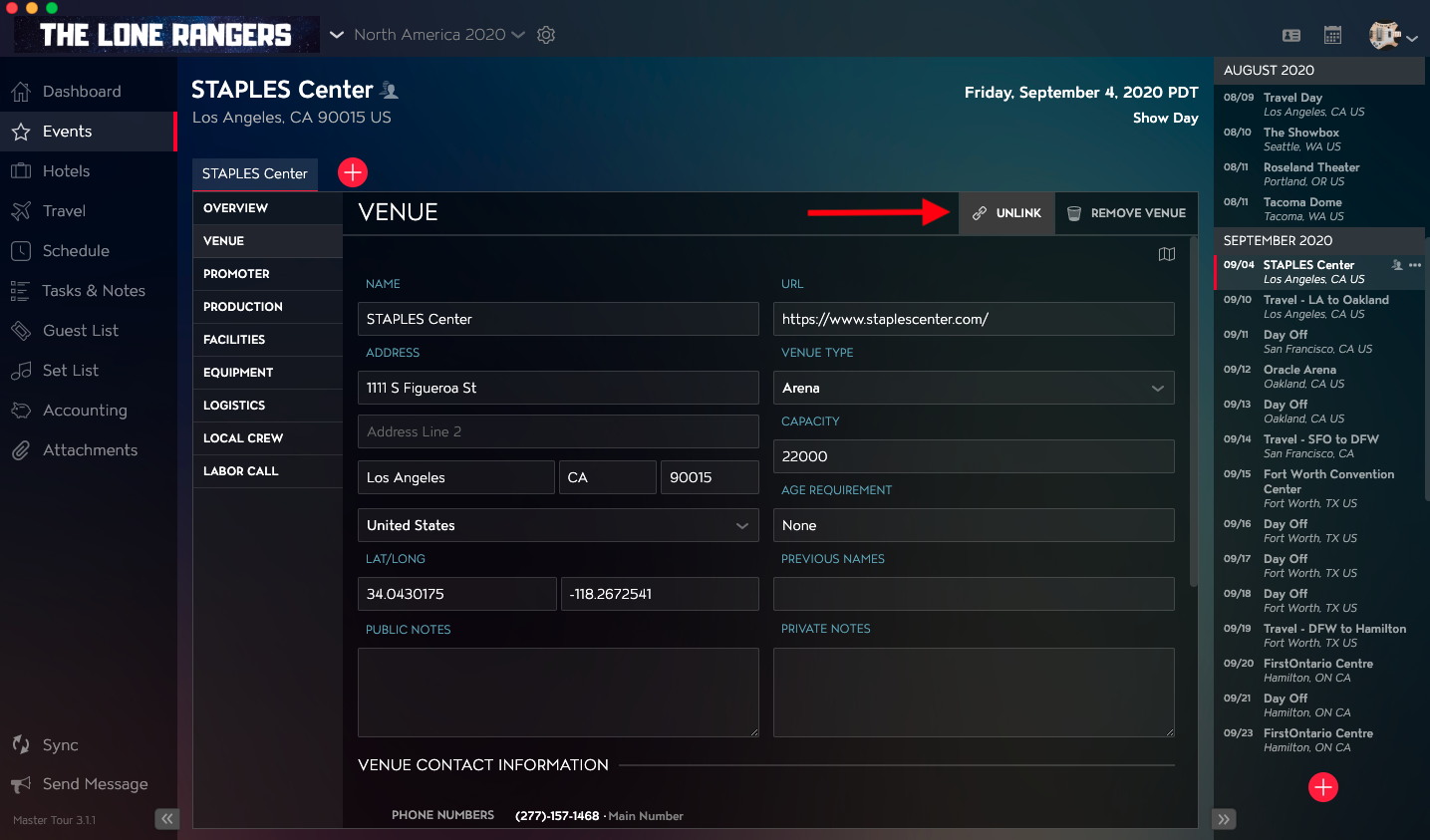
Click on the Unlink button to confirm that you would like to Unlink the Venue.
You will then see the Unlinked non-clickable button in the upper right of the Venue Module.