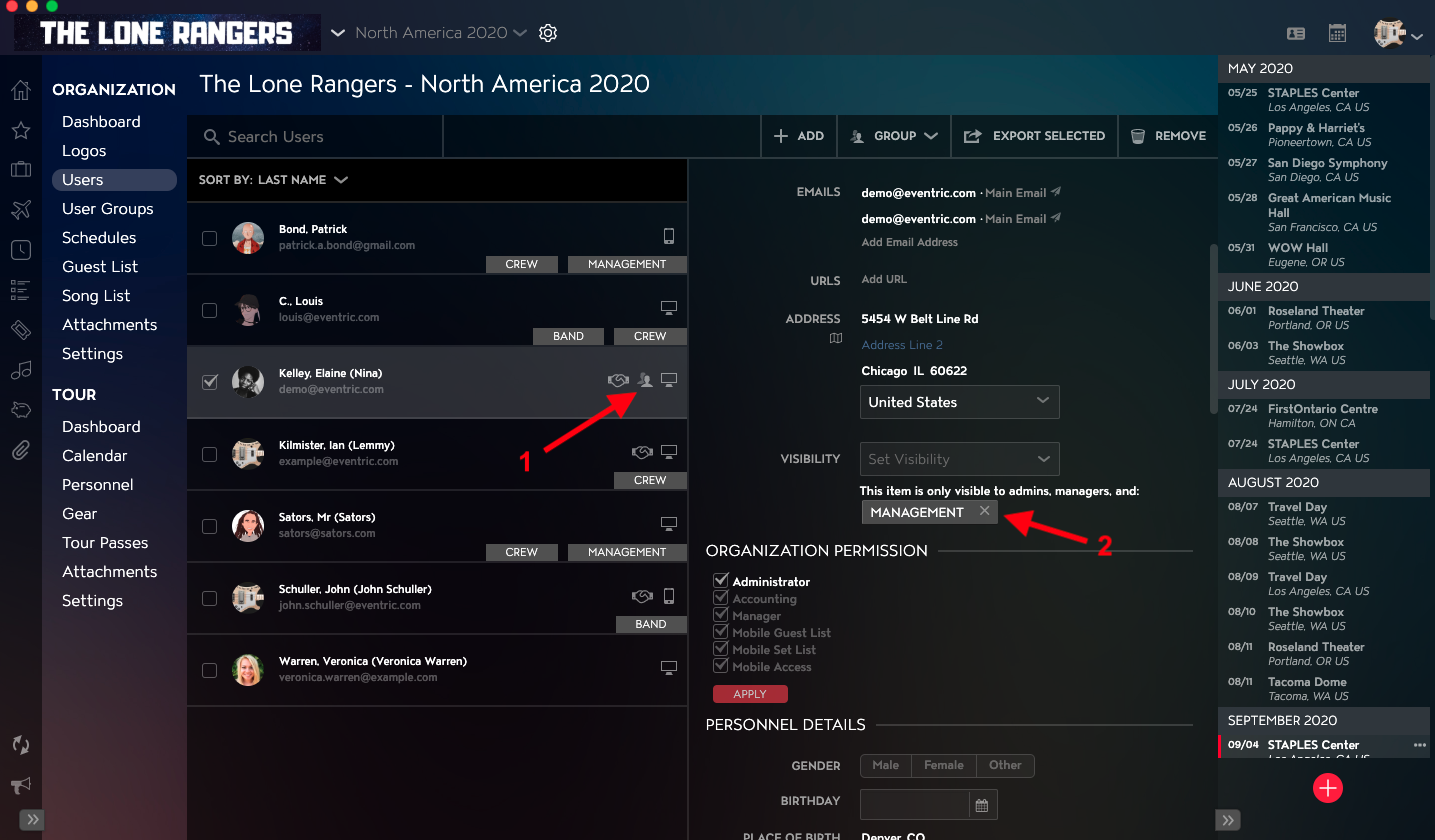
You can apply Visibility to an individual User record, in order to allow only certain Users to access that record. Note: Users with Administrator, Accounting, or Manager Organization Permissions will be able to view all User records, regardless of Visibility settings.
This article covers:
How to Navigate to the User Module
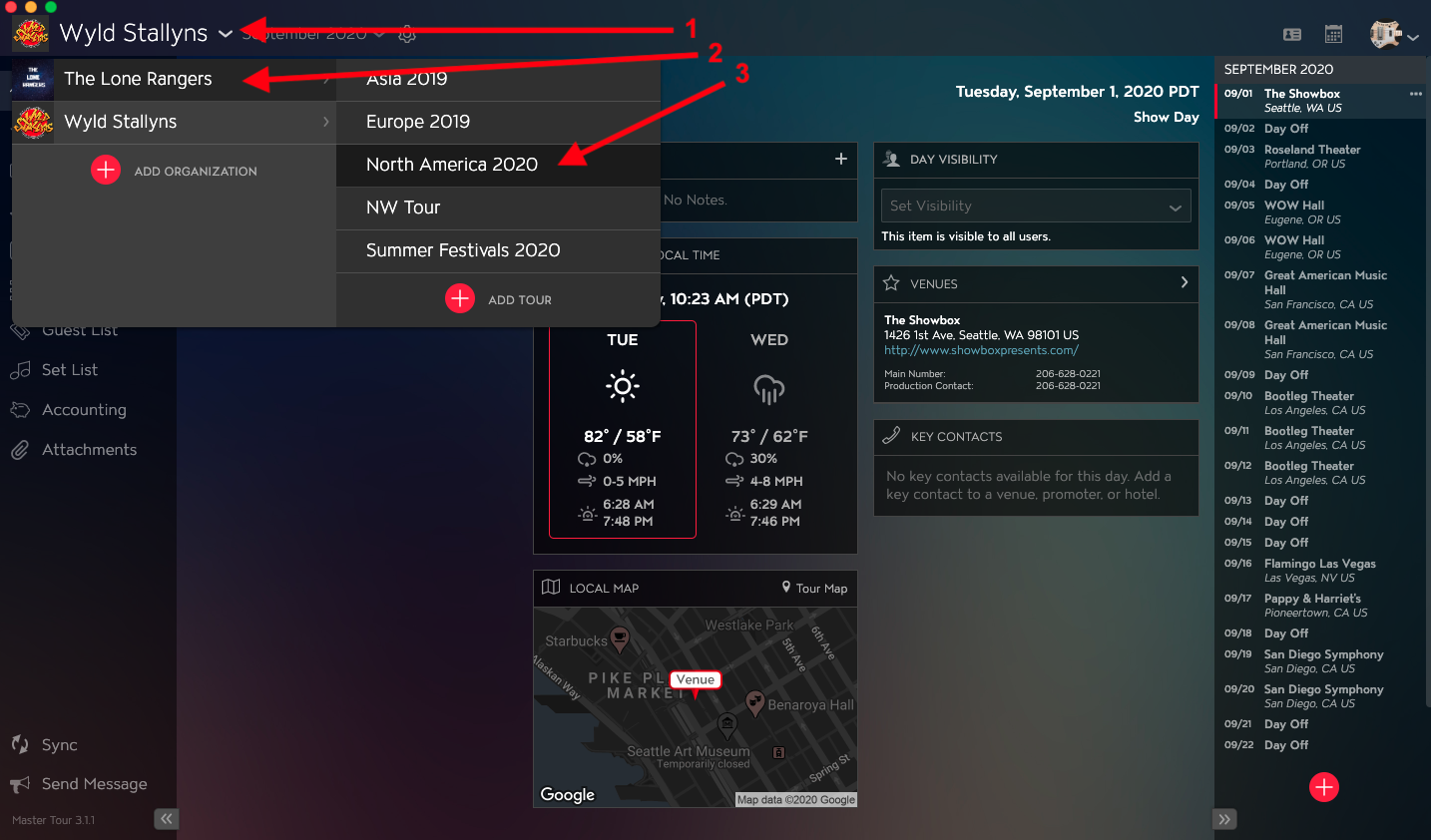
In Master Tour 3, select the Organization that you would like to edit a User Profile for.
- Click on the Organization Selector dropdown menu.
- Select an Organization.
- Select a Tour if there are any Tours added to the Organization.
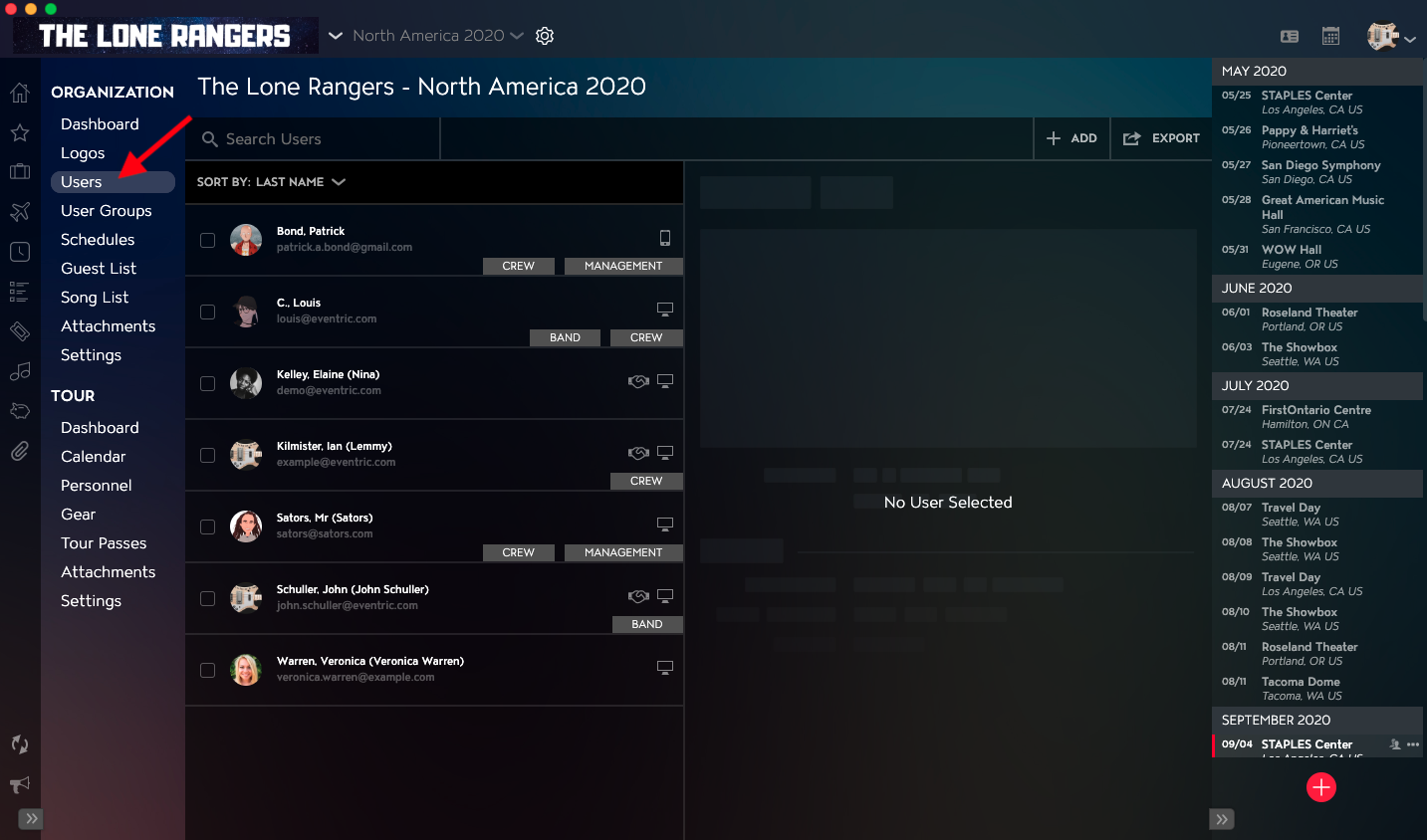
- Click on the Gear Icon to the right of your Tour Name at the top of the application.
- Click into the Users Section within Organization Settings in the left menu.
How to Apply Visibility to Users
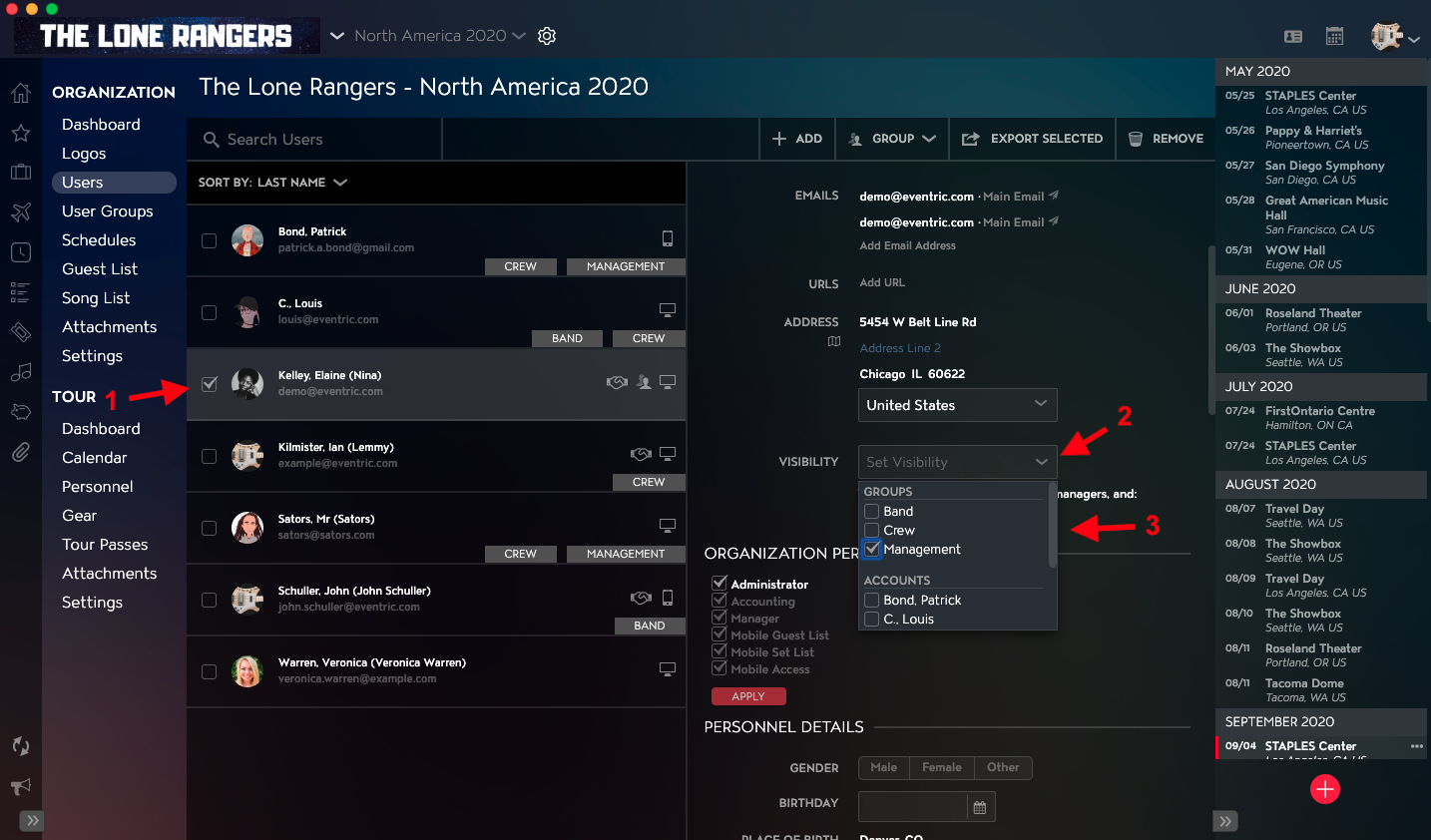
- Select the User you would like to edit in the User List in the left column.
- Click on the Visibility dropdown menu in the right column.
- Select any Groups or Accounts that you would like to share the User with from the dropdown.
Once Visibility has been applied, you will see:
- The Visibility Icon to the right of the User Name in the User List.
- The Groups and Users that have access to view the User below the Visibility field.