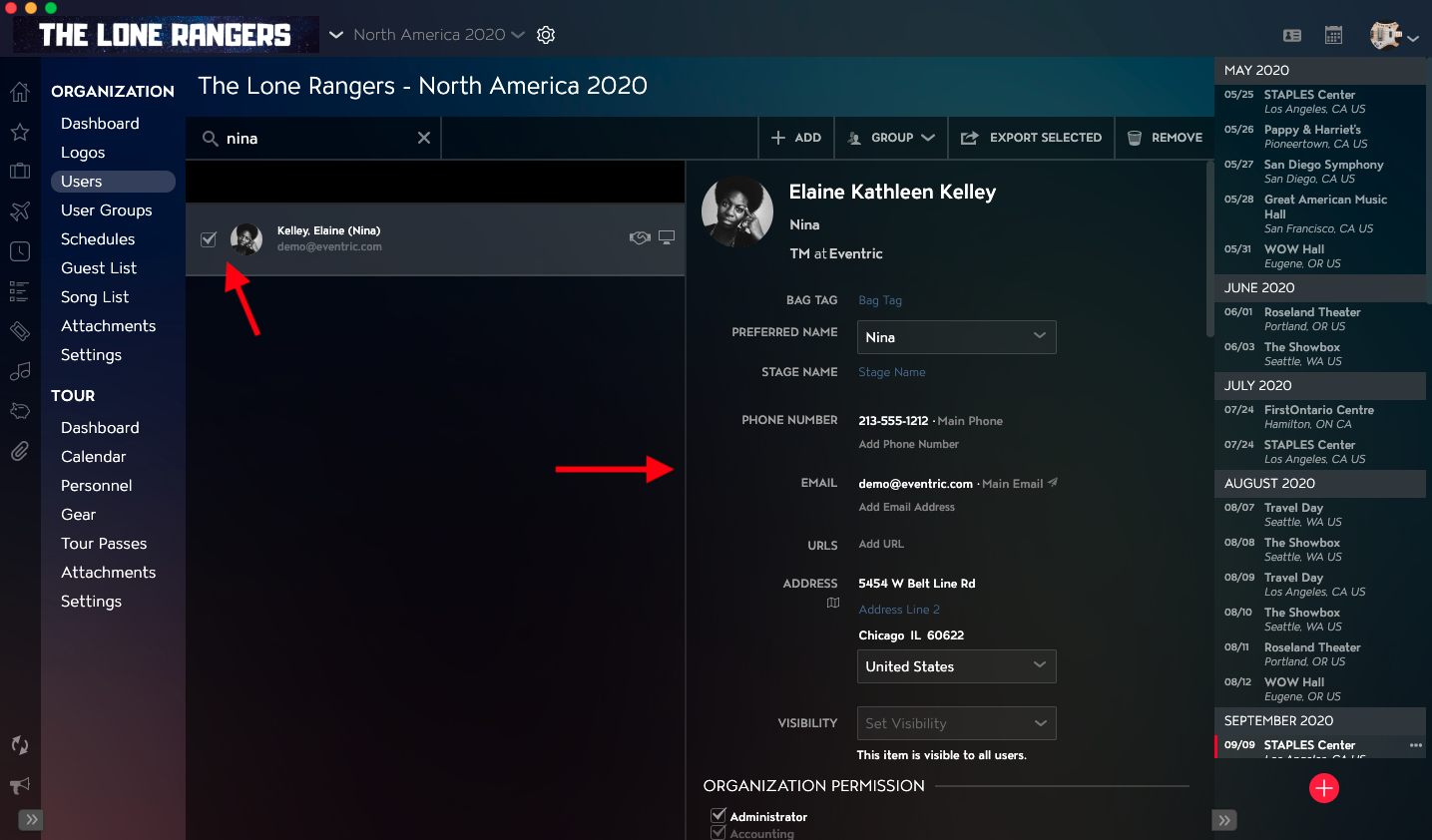
You can organize and find specific Users and User Details by using the Sort and Search functionality in the User Module in Master Tour 3. You can Sort Users by Last Name, First Name, Company, and Email. You can Search for Users by First Name, Last Name, Preferred Name, and Email Address.
This article covers:
How to Navigate to Users
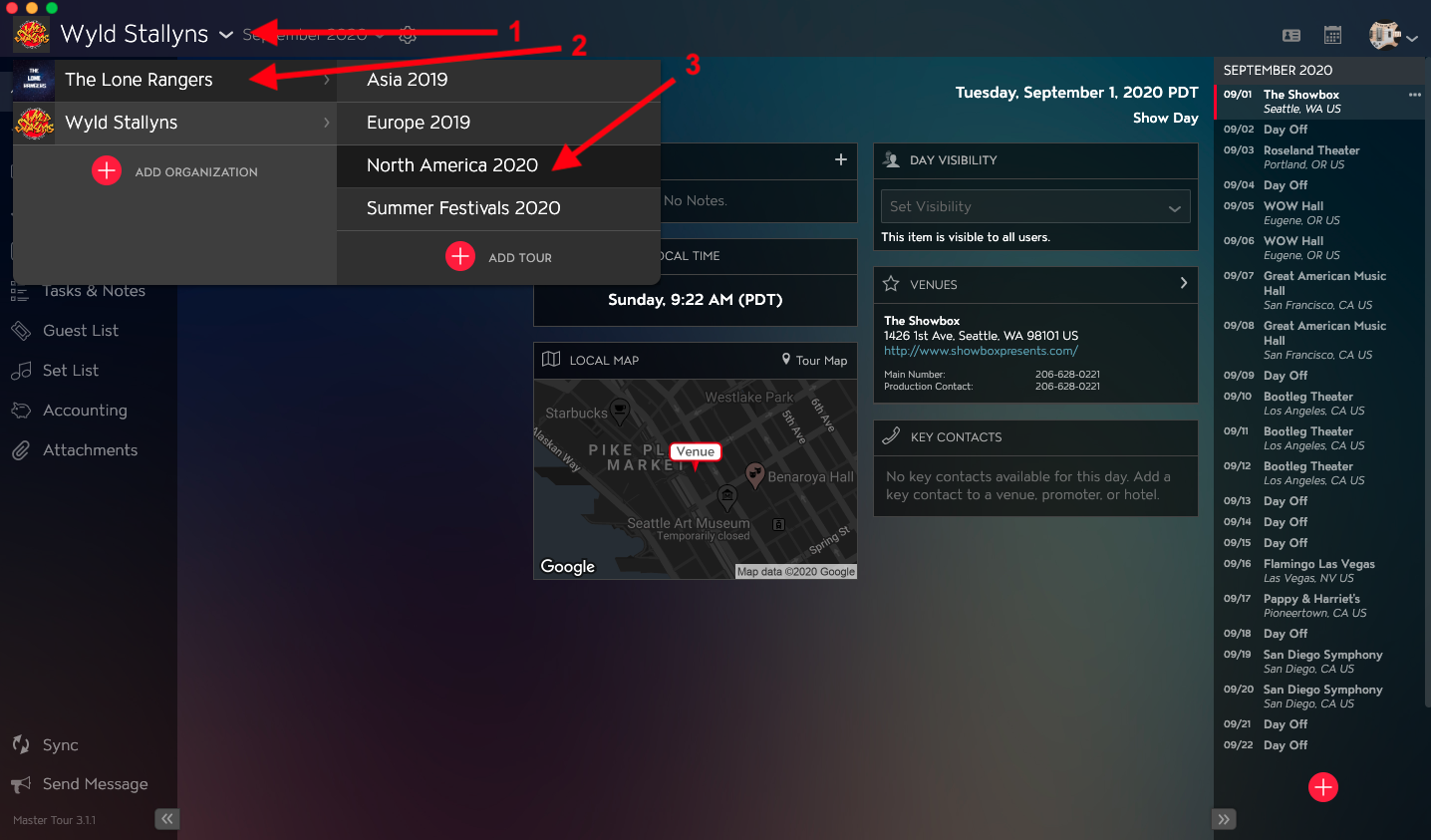
Within Master Tour, select the Organization that you would like to sort or search Users in.
- Click on the Organization Selector dropdown menu.
- Select an Organization.
- Select a Tour if there are any Tours added to the Organization.
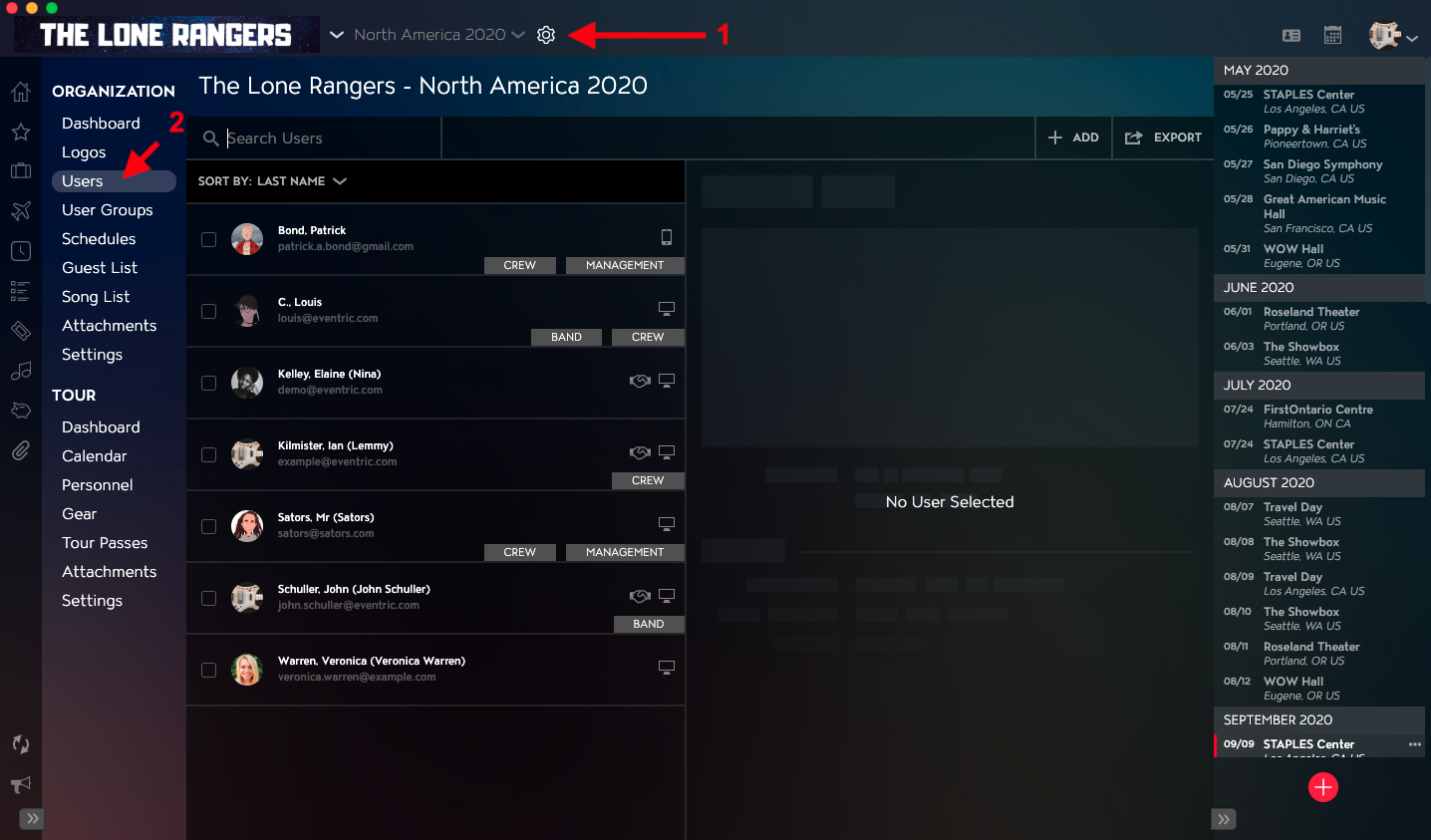
- Click on the Gear Icon to the right of your Tour Name at the top of the application.
- Click into the Users Section within Organization Settings in the left menu.
How to Sort Users
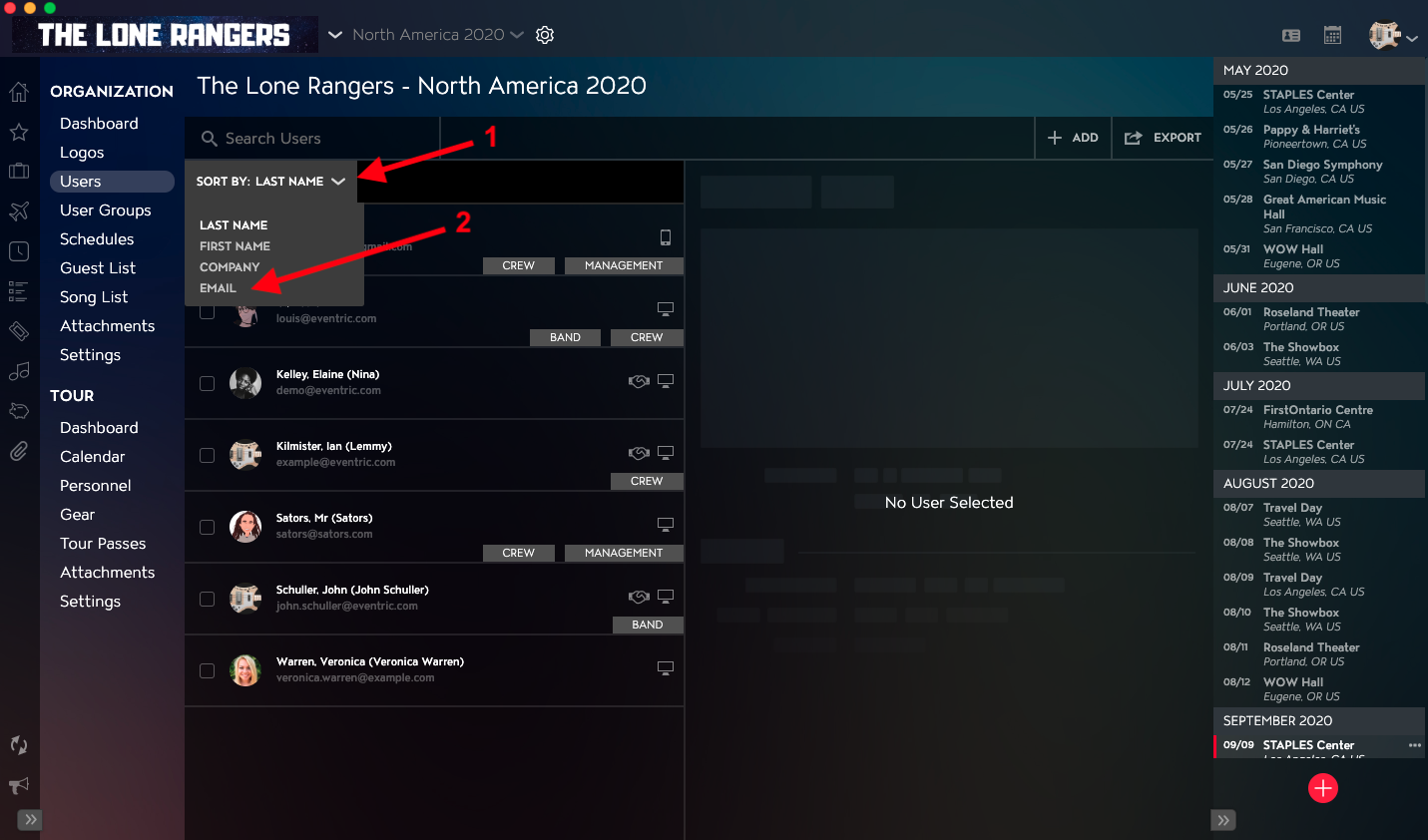
View the Sort By dropdown to see how Users are sorted.
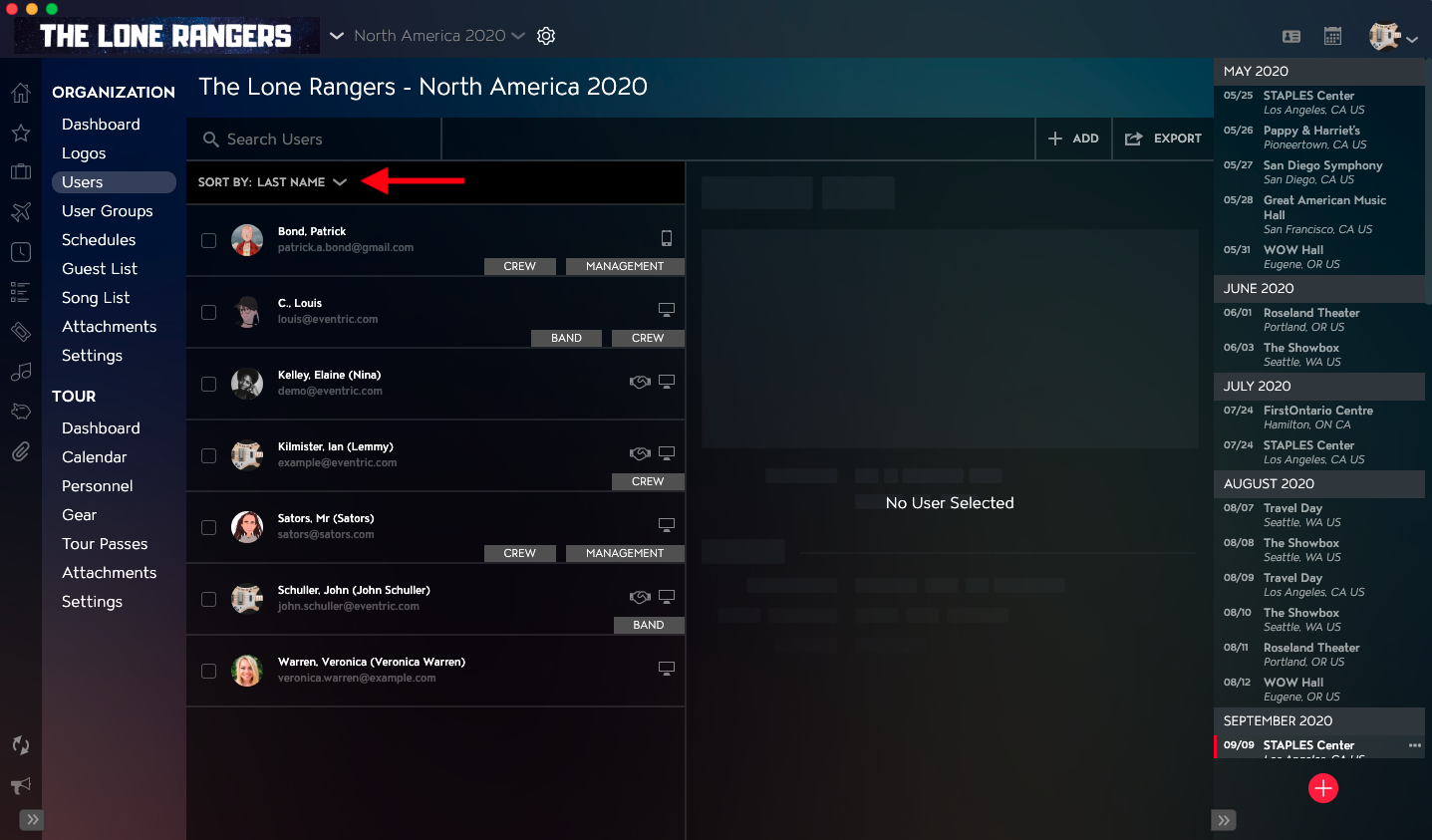
- Click into Sort By dropdown.
- Select either Last Name, First Name, Company, or Email.
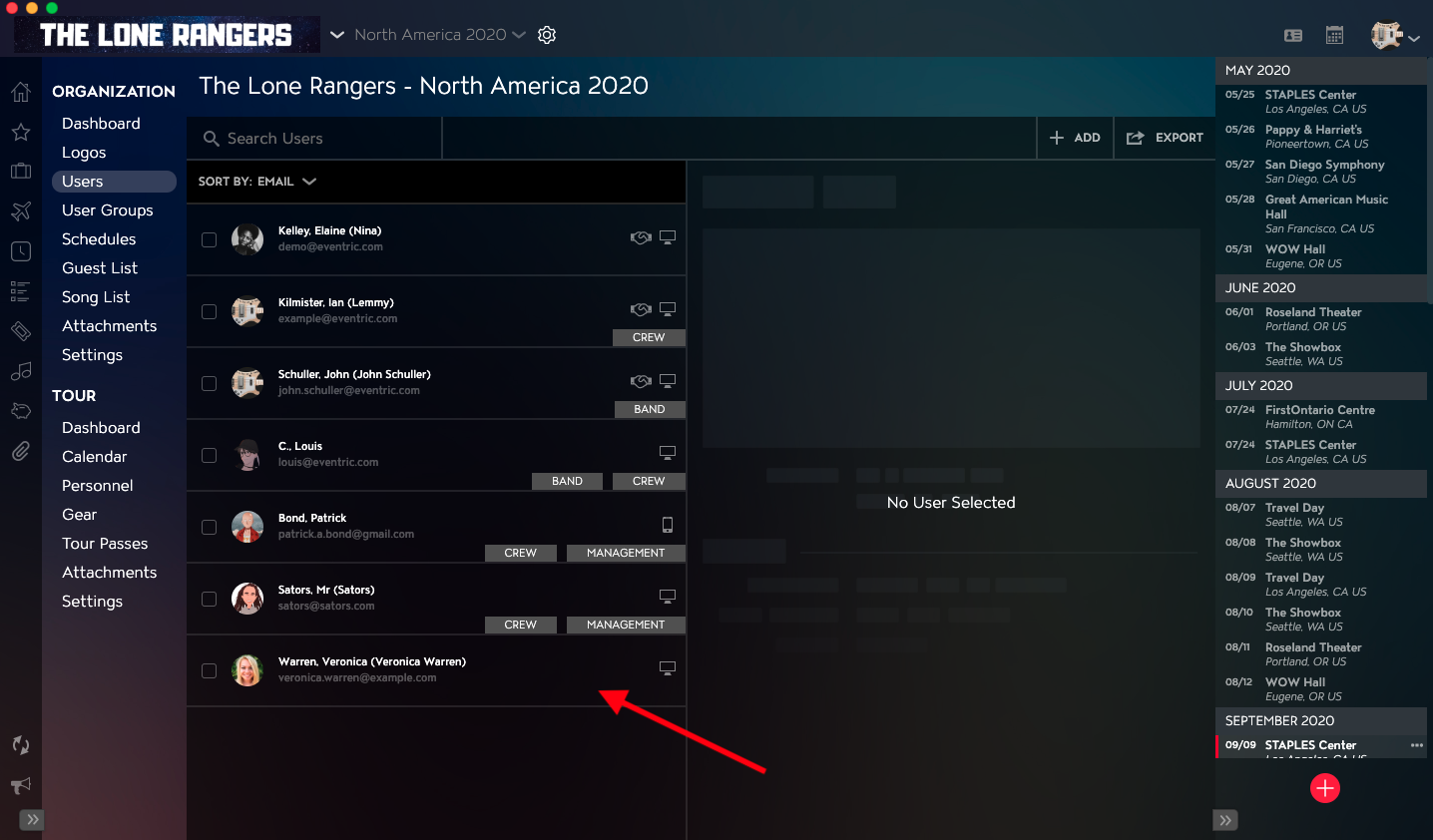
Once Sorting is applied, you will see the results returned in the User list.
How to Search for Users
Use the Search Users field in the upper left corner of the User List to search for specific Users by First Name, Last Name, Preferred Name, or Email Address.
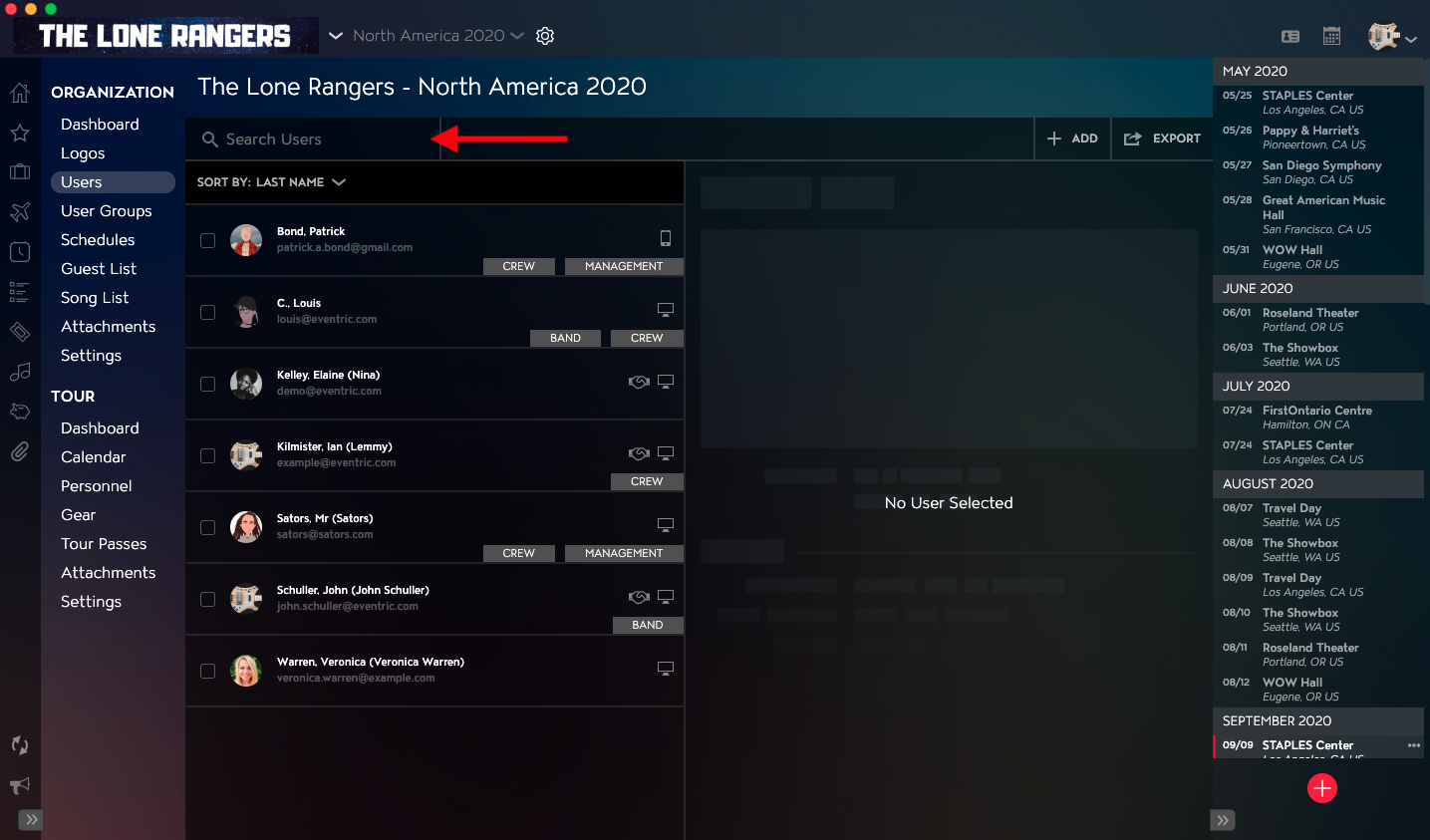
Once your Search is complete, you will see the individual’s record in the User list in the left column and the User details in the right-hand column.