You can easily add, update, or delete credit cards at any time on my.eventric.com.
Navigating to your Payment Methods
- Log into my.eventric.com
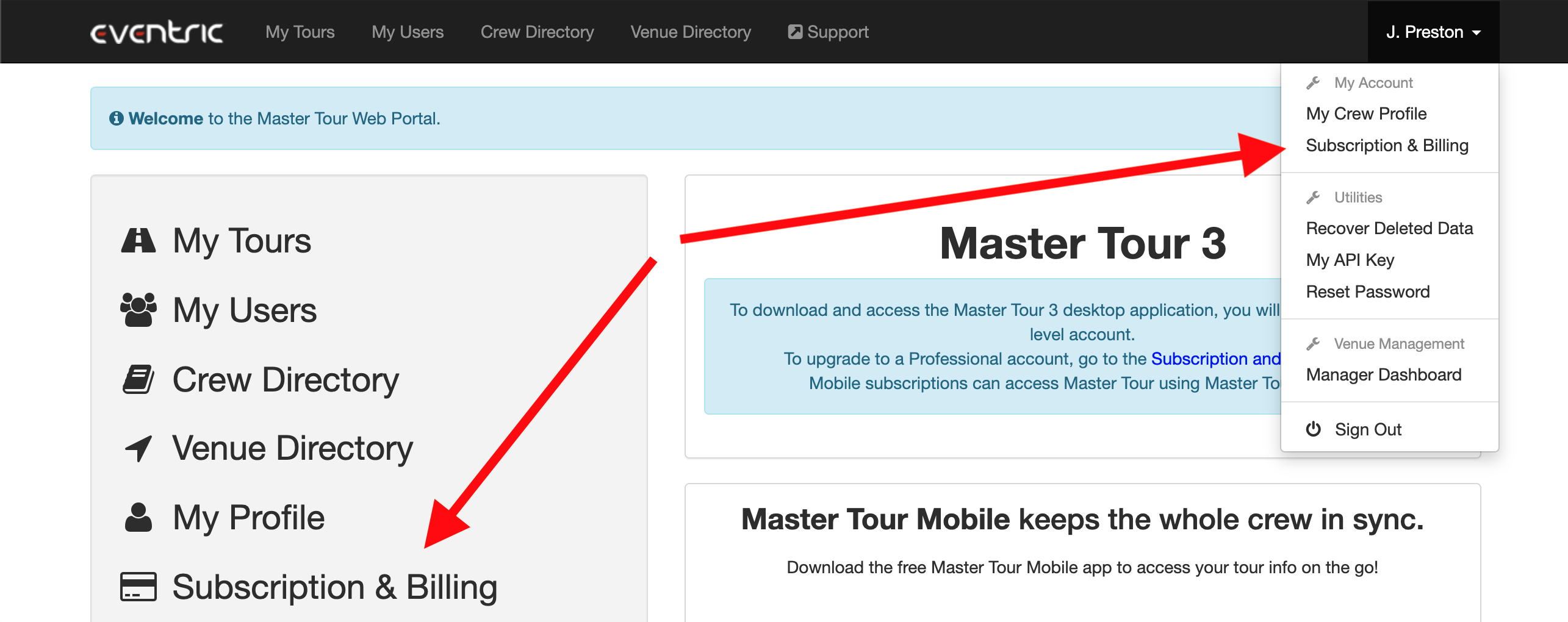
- Click on Subscription & Billing in the quick links on the left or in the dropdown menu in the top right
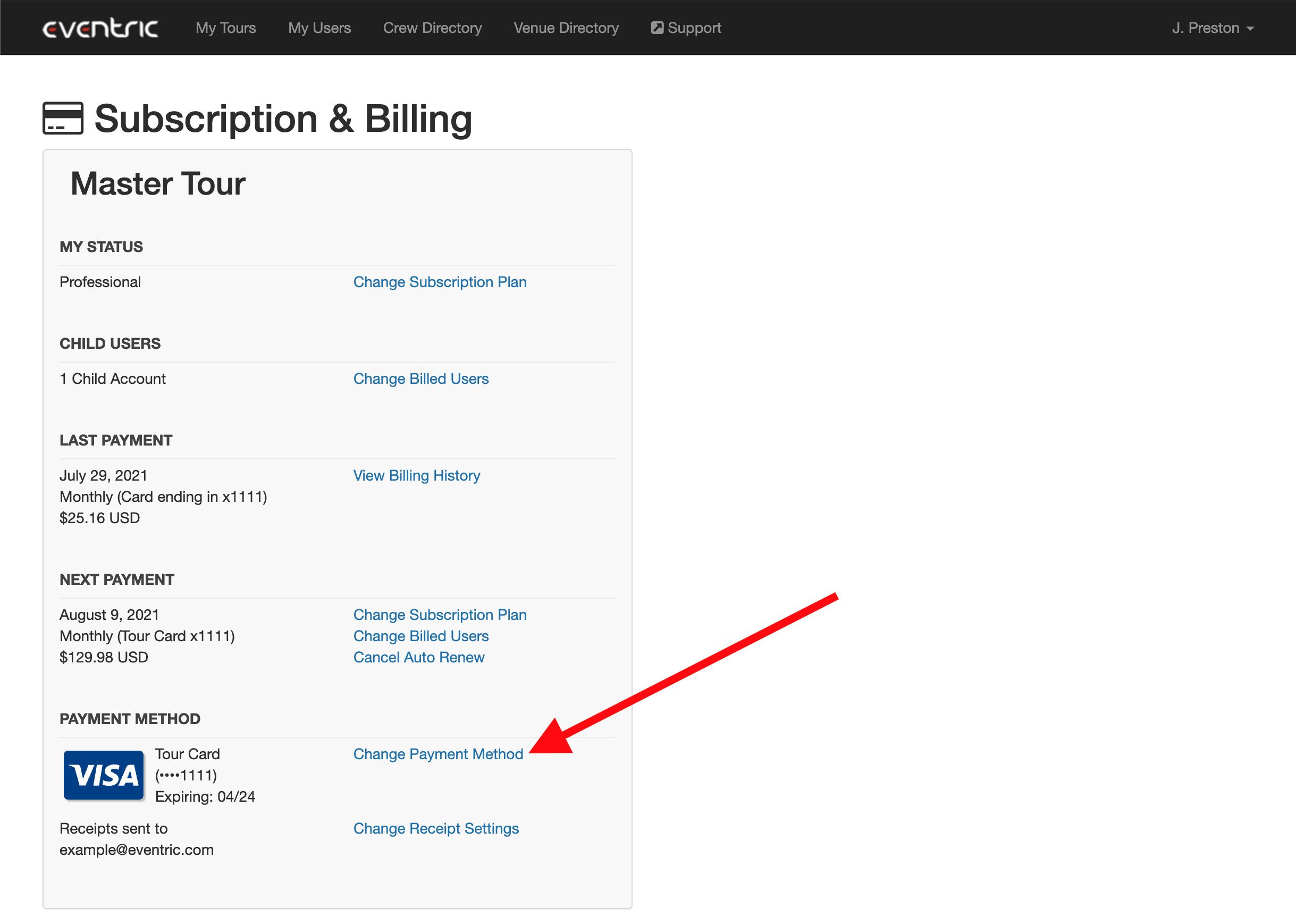
- Click on Change Payment Method
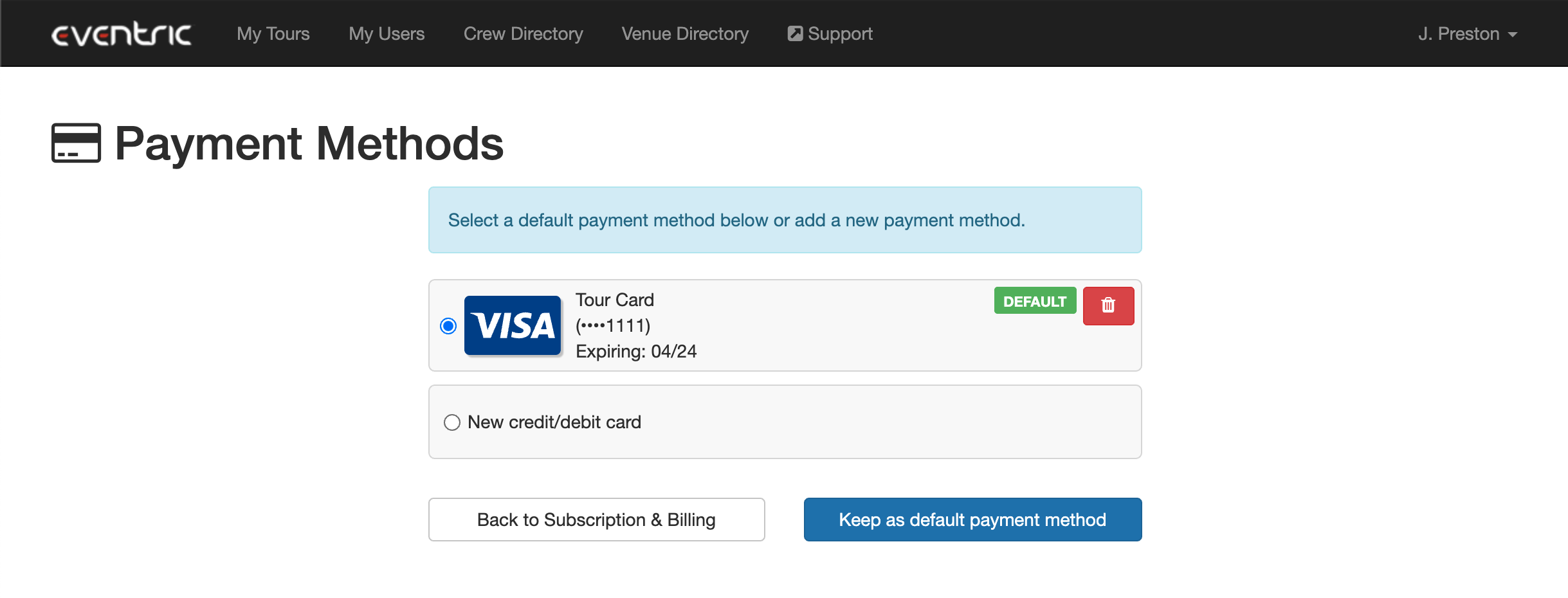
- This will bring you to your Payment Methods page, where you can add, delete, and set default Payment Methods
Adding a New Card
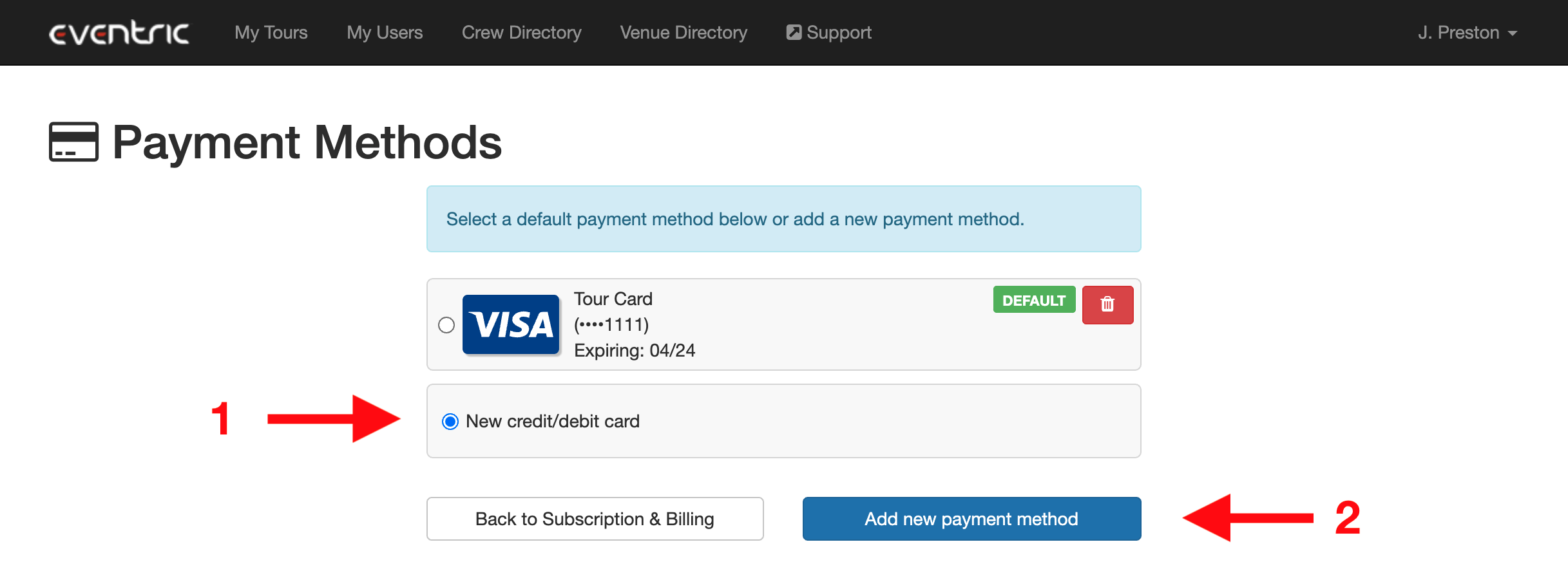
- Select "New credit/debit card," then click Add New Payment Method
- Enter your billing address and credit card info, accept the terms of automatic payments for your subscription, and click Save
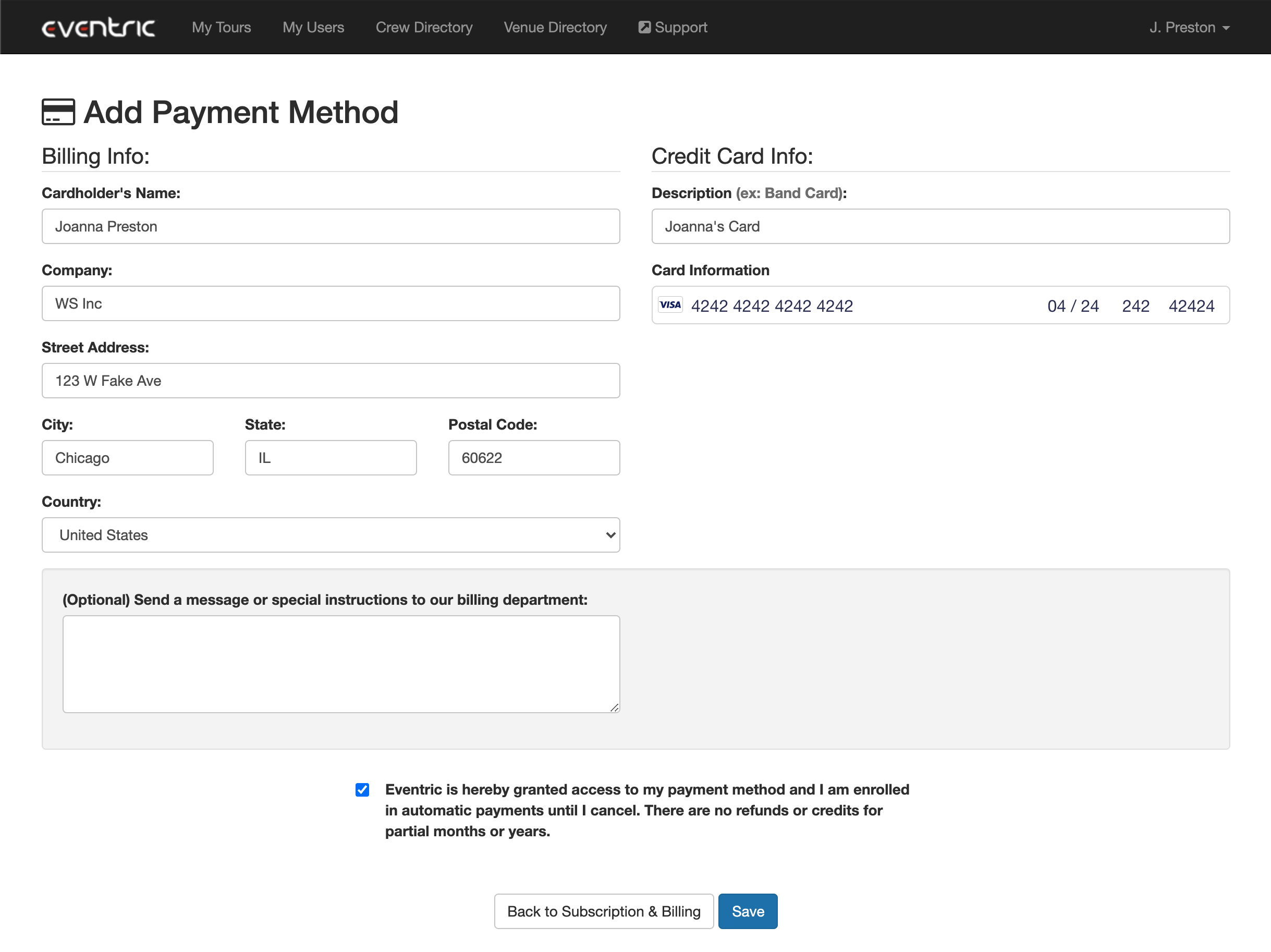
Please note: your Card Information postal code needs to match where your credit card itself is based, or you'll get an error saying you have entered an incorrect postal code.
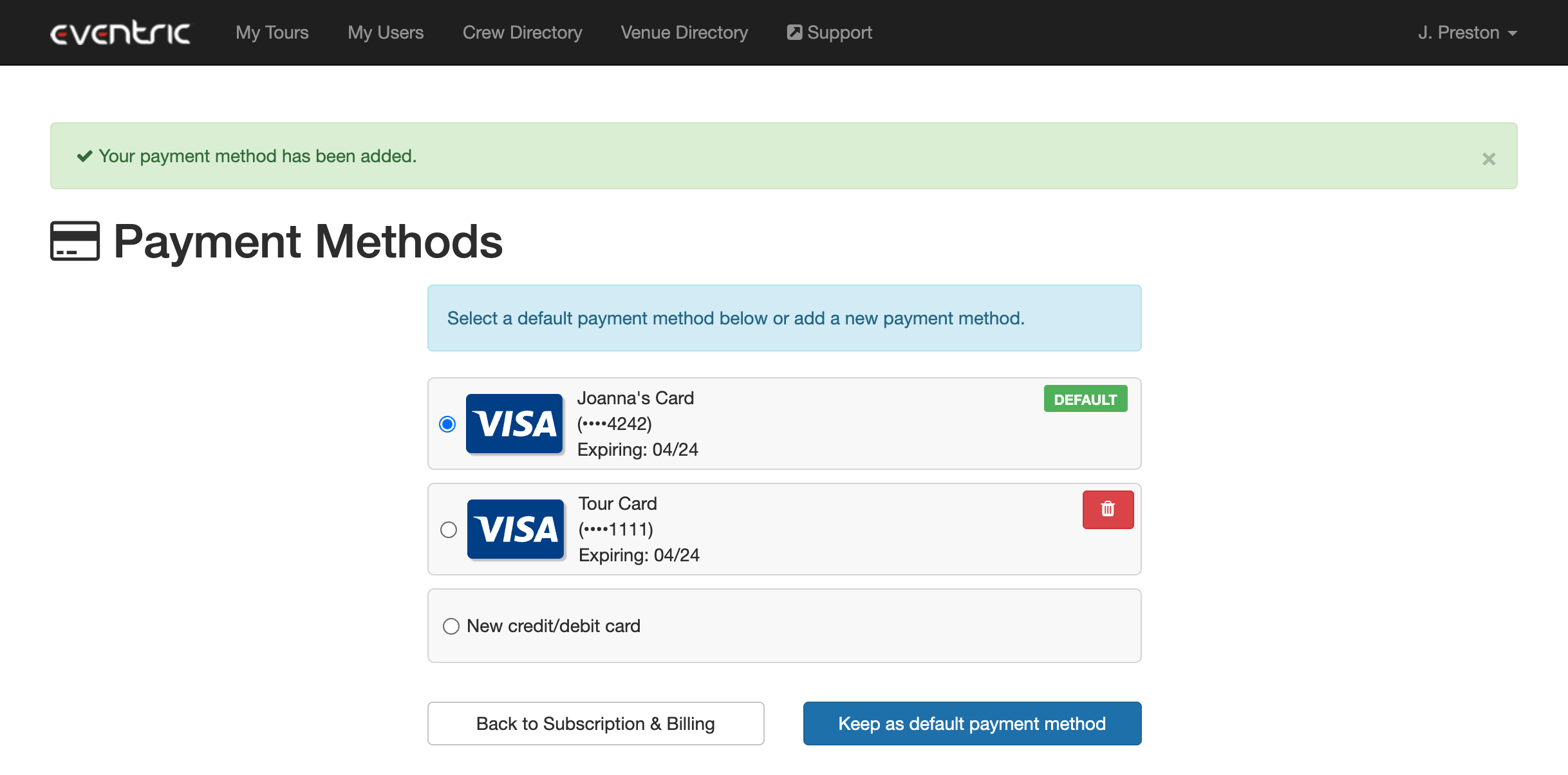
- After clicking Save, you'll be taken back to the Payment Methods page, with a notification saying your payment method has been added. Your new card will automatically be set as your default payment, and you can click "Keep as default payment method" to confirm this change.
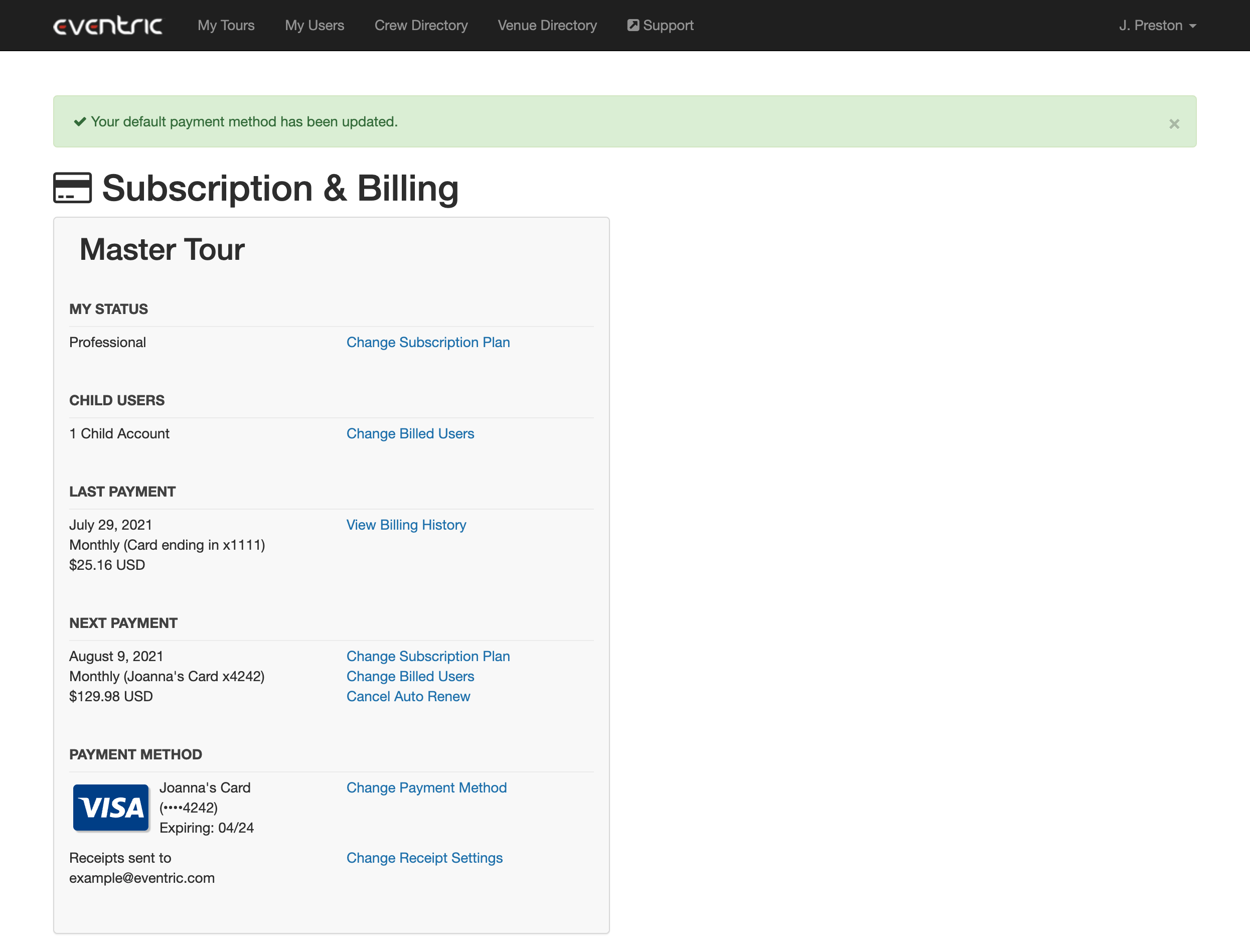
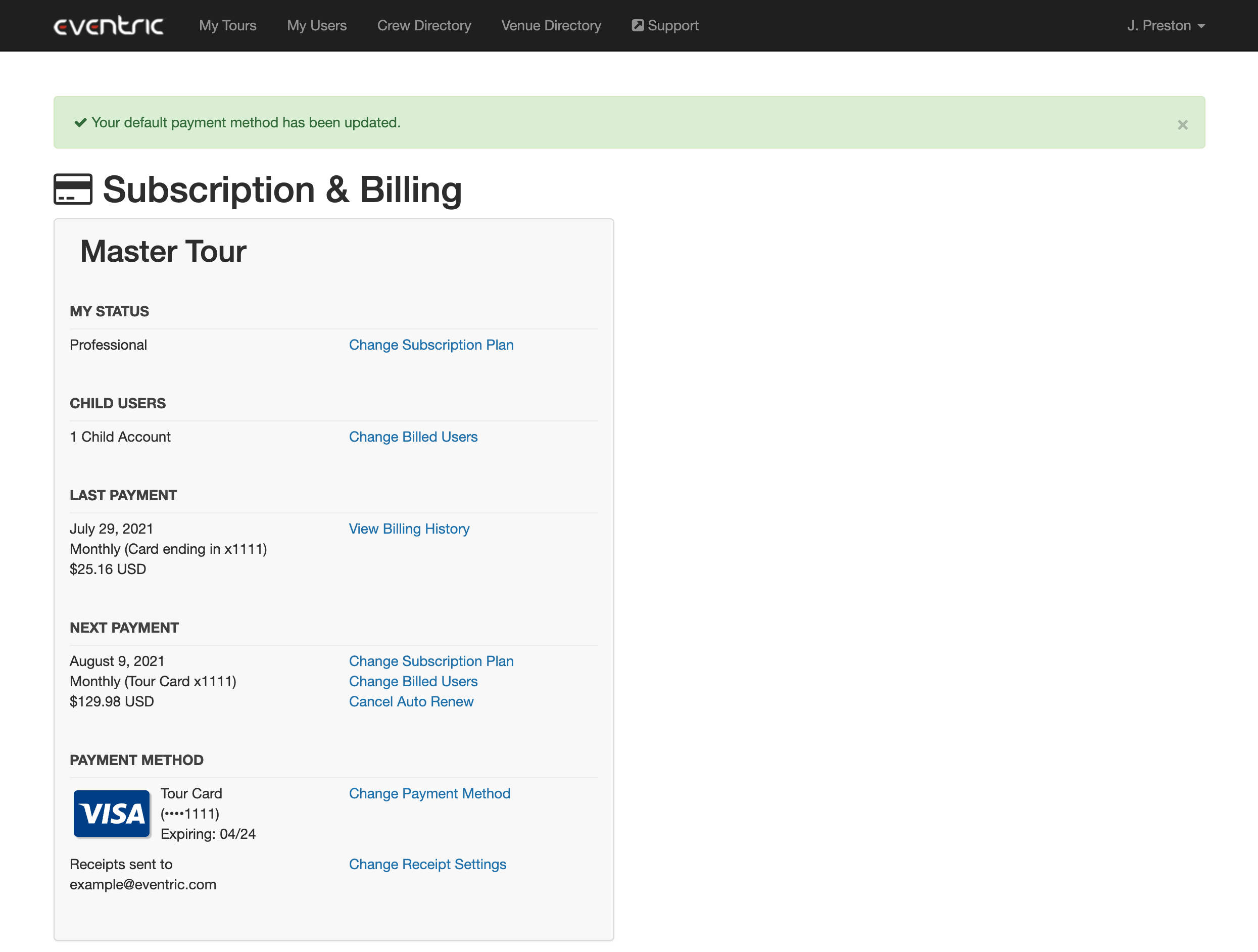
- On clicking "Keep as default payment method" (or selecting a different payment method as your default), you'll be returned to the Subscription & Billing page, with a success message saying your default payment has been updated. You will see your current default Payment Method at the bottom of the page with the Card Name, last 4 digits, and expiration date, as well as the Next Payment that will be charged to that card
Selecting a different Default Payment Method
- Select a different card, then click "Set as default payment method"
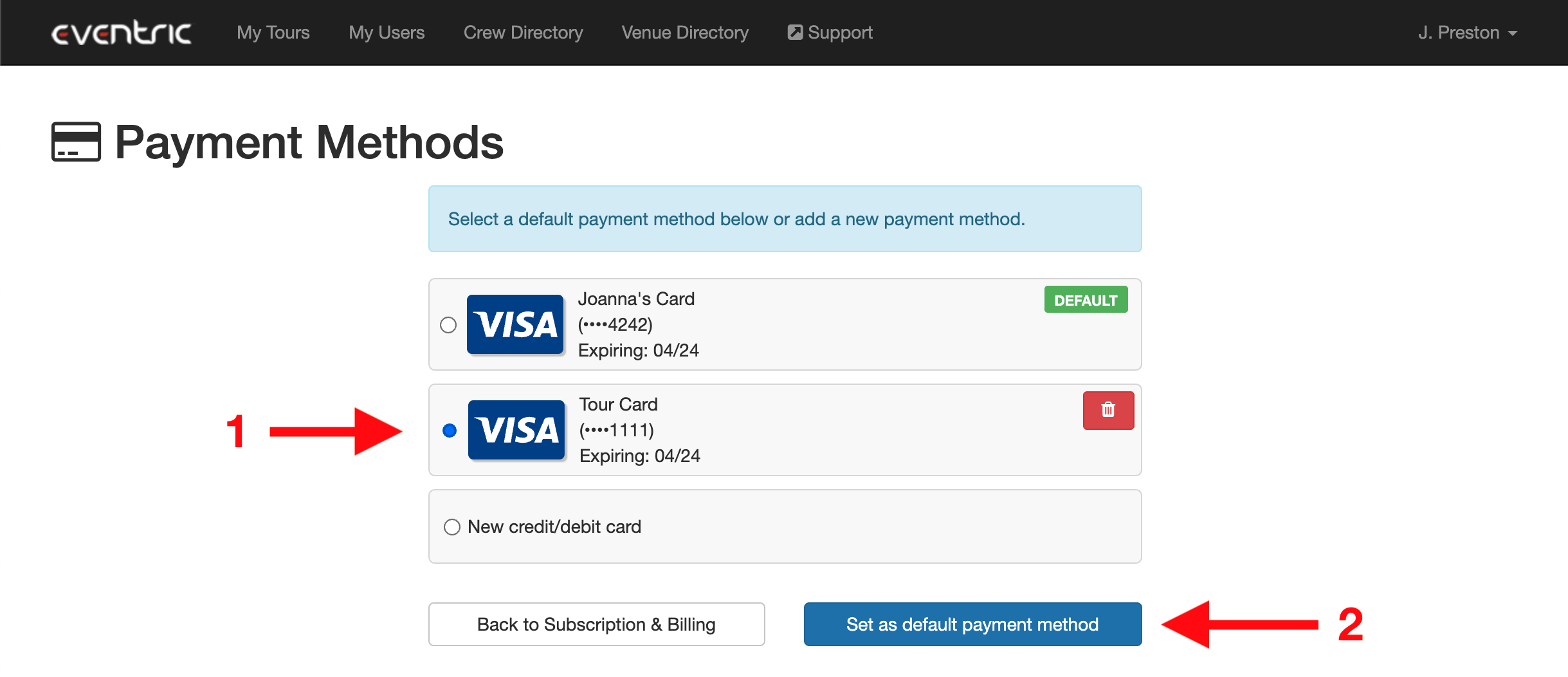
- On clicking "Set as default payment method," you'll be returned to the Subscription & Billing page, with a success message saying your default payment has been updated. You will see your current default Payment Method at the bottom of the page with the Card Name, last 4 digits, and expiration date, as well as the Next Payment that will be charged to that card
Deleting a Payment Method
- To delete a payment method, click on the trash icon next to a card
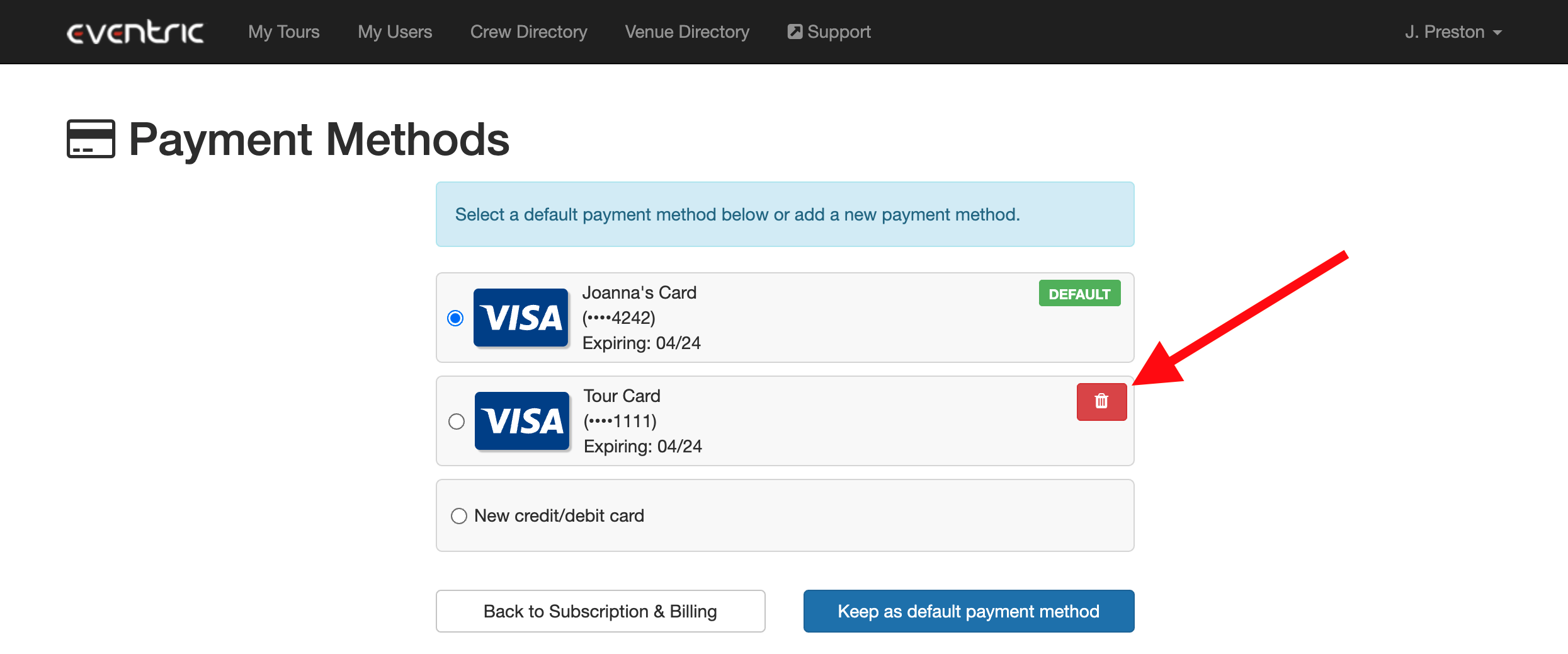
If you have more than one card saved and you wish to delete your current default payment method, you'll need to set a new default payment method before you delete your card.
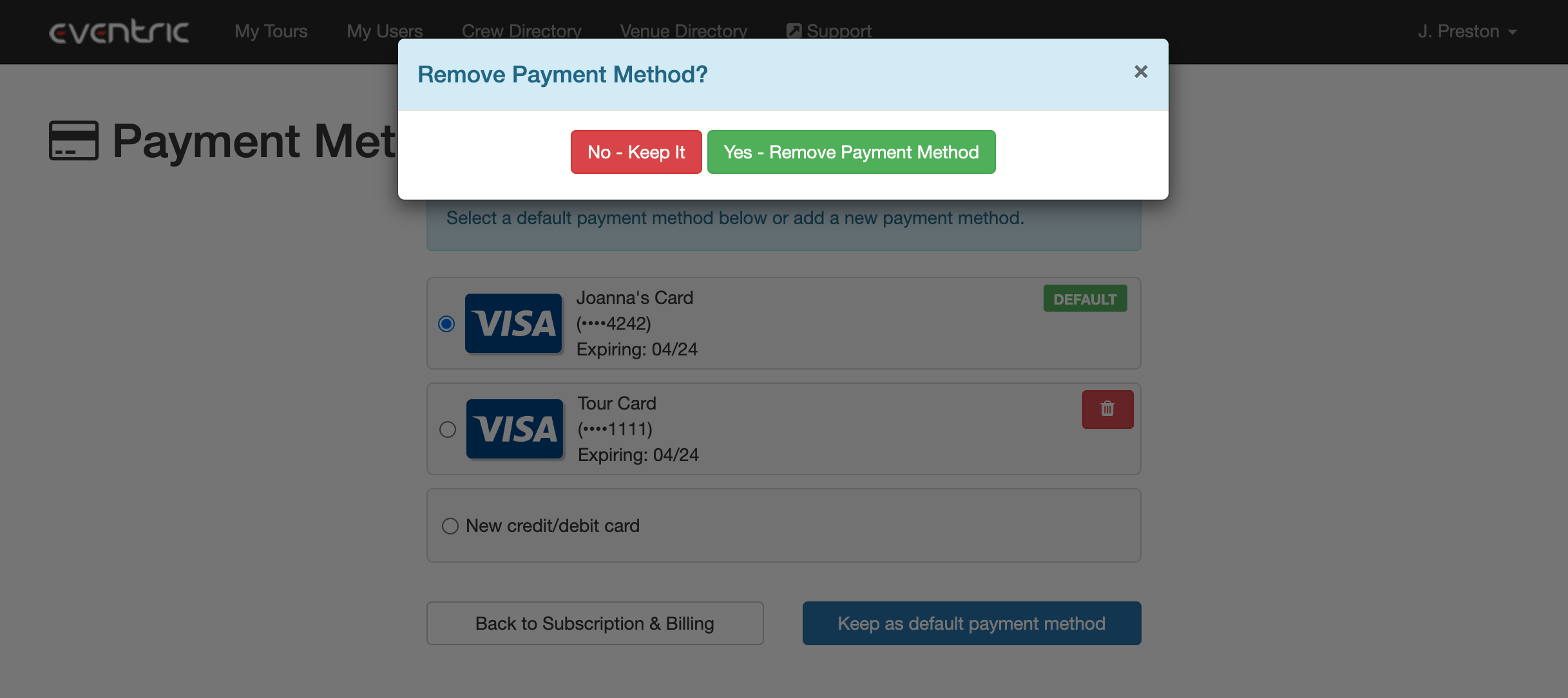
- You will get a confirmation message, asking if you want to remove the payment method. Click "Yes - remove payment method" to delete the card
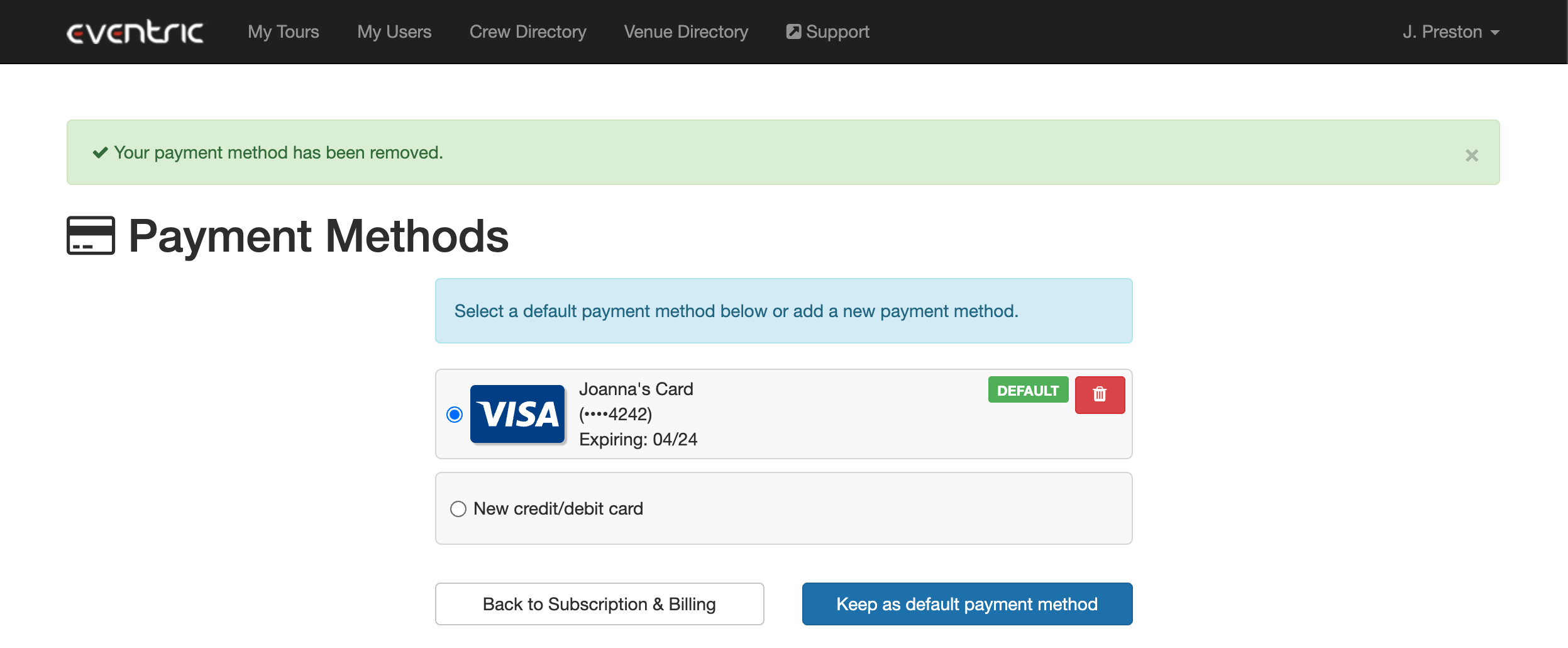
- The page will refresh and you'll get a notification saying your payment method has been removed