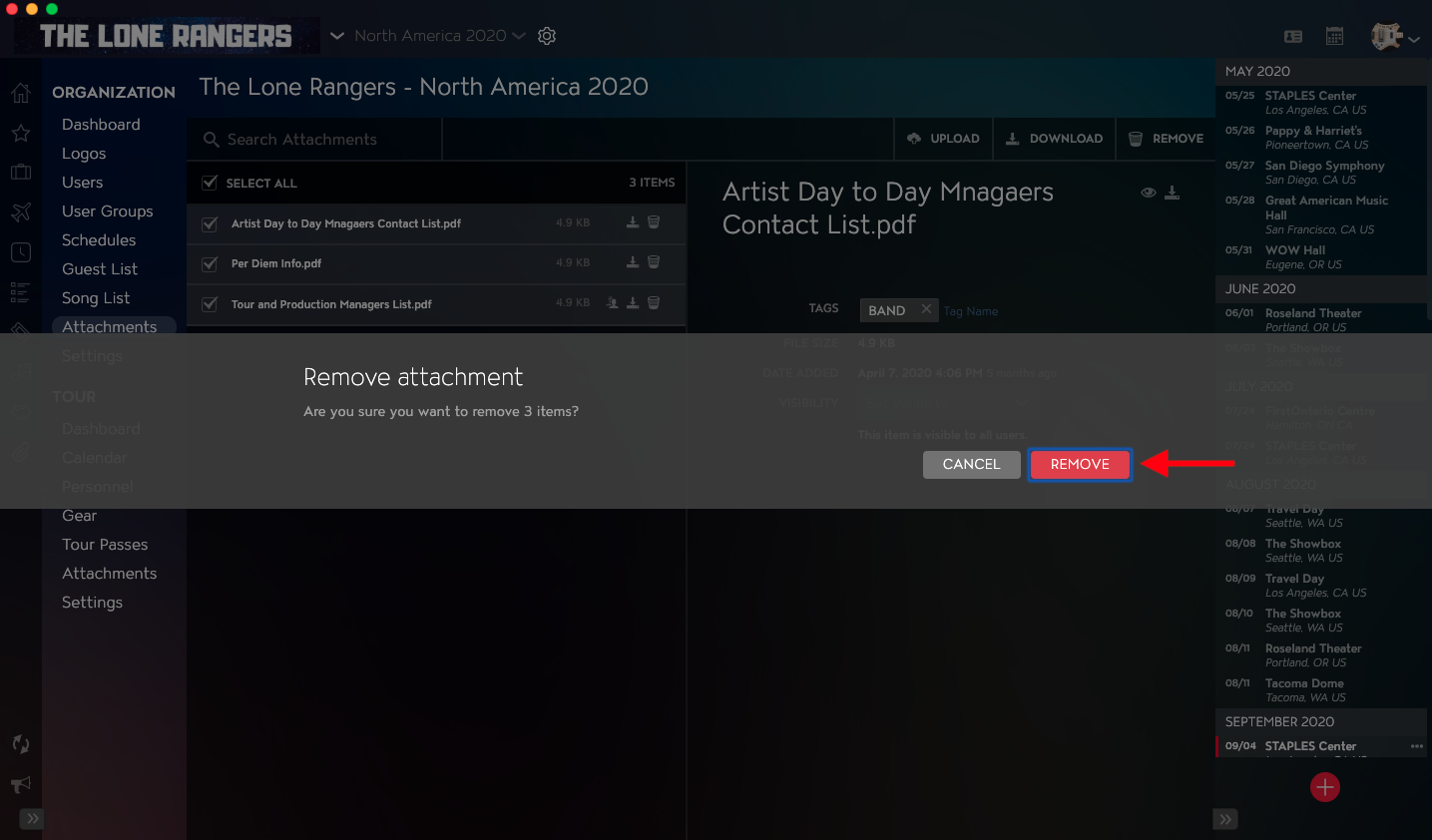
If you need to delete any Organization Attachments, you can do so within Master Tour 3.
This article covers:
How to Navigate to Organization Attachments
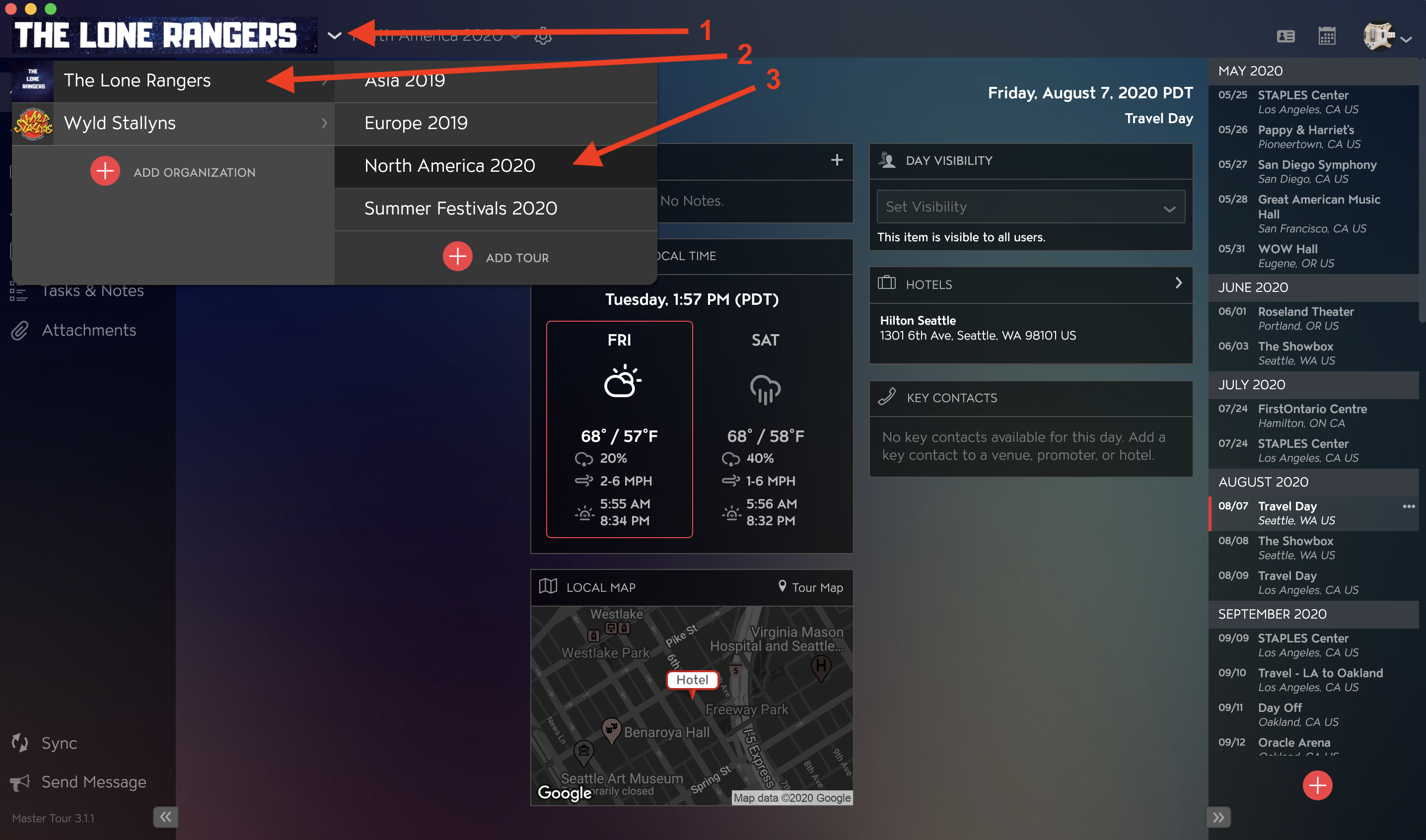
Within Master Tour, select the Organization that you would like to remove Attachments from.
- Click on the Organization Selector dropdown menu.
- Select an Organization.
- Select a Tour if there are any Tours added to the Organization.
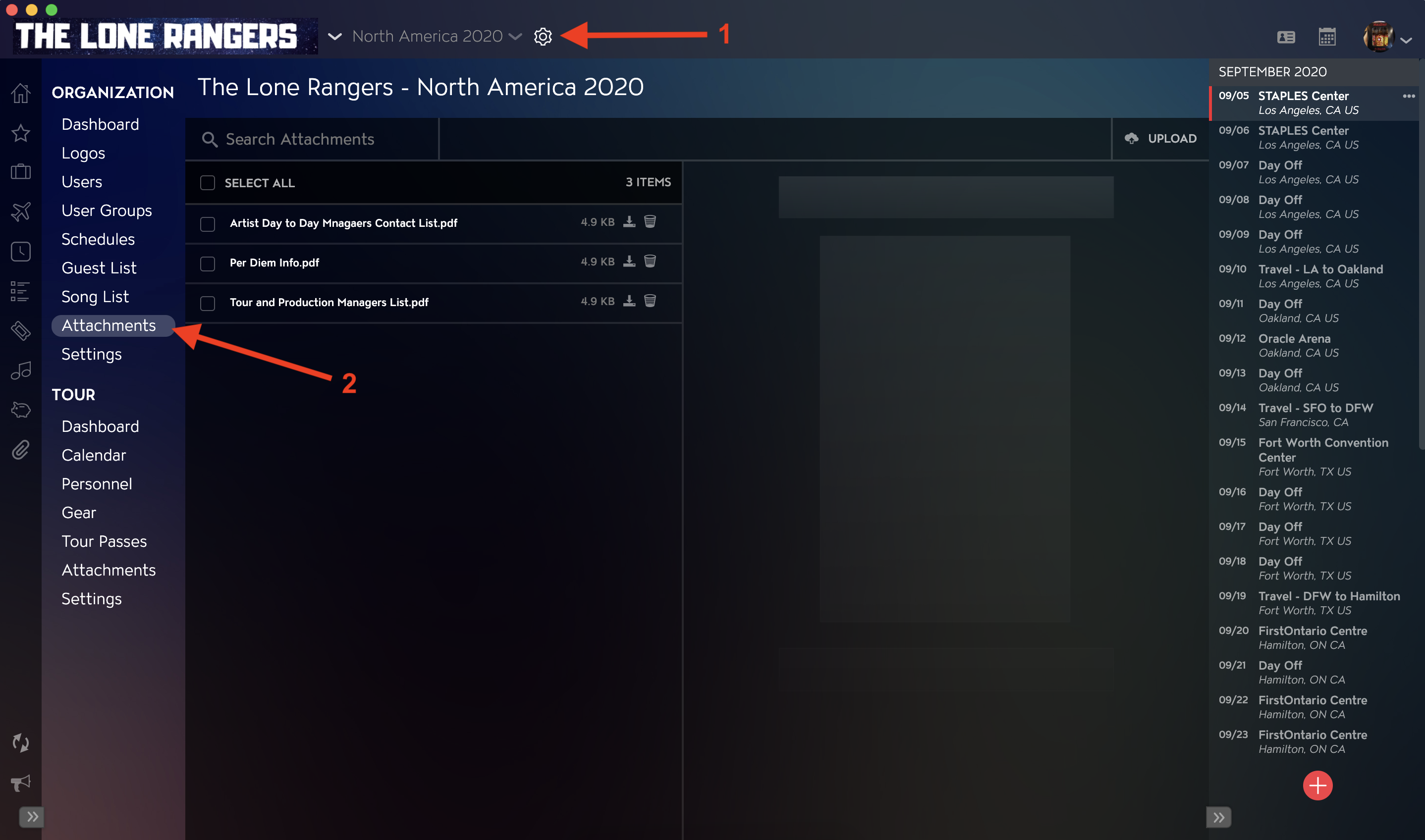
- Click on the Gear Icon to the right of your Tour Name at the top of the application.
- Click into the Attachments Section within Organization Settings in the left menu.
How to Remove Organization Attachments
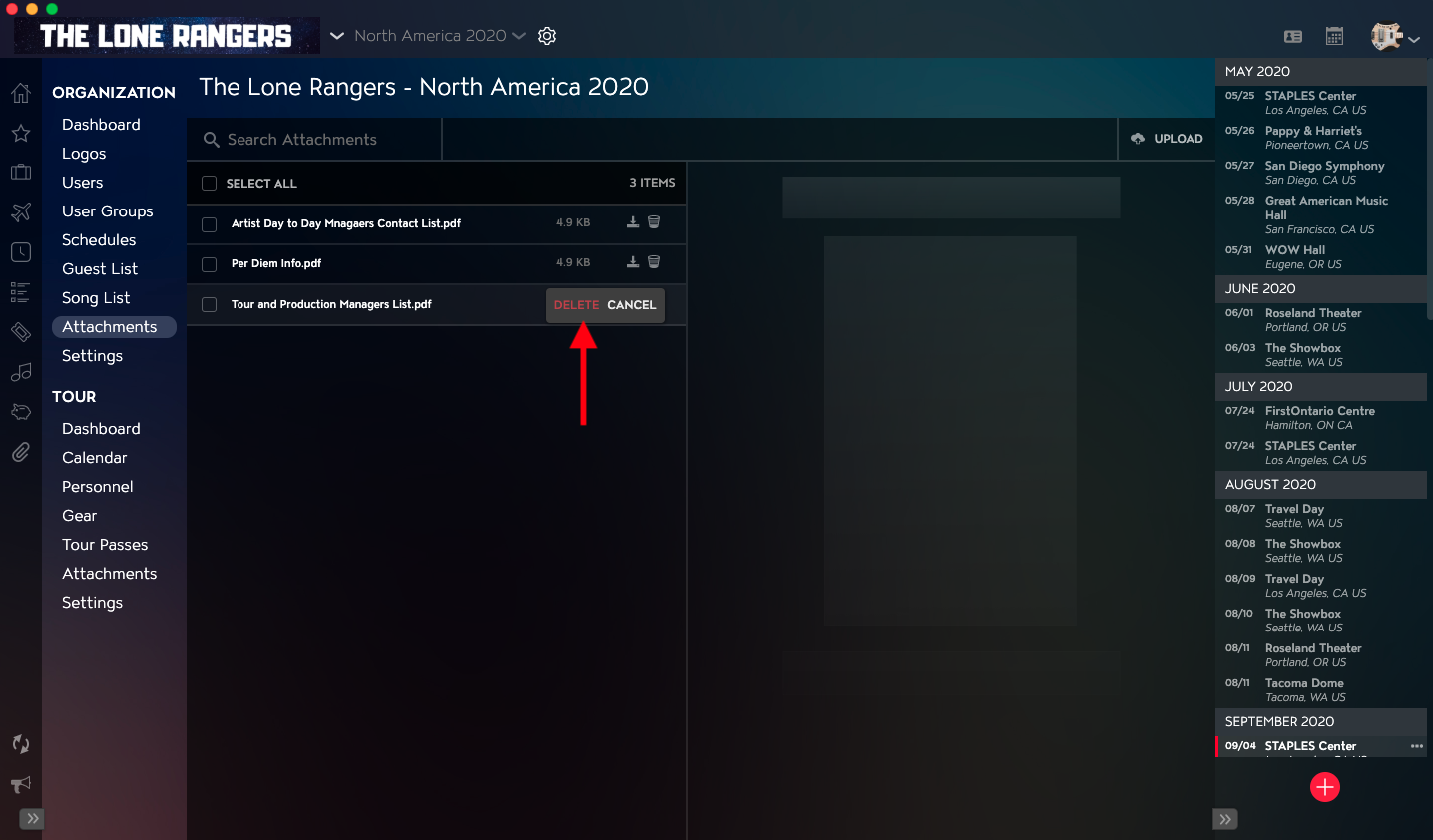
To delete an Organization Attachment, click on the Trash Icon to the right of the file name in the Attachment list.
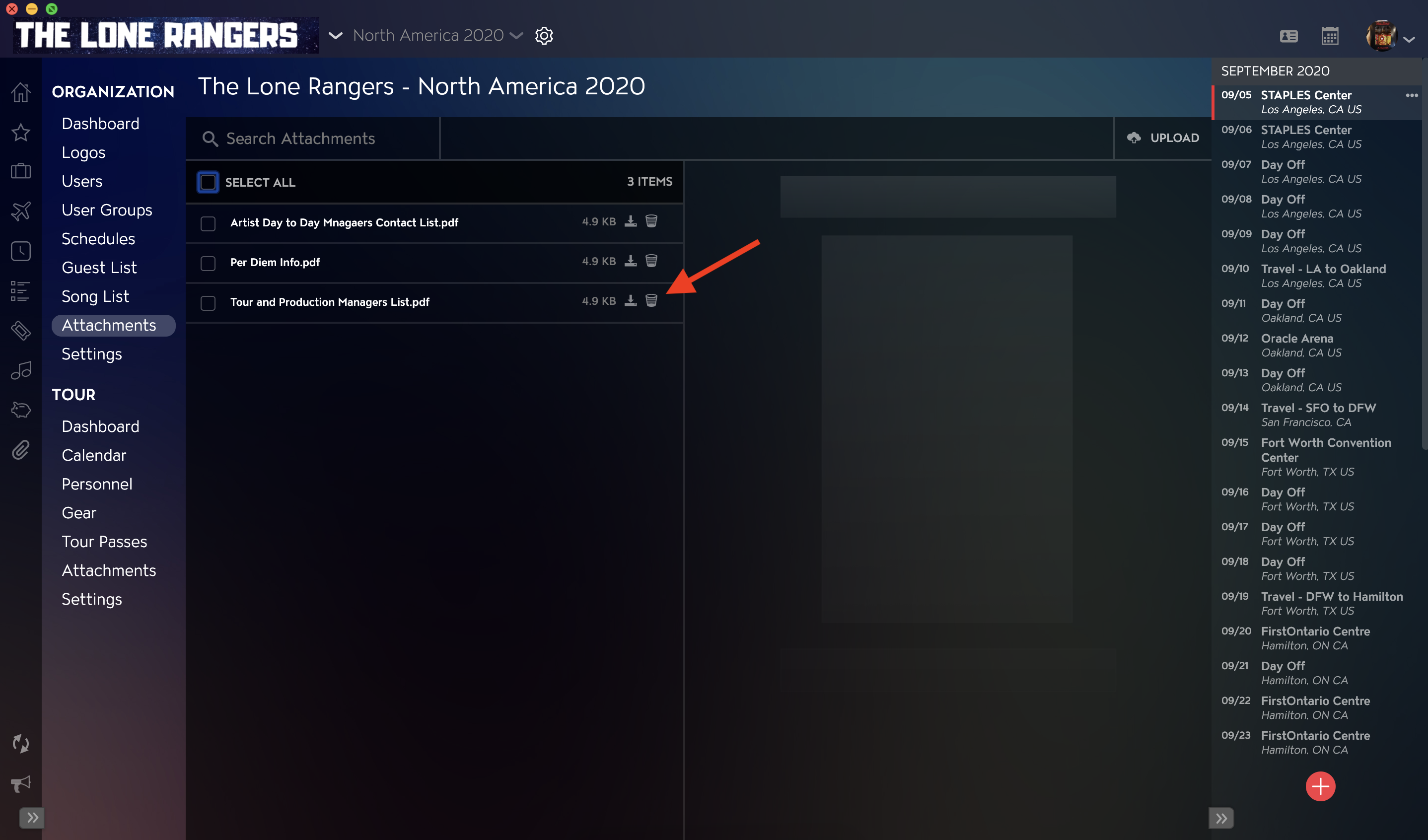
Click on the Delete link in the popout menu to confirm that you would like to remove the Attachment.
You can also delete selected Attachments, by following these steps:
- Select the Attachment you would like to Delete in the Attachment list on the left side of the application.
- Click on the Remove button in the Attachment Details on the right of the application.
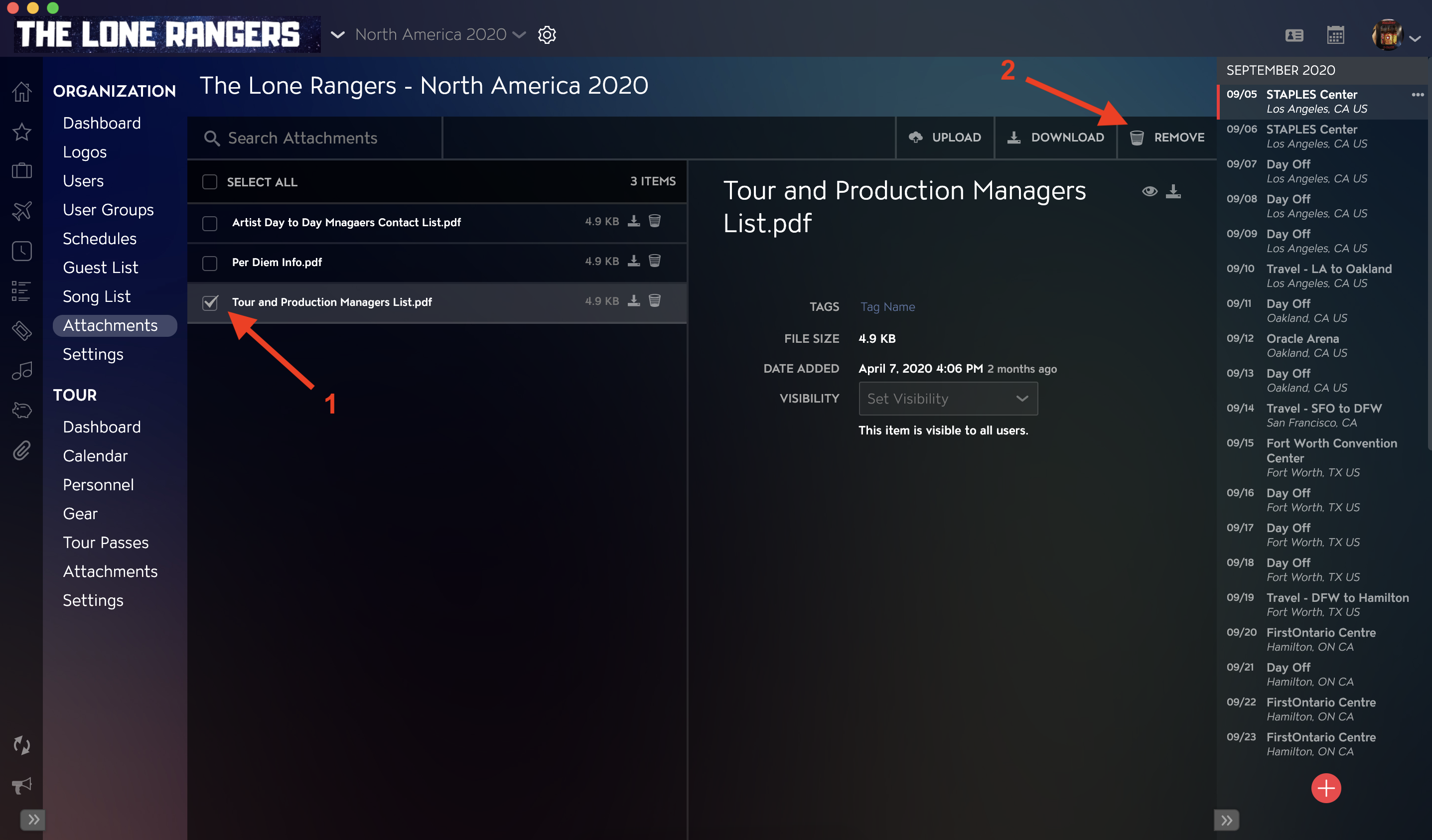
Click on the Remove button to confirm that you would like to delete the selected Attachments.