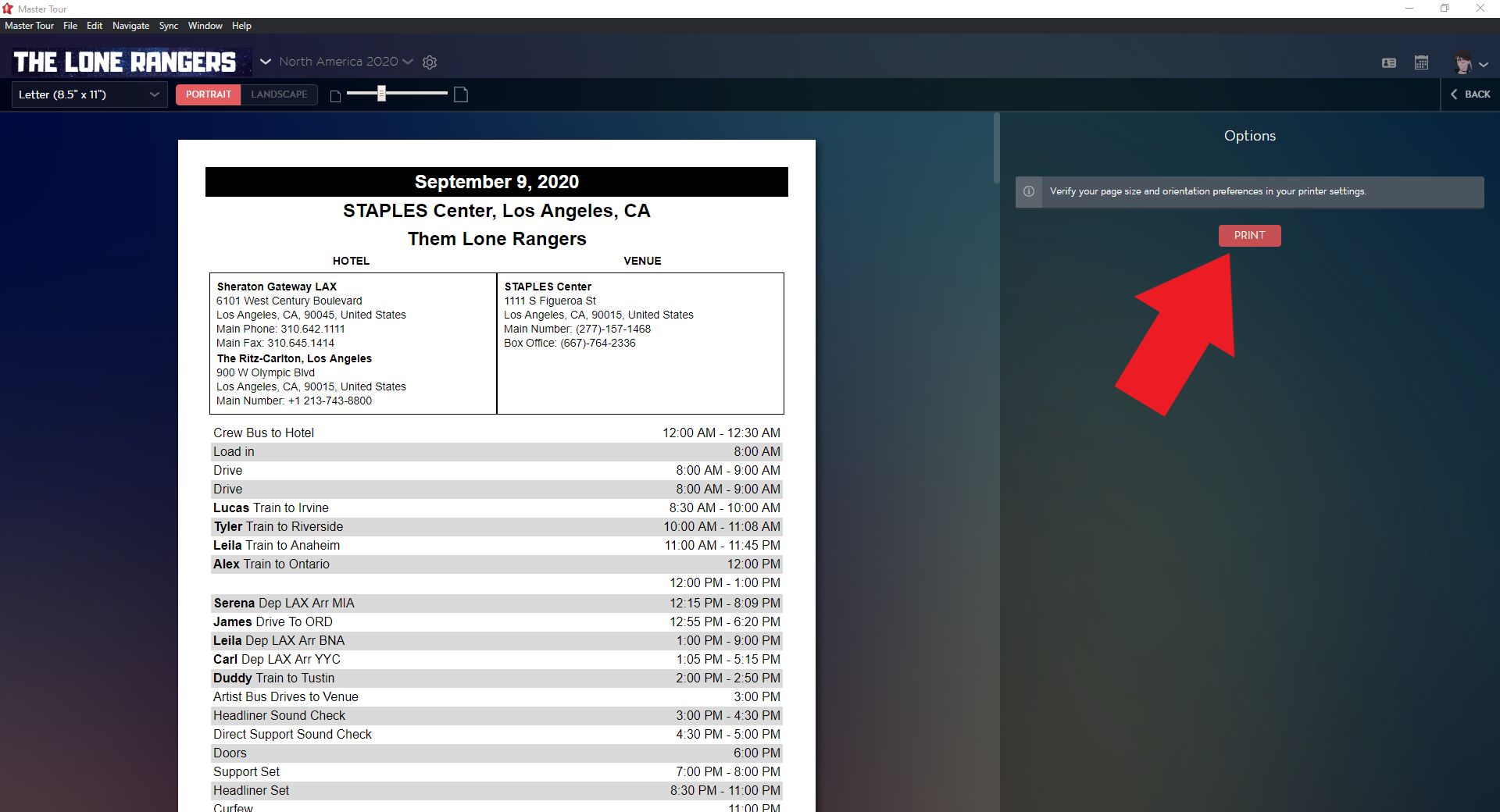
With Master Tour 3, Professional users can generate multi-day prints for their tours. This allows custom creation of tour books and the ability to create day sheets for multiple days at a time.
How to Access the Template Gallery
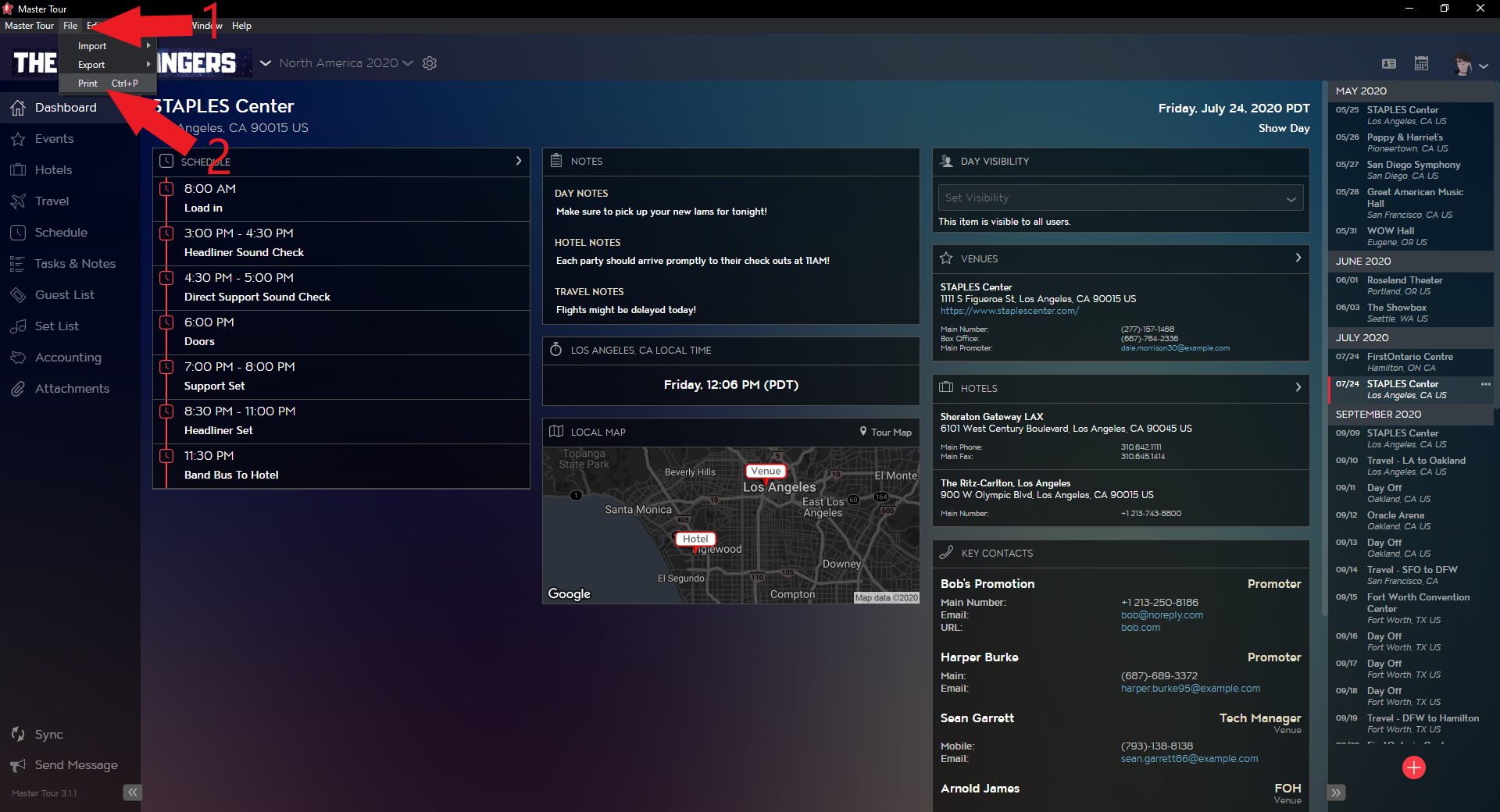
To access the template gallery:
1. Click on File at the top left menubar.
2. Click on Print.
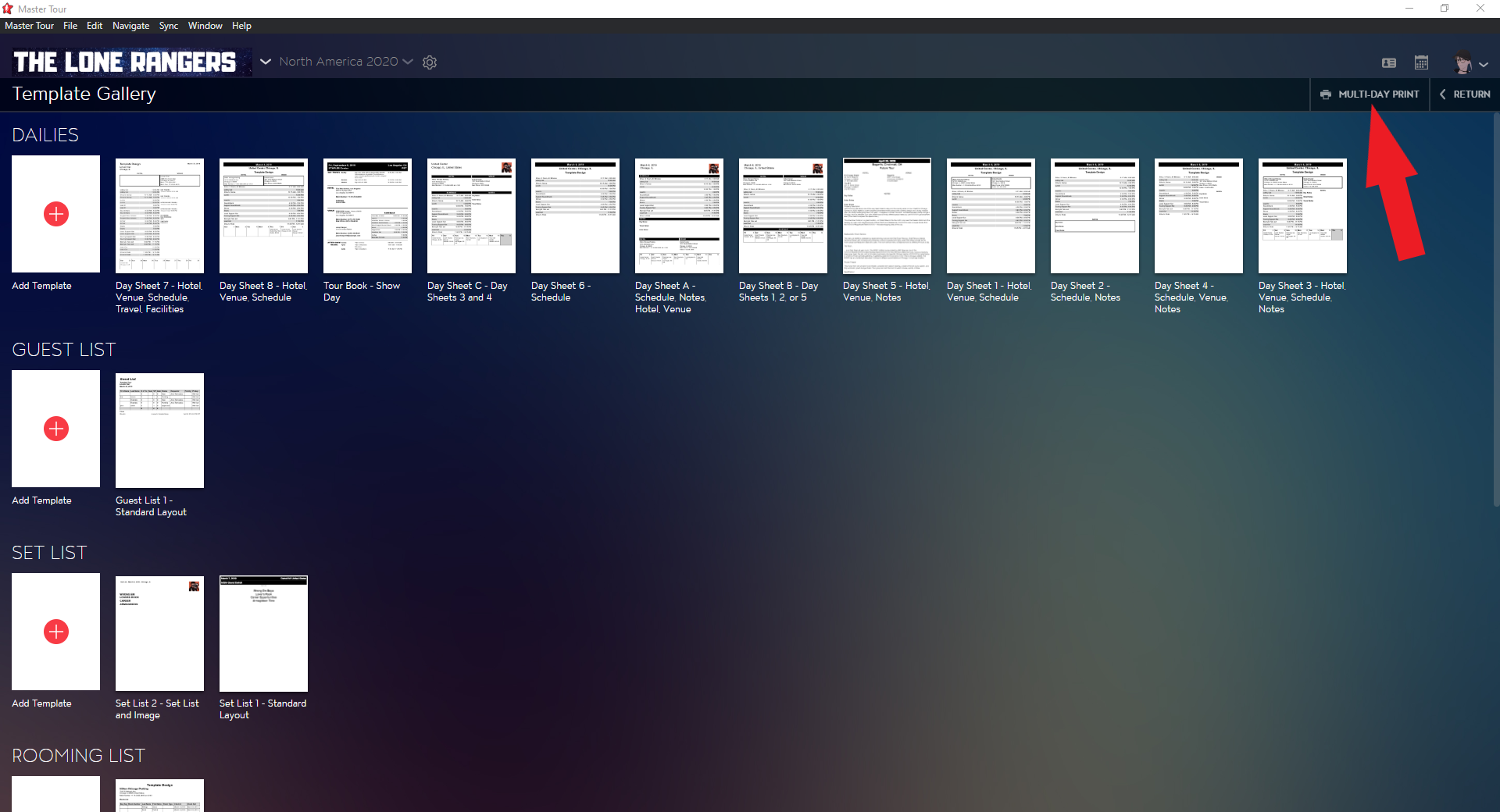
How to Generate a Multi-Day Print
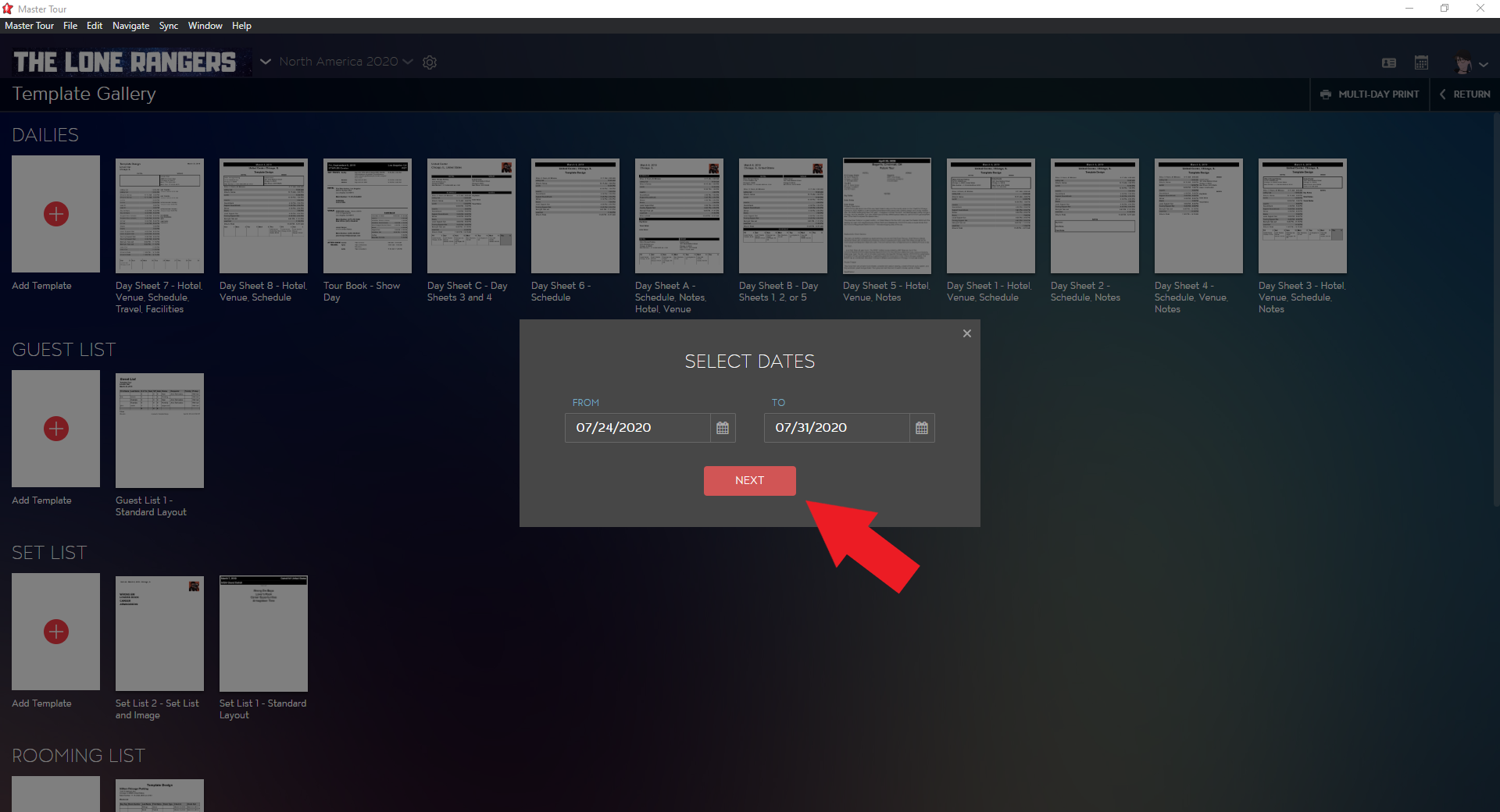
Click on MULTI-DAY PRINT at the upper right.
Select Dates by clicking on the calendar icon for your From and To range.
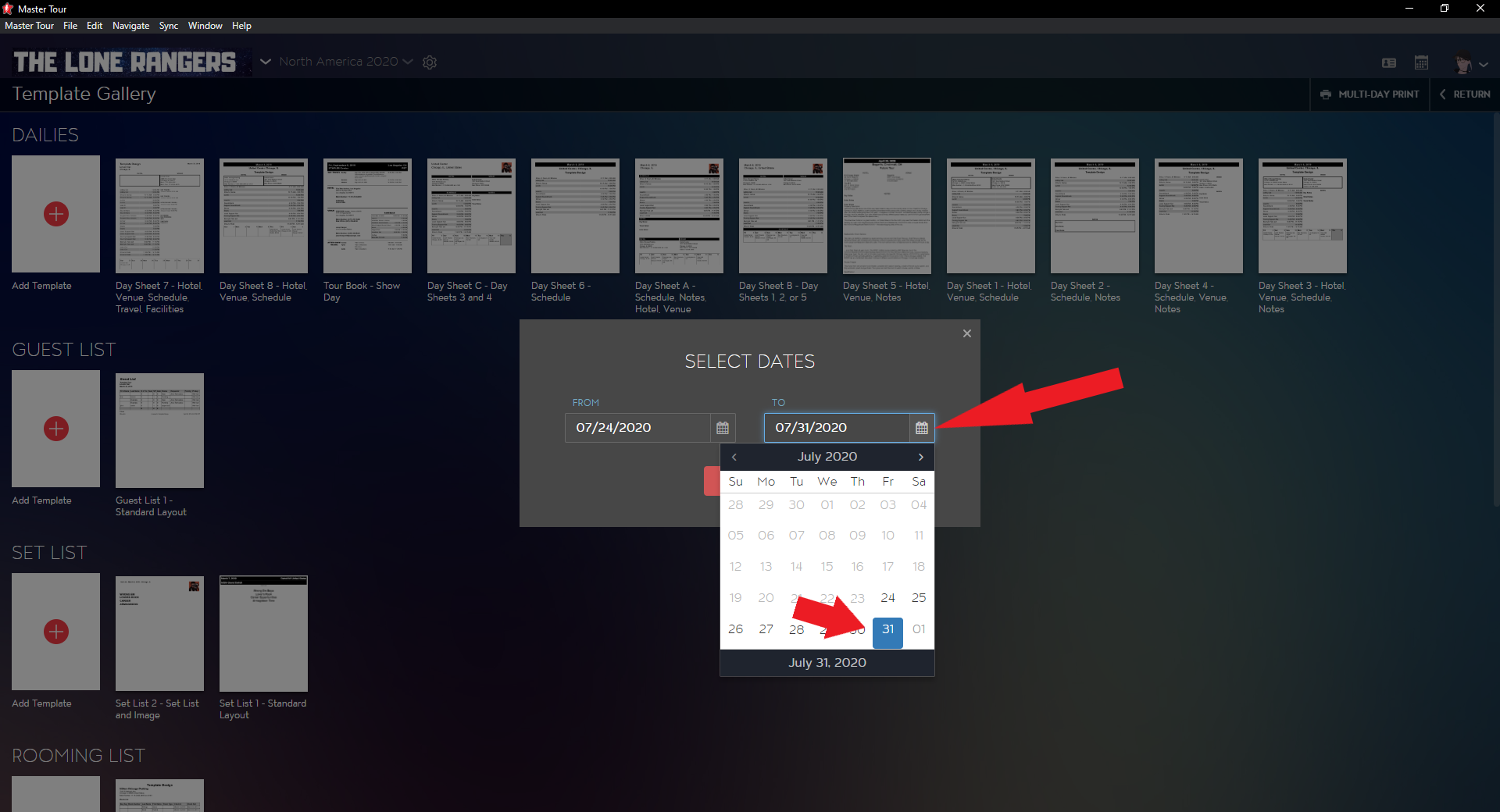
Click on Next to proceed.
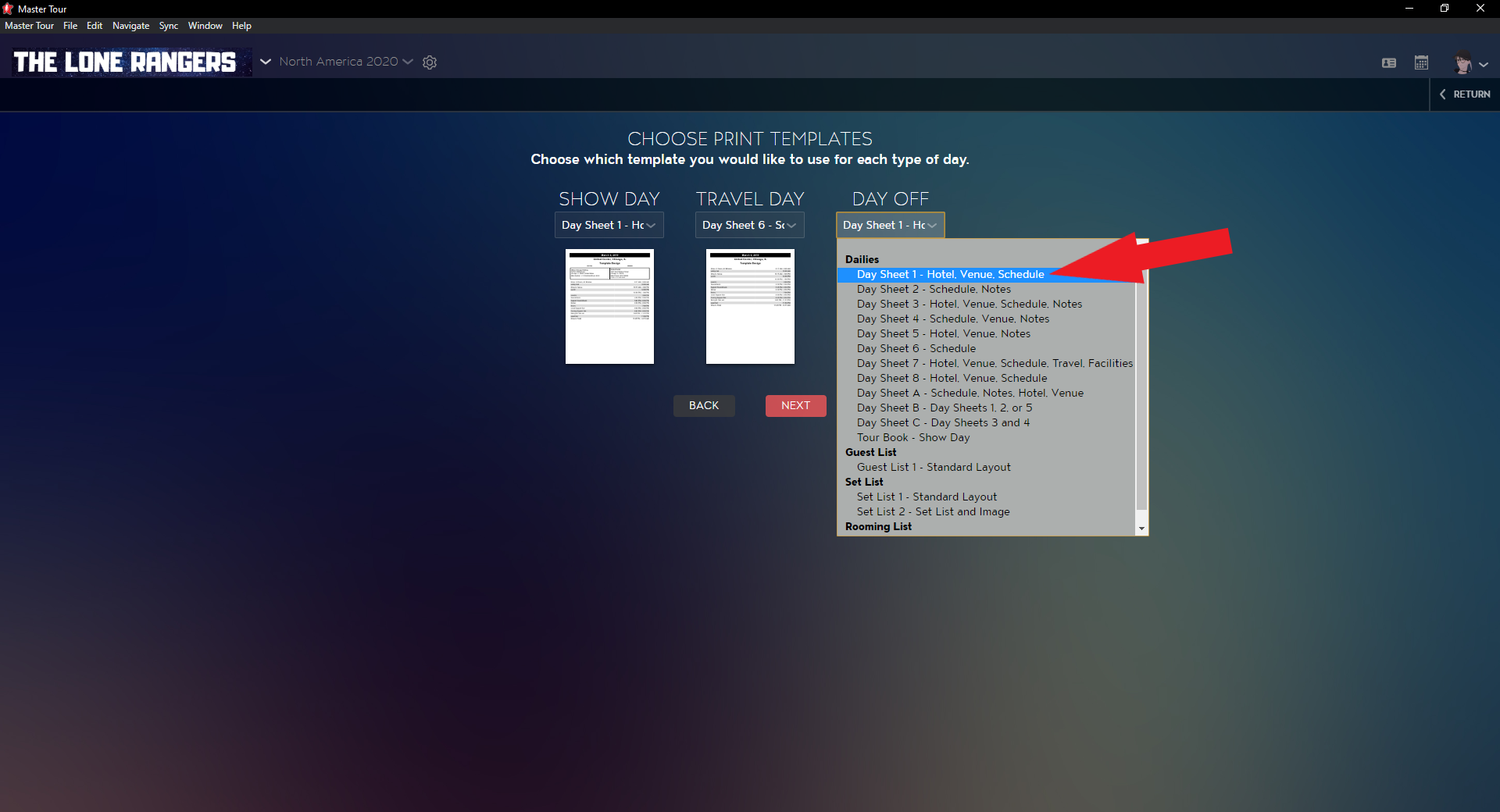
Select which template you would like to use for your specific day types by clicking on the header below the day types.
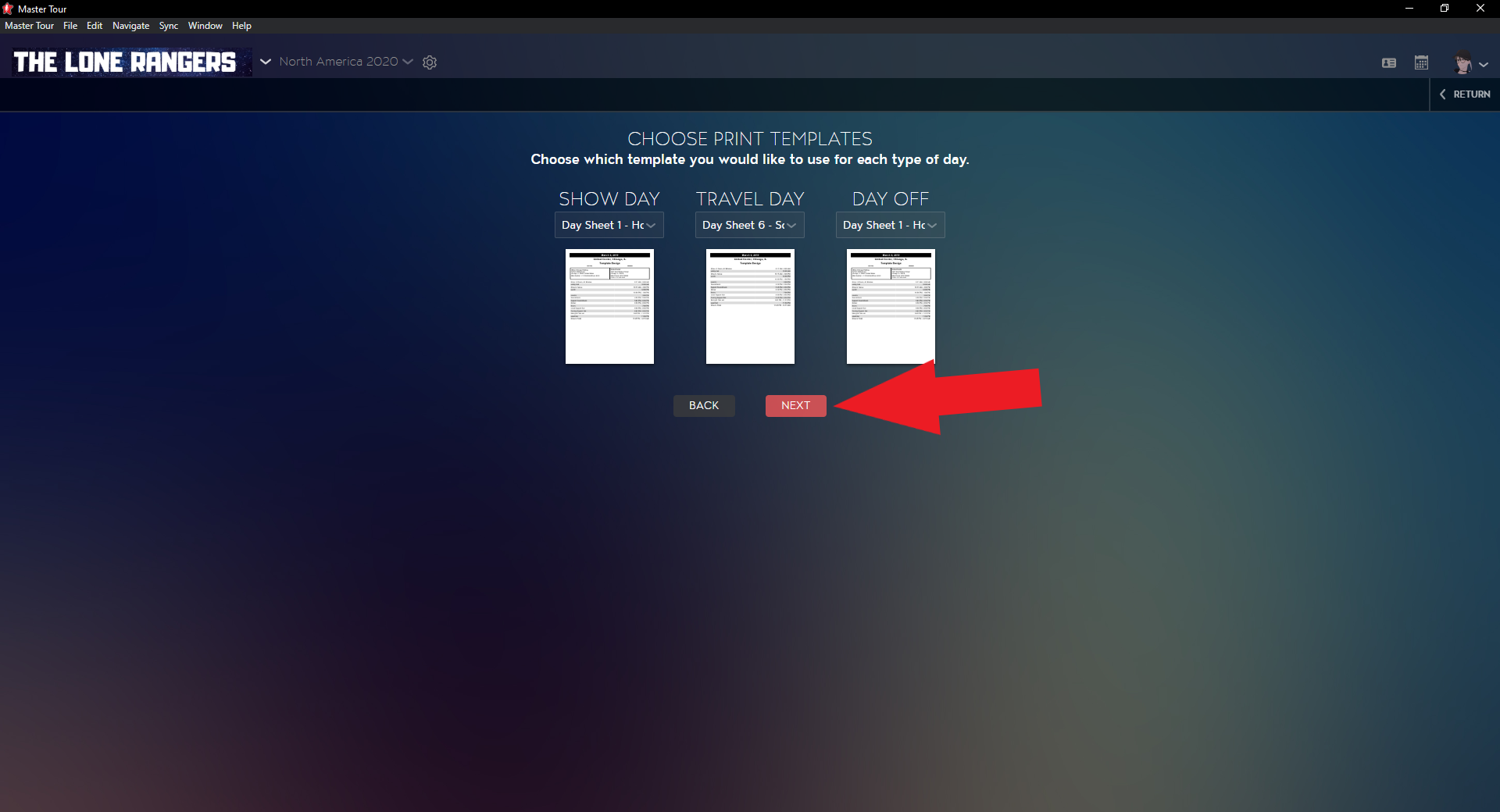
Click Next after selecting your desired day sheets.
Once you've chosen your desired day sheets for your day types, you can now adjust page size, and orientation at the top left for your overall export.
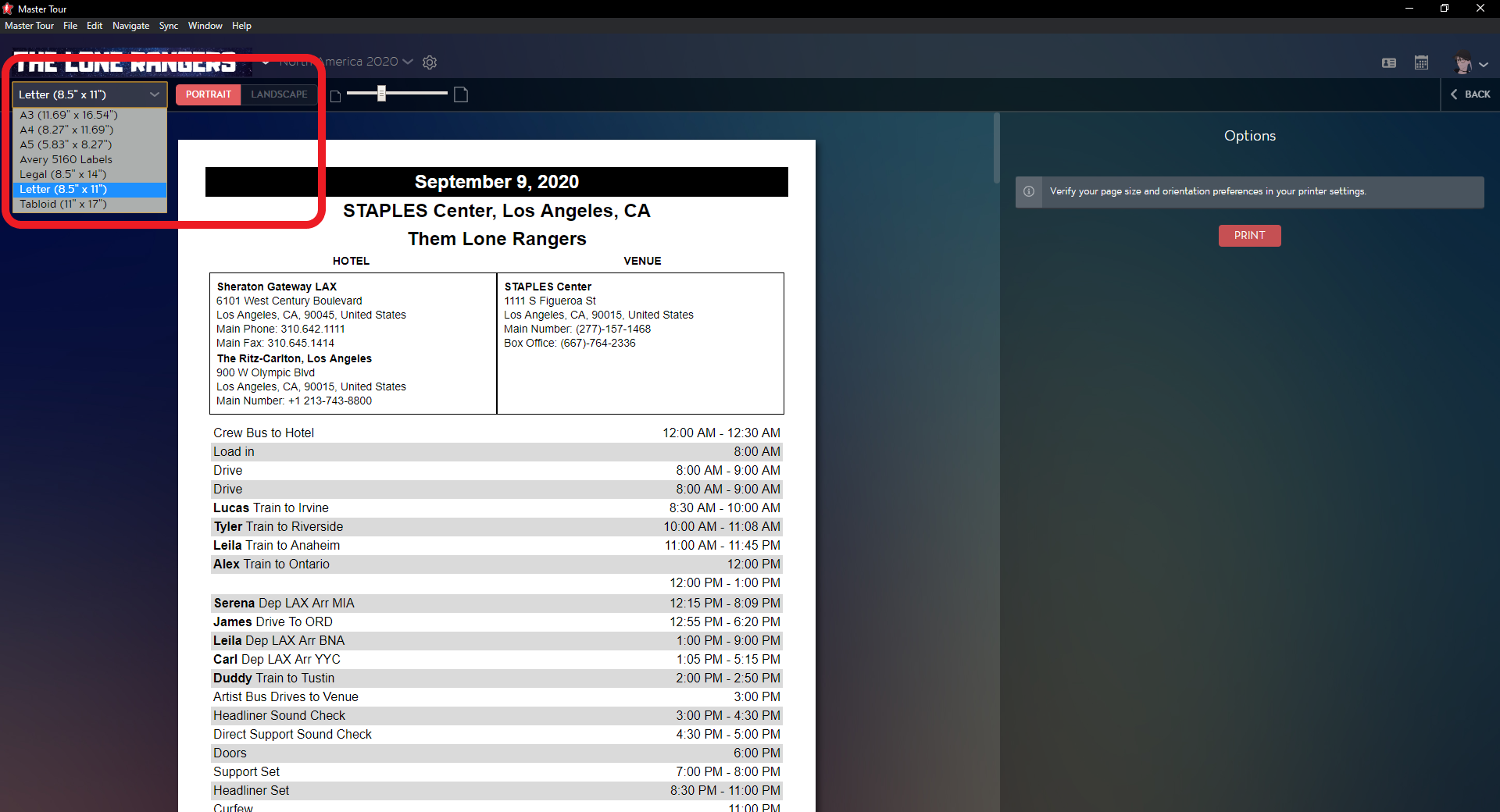
Once you're ready to export/generate, click on PRINT at the upper right of the window.