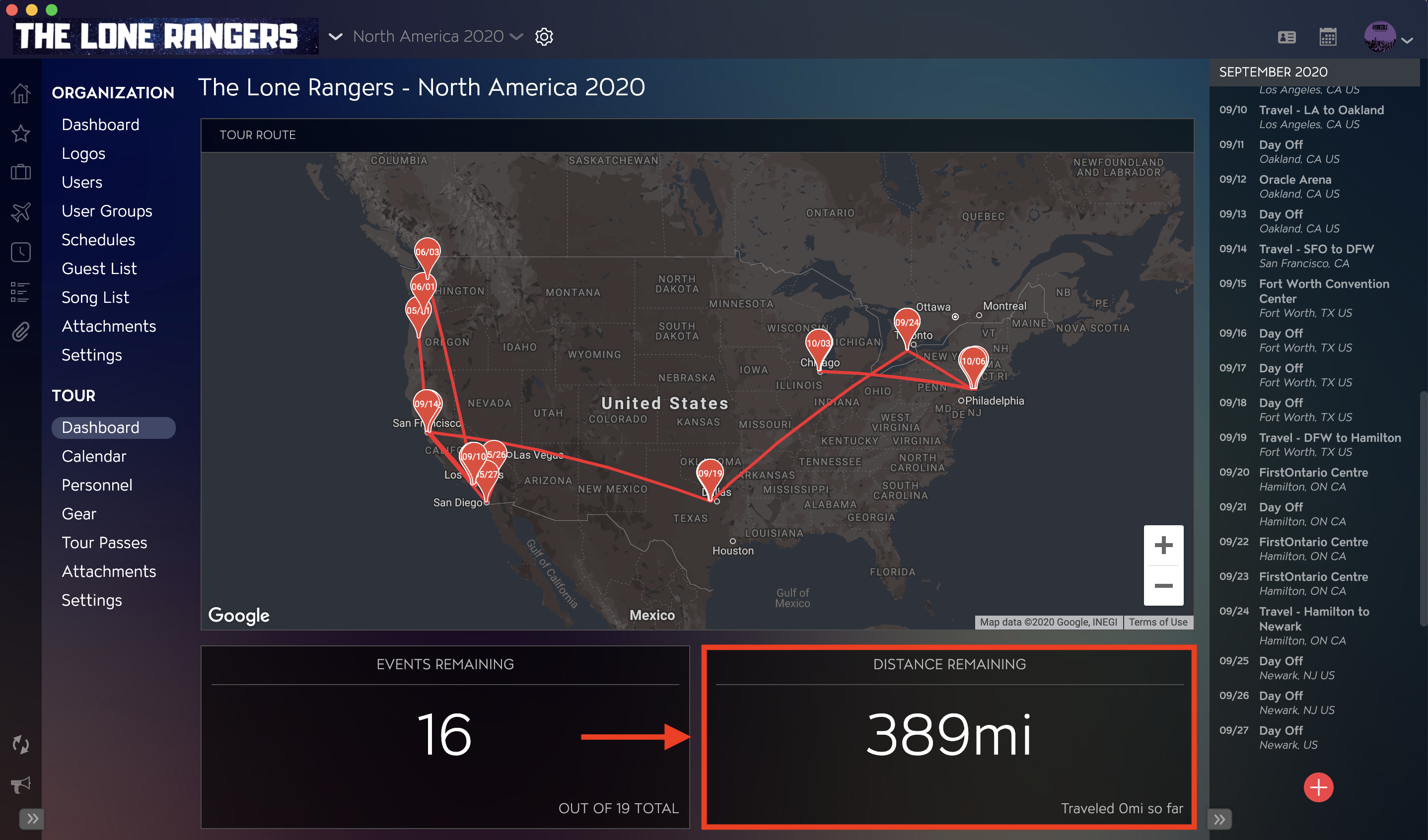
Master Tour's Tour Overview Dashboard allows you to view a complete map of your routing, how many Events remain, and the total distance that is remaining on your selected Tour.
This article covers:
- How to Navigate to the Tour Overview Dashboard
- How to View Tour Routing
- How to View Events Remaining
- How to View Distance Remaining
How to Navigate to the Tour Overview Dashboard
Within Master Tour, select the Organization and Tour that you would like to view the Tour Overview Dashboard for.
- Click on the Organization Selector dropdown menu.
- Select an Organization.
- Select a Tour from the Tour Selector dropdown menu.
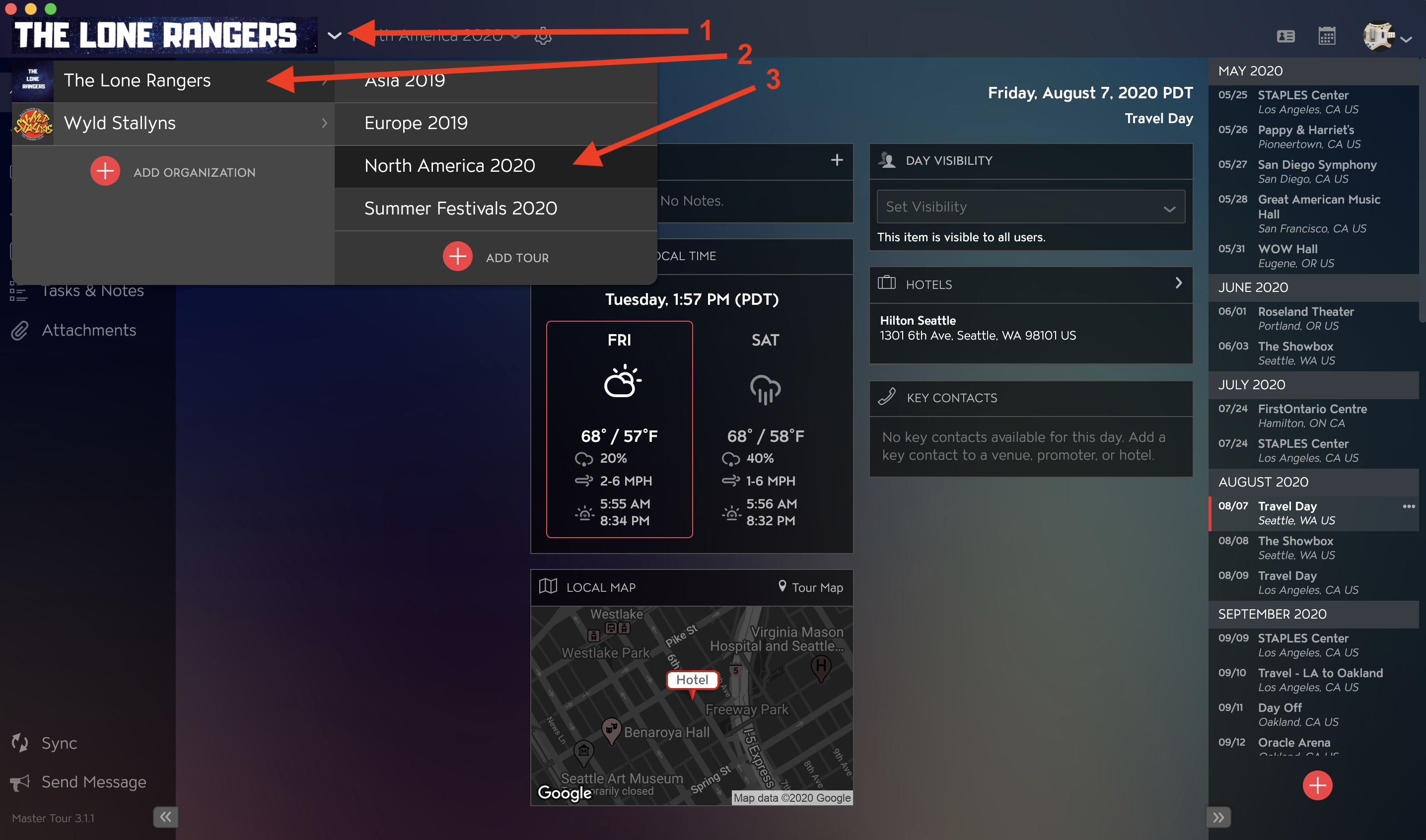
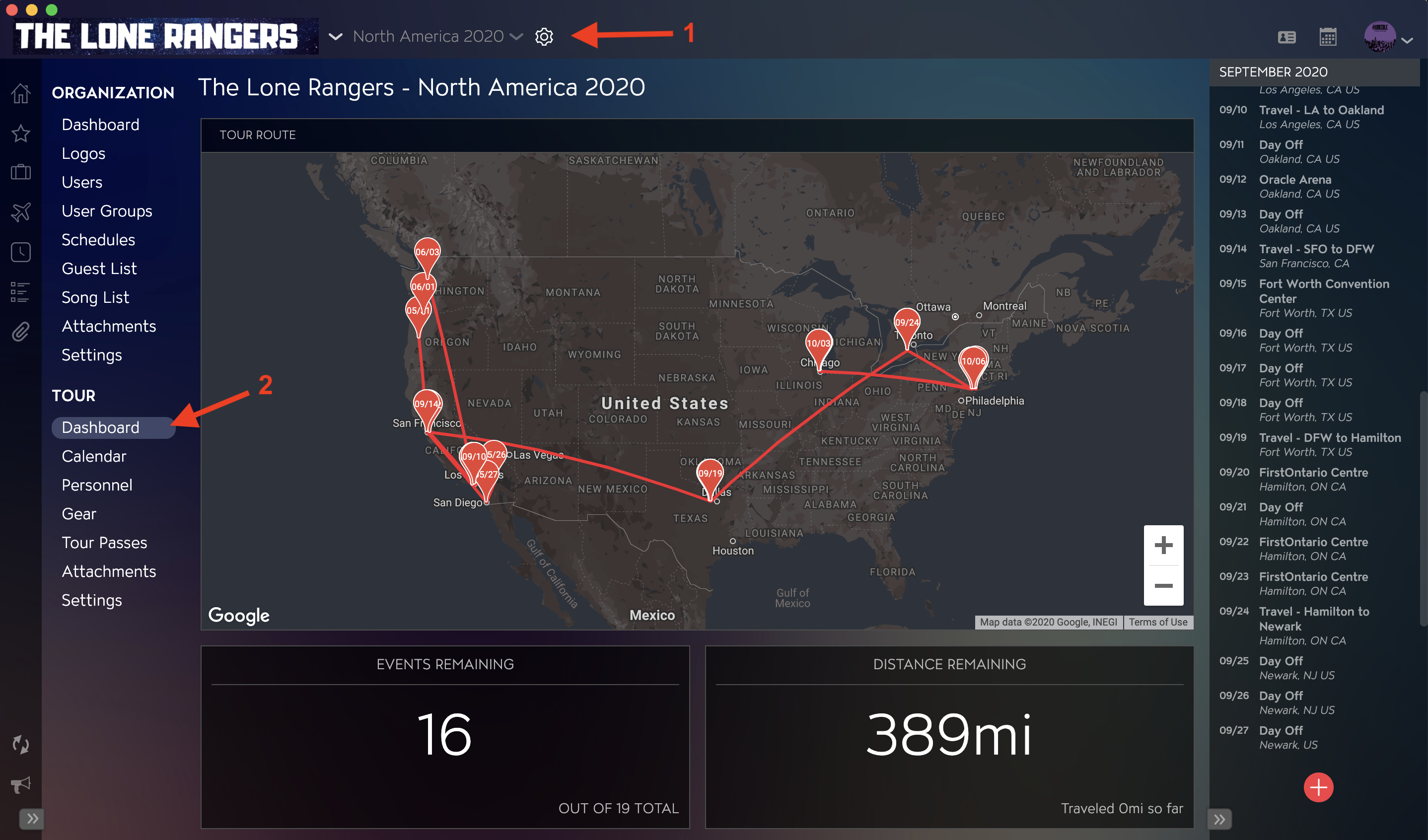
- Click on the Gear icon to the right of the Tour Name at the top of the application.
- Click into the Dashboard section within the Tour Section in the left menu.
How to View Tour Routing
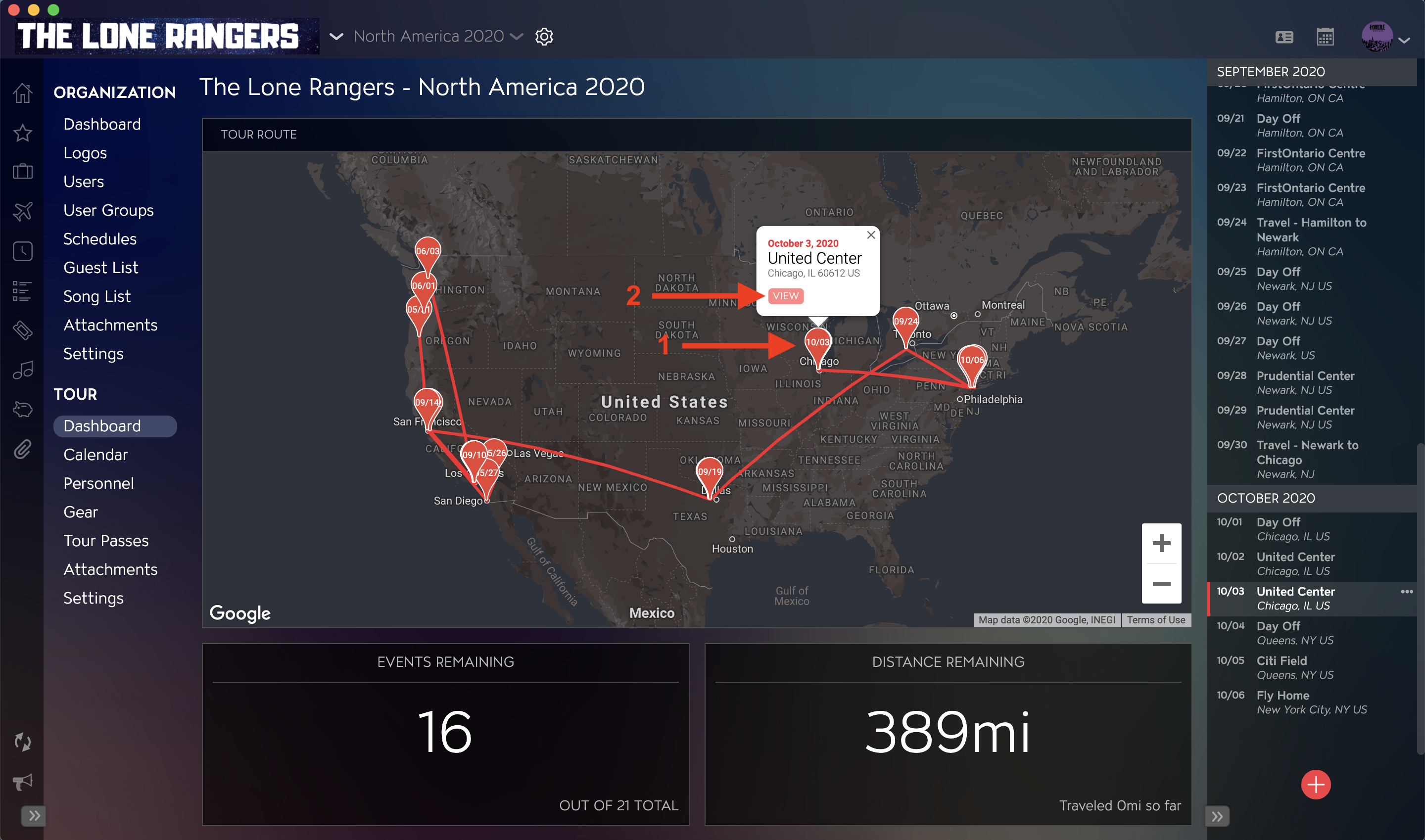
Using the location data from your Tour's Events, Master Tour plots the Tour's routing, creating pins for each Event's location. You can adjust your view by using the zoom in/out options at the bottom right of the map.
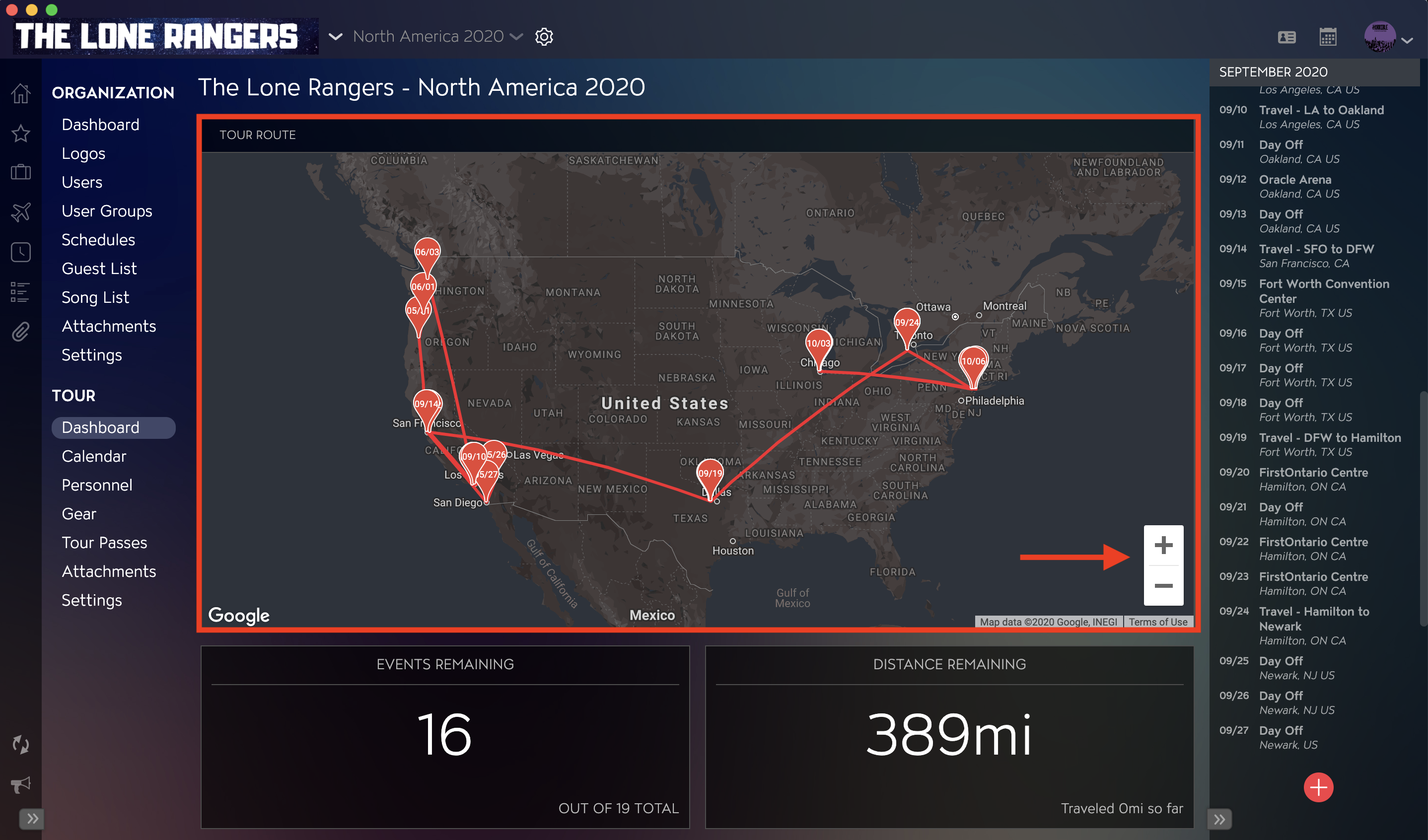
- You can click on each Pin to view summary information about the Event.
- You will also see a View Button that will allow you to go directly to the Event details.
How to View Events Remaining
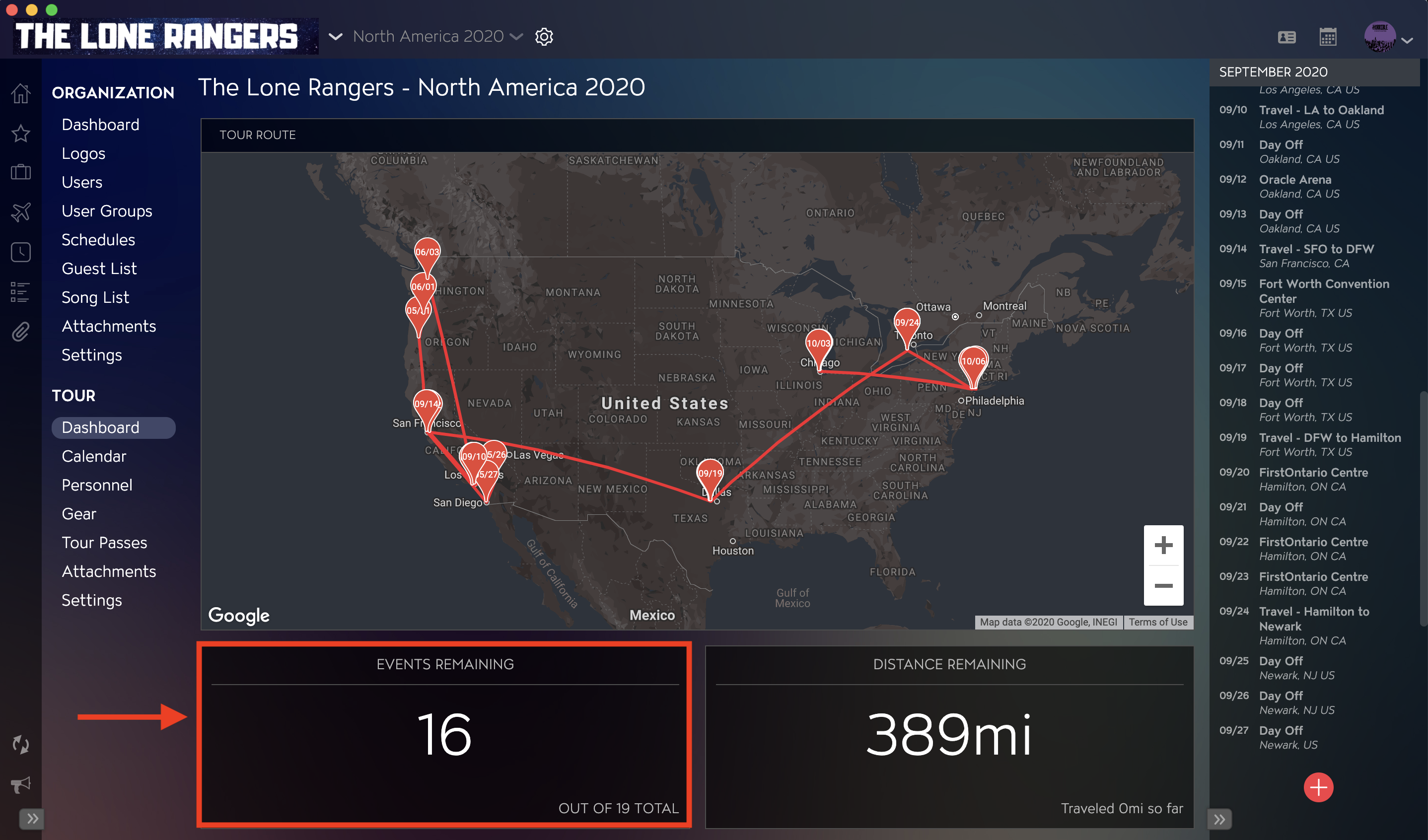
The Events Remaining section will calculate the number of remaining Events for the Tour, as well as display the total number of Events on that Tour.
How to View Distance Remaining
The Distance Remaining section will display the number of miles or kilometers remaining to be traveled on this Tour. Master Tour will calculate the total distance based on all the miles/kilometers within all of your travel items for this tour leg.