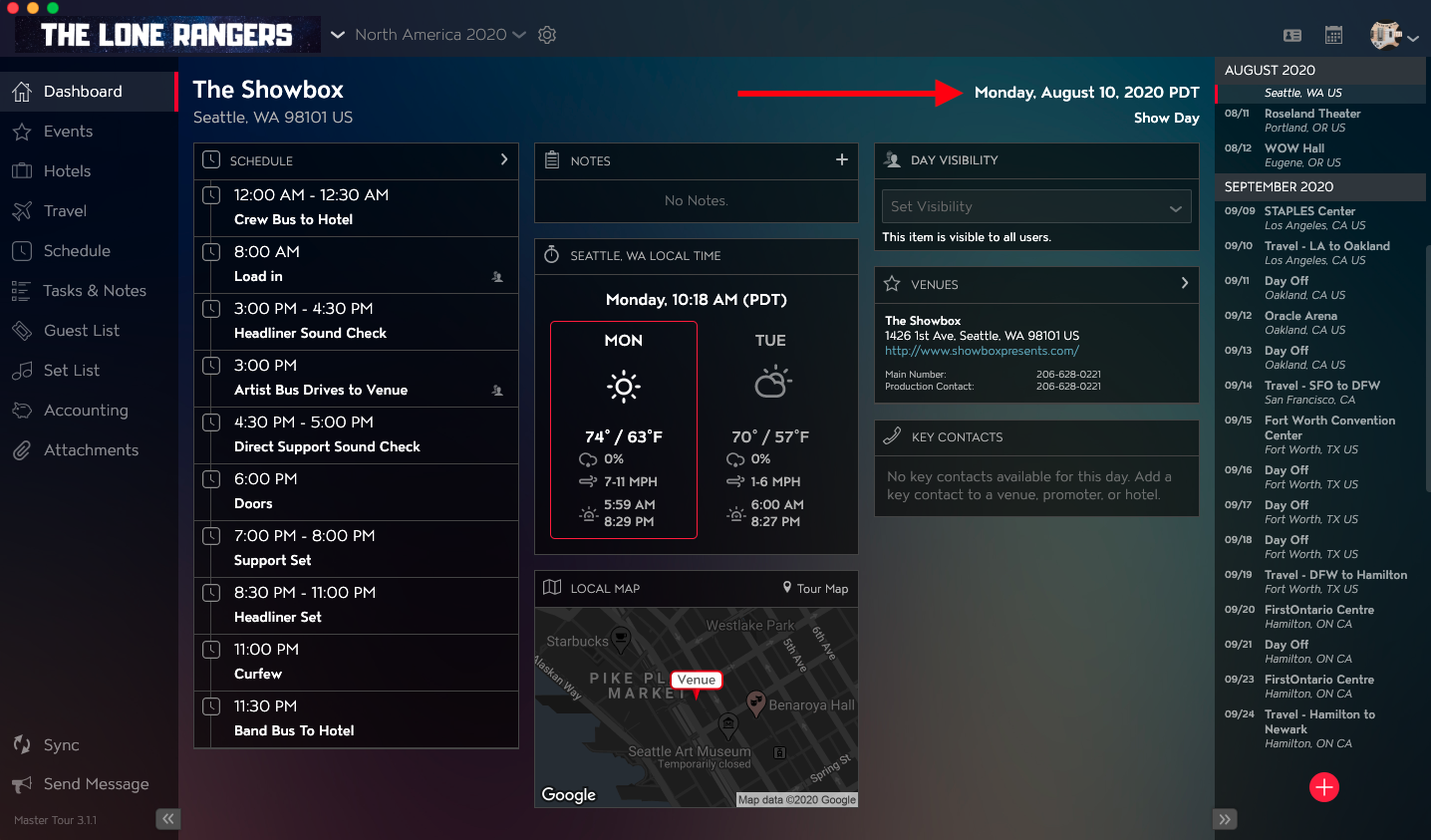
Master Tour’s Inter-Organization Calendar allows you to view current, past, and upcoming Events across your Organizations, all in one location.
This article covers:
- How to Navigate to the Inter-Organization Calendar
- How to Utilize the Inter-Organization Calendar
- How to Filter the Inter-Organization Calendar
- How to Navigate to a Tour Date's Dashboard
How to Navigate to the Inter-Organization Calendar
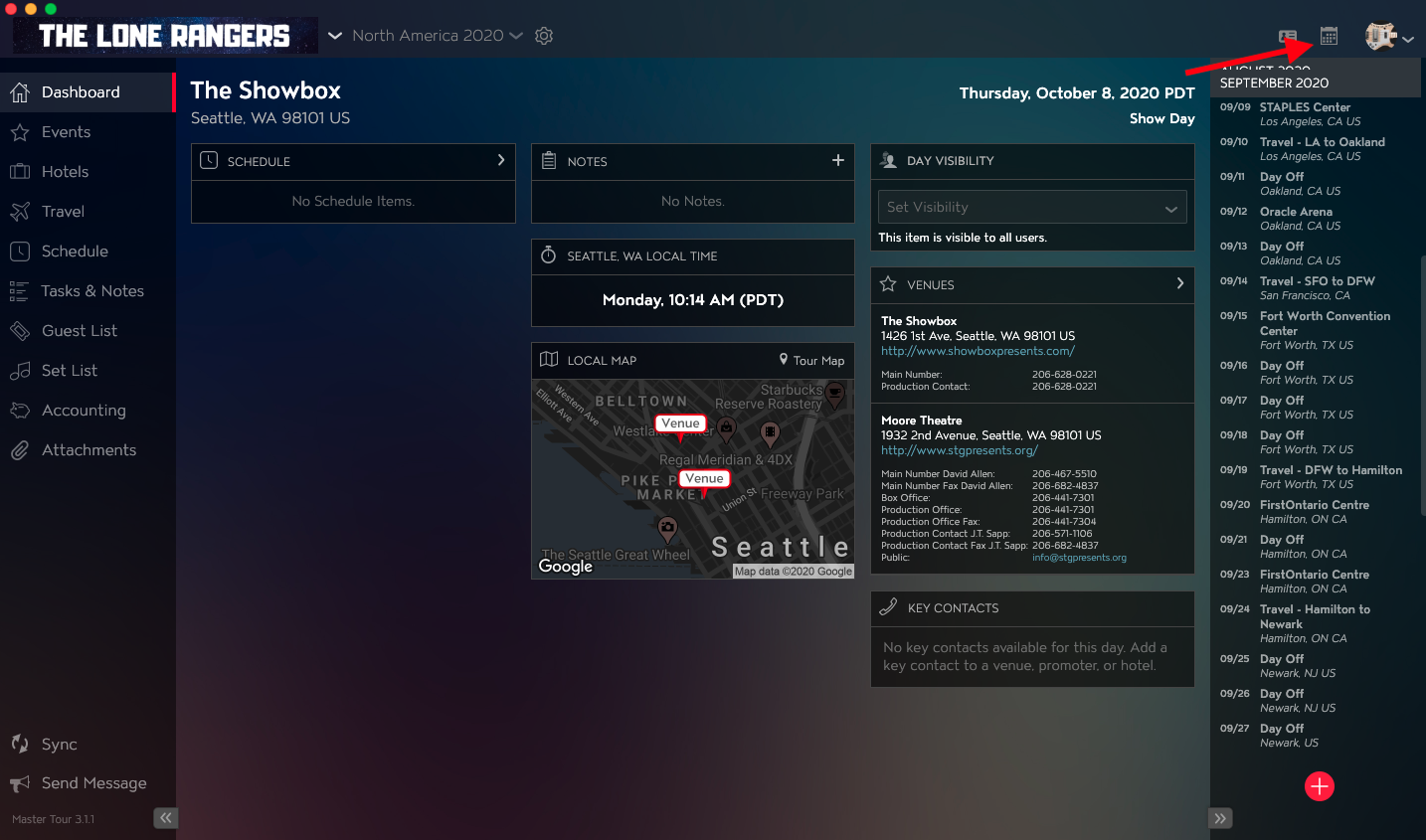
To locate the Inter-Organization Calendar, click on the Calendar Icon in the top right corner of the Master Tour 3 application.
How to Utilize the Inter-Organization Calendar
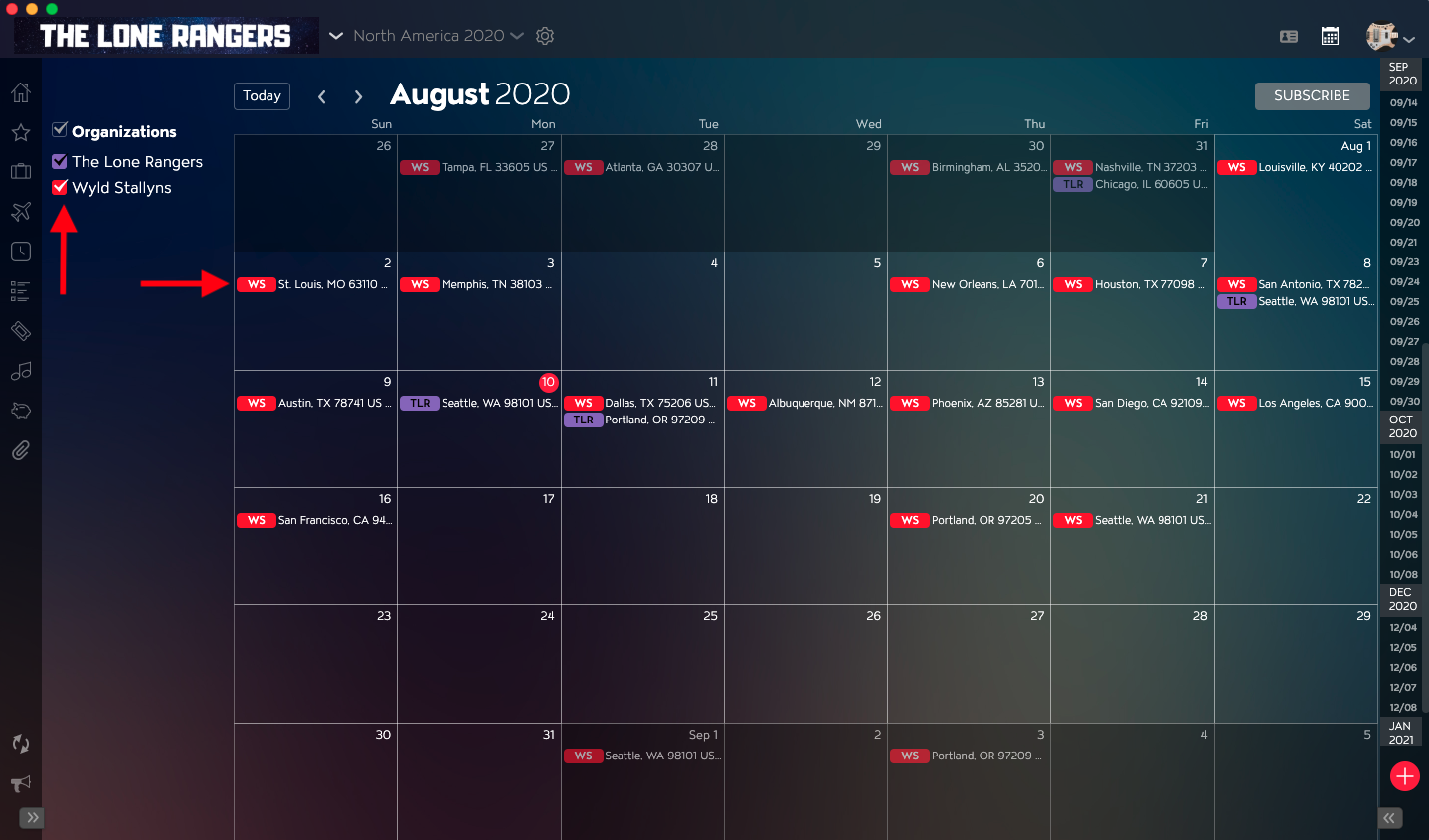
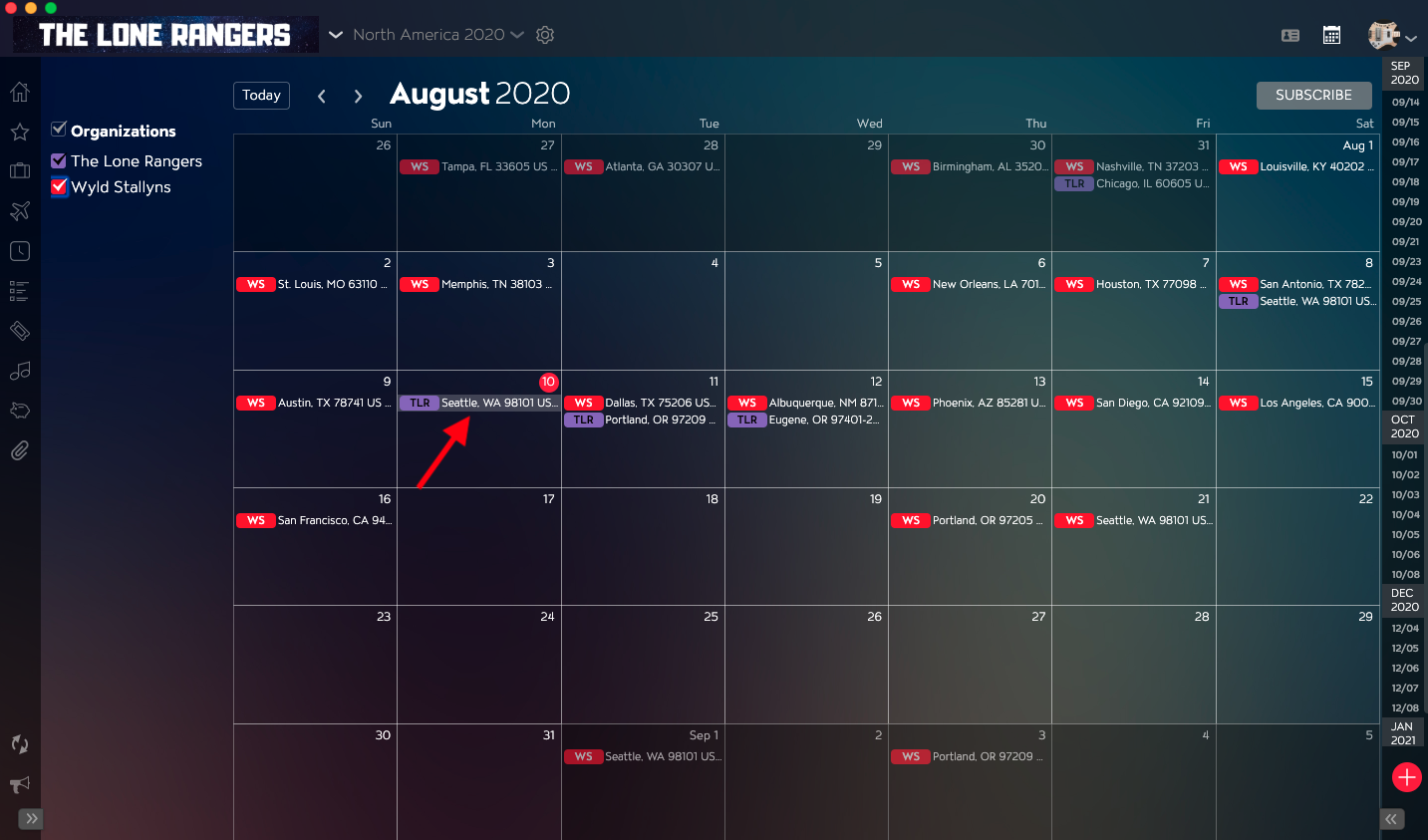
The Inter-Organization Calendar displays all Tour Dates that have Events. Calendar day titles show the location for the Tour Date and are color-coded based on the Organization that it belongs to.
How to Filter the Inter-Organization Calendar
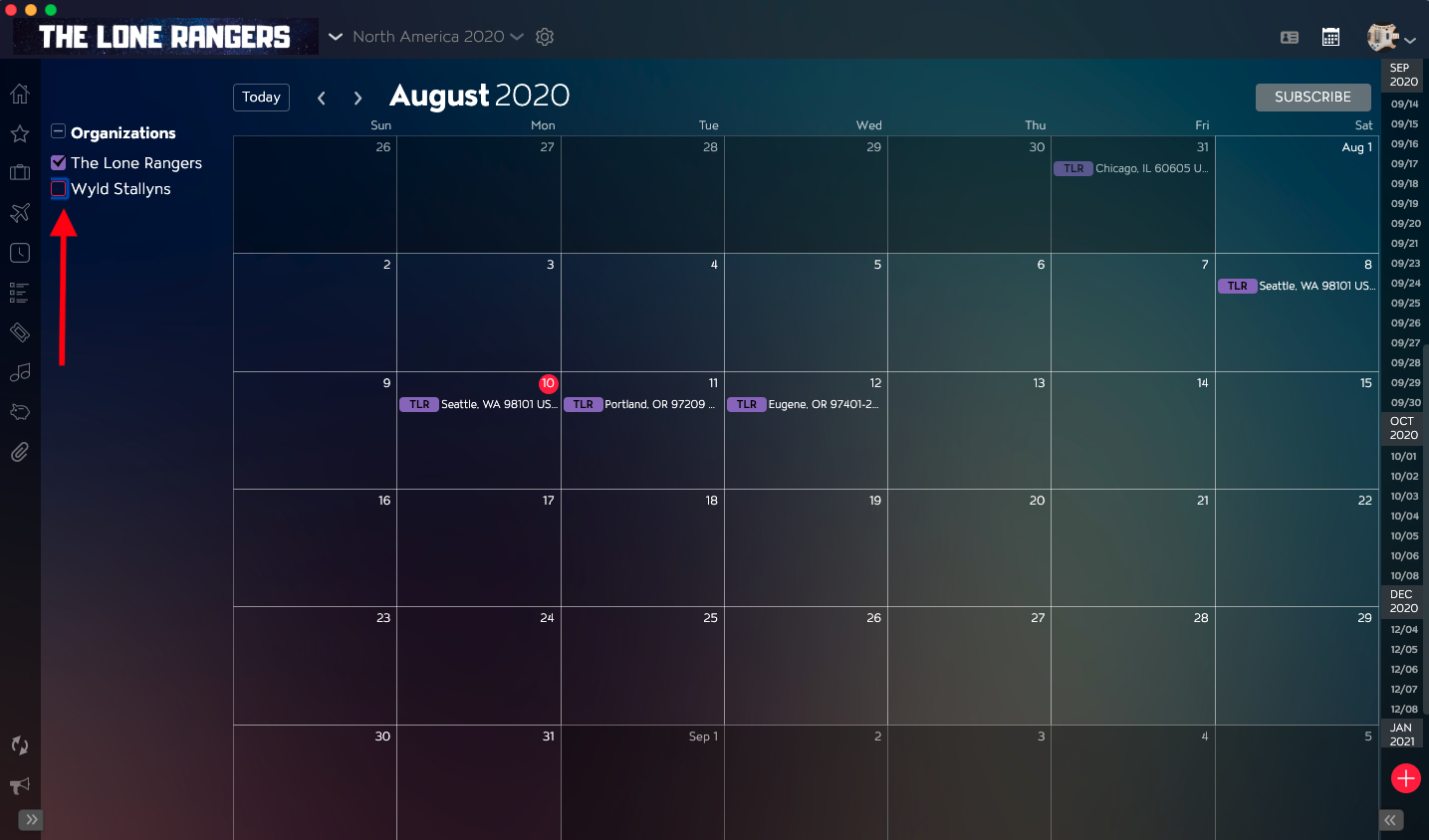
You can control which Organization’s dates you see in the Inter-Organization Calendar by selecting the checkboxes in the Organizations menu in the upper left of the Master Tour 3 application.
How to Navigate to a Tour Date's Dashboard
To navigate to a Tour Date's Dashboard from the Inter-Organization Calendar, click on the Title of the Tour Date.
You will be directed to that Tour Date's Dashboard.