Master Tour Professional and Mobile users can subscribe to their Master Tour schedules in calendar applications such as Apple Calendar or Google Calendar to automatically stay up to date with schedule changes and updates made in Master Tour.
This article covers how to:
Select Organization(s), Tour(s), and Subscription Type
Set Up Your Calendar Subscription in Apple Calendar
Set Up Your Calendar Subscription in Google Calendar
Copy Your Calendar Subscription Link
Select Organization(s), Tour(s), and Subscription Type
Click here to login and access the "My Tours" page at my.eventric.com.
Click the calendar icon in the top right: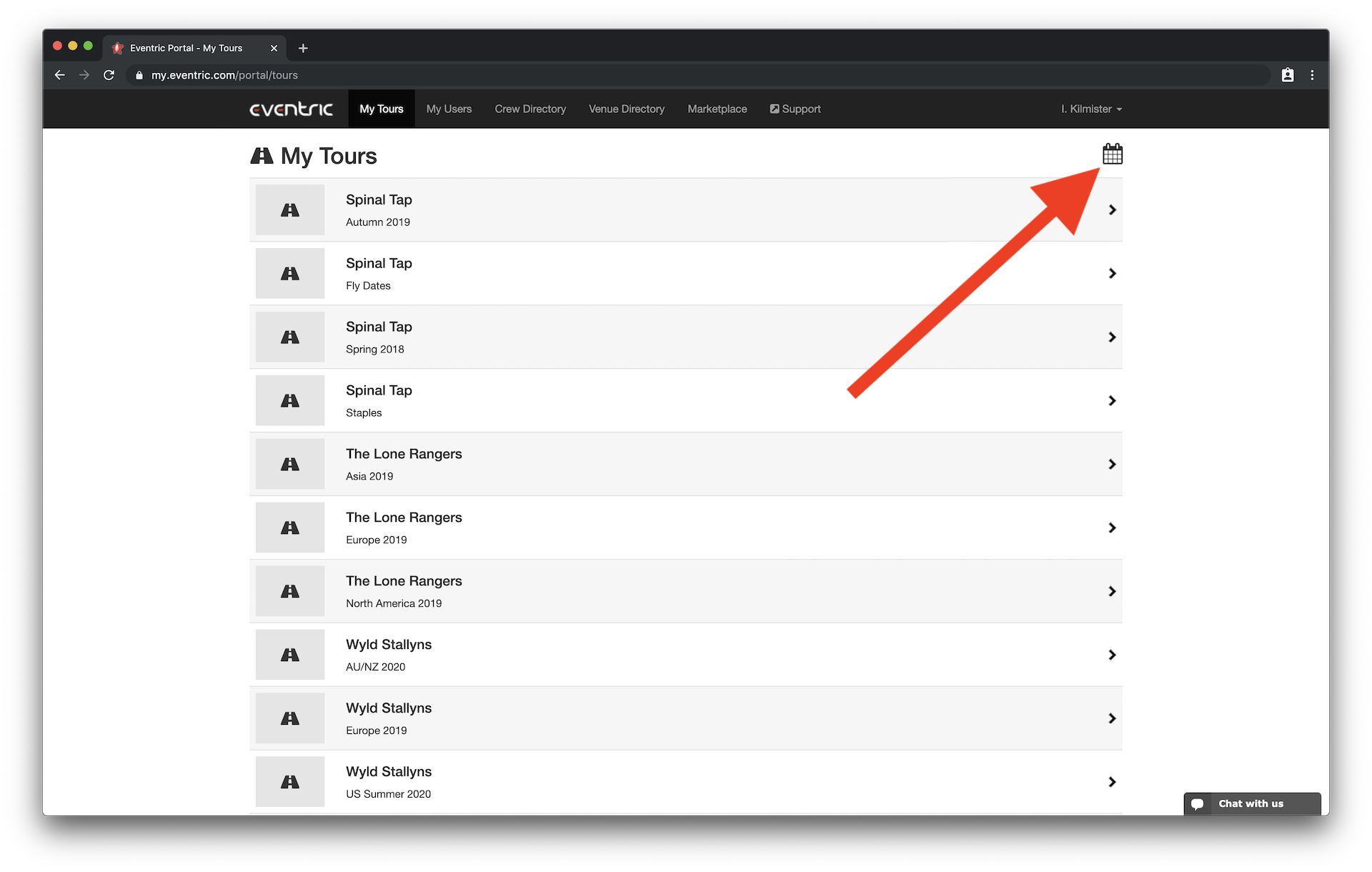
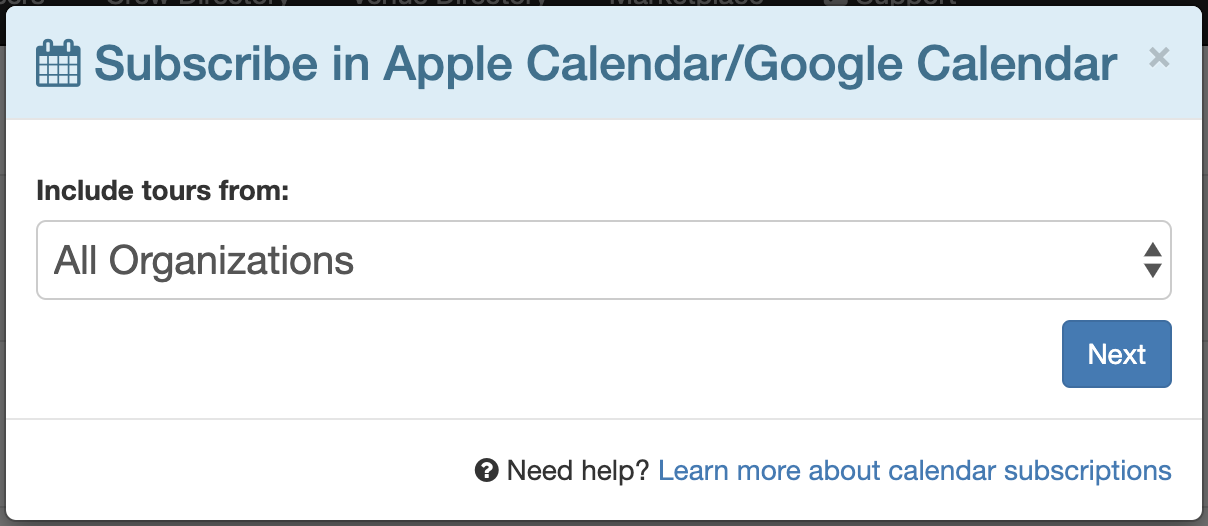
In the resulting dialog, select All Organizations, or select an individual Organization you'd like to subscribe to, then click Next:
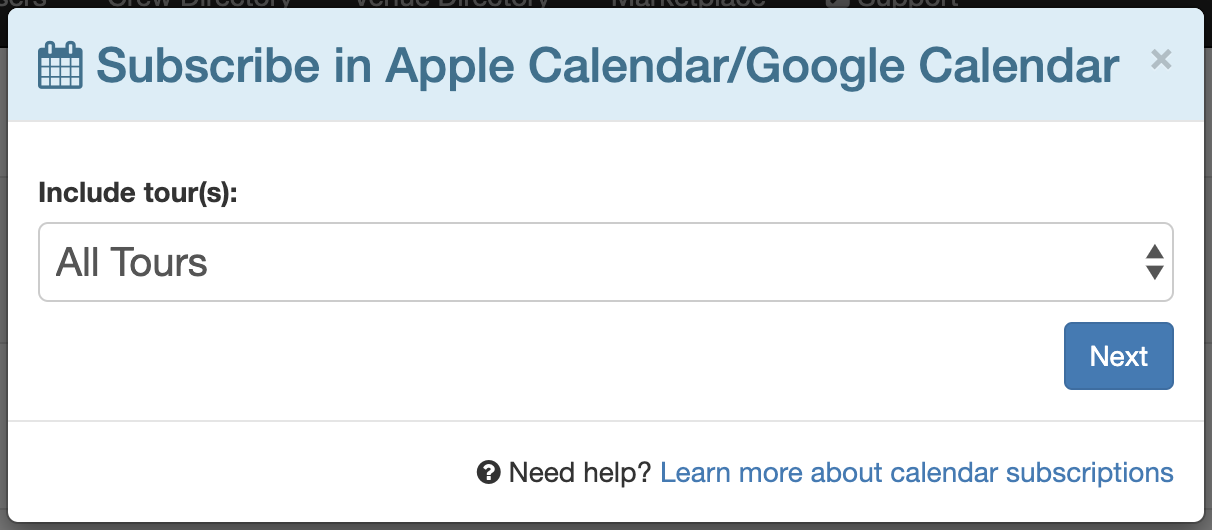
Select All Tours, or select an individual Tour you'd like to subscribe to, then click Next:
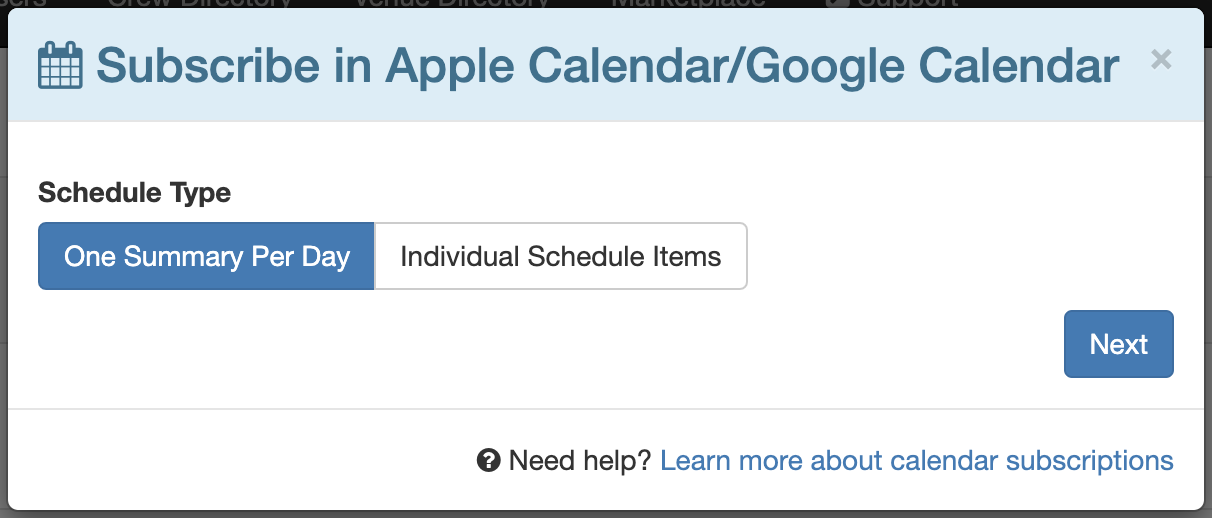
Select the type of calendar you'd like to subscribe to, then click Next.
One Summary Per Day will create an all-day calendar item in your third-party calendar app for each Tour Date in your selected Organization(s) and Tour(s). This calendar item's detail will have basic Notes, Schedule, Venue, Promoter, and Hotel info from Master Tour.
Individual Schedule Items will create a calendar item in your third-party calendar app for each Schedule Item and Travel Item in your selected Organization(s) and Tour(s). This will not have basic Notes, Venue, Promoter, or Hotel info since it is just creating a calendar item in your third-party calendar app for each Schedule Item and Travel Item in your Master Tour Organization/Tour selection.
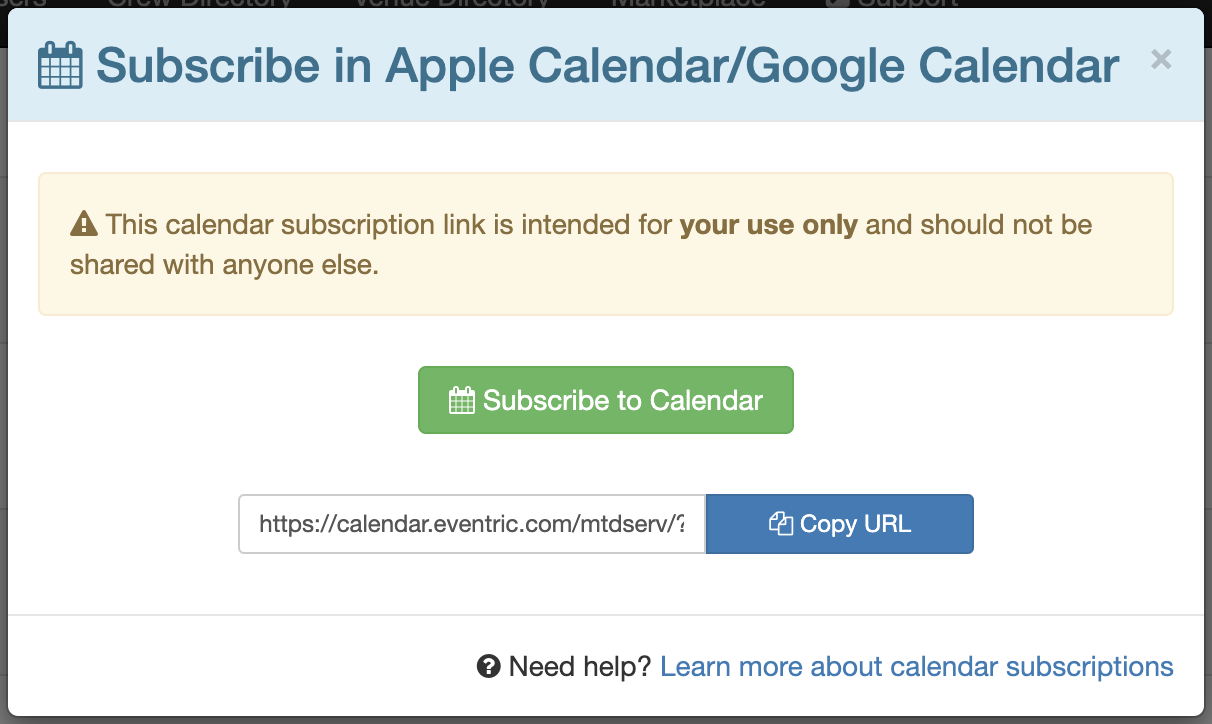
For most devices/calendars, you can click on the Subscribe To Calendar button to subscribe to your Master Tour info using your device's default calendar app. When you click the Subscribe to Calendar button, it will take you to your device's default calendar app.
Set Up Your Calendar Subscription in Apple Calendar
In Apple Calendar, you'll get a subscription settings screen with your subscription URL already entered, and you can just click the Subscribe button: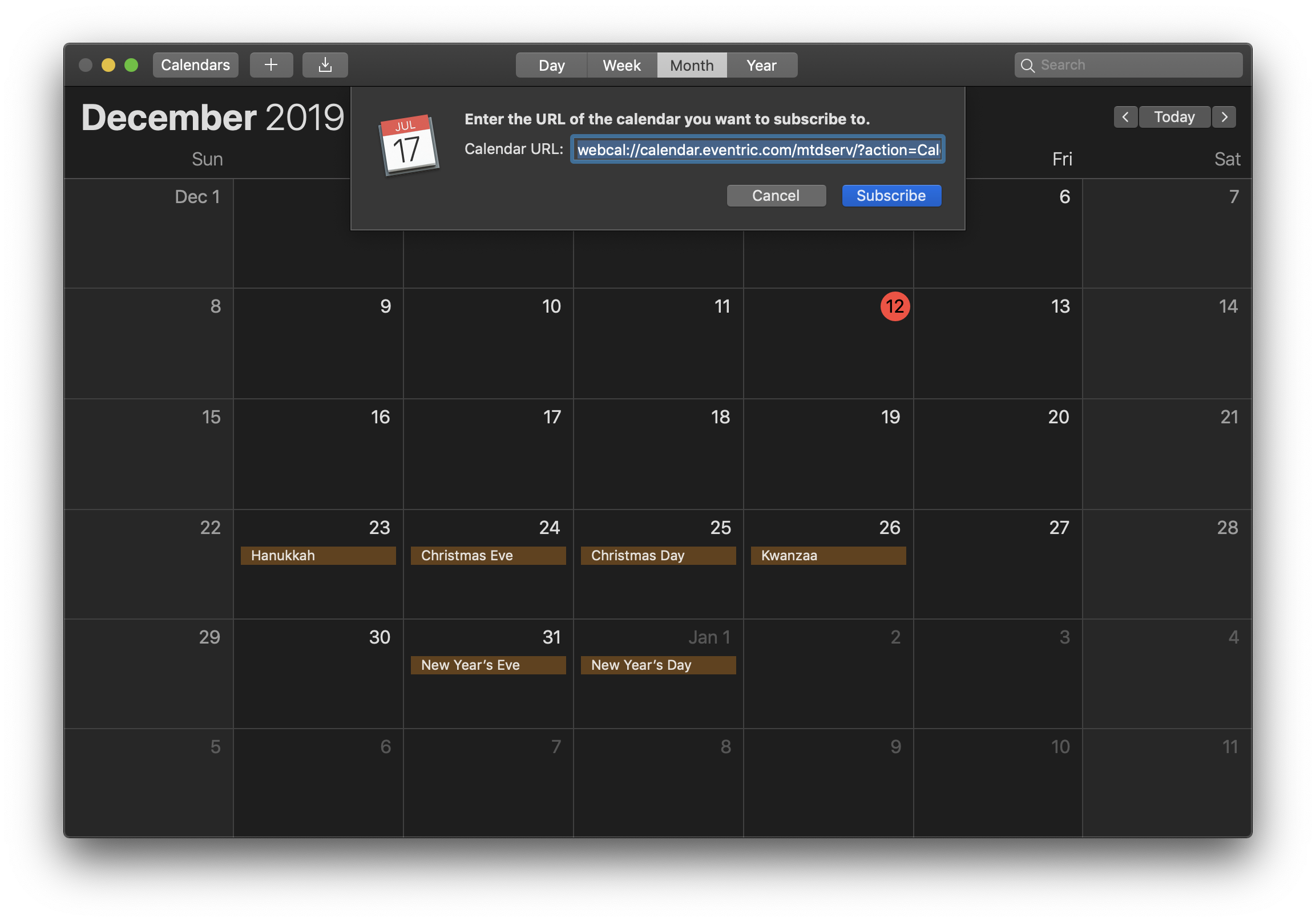
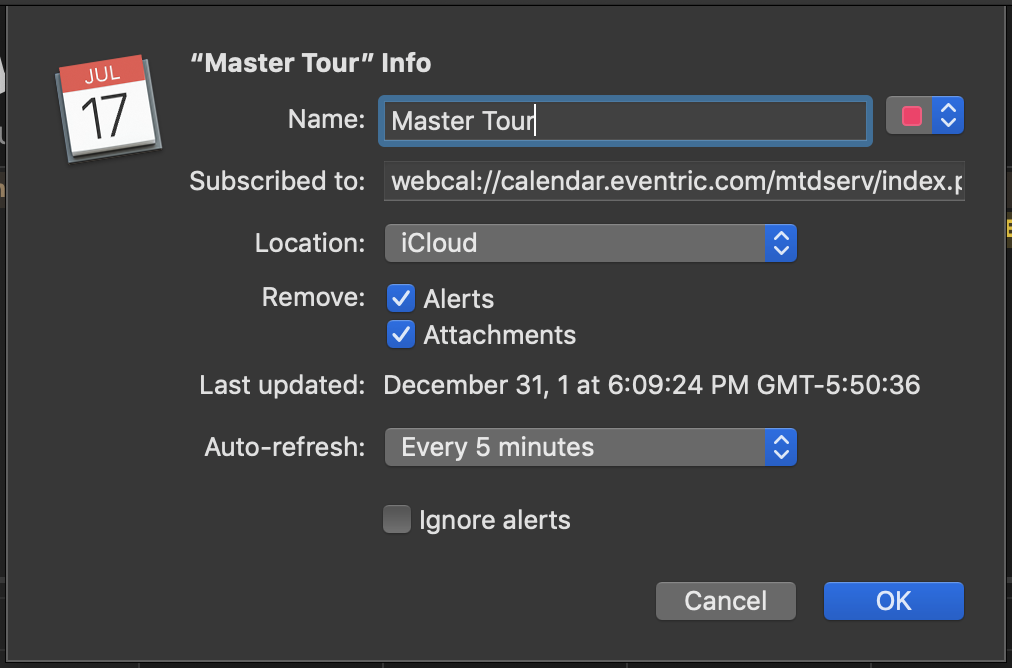
Then you can change your calendar name and the frequency with which it refreshes - Apple's Auto-refresh default is one week, so make sure you change it if you want more frequent refreshing.
Set Up Your Calendar Subscription in Google Calendar
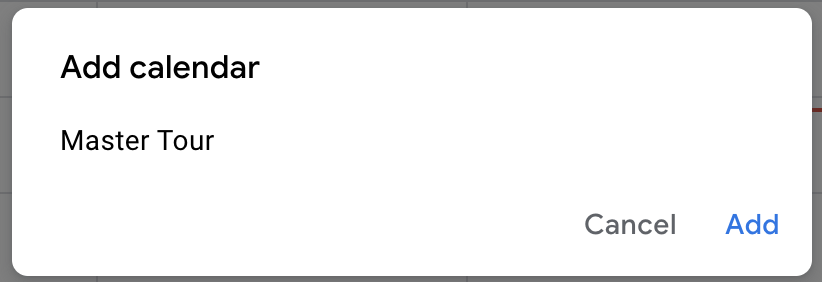
On Google Calendar, you'll just get a dialog asking if you want to add the calendar, which you can click Add on. This may only appear as a URL at first instead of "Master Tour" or your calendar name, due to how Google Calendar fetches and caches calendar data. Still, it should appear with the proper name after your calendar is populated with data:
Copy Your Calendar Subscription Link
If clicking Subscribe to Calendar doesn't work or isn't an option for you, you'll need to click the Copy URL button to copy the calendar subscription URL:
then you can paste that into your preferred calendar app's "subscribe by URL" section.
On Mac Calendar, it's under File>New Calendar Subscription in the top menu bar.
On Google Calendar, you'll look for "Other Calendars" on your left sidebar, then click the + button next to it, select "From URL," and paste in your copied URL.
Troubleshooting
When subscribed with calendar links generated by other users, a password change from their can jeopardize the syncing process and will request a log-in authentication with their own account's credentials.
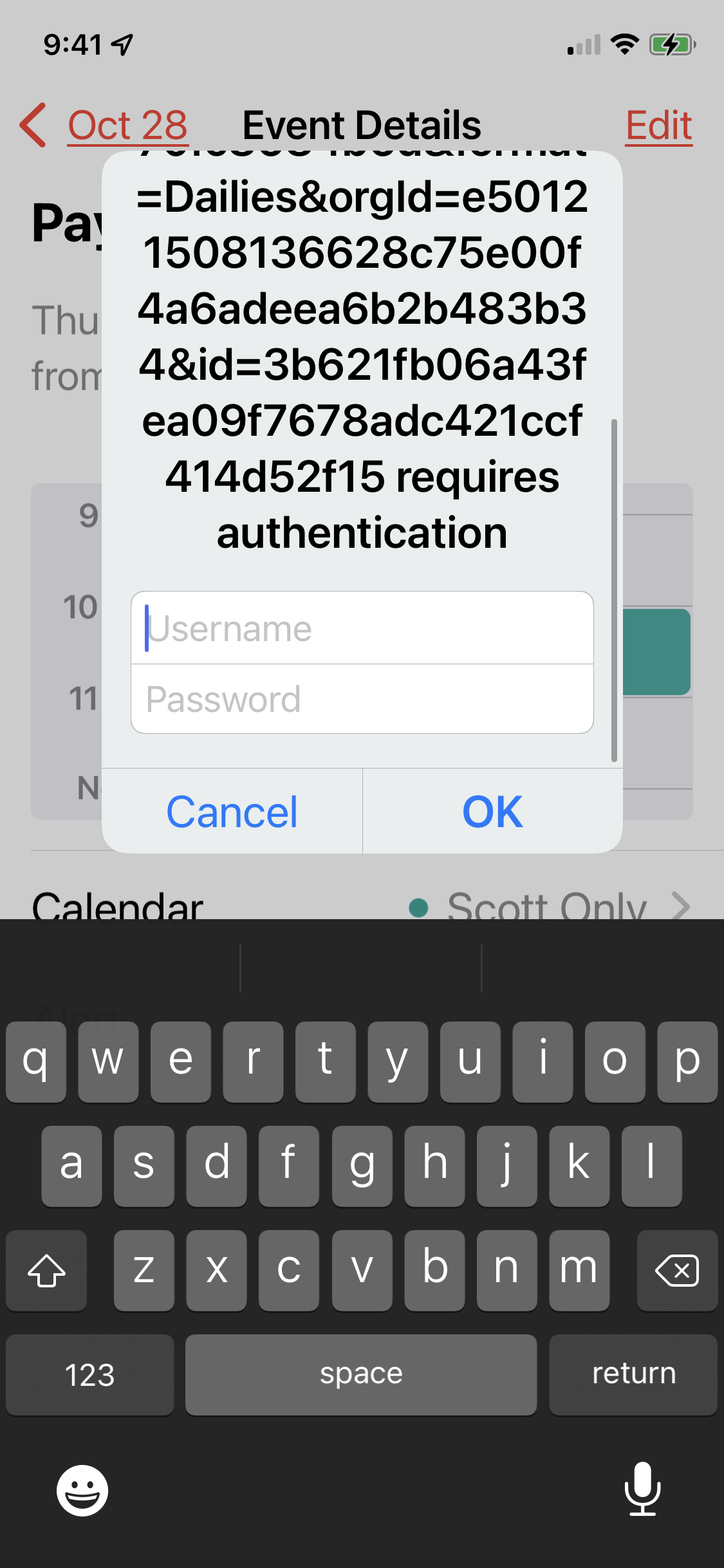
To fix this, generate another subscription link by following the steps on Select Organization(s), Tour(s), and Subscription Type.