
The Hotel section allows you to add, manage, and view Hotel information for Tour Dates. You can control who can see Hotel records using Visibility.
This article covers how to:
Open a Hotel Location in Google Maps and its Listed Website
Filtering and Sorting The Rooming List
View the Room List on Master Tour Mobile
Add Hotel Notes to a Specific Record
How and Why to Select Different Versions of the Same Hotel
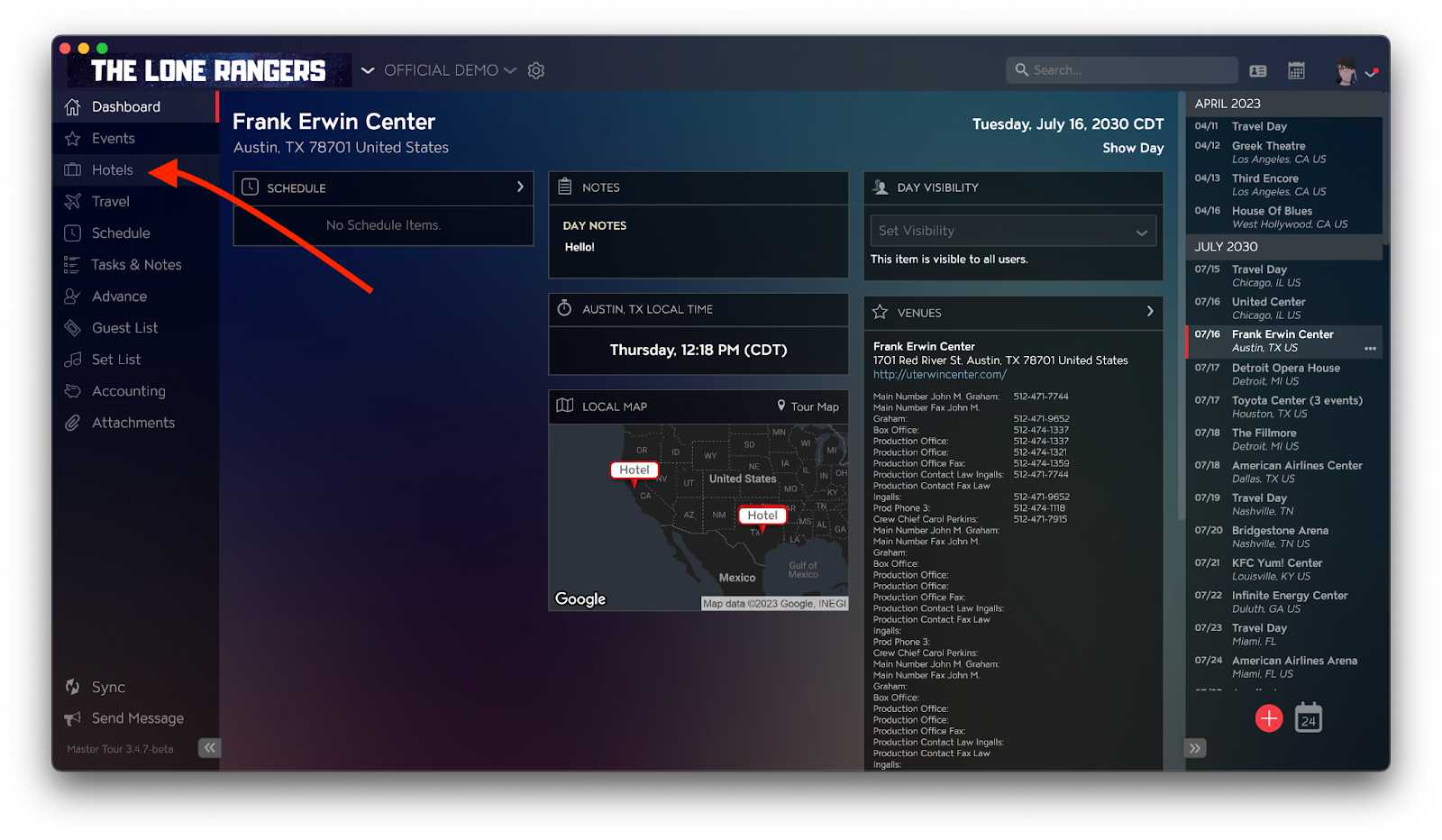
Locate The Hotels Section
Upon selecting your chosen date, click on the Hotels section on the left-hand side. You can also use Cmd-3 [OSX] / Ctrl-3 [PC] to get to your Hotel Section.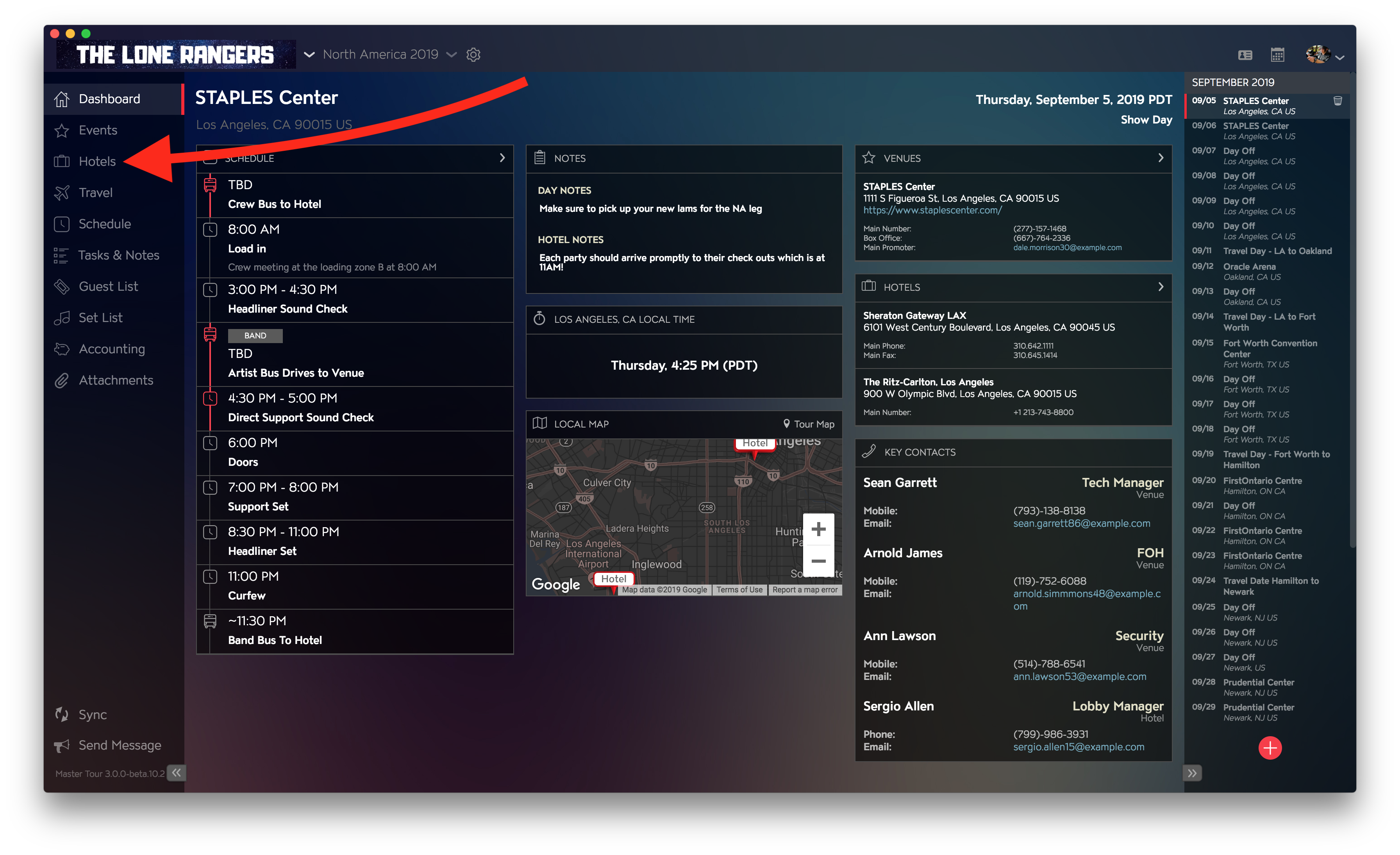
When in the Hotel Section you will see a menu like this: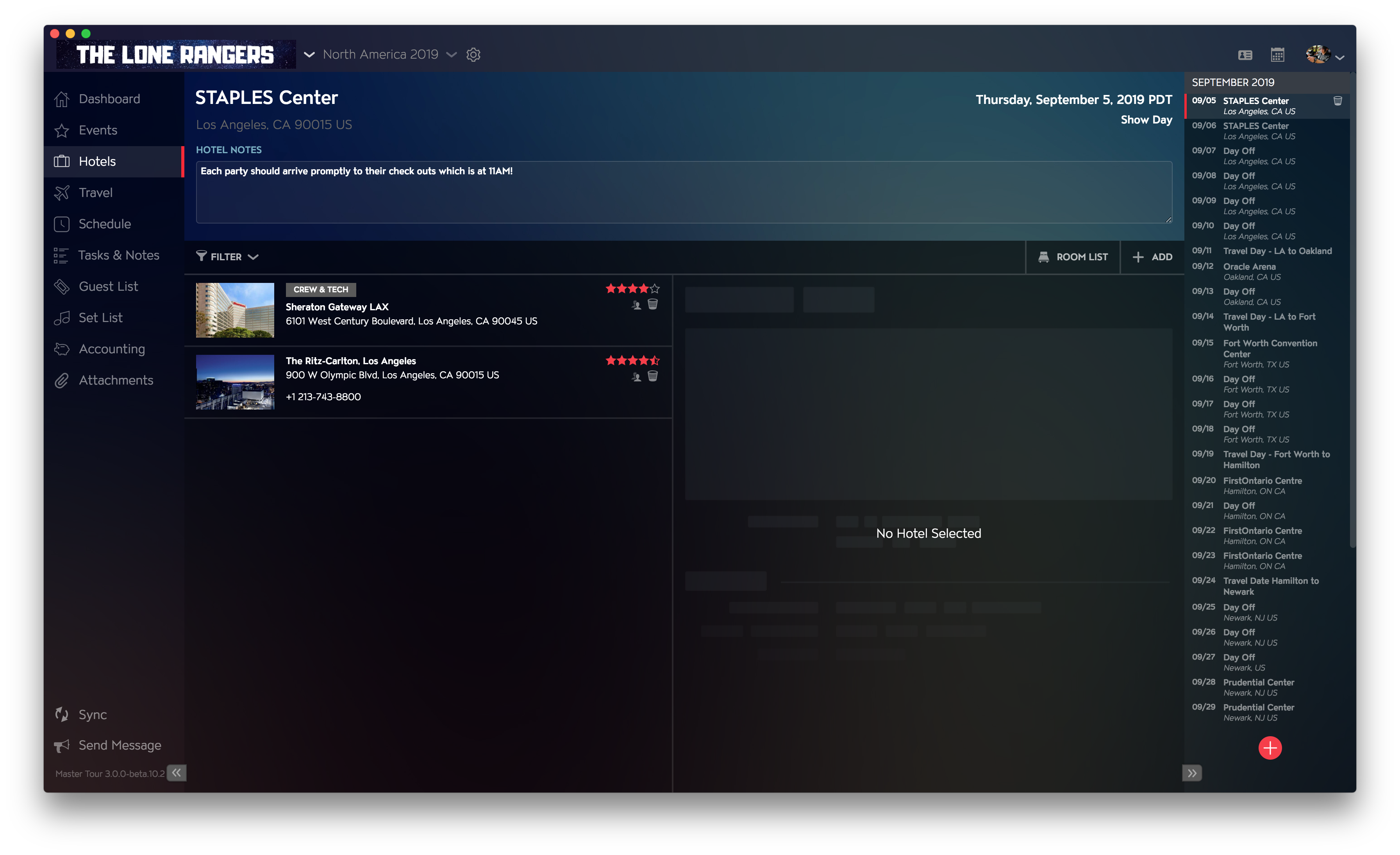
Add A Hotel
To select a Hotel to attach to your date, click on the "+ ADD" button on the top right.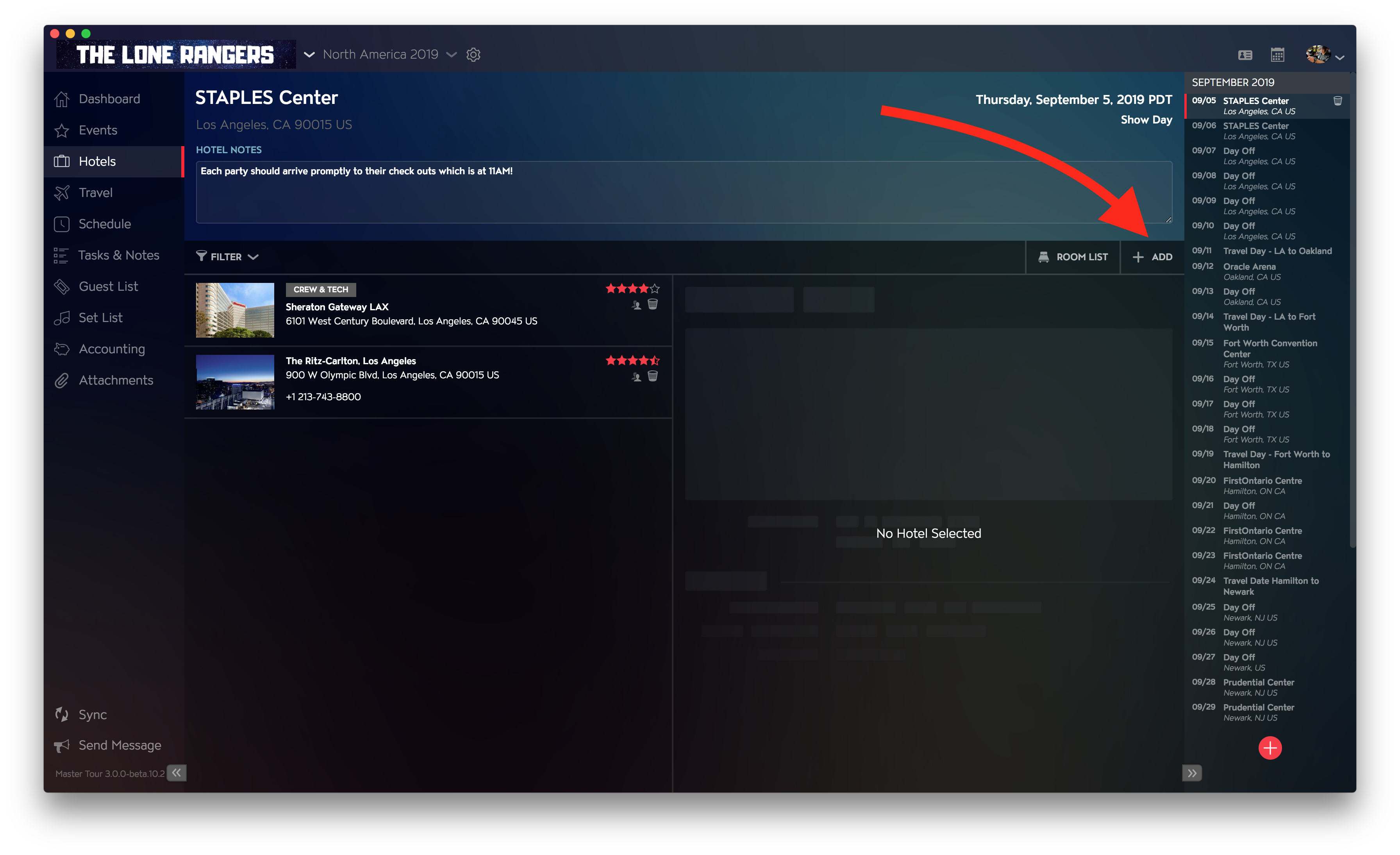
Type in the name of the Hotel you're searching for. Master Tour uses a combination of local stock records submitted by users as well as Google Places records local to the Tour Dates location if it's not already inputted to find you an exact match. You can identify the difference by looking for either the Master Tour or Google logo to the right of each of your search results.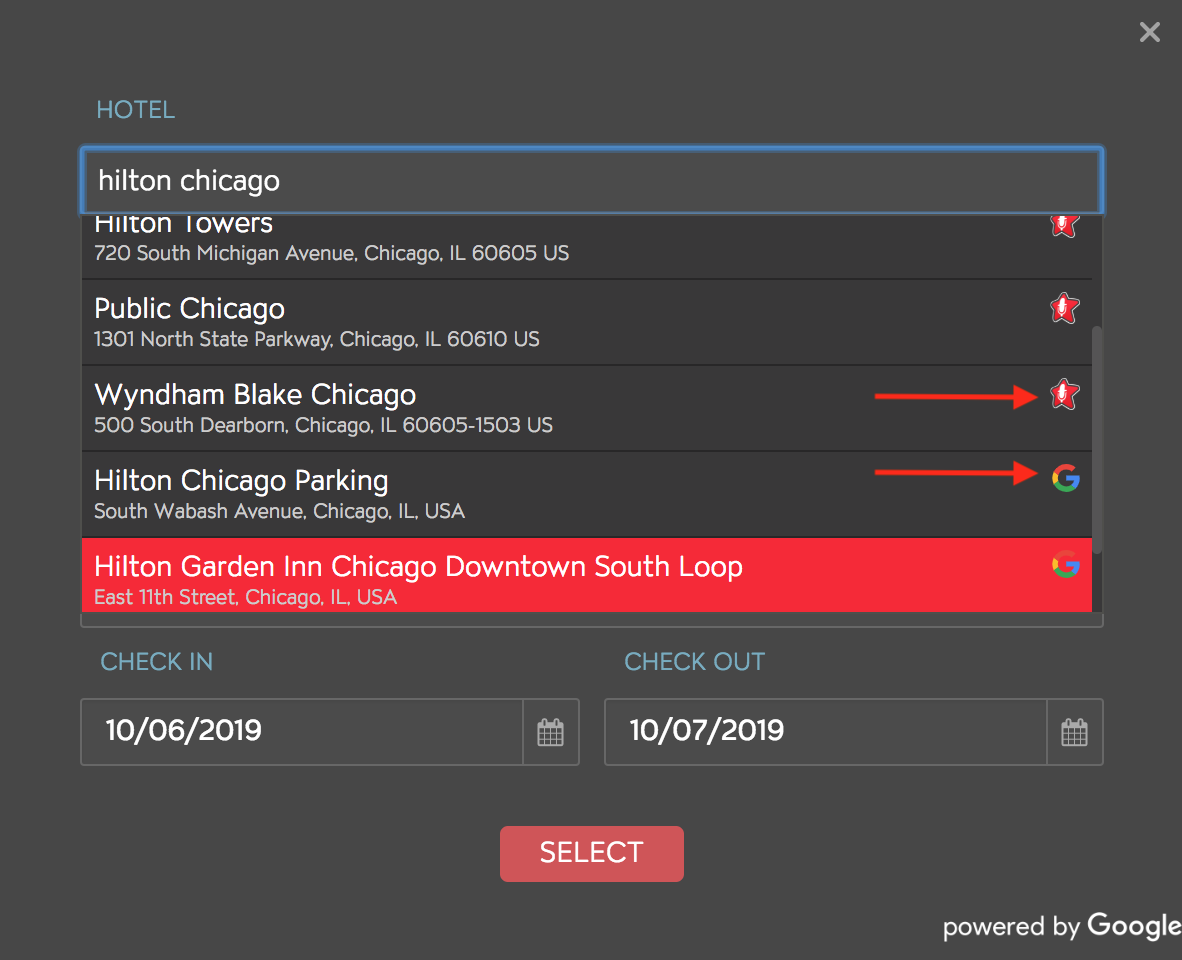
Once you've found your desired record, set the check-in and check-out date below, and click "SELECT."
If you also happen to have info on TripIt with your Hotel stays, you can also use our import feature for that. Click here to learn how to import Hotel information with Tripit.
Set Visibility
Click on the Hotel record you would like to edit and scroll down on the right-hand menu.
From here, you can apply which groups you'd like to enable Visibility for the selected Hotel. Click on the Visibility box, and you can check in those groups you'd like permitted.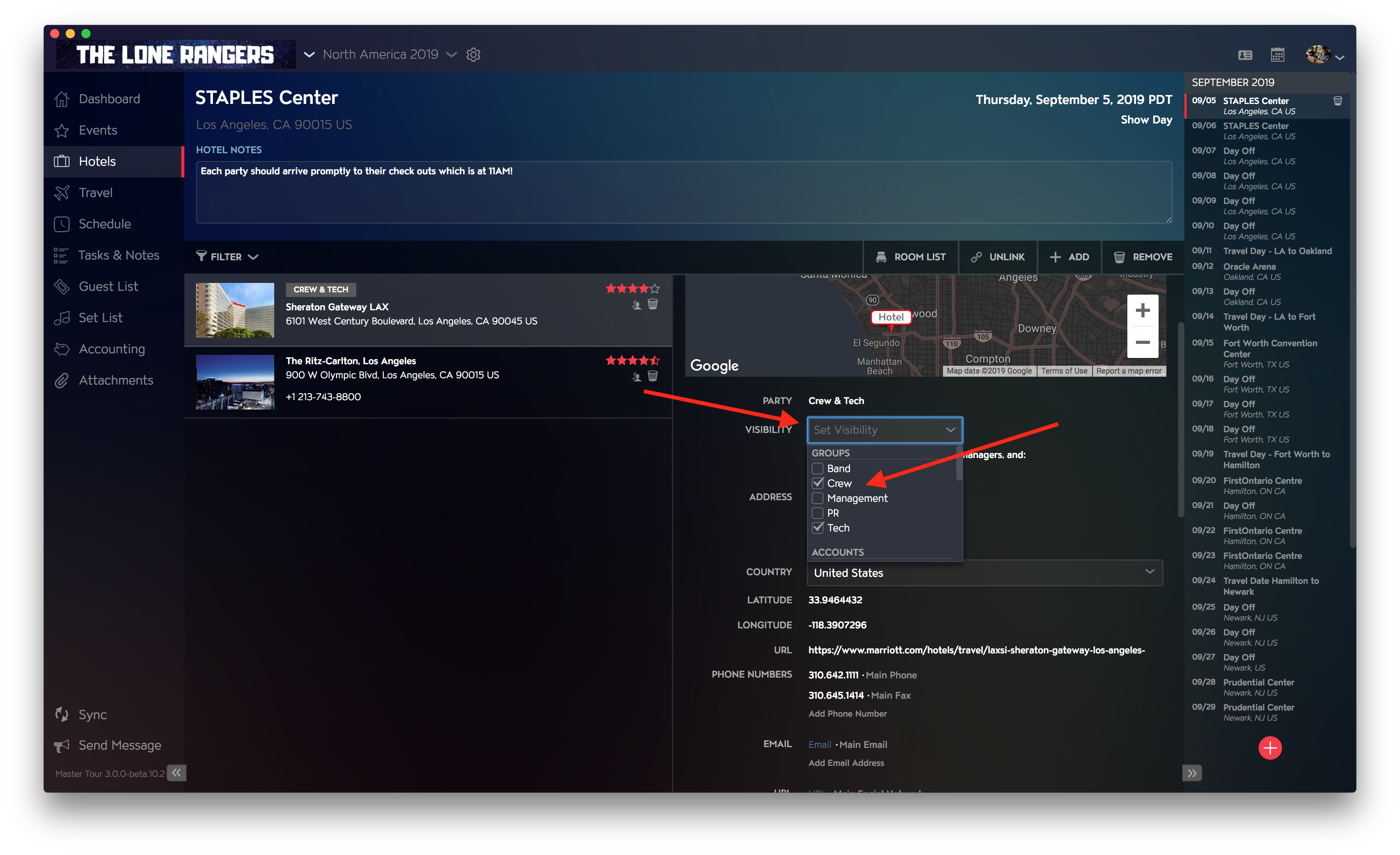
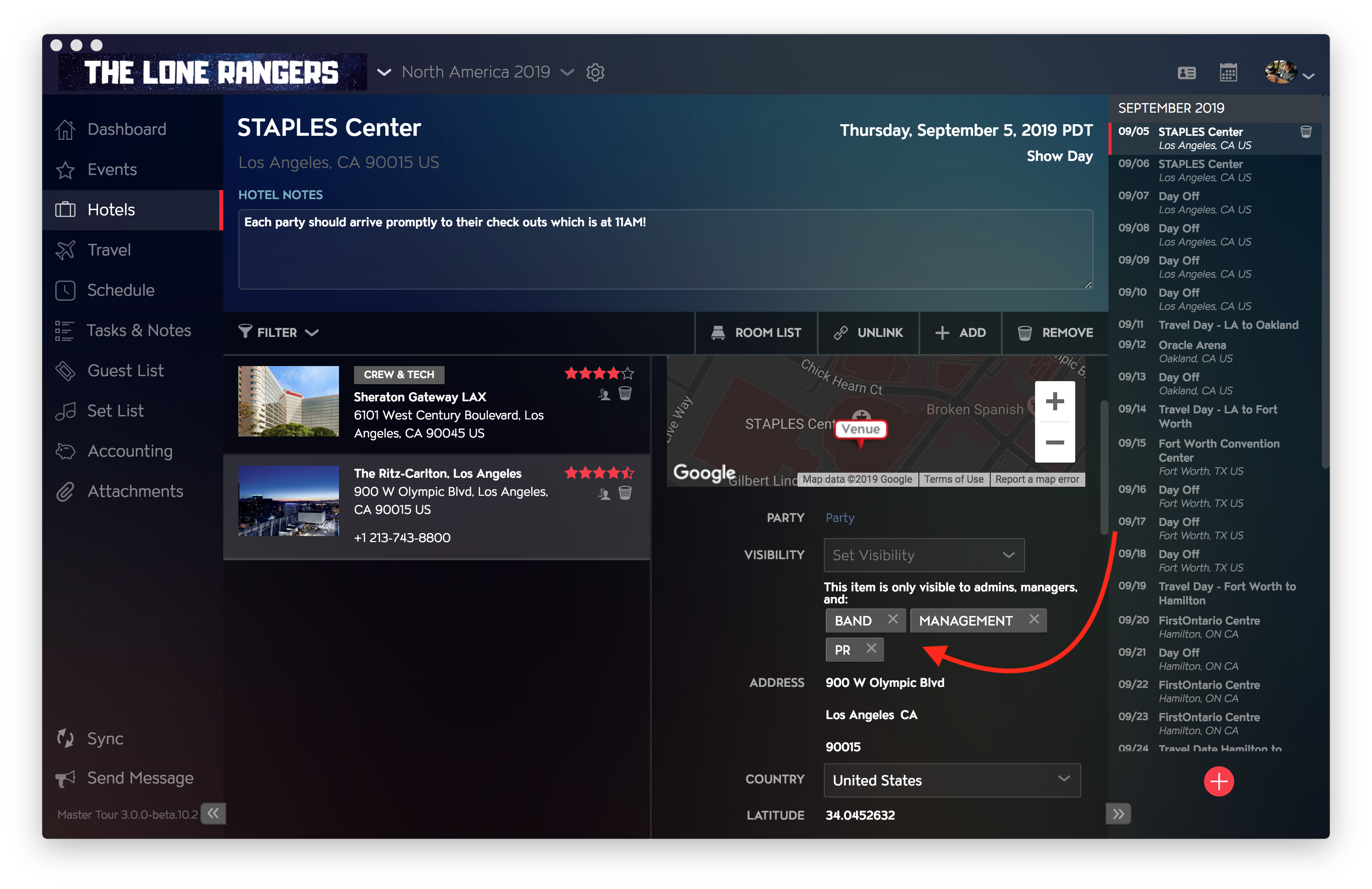
Once you've set your Visibility options, you can verify them by seeing your selected groups assigned to the item.
Open a Hotel Location in Google Maps and its Listed Website
Click on the Hotel record you wish to view info for. To view the Hotel's address on Google Maps, click on the Map icon. To view the Hotel's listed website, click on the box with an outward arrow.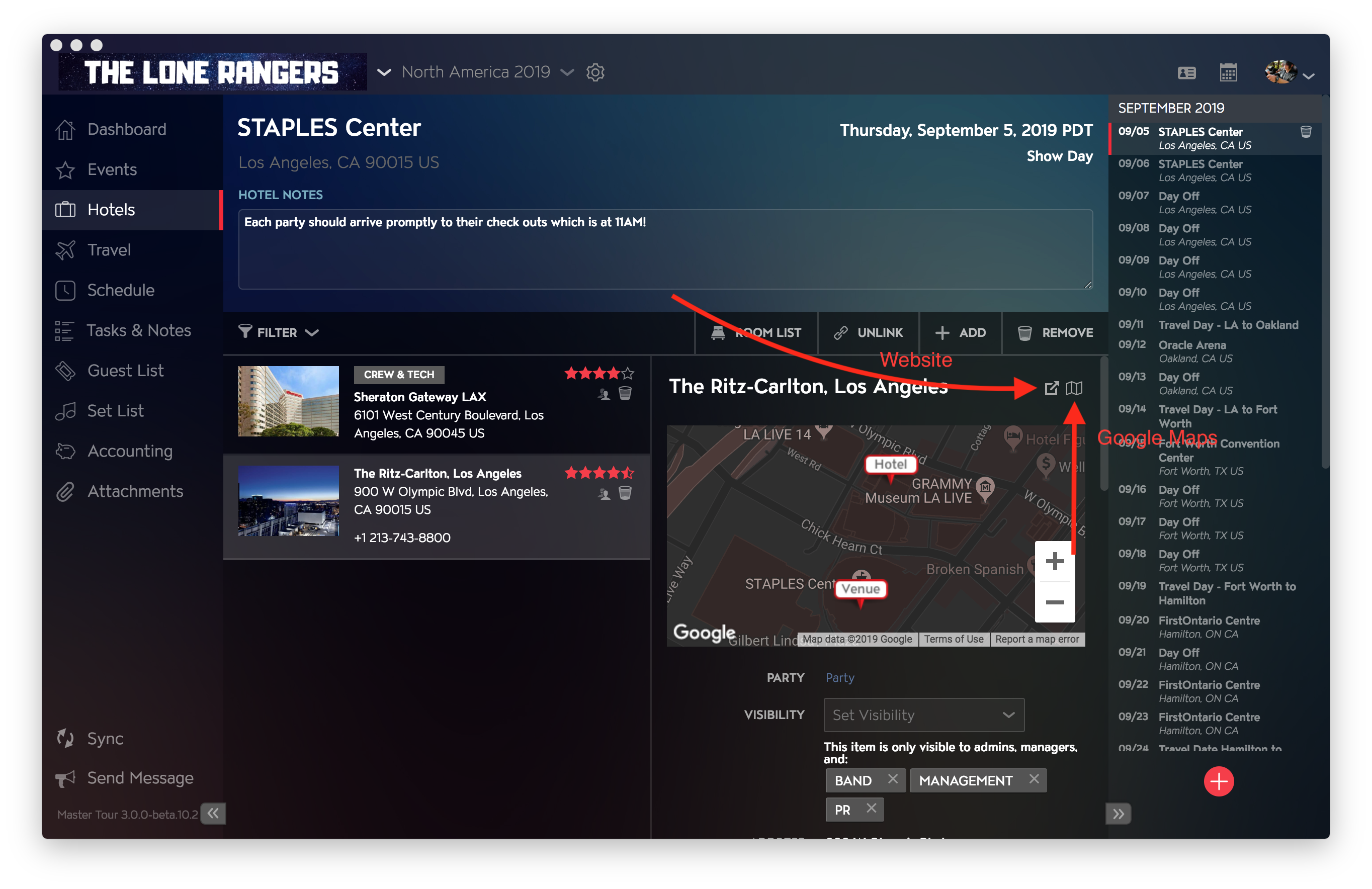
Add Key Contacts
Click on the Hotel record you would like to edit info for.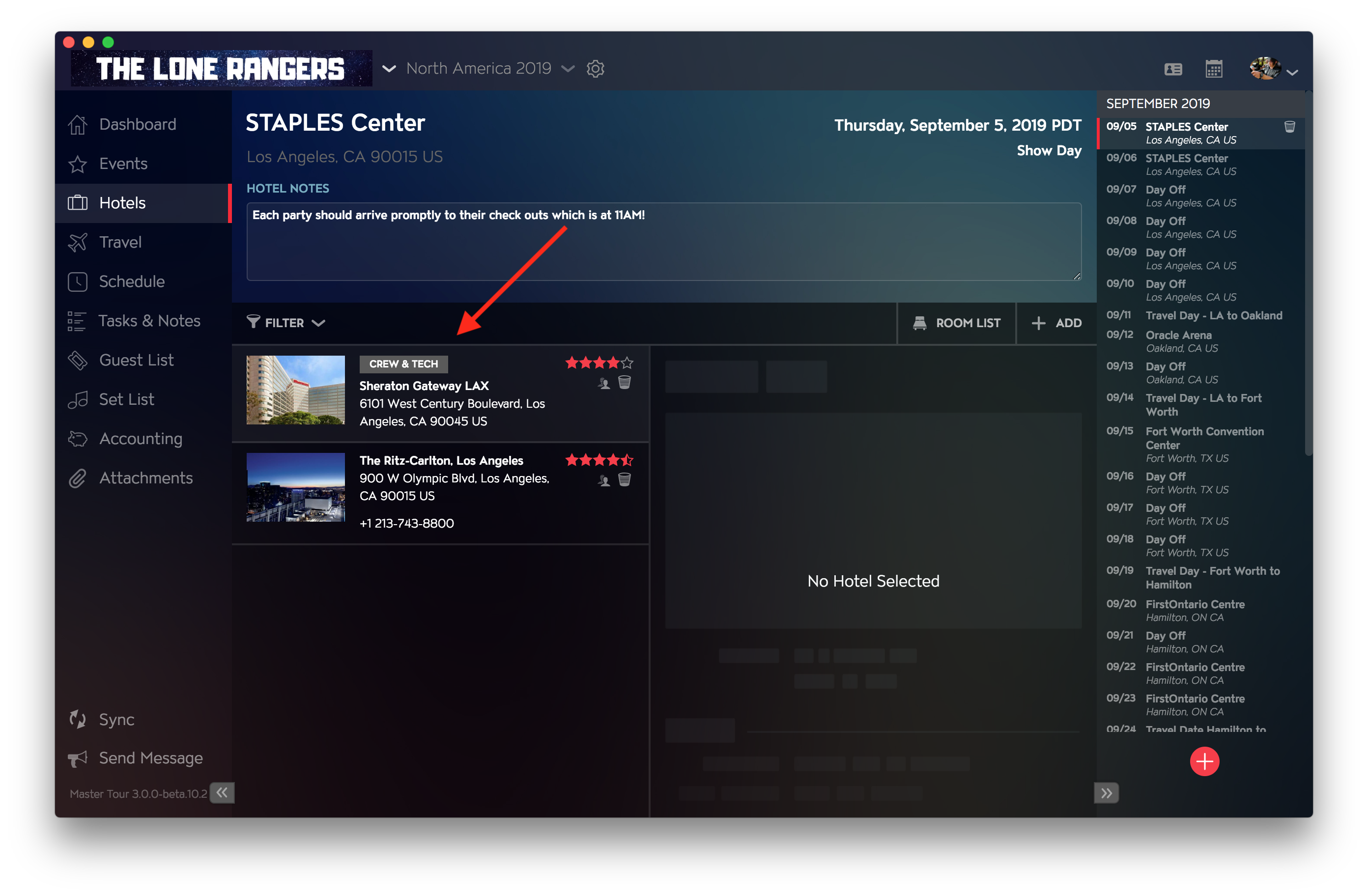
After selecting your record, you can set key contacts at the bottom of the right side menu.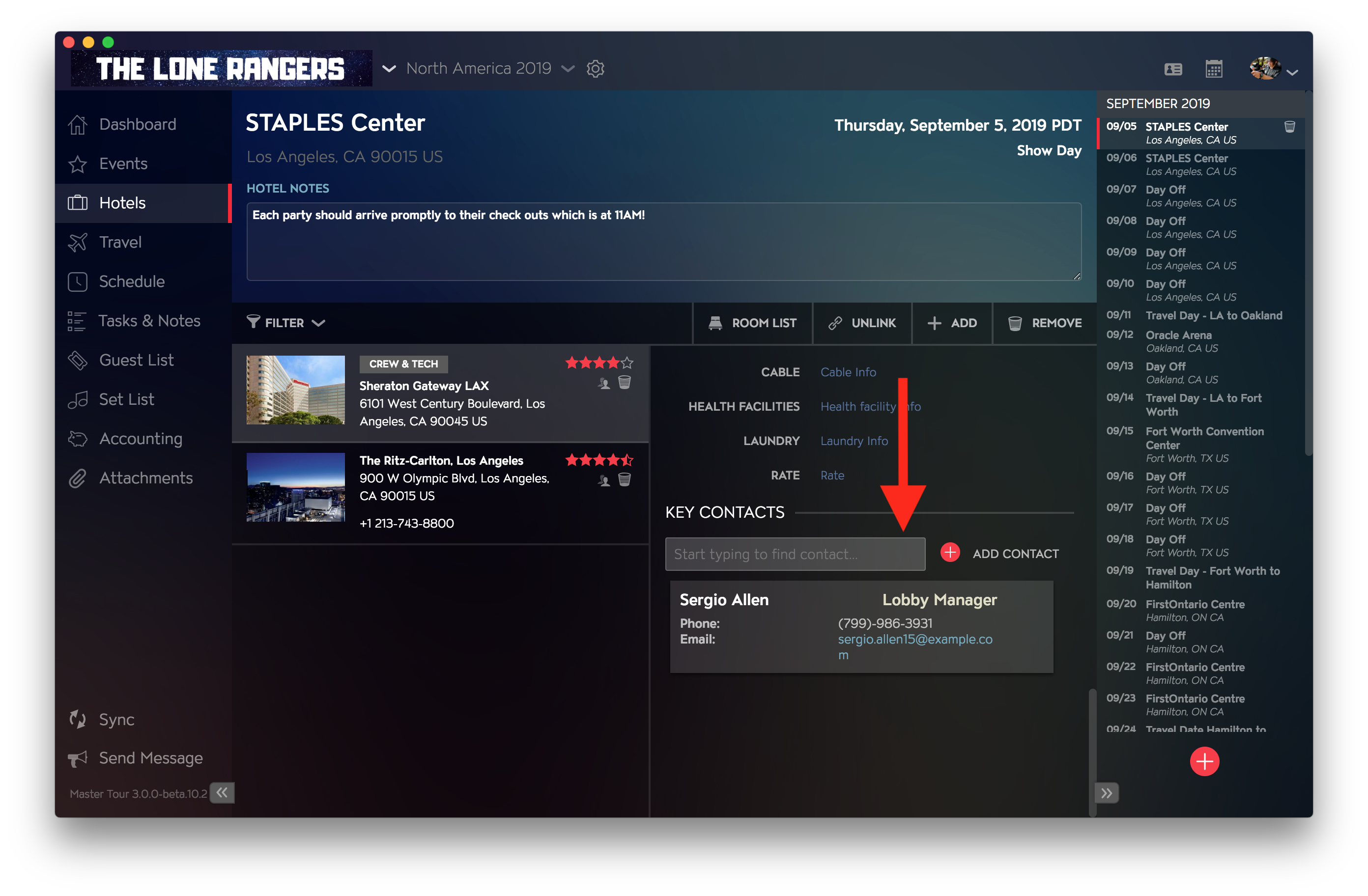
From here, click on the "+" button. After clicking, you will see a pop-up box appear in which you can begin adding Role, Email, Phone, and URLs. Once you have filled the info, you can continue to edit these contacts by clicking "Edit Full Contact Record."
You can also search for existing Contacts by typing in their first name in the search bar if you already have them in your database.
Use the Room List
Click on the Hotel record you wish to edit and click on the "Room List" to the top-right to it.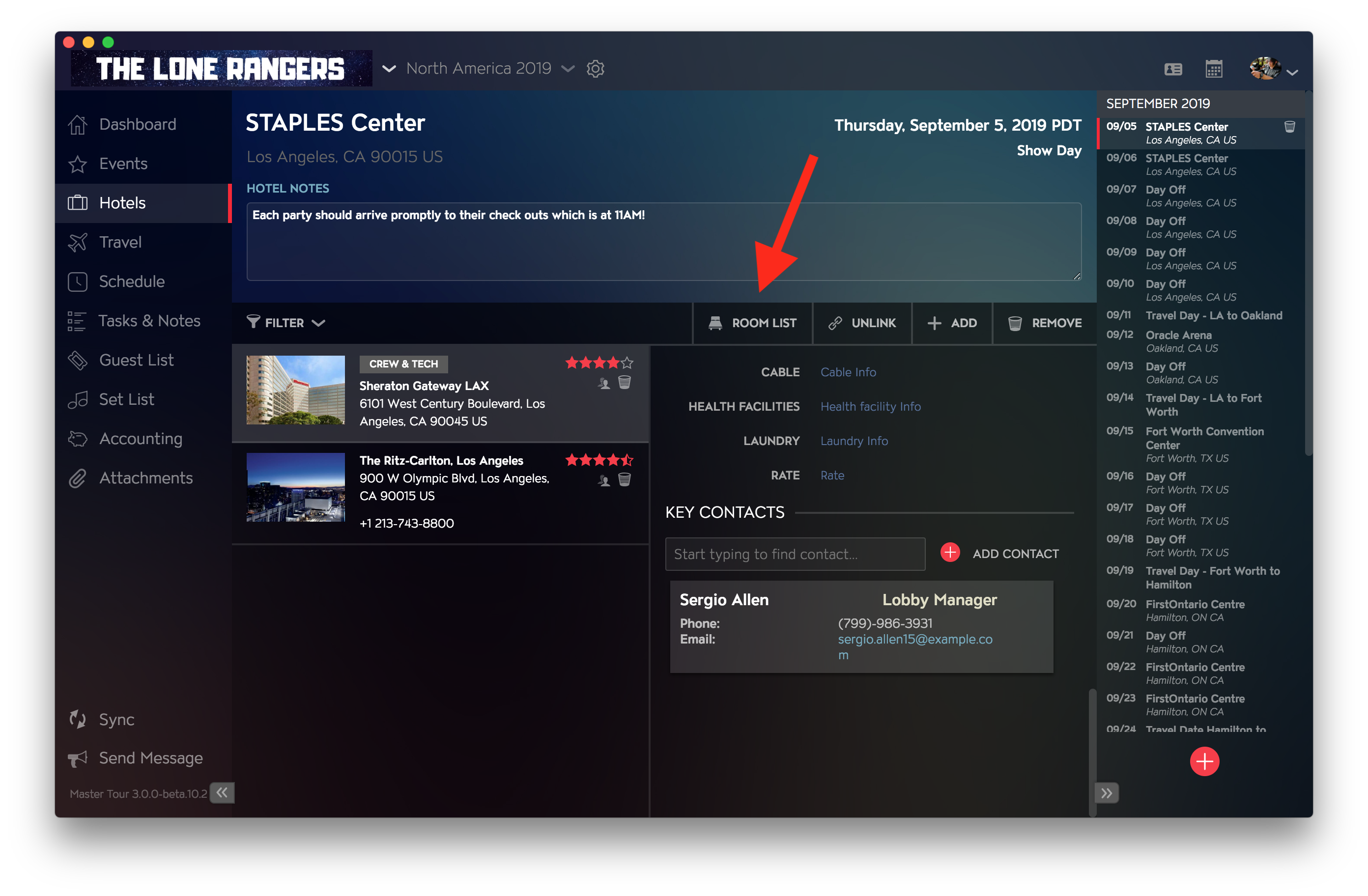
To add a User, click on the "+ ADD" and select which groups or individuals you'd like to add from your User and User Groups section. You can also fill info in for bag tags, room numbers, and smoking/no smoking.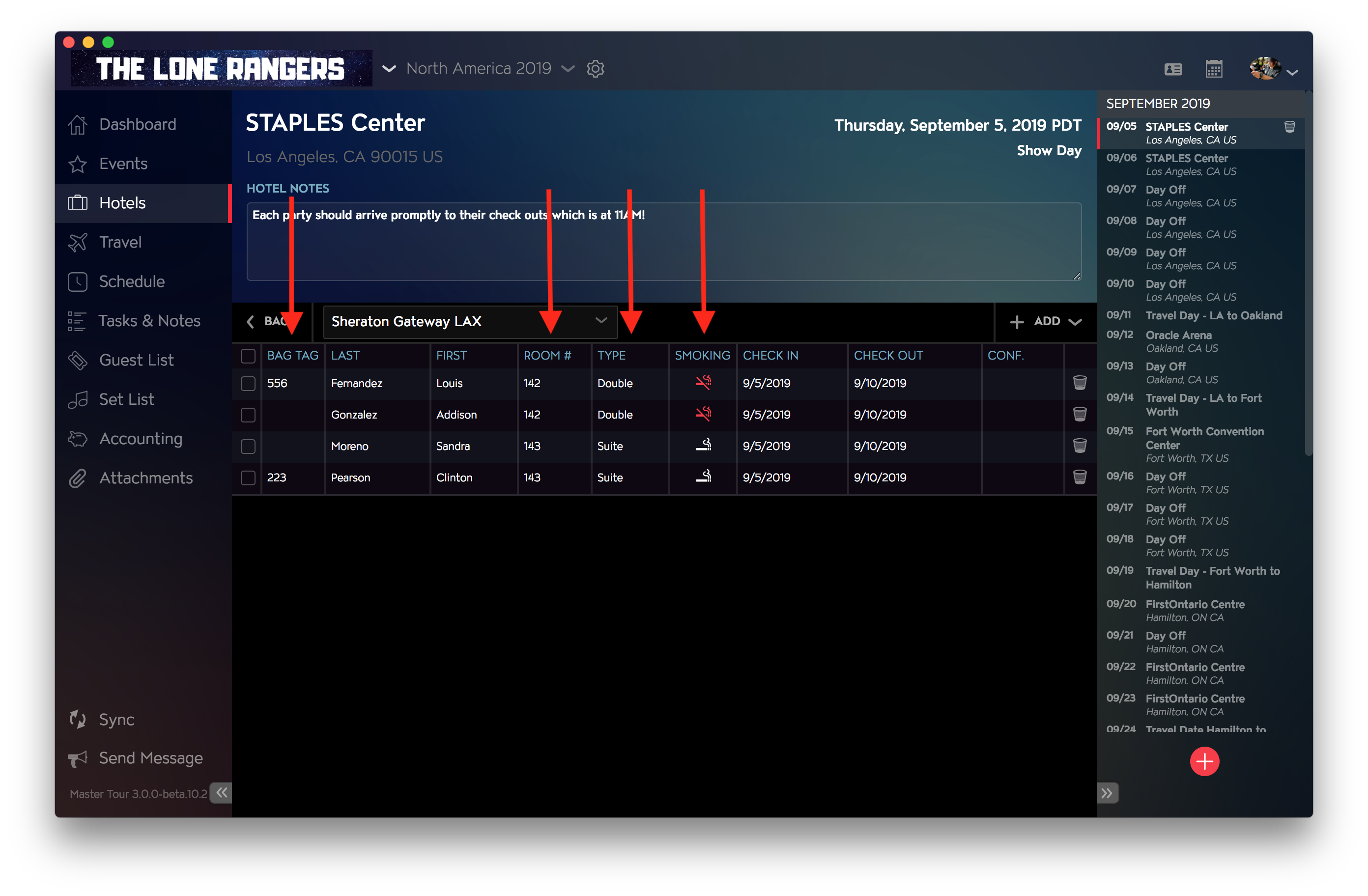
Filtering and Sorting The Rooming List
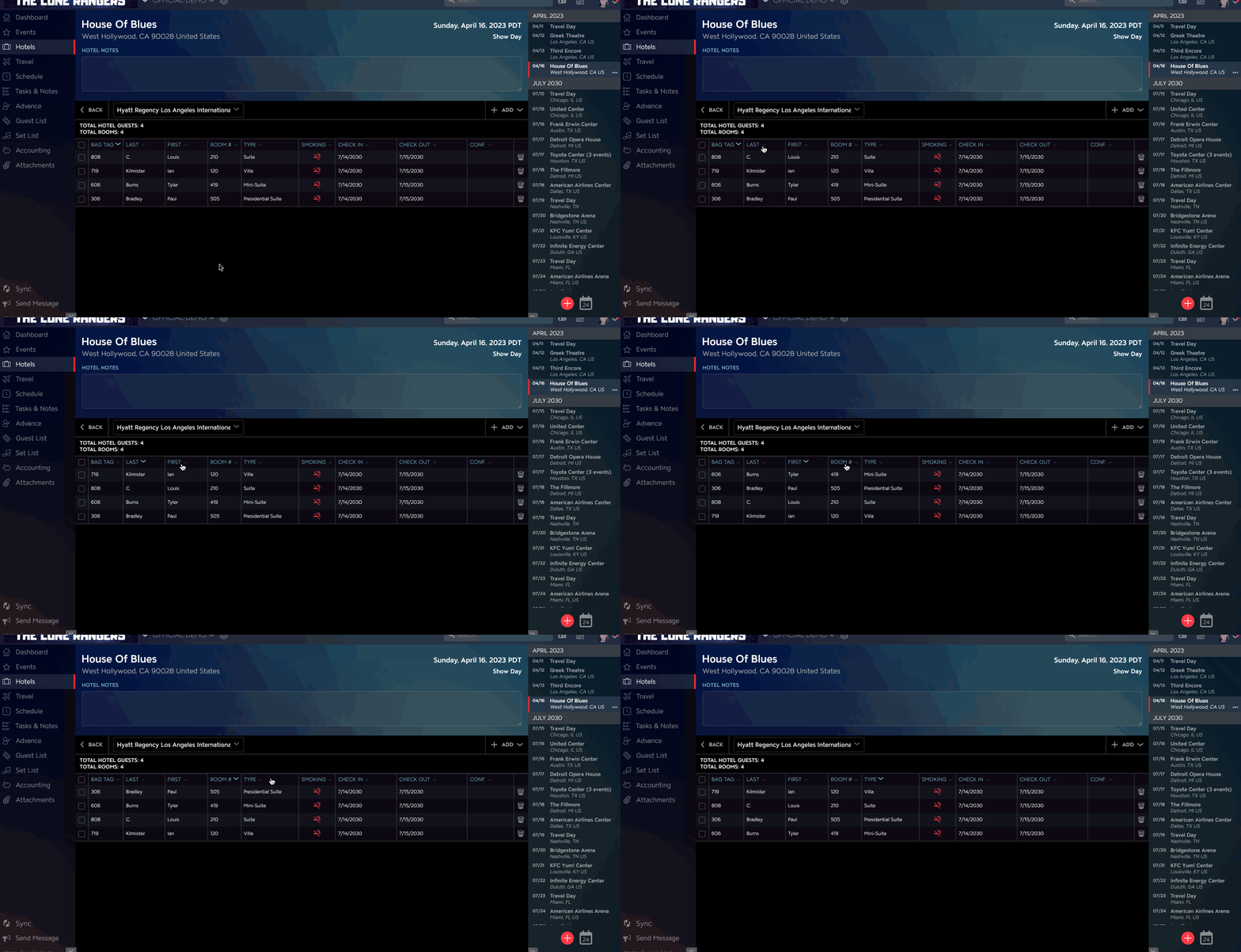
Click the top label of the desired column you wish to sort by. From here you will see the room list sort accordingly.
How To Reorder Hotels
Within Master Tour 3, you are able to create a personalized sorting order for your hotels which also reflects on Master Tour Mobile. This can help with prioritizing certain hotel records on a tour date.
To sort hotel records:
- Navigate to the Hotels section by clicking on Hotels on the left side.
- Click + drag the move icon
 up or down to apply an order.
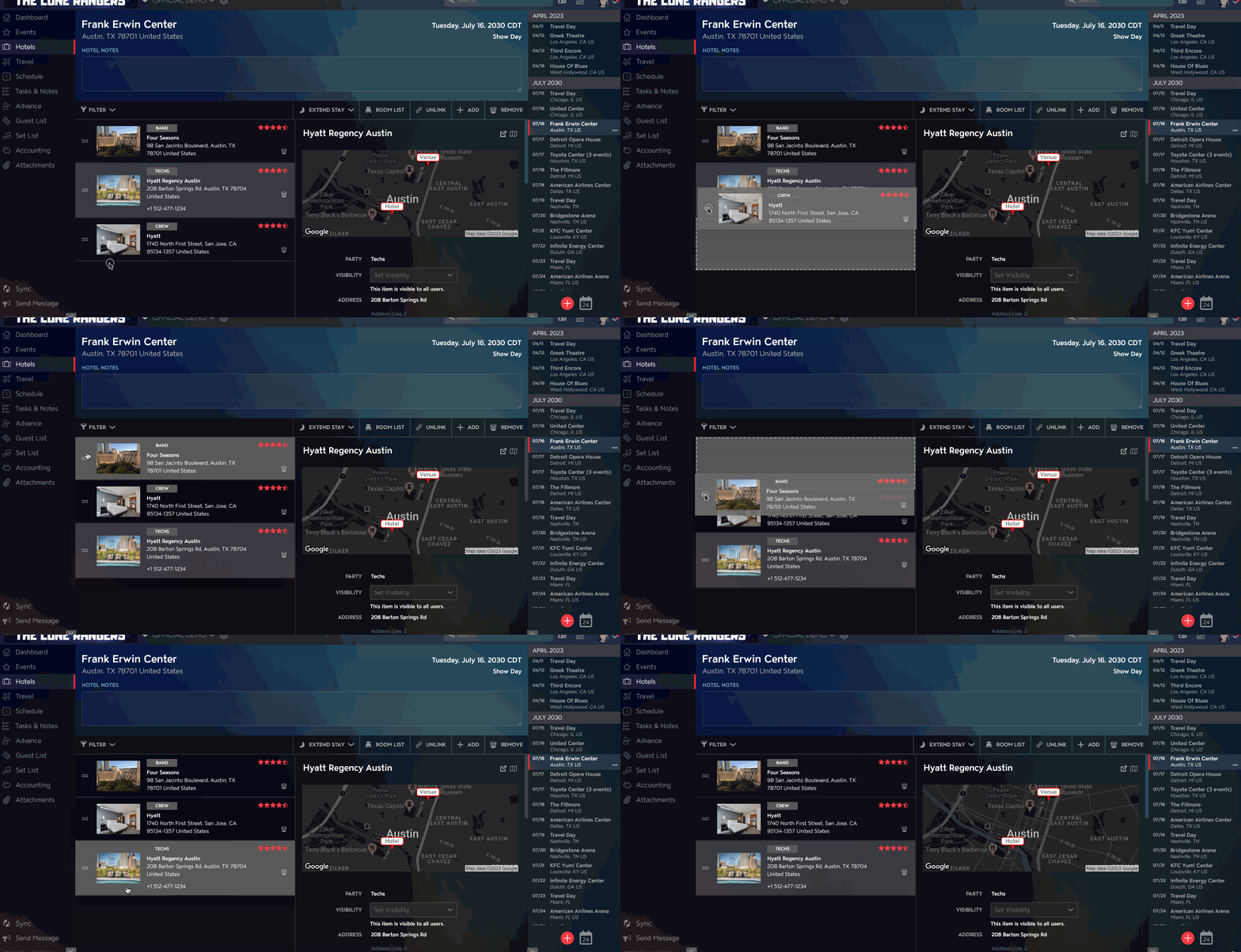
- When ready to apply the order, let go of the click + drag function to apply it.
Once your new order is applied, it will be both reflected on the desktop and mobile app.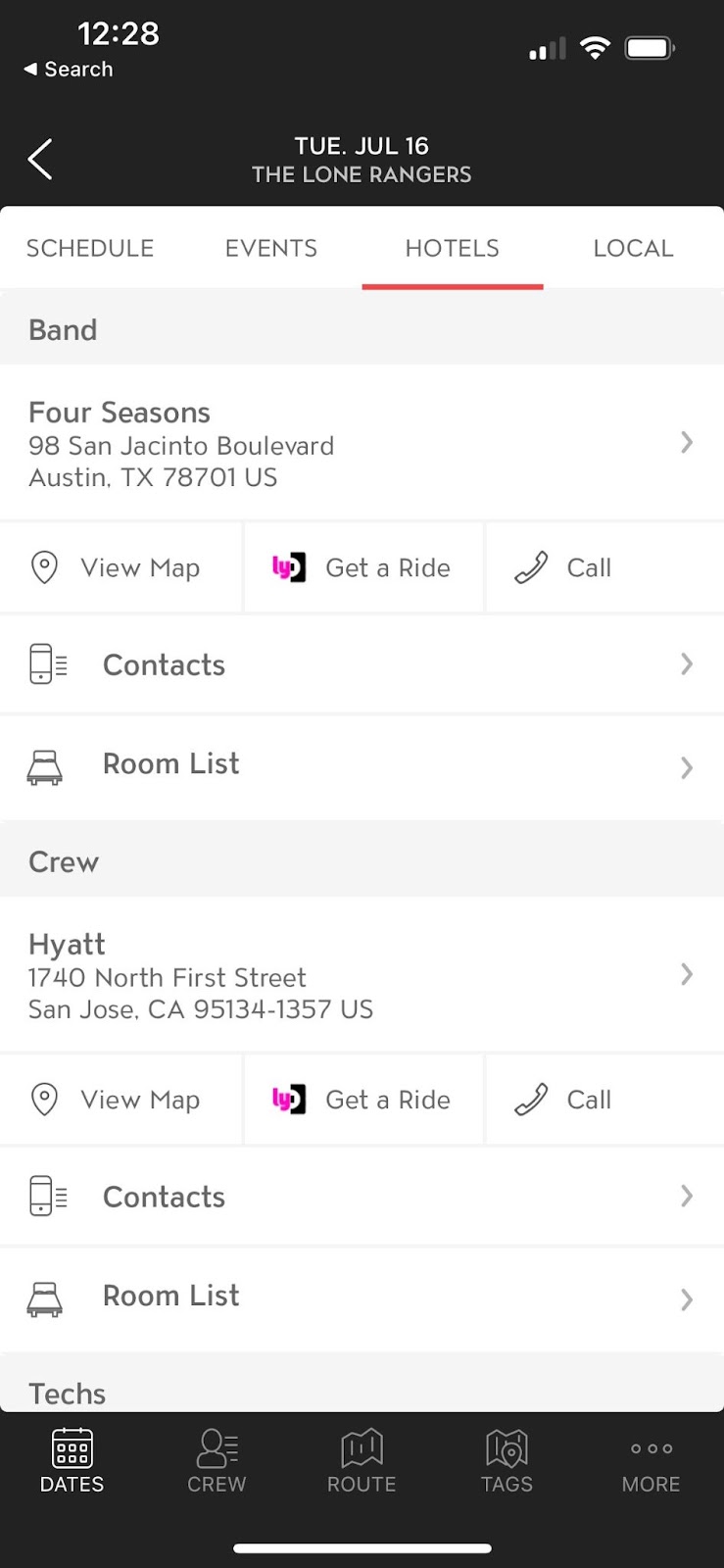
View The Room List On Master Tour Mobile
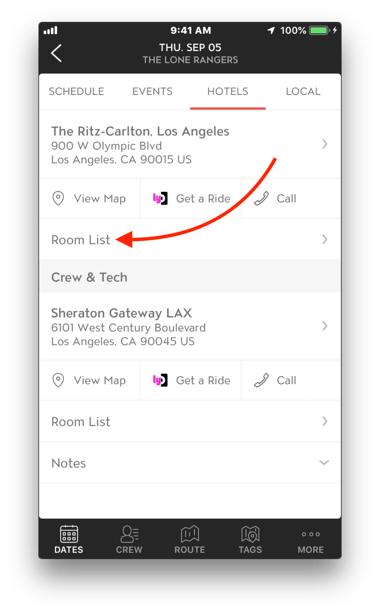
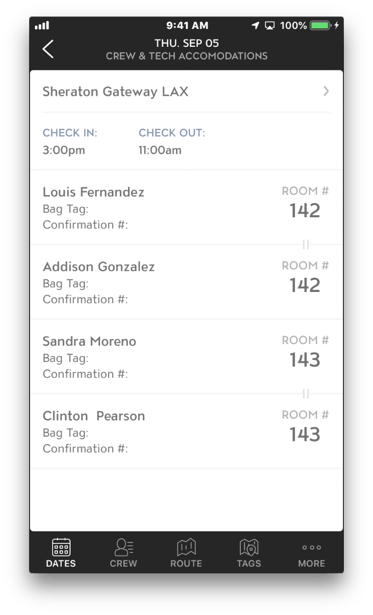
After loading up your Tour, select your date and the "Hotels" section. From here, you will see your Hotels listed and a "Room List" section below the Hotel record's name. Click on it, and you will open up the room list entered on Master Tour.
Add General Hotel Day Notes
Once you have selected your chosen Hotel, you can add general Hotel Notes for mobile viewing.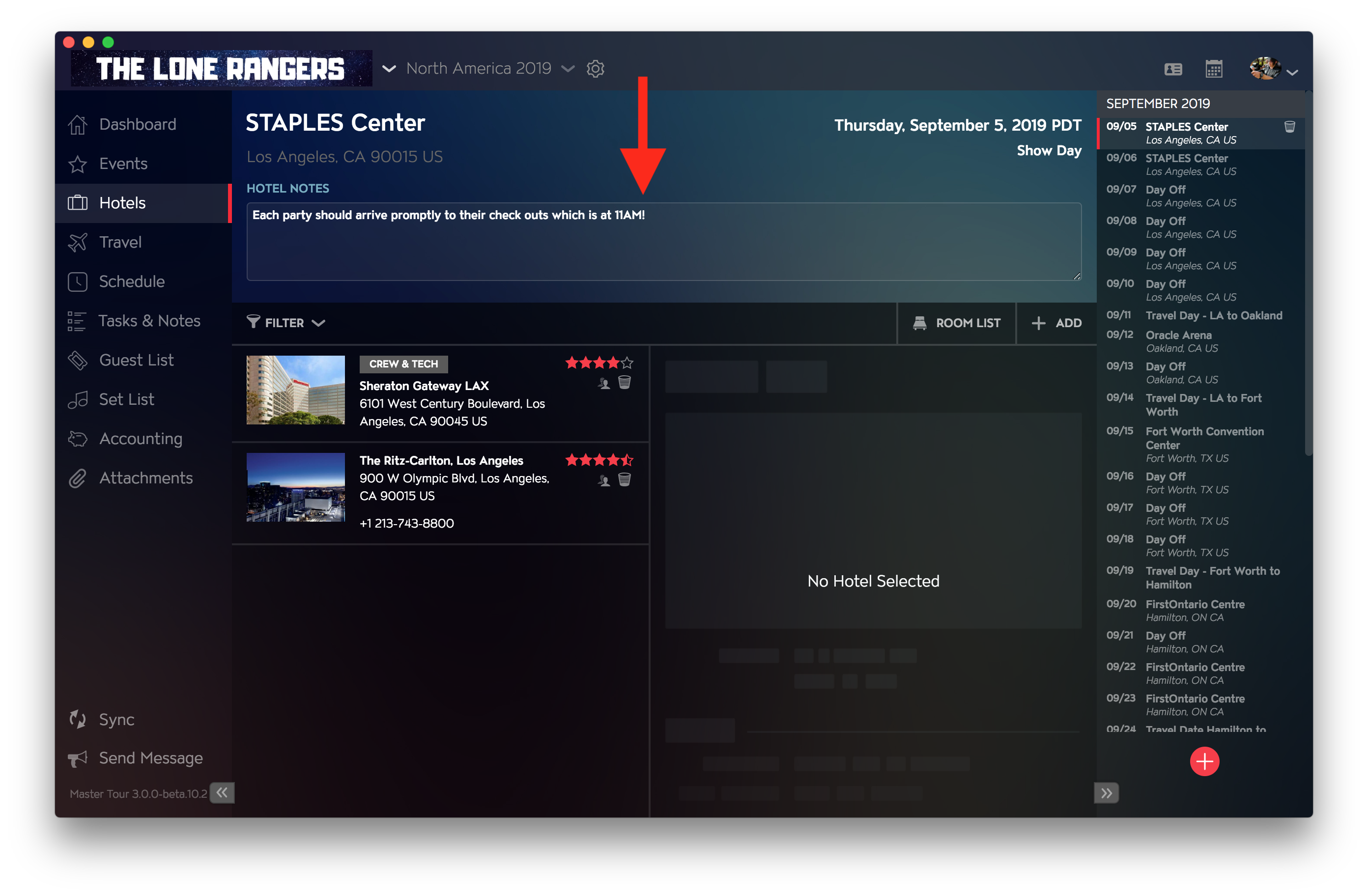
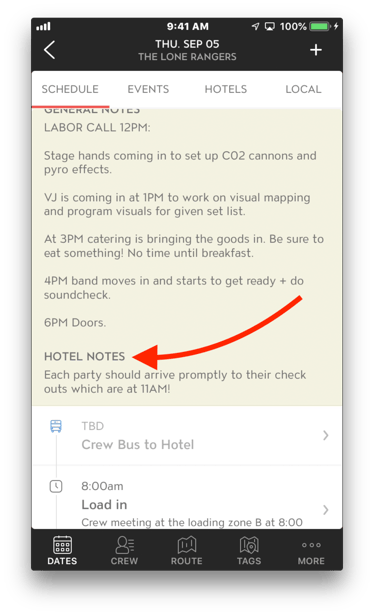
After adding the general Hotel Notes, you can view them from your mobile app by heading to the Hotel's date and looking under the "Schedule" tab, under "HOTEL NOTES."
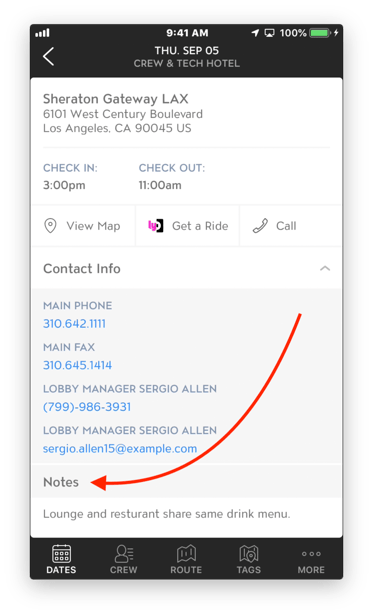
Add Hotel Notes To A Specific Record
Select the Hotel record you wish to add notes for. Scroll down on the right-hand menu until you've reached the "NOTES" area.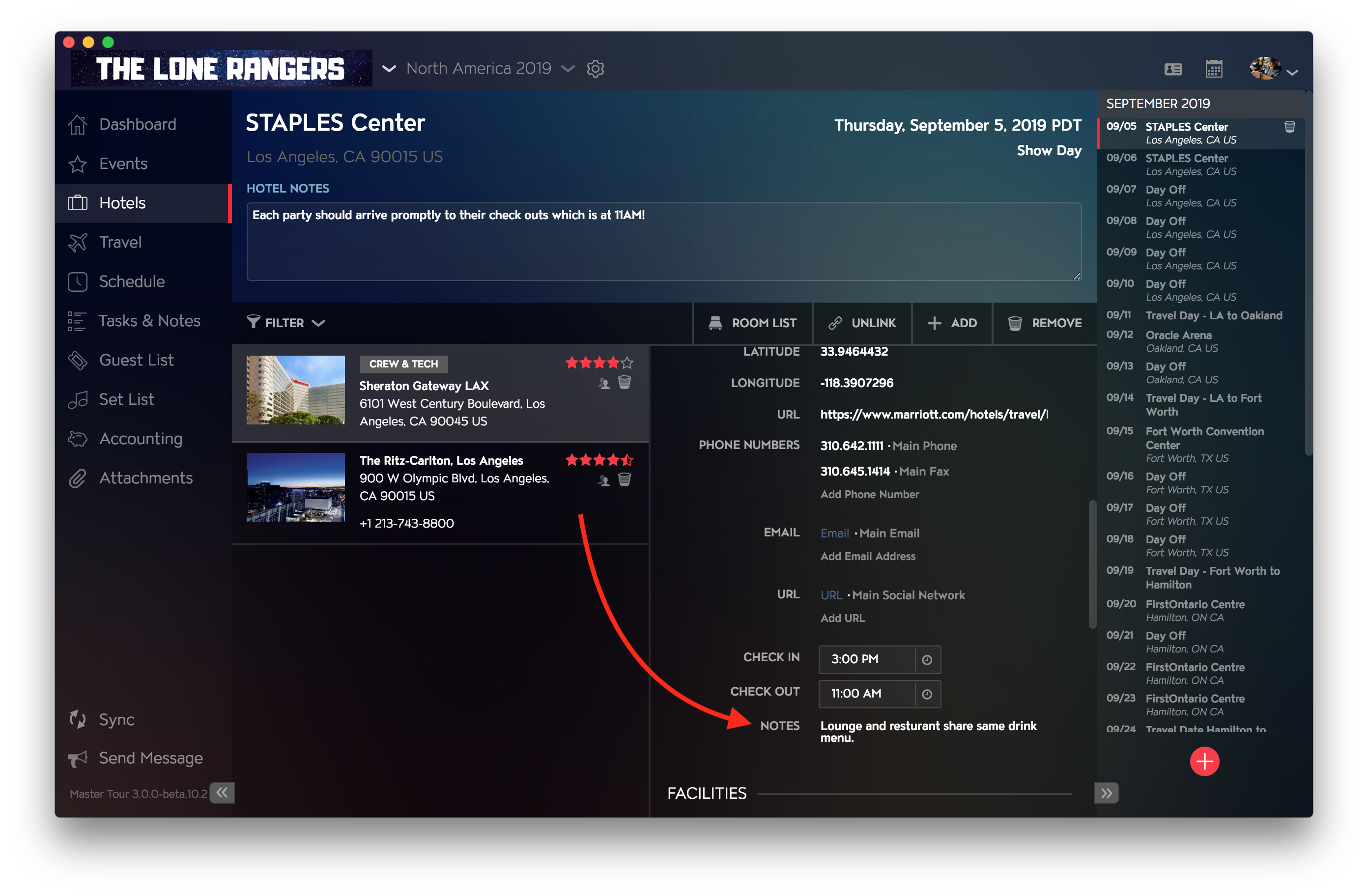 Add your info, and it will appear under your Hotel record on the mobile app under "Notes."
Extend Stays For Hotels
With Master Tour, you can reduce some time inputting Hotel info for multiple dates at the same location. If you happen to be staying at the same Hotel for multiple dates, you can easily extend the information by placing it for the first date and copying and pasting from there. Here's how to do so:
Click on the date you wish to extend the Hotel info onto. From here, click on the "EXTEND STAY" button on the top right of the menu.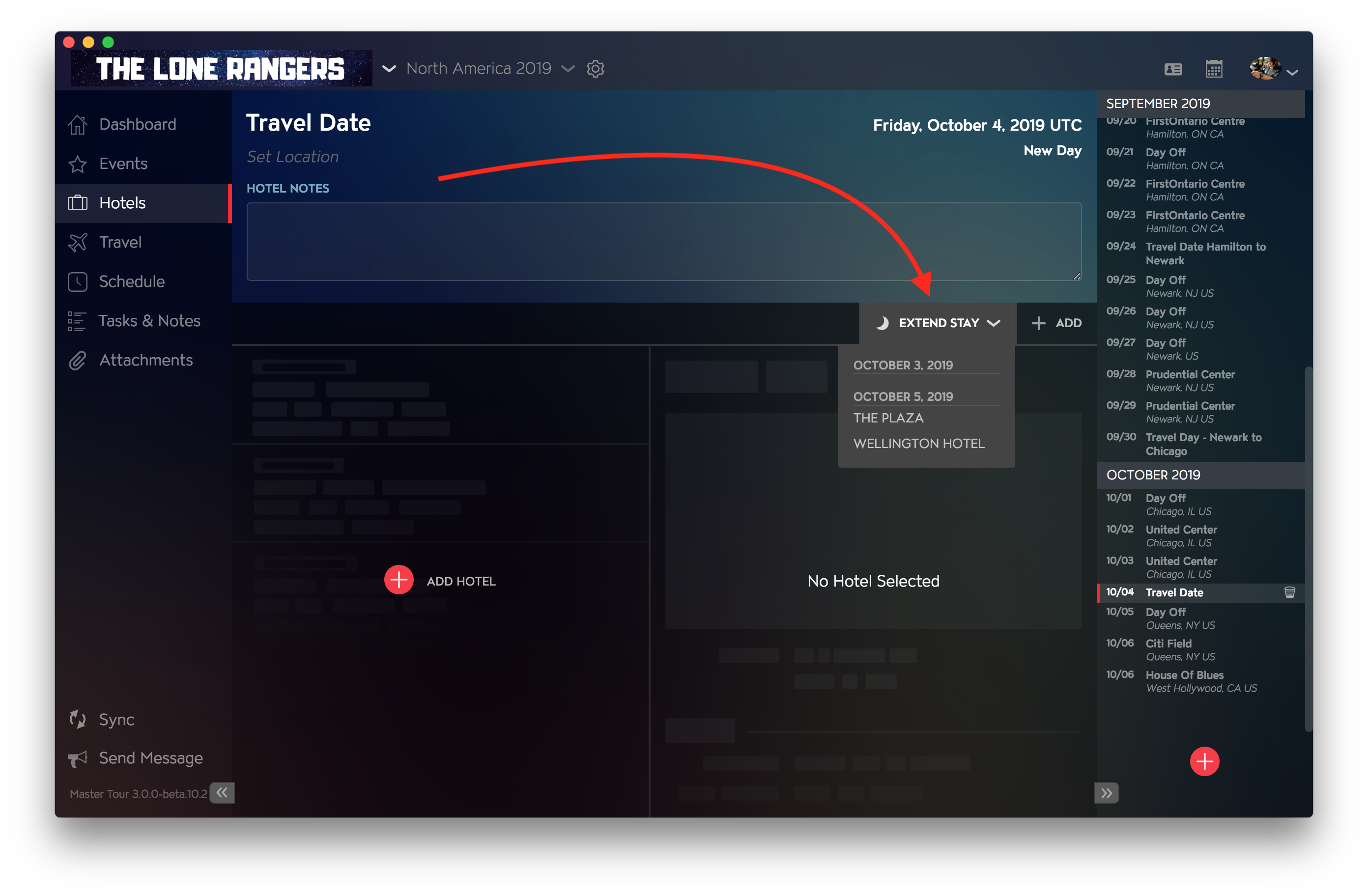
After doing so, you click on the Hotel(s) you wish to bring onto that date, and you're all set. Room List, contacts, check-in/check-out times, and URLs are also imported for you.
Unlink Hotels
In Master Tour, there may be the case where you wish to load the same Hotel record on an adjacent day but adjust the info slightly. If this is the case, you can unlink the new record and prevent updates to it affecting your other records.
From here, click on the Hotel record you wish to unlink and click on the "UNLINK" button on the top right.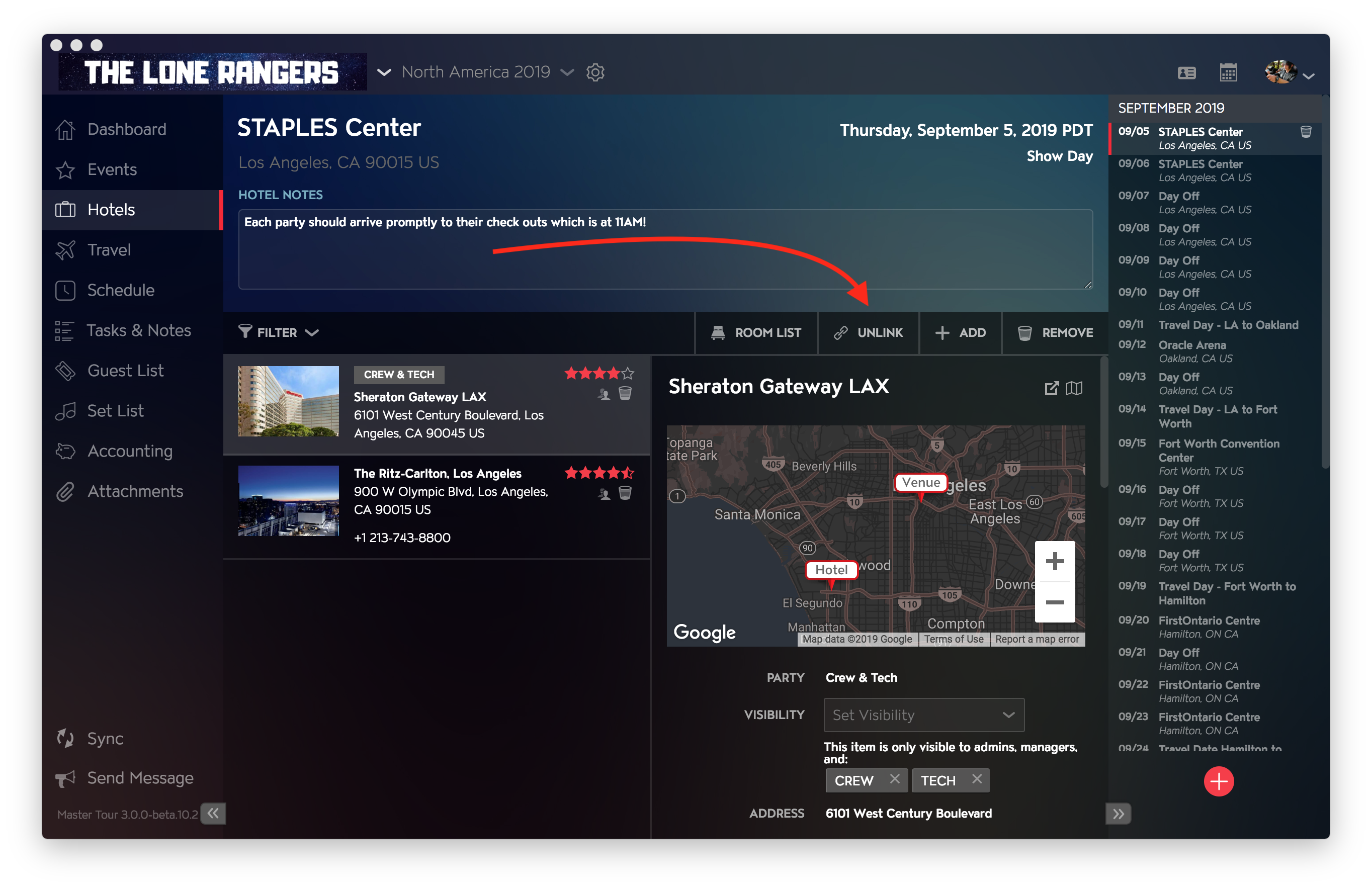
Remove Hotels
Select the Hotel record you wish to remove. Once you've selected it, you can remove the record by clicking "REMOVE" at the top right.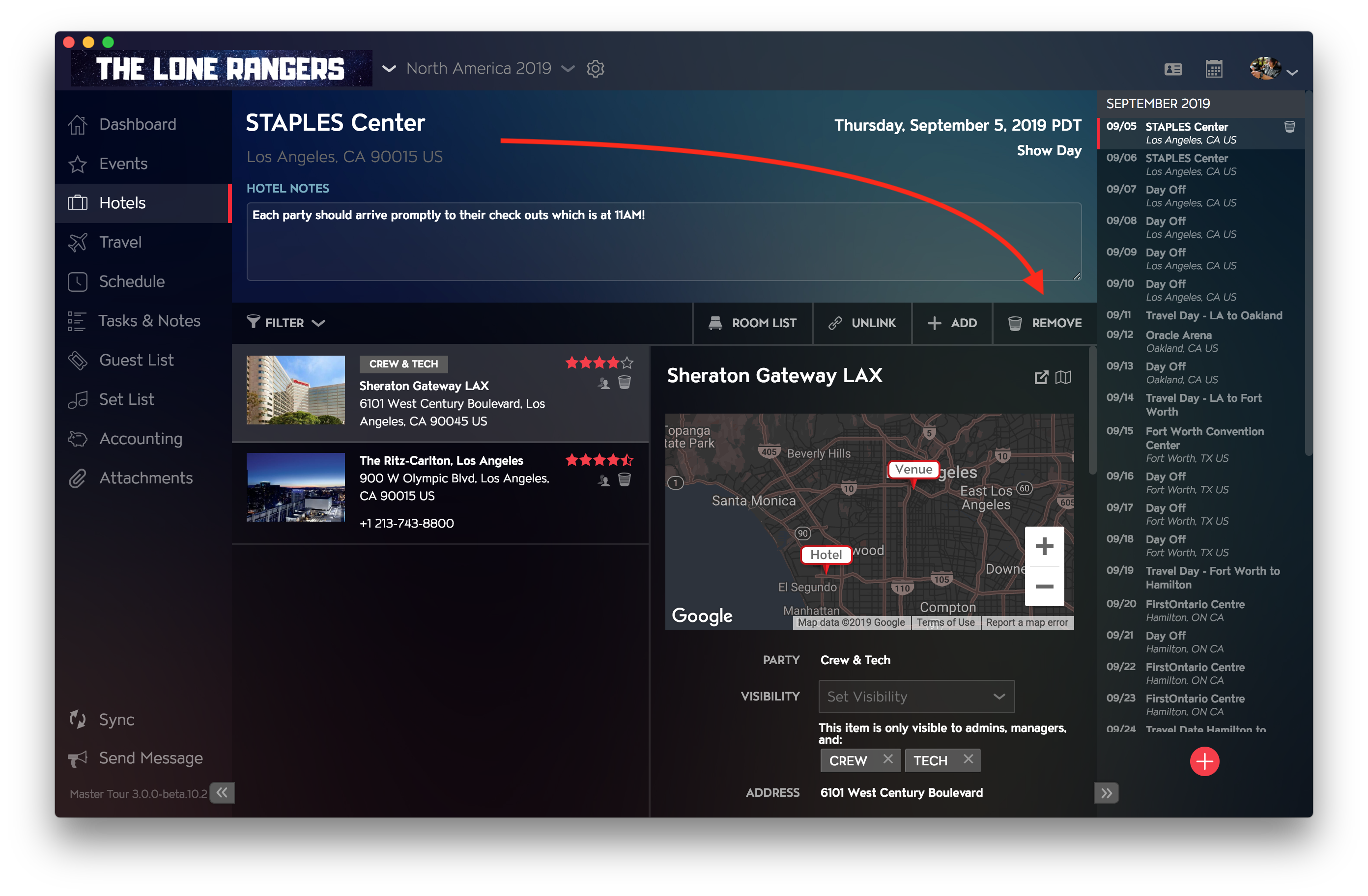
How and Why to Select Different Versions of the Same Hotel
Master Tour 3 uses a smart record matching system to check for any duplicate Hotel records across all of your assigned Organizations. When you add new Hotel record and a duplicate record already exists, you will be notified and shown the details of all of the found duplicates.
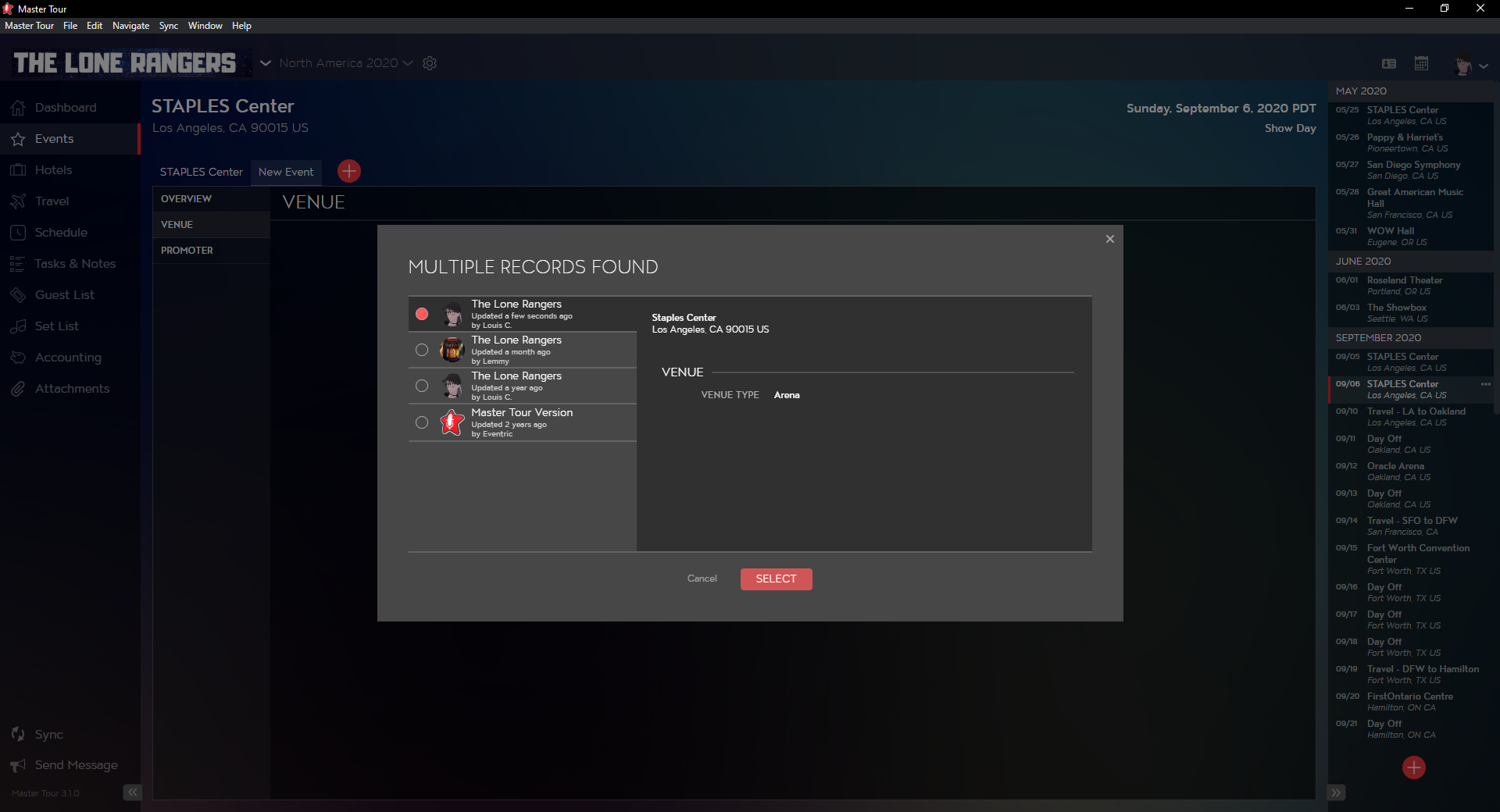
Creating a New Copy of an Existing Record for Your Current/Upcoming Date(s)
There are instances in any tour where you might consider using a new record versus updating the information in an existing record. There a Pros and Cons regarding the data in both scenarios.
Pros:
- Any information that is updated for this record will not alter other duplicates throughout your organization.
- Creating a new duplicate record with alternate information, you can easily re-apply it to any of your upcoming dates with the same Hotel.
Cons:
- Information is not carried over from previous records.
Using a Duplicate of an Existing Record for Your Current/Upcoming Date(s)
Pros:
- Information from the previously loaded record will be automatically applied to your event date. This includes key contacts, phone numbers, emails, and general notes about the Hotel.
Cons:
- Any alterations to the record once added to your new date, will also affect any previous dates with that record applied. This includes key contacts, phone numbers, emails, and general notes about the Hotel.