
Master Tour Mobile allows you to add Guests to the Guest List for each Tour Date and Event.
Note: You will need Guest List Submit, Guest List View All And Submit, Guest List Manage All, Manager, Accounting, or Administrator Organization Permissions in order to use this functionality. Click here for information on Organization Permissions.
Add Guests in the Web Portal
Click here to login and access the "My Tours" page at my.eventric.com.
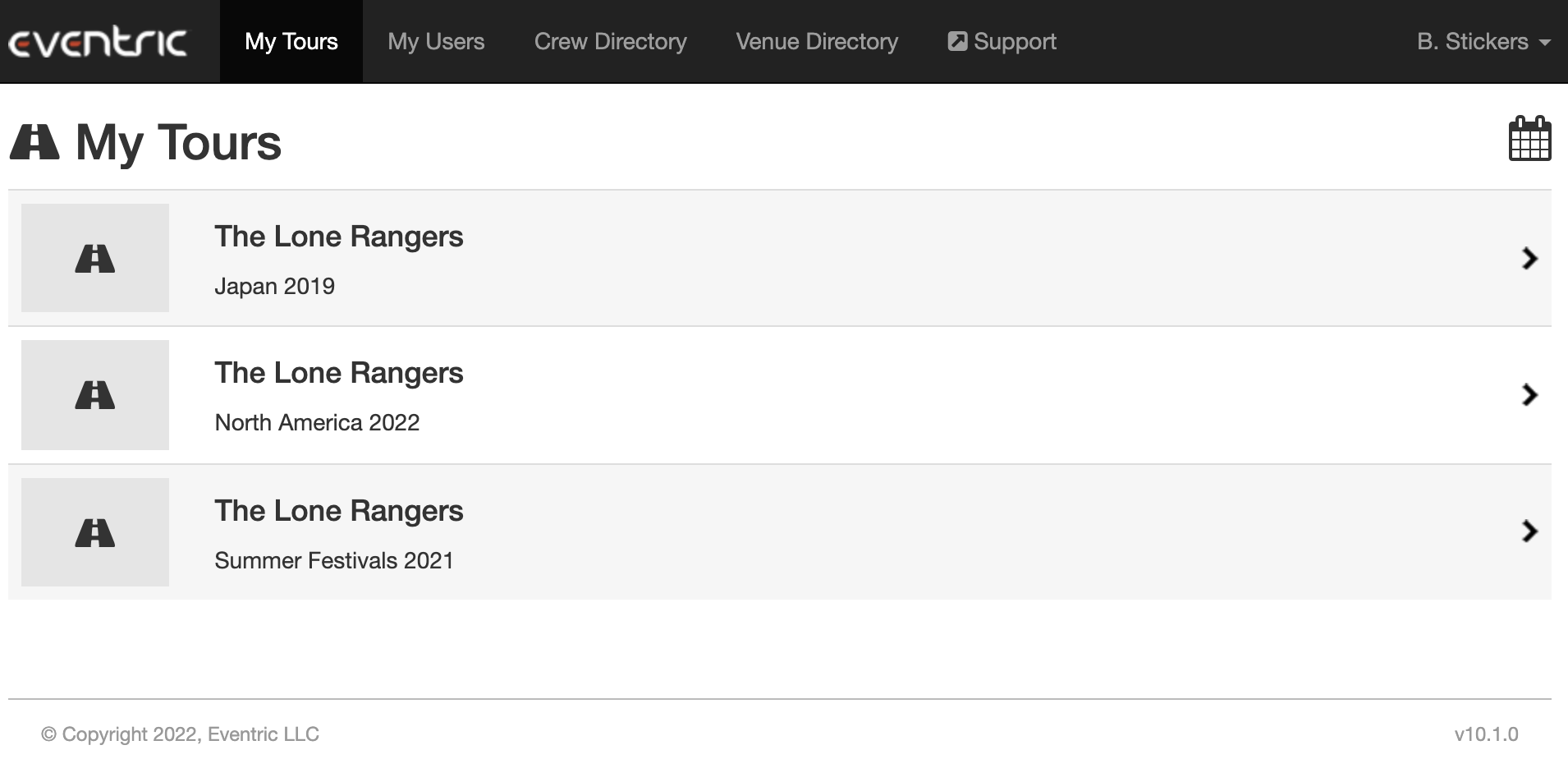
Next, select the Tour.
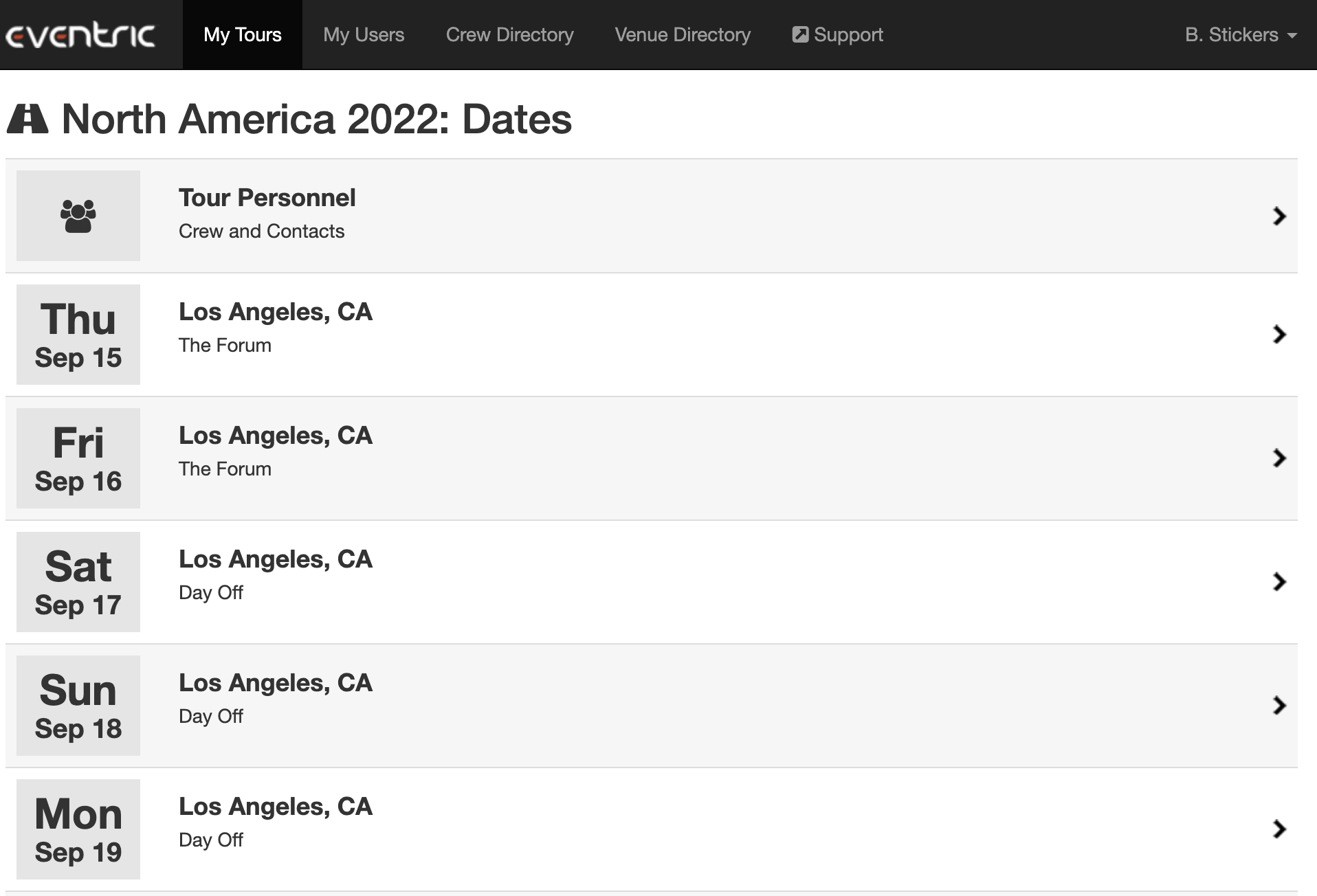
Next, select the Tour Date.
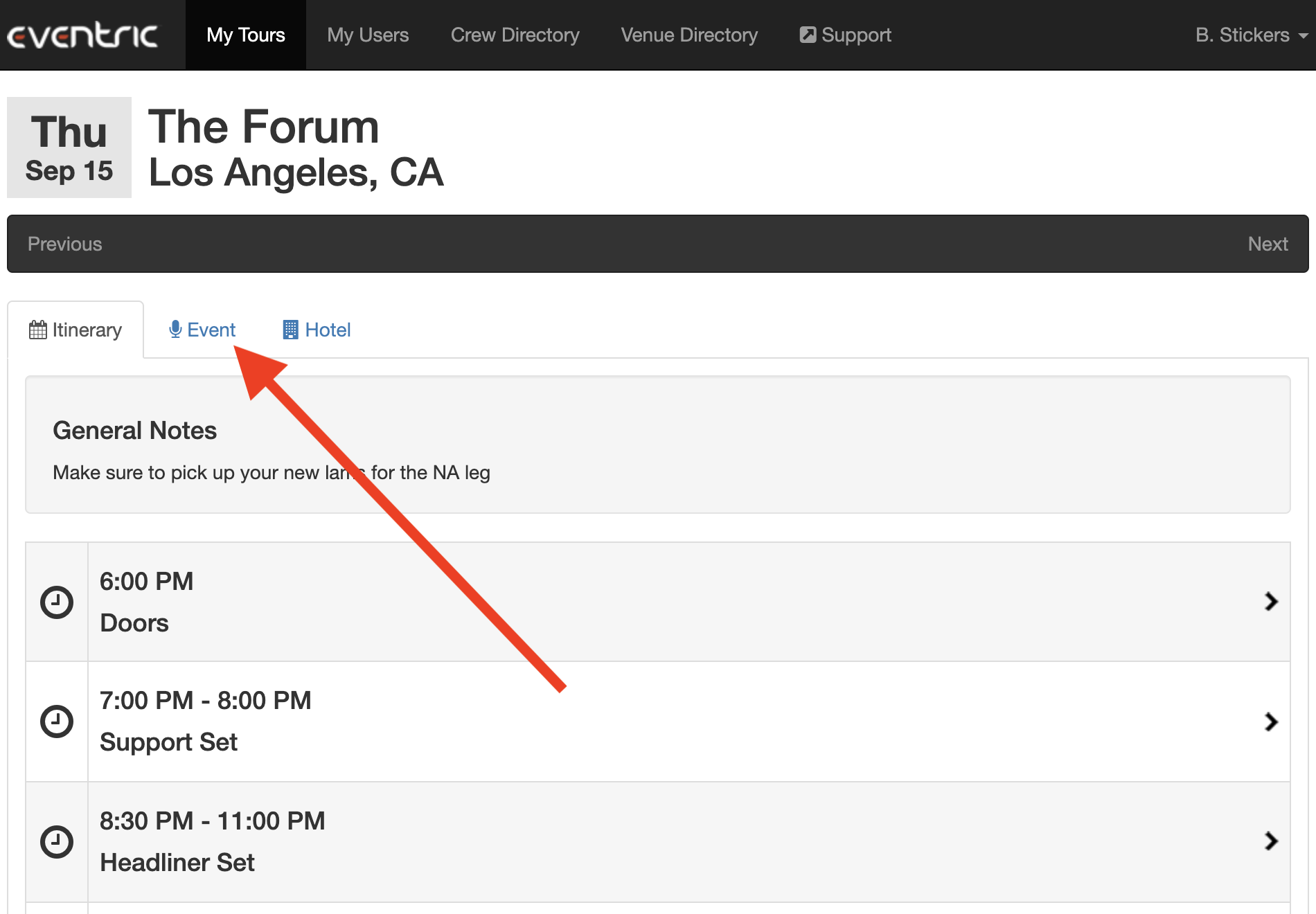
Next, select the Event tab
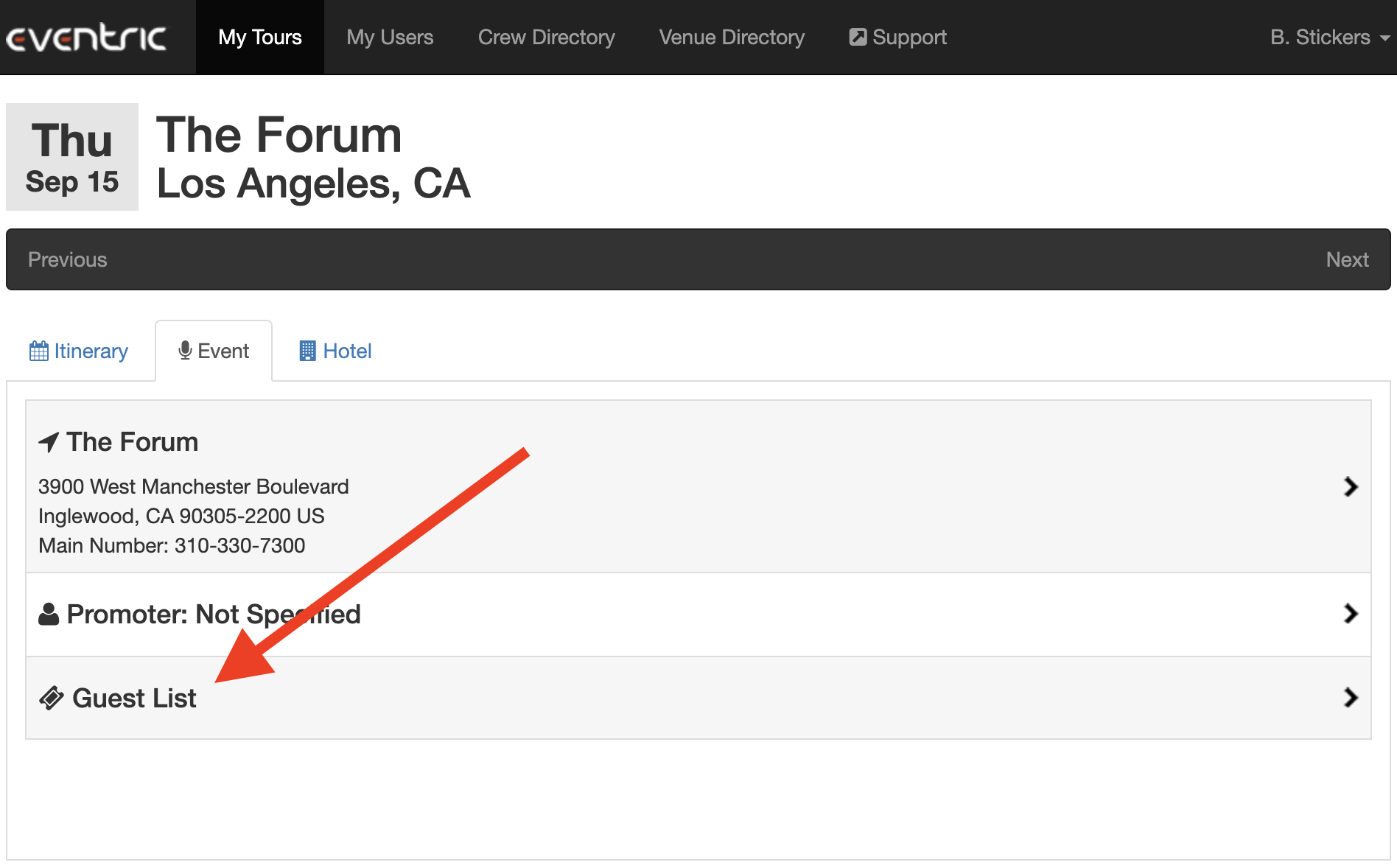
Then click into the Guest List section.
Click "Add New Request"
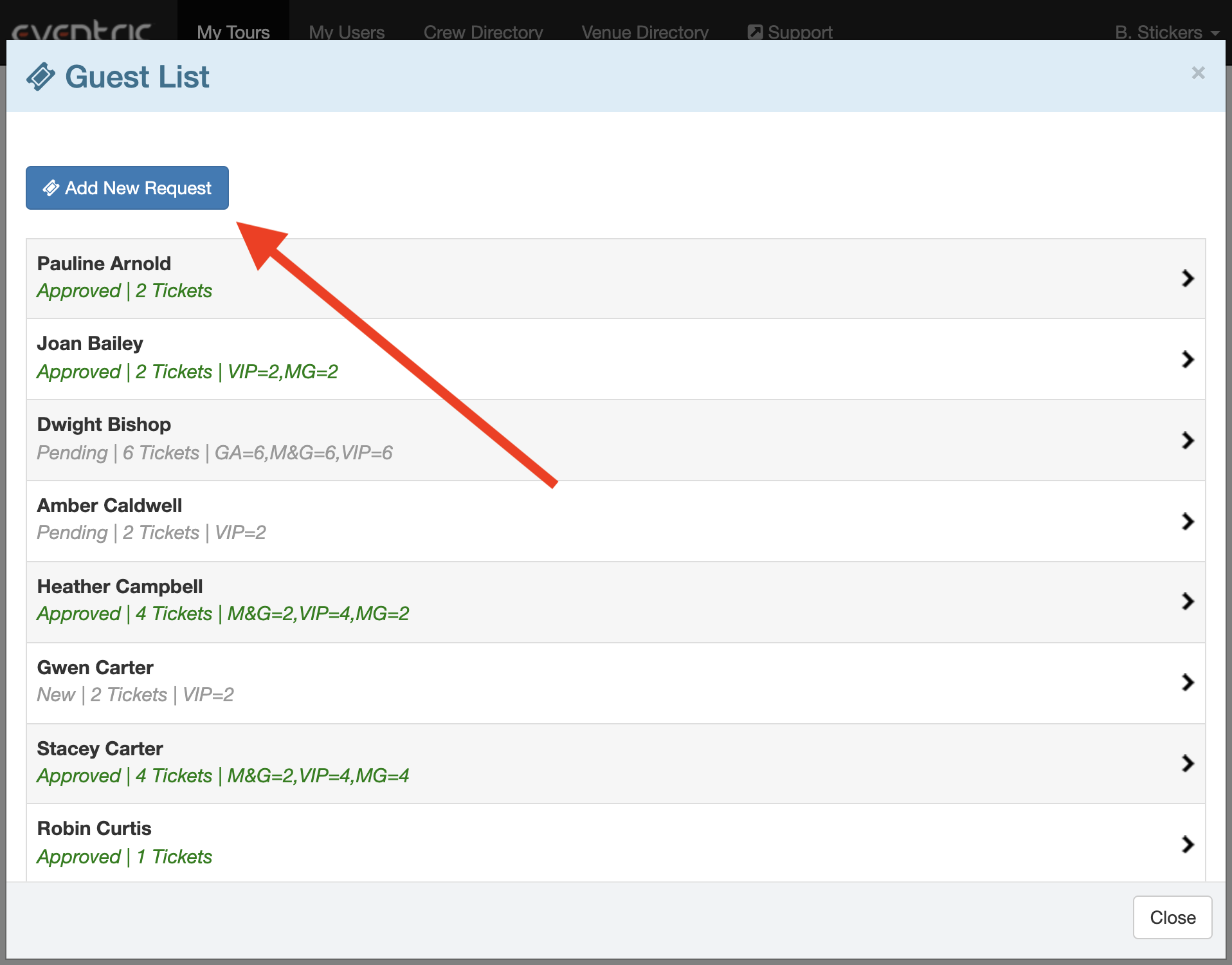
Fill out the New Guest form, then click Submit:
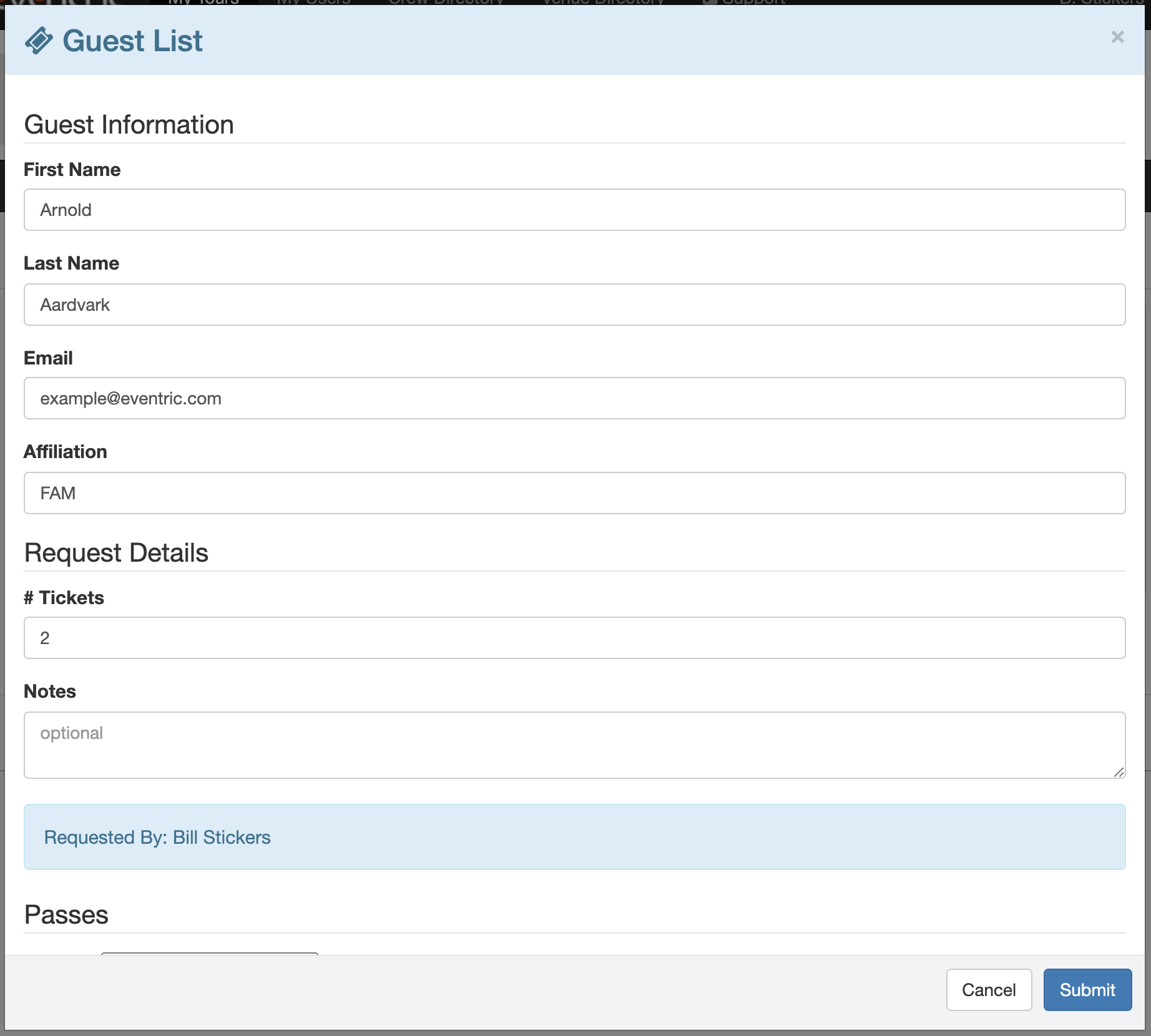
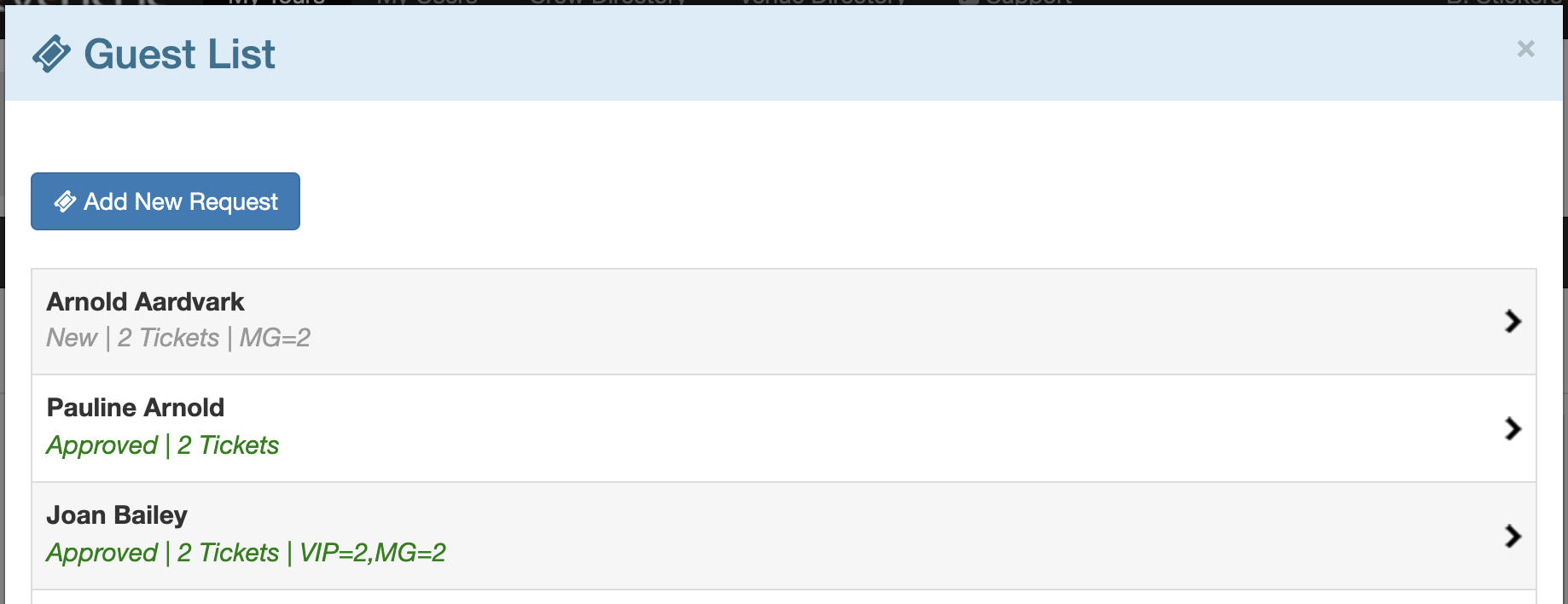
NOTE: Adding a guestlist request does not mean that the guest has been approved. The guest's status will be marked as "new" until someone with access to a Master Tour Professional account changes the status via Mobile or Desktop versions of Master Tour.
A Manager in your Organization may set a Guest List Cutoff Time, an Allotment, or they may Lock the Guest List manually to prevent users from submitting Guest List Requests in the mobile app. When that cutoff time has been reached or a guest list has been locked by a Manager, you'll see a warning in the Guest List, and you will no longer be able to submit Guest List Requests if you have Guest List Submit or Guest List View All And Submit permissions.

Users with Guest List Manage All or higher permissions will also see a warning but will still be able to submit Guest List Requests and manage the entire Guest List.
If a Guest List Allotment has been set and Enforced, then Guest List Submit and Guest List View All And Submit users will only be able to request the number of tickets that are remaining in the Allotment. For instance, if there are 10 tickets in the Allotment, and 8 tickets have already been approved for other Guest List Requests, you will only be able to request a maximum of 2 tickets for each of your Guest List Requests. Once an Allotment has been reached, a warning will appear in the Guest List and prevent Guest List Submit and Guest List View All And Submit users from submitting new Guest List Requests:

Users with Manage All or higher permissions have no restrictions in their Guest List Requests regardless of Allotment.